










:quality(80)/m/filters:format(webp))
:quality(80)/m/filters:format(webp))
Introduction
Remote support, remote assistance, remote access and remote desktop are often used interchangeably because they share features such as screen control and file transfer. For IT teams, however, the categories serve different workflows. Understanding those differences helps clarify which technology, or combination of technologies, a business actually needs.
What Is Remote Support?
Remote support is a remote connection workflow that is designed to enable IT technicians, help-desk agents or other authorized specialists to help a user, diagnose a problem or perform device maintenance.
The technician sees the problem system directly, not just a description or screenshot from a phone, and can interact with it with proper authorization. The goal is usually an intervention, not just giving the technician a remote location to work.
Typical remote support activities are:
- troubleshooting software
- configuration changes
- transporting diagnostic files
- apply updates
- verify system information
- keeping workstations or servers running
Thus, remote support is best seen as an IT service workflow, centered on the relationship between the person giving help and the device receiving help.
Attended Remote Support
Attended remote support involves someone being present at the target computer. Before a technician can view or take control of the device, the user can initiate a support client and provide a session code or accept an incoming connection.
This model is especially well suited to help-desk and customer-support situations. The technician can research the fault while talking with the user, explain what is going on and hand control back when necessary.
Often the workflow is around user consent, as someone else is actively using the device.
Unattended Remote Support
Not all remote support cases need an end user to be present.
For unattended access, IT can pre-authorize managed devices so technicians can connect without waiting for someone at the endpoint to accept each session. This makes remote support valuable when:
- Maintenance on call 24/7
- software updates
- server administration
- remote interventions on workstations
“Attended” vs. “unattended” access is not a good dividing line between remote support and remote access. Both types of connections are un-attended. The difference with remote support is that the primary purpose of the session is to support, troubleshoot or maintain the target device.
What Is Remote Access?
Remote access is the ability that a permitted individual has to interact with computer systems from anywhere else other than their physical, geographical location or that they log in from.
NIST describes enterprise remote access in terms of users reaching an organization’s non-public computing resources from external locations. That broad definition is useful because remote access can involve far more than taking over another user’s screen.
A remote desktop connection can allow a worker access to an in-office desktop, IT admin access to a server, a contractor use of a remote-published application or branch-office employee use of a remote-host desktop.
Direct Remote Desktop Access
A familiar model of enabling user to remotely access one computer is Direct Remote Desktop Access. Keystrokes and mouse movements are sent to the specific desktop and the desktop graphics displayed to the initiating machine.
This can be a one-to-one interaction with an employee office, server or virtual PC. It can be an everyday connection, or an infrequent access method.
Another concept is also exemplified here with why it's possible to become confused with the terminology. The underlying capability can be identical (a direct, unattended connection to a workstation), however there's either an employee utilizing it for routine work or IT personnel attempting to update a workstation.
Remote Application and Desktop Delivery
Furthermore, remote access allows centralization of some, or all of the delivered resources rather than just control over the single physical point of control.
The Microsoft Remote Desktop Services, for example, would give users access to either the entire desktop or just applications published using RemoteApp; this would run the software on top of centralized resources allowing organizations to maintain business applications centrally but give end users the ability to access it remotely.
The application publishing approach is arguably most applicable for Line of Business and other Windows applications that an organization does not wish to install or maintain on each client individually.
Therefore, remote access and remote control are not the same and can be provided for anything, from controlling a single PC right through to delivering shared desktops or application environments to large numbers of remote users.
Remote Support vs Remote Access: How Do They Compare?
The two categories overlap technically, so comparing features alone can be misleading. Comparing the intended user, target resource and outcome gives a clearer picture.
| Comparison | Remote Support | Remote Access |
|---|---|---|
| Primary purpose | Assist, troubleshoot or maintain | Use a remote computer, application or system |
| Typical user | Technician, help-desk agent, MSP | Employee, contractor, administrator |
| Typical target | User endpoint or managed device | Workstation, server, desktop, app or hosted resource |
| Session context | Support or maintenance intervention | Work or administrative requirement |
| Interaction model | Often technician and user collaborate | Usually independent use of the resource |
| Attended access | Very common | Possible, but not usually required |
| Unattended access | Common for maintenance | Common for normal authorized access |
| Provisioning pattern | Often incident or device driven | Often user, role or resource driven |
| Typical outcome | Fault resolved, device maintained or user assisted | Work or administrative task completed |
These are tendencies, not strict rules. Remote access may be of the type provided by a support tool where it remain and without attendant or a server might be accessed once by an administrator, then logged out.
The significant thing here is the purpose of the connection.
How Do Remote Support and Remote Access Work Differently?
Remote-control technology can be embedded into vastly different operational processes: When the whole session, not just the point in time a remote screen appears, is examined, this becomes much more obvious.
A Remote Support Workflow Starts With an Intervention
A typical attended remote support sequence is:
Problem or request → support session → diagnosis → technician intervention → resolution
The connection exists because a device or user requires assistance.
Therefore, remote support platforms usually focus on specific utilities that are of use on an intervention:
- screen sharing
- remote control
- chat
- file exchange
- session recording
- screenshots
- system information
- multi-monitor support
- collaboration between technicians
Unattended support affects the way that the connection starts, but the reason to make the connection stays the same. As before, the engineer will still connect to a workstation because something needs attention or maintenance.
A Remote Access Workflow Starts With an Access Requirement
A typical remote access sequence looks different:
User authenticates → authorized resource is presented → user works → session ends
None of these events is necessary.
Generally, the system is already setup by IT for certain users to access certain computers, or programs, or desktop, the remote connection then became a part of their day-to-day operations or administrative environment.
Thus, for each R/A platform may focus on the:
- authentication
- user assignment
- desktop or application publishing
- session management
- gateways
- centralized delivery
Where Do Remote Support and Remote Access Overlap?
You would also need to stop using the distinction of remote support and remote access, with an arbitrary technical line separating them: capabilities that can function for both Remote Support and Remote Access (the “and”).
Based on the product that you use, there can be features:
- screen viewing and remote control
- authentication and encrypted connections
- file or clipboard transfer
- multi-monitor operation
- unattended access
- remote server administration
What changes is the context around that feature.
For instance, a "file transfer.". While on a support session, you could send a configuration file in order to solve an issue. When connected to the user remotely, your employee can transfer a business document from the local machine to the remote machine and back.
This feature is the same in both cases, the context around it is not. While the first case implies a relationship of "end user", the second is ruled by governance requirements.
This is why buyers shouldn't just segment the market through a single feature such as remote desktop control, or unattended access.
When Remote Support Can Be The Right Fit?
Remote support is the best choice when IT needs to reach devices or users in order to investigate, assist or intervene.
Help Desks and Internal IT
For an internal helpdesk, direct remote support helps to negate the need to indirectly troubleshoot issues. When remote support is used, technicians can see exactly what the user sees, recreate the fault and take control of the issue from within that machine.
This will prove particularly helpful when workers are spread out across different locations or working remotely, and for many endpoints issues, neither the user nor the technician will need to be present.
MSPs and External Support Providers
MSPs often deal with hundreds, if not thousands, of devices across multiple customer sites. Attended sessions can serve when a customer needs IT assistance. Authorized unattended access can enable ongoing maintenance when clients are busy.
Other technician-friendly tools are useful when multiple support agents are working together on multi-layered incidents or have access to the hardware of various companies.
So remote support becomes another delivery tool offered by the MSP, rather than an MSP’s primary customer work environment.
Maintenance and Administration
Remote support does not necessarily involve only a user-facing help desk.
Unattended connection can allow an admin to perform system updates or investigations or other maintenance tasks at any hour-it's perfectly understandable to frame an activity as "remote support" if the ultimate outcome is a fix, correction or intervention, even when no user sits behind the remote computer at all.
This type of interaction is probably one of the most commonly confused "remote support" and "remote administration" interactions.
Training and Guided Assistance
There are times when nothing has gone wrong. A trainer, support agent, or senior staff member could use screensharing with keyboard control to demonstrate a process or a particular program to somebody.
As both the viewer and controller can both actively participate, the remote access tool will often make a good choice for assisted, rather than entirely unassisted, work remotely from a hosted virtual resource, where only independent user access is intended.
When Would You Need Remote Access?
Remote access might fit situations where the objective is ongoing or occasional use of resources located somewhere else.
Remote and Hybrid Work
To get work done, work from home employee might actually need an office PC or a hosted Windows Desktop or a Business application which sits inside the organization.
Remote Access can give that connection in addition to an employee’s environment. The employee is not receiving technical assistance. They're simply working from a remote location with what they're approved to use.
This is a really important differentiation now that organizations are shifting from a situation of occasional work from home to a reproducible hybrid work environment.
Centralized Application Delivery
Some applications are simpler to be controlled centrally than installing one on each end user device. In an organization they can take one of their Windows LOB apps, run it on some server infrastructure and use a remote access method instead. A good example is the use of Microsoft Remote Desktop services, which support both session-based desktop environments and RemoteApp publishing.
Central delivery can also lead to easier application patching.
Since the software is running, instead of being managed on individual hosts, is managed on servers.
Contractors and Distributed Teams
Most external users require only limited access to internal company resources without being treated as remote technicians. They could be: An IT contractor with a single required application. Another company office user requiring full remote desktop access.
A well-configured remote desktop environment can provide resources based on specific users or groups.
From this, the relevant question becomes not “which device need to be troubleshot?”, but instead: Which users can be connected?
Server and System Administration
Additionally, Administrators are dependent on a solution for infrastructure administration that needs remote access to be provided to IT operations staff and other users.
Remote access used for this scenario may provide a view of the grey areas between the above. The administrator could be using direct remote desktop access and remote support software for a particular desktop endpoint in this scenario without being forced to include both actions within the same management console that does not allow for multiple access methods, required authentication, controls or workflow.
How Are Security Priorities Differing?
Neither remote support nor remote access is inherently more secure because of its category. Security will depend on:
- architecture
- configuration
- authentication
- privileges
- operational controls
NIST guidance on enterprise remote access recommends treating externally accessible resources and client devices as part of the organization’s threat model.
This policy holds whether the remote user happens to be a home-based employee or a technician, located externally. With remote access, managing the identity of the remote worker and the resources available is of critical importance to IT. Namely, who should be permitted to access this environment, which desktops or apps they might need to reach, how authentication is protected and revoked should that worker change positions or leave the enterprise?
With remote support, the list goes on.
Once again, IT controls: who’s permitted to operate as a support technician, when there is a need for user consent, which devices will allow unattended access, and where might there be a need to monitor privileged support sessions.
Here, the lease privilege principle can again be used effectively. A home-based worker likely does not require full network access solely to access a single business application. Conversely, an IT support technician probably does not need unattended administrative access to every endpoint IT manages.
Would You Need Remote Support, Remote Access or Both?
For many organizations, the answer to both questions is yes, since the two types of technologies cover different aspects of the same overall remote environment.
For example, think of a scenario where remote workers can access center hosted applications in order to do their jobs. Those users require remote access, and when they have problems with the configuration of a local resource such as a workstation, the helpdesk might need remote control to take a look.
A helpful selection rule is to:
- Choose remote support when technicians primarily need to troubleshoot, assist or maintain devices.
- Choose remote access when users primarily need to reach computers, applications or hosted desktops to perform their work.
- Choose both when remote users need company resources and IT must also support the endpoints from which those users connect.
The IT department needs to consider in more challenging environments whether the needs refer to individual machines directly or published resources centralizing them and that will affect the category of product much more than if the unattended or attend use is happening as a matter of chance
Why TSplus Remote Support is the Perfect Solution for IT Assistance?
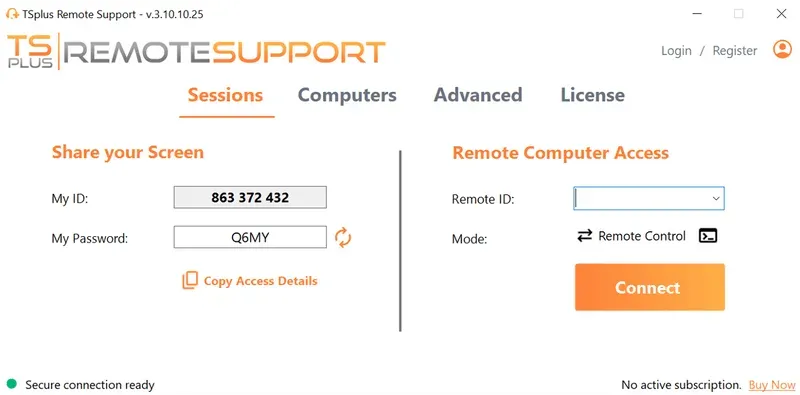
For organizations that need the support side of this equation, TSplus Remote Support provides attended and unattended remote assistance for internal IT teams, help desks and service providers.
Our solution supports remote screen control, file transfer, chat, session recording, multi-agent collaboration and remote device management. Current TSplus options support Windows and macOS endpoints, connections from Android devices, and cloud-hosted or on-premises deployment.
For IT teams that need to troubleshoot users and maintain remote endpoints without turning every support interaction into a full remote-access infrastructure project, this solution provides a dedicated support workflow.
Conclusion
Remote support and remote access rely on many of the same technologies, but they serve different operational goals. Remote access gives authorized users a way to work with remote computers, applications and systems, while remote support helps IT teams assist users, troubleshoot problems and maintain devices. For most businesses, the right choice will depend on who is connecting, what they need to reach, and why.
TSplus Remote Support Free Trial
Cost-effective Attended and Unattended Remote Assistance from/to macOS and Windows PCs.
:quality(80)/m/filters:format(webp))
:quality(80)/m/filters:format(webp))
:quality(80)/m/filters:format(webp))
