








:quality(80)/m/filters:format(webp))
:quality(80)/m/filters:format(webp))
Introduction
When Windows Server refuses new Remote Desktop connections, identifying the source of the failure is essential before restarting services or the entire server. Is the problem affecting one user or multiple sessions? This article walks IT administrators through the possible causes, practical troubleshooting commands and recovery procedures, from initial checks to more advanced diagnostics and prevention measures.
What Does It Mean When A "Remote Desktop Services Is Currently Busy" Message Appears?
The error occurs when Windows fails to perform the requested Remote Desktop Protocol (RDP) function or action. Generally, the error message that appears states:
‘The task you are trying to do can’t be completed because Remote Desktop Services is currently busy. Please try again in a few minutes. Other users should still be able to log on.’
Although the error message implies that the system is unable to add another session and that the remote desktop is at maximum capacity, it might not be the case
The error might occur on a single user account or multiple user accounts. If the former is the case, it should be possible to restart the session. However, if the latter is the case, the system might not allow any user to establish a connection.
In addition, the issue might affect either a single user session or all user sessions. It is essential to differentiate between the two scenarios because the solutions required to address them differ.
Microsoft Learn's RDS session connectivity troubleshooting guidance provides additional checks for identifying connection failures affecting Windows Server hosts.
What Are The Causes Of This Error?
There are several Windows Server components that are involved in establishing an RDP session. Issues with managing the session, with system resources, with Windows services or with the process of logging on can prevent the connection from being established.
Stuck or Unresponsive RDP Sessions
A session might freeze as it connects, disconnects, reconnects or logs off. Then Windows fails to complete the session or release its resources.
Administrators can find sessions that refuse to reconnect or log off. The problem might occur in one session only, even if others work properly.
Yet a disconnected session is normal and should only be reset if it locks up.
Resource Exhaustion and Logon Storms
Insufficient resources may delay or prevent session initialization. The most common issues are CPU saturation, memory shortages, excessive disk activity and slow profile loading.
Such problems are especially prominent during logon storms when hundreds of users establish Remote Desktop connections simultaneously. Authentication, Group Policy, profile loading and application launch activities generate significant load on a shared Remote Desktop Session Host.
However, high resource utilization is not a requirement for encountering this error. Some session processing failures take place even if CPU and memory utilization rates are low.
Memory Leaks and Third-Party Software
Memory leaks and session objects that are not released properly can impair the Windows Server's capacity to accept remote connections.
This issue is especially notable in cases when restarting the machine restores normal functionality, but the error returns after several hours or days.
The application of third-party software that somehow works with the Windows sessions can also be the reason. This includes endpoint protection agents, security filters or similar software that might interfere with Windows sessions.
Since these drivers are usually not unloaded when the corresponding system service is stopped, investigation of such hypotheses require a more thorough approach than just stopping the service.
Group Policy and User Profile Problems
The group policy dictates remote access permissions relating to connections, session limitations and other features of Remote Desktop Session Host behavior. The wrong permissions or conflicts between the policies can cause connection problems.
Group Policy Client service failures can also interfere with the Windows logon process.
At the same time, Windows is unable to complete the session if something goes wrong with the user profile. In this case, administrators should focus on User Profile Service, check if the user profile storage is available and consider FSLogix or other tools for managing user profiles if long login sessions coincide with connection issues.
What Do You Need To Do To Fix This Error?
Troubleshooting actions should be taken from general to specific and proceed from non-disruptive tests to targeted session recovery and restart of services or servers only if necessary.
The following procedure can be used to narrow down a problem without disrupting users' work.
Step 1: Determine Whether the Problem Affects One User or the Server
Wait briefly and then try again. The issue may correct itself due to momentary contention for resources or a delayed logon process.
If the connection still fails, broader RDP connection troubleshooting may help rule out network, client configuration or connectivity problems before investigating Windows Server session management.
Determine the scope of the problem if it persists:
- Can another user establish a connection successfully?
- Are existing RDP sessions operational?
- Do the failures occur before or after successful authentication?
- Did the issue appear before or after a Windows update or configuration change?
- Can the administrator logon locally using the server console?
In the case of virtual machines, consider that hypervisor console connections do not use RDP. If you are using Hyper-V, you must use the Basic Session type because Enhanced Sessions use RDP.
If console logons are failing, investigate Windows level logon or operating system issues rather than RDS specific problems only.
Step 2: Check Windows Server Resources
Once administrative access is available, examine CPU utilization, available memory, disk activity and storage capacity using Task Manager or Performance Monitor.
For a quick check of system drive space, run PowerShell:
Get-Volume -DriveLetter C
To identify processes consuming the most physical memory:
Get-Process |
Sort-Object WorkingSet64 -Descending |
Select-Object -First 10 Name, Id, WorkingSet64
Look for unusual resource consumption, particularly during authentication or profile loading.
A single performance snapshot may not reveal a memory leak. If resource consumption appears normal, continue with session diagnostics and collect performance data over time if the error recurs.
Step 3: Identify and Reset Stuck RDP Sessions
When a specific user cannot reconnect, inspect the sessions on the affected server.
Open an elevated Command Prompt and run:
) The command displays session IDs, usernames and connection states. A typical result might resemble:
The command displays session IDs, usernames and connection states. A typical result might resemble:
SESSIONNAME    USERNAME    ID             STATE
console                 Admin             1              Active
rdp-tcp#5             User01            3              Active
                               User02            4              Disc
rdp-tcp                                           65536     Listen
If a session is confirmed to be malfunctioning, reset it using its ID:
) Replace 4 with the actual session ID.
Replace 4 with the actual session ID.
Administrators with appropriate permissions can also query sessions remotely:
) Then reset the identified session:
Then reset the identified session:
) Caution
: Resetting a session terminates its applications and may cause unsaved work to be lost. Verify the session identity and notify the user whenever possible.
Caution
: Resetting a session terminates its applications and may cause unsaved work to be lost. Verify the session identity and notify the user whenever possible.
Do not reset every disconnected session indiscriminately. Also avoid forcibly terminating critical Windows processes such as
csrss.exe
, which can destabilize the operating system.
Step 4: Check Remote Desktop Services and Event Logs
If session recovery does not resolve the error, inspect the Remote Desktop Services service.
Run:
Get-Service -Name TermService
The service should normally report a
Running
status. However, this only confirms that the service is running, not that Windows can successfully initialize new sessions.
Next, open Event Viewer and examine the relevant logs.
| Event Viewer log | What to investigate |
|---|---|
| Windows Logs > System | Service failures and system errors |
| Windows Logs > Application | Application crashes and profile errors |
| TerminalServices-LocalSessionManager > Operational | Session creation, logon and reconnection |
| TerminalServices-RemoteConnectionManager > Operational | Connection handling and authentication |
| GroupPolicy > Operational | Policy processing failures |
The last three logs are located under
Applications and Services Logs > Microsoft > Windows
.
Correlate events with the exact time of a failed connection. An event occurring near the failure may provide evidence, but it does not automatically establish causation.
If multiple users are affected and targeted recovery is unsuccessful, a controlled restart of Remote Desktop Services may be considered:
Restart-Service -Name TermService
This operation can affect active connections and may be restricted by service dependencies. Check the service configuration and operational consequences before attempting it.
On production RDS hosts, prefer a planned maintenance window over restarting services while users are working.
Step 5: Review Group Policy and Connection Restrictions
If the error began after a configuration change, inspect the Group Policy settings applied to the affected server.
Generate a report:
) Open the report and review policies under:
Open the report and review policies under:
Computer Configuration > Administrative Templates > Windows Components > Remote Desktop Services > Remote Desktop Session Host > Connections
Pay particular attention to policies controlling the maximum number of connections, single-session restrictions and permission to connect remotely.
Also verify the user rights assignments governing logon through Remote Desktop Services.
If a recent policy change coincides with the error, investigate its impact through controlled testing. Avoid disabling security policies without establishing that they contribute to the failure.
Step 6: Verify RDS Licensing and Drain Mode
Some connection failures originate from RDS deployment configuration rather than malfunctioning sessions.
For multi-user Remote Desktop Session Host deployments, verify the licensing mode and configured license server.
Also check whether the Session Host is intentionally rejecting new connections:
) If new user logons are disabled, determine whether the server was placed in drain mode for maintenance.
If new user logons are disabled, determine whether the server was placed in drain mode for maintenance.
When appropriate, new logons can be re-enabled using:
) Do not reverse drain mode without confirming why it was activated.
Do not reverse drain mode without confirming why it was activated.
Licensing problems, connection limits and drain mode do not necessarily produce the exact "Remote Desktop Services is currently busy" message. These checks are most useful when new connections fail but existing sessions remain operational.
Step 7: Investigate User Profiles and Third-Party Software
If the error persists, investigate the components involved in initializing a session.
For user-specific failures, first determine if the affected account can successfully load its profile. Look at User Profile Service events, profile storage accessibility and delays in authentication.
In the context of FSLogix or User Profile Disks, consider profile container availability, mounting failures and storage performance issues.
For system-wide recurring failures, focus on recently installed or updated software that interacts with Windows sessions.
Security agents, endpoint protection products and system-level filters can cause session processing failures. Any isolation tests should be conducted following vendor recommendations and change control procedures.
Step 8: Restart Windows Server if Necessary
If the targeted troubleshooting does not resolve the problem, restarting the server may be able to re-establish RDP connectivity.
Before restarting, make sure that you understand the impact on currently established sessions and hosted applications. If possible, in a multi-host RDS deployment, drain the host and redirect new connections to another host.
After restarting, confirm that Remote Desktop Services are working correctly, users can connect, and no new errors are generated in the Event Viewer.
A restart confirms that the situation causing the immediate problem has been remediated but does not confirm that the root cause has been addressed.
If the error reappears after a restart, preserve evidence for further investigation and look for patterns of excessive resource consumption, failures in processing individual sessions and interference by third-party software.
How Should You Act If RDS Busy Errors Are Recurring?
When the error is repeated, the emphasis changes from regaining access to the network to determining what causes this disruption.
The table below serves as a useful guide for troubleshooting:
| Observed symptom | Investigation priority |
|---|---|
| One user cannot reconnect | Stuck session or user profile |
| Multiple users cannot connect | Service health, resources, session processing |
| Failure during morning logons | Concurrent logons, profile loading, storage |
| Restart temporarily resolves the error | Memory or session-related leaks |
| Error follows a security software update | Third-party software interactions |
| Error follows Group Policy changes | Policy processing and logon permissions |
| Console logon also fails | Broader Windows logon or system problems |
| Existing sessions work, but new users cannot connect | Connection restrictions, drain mode, licensing |
These patterns suggest investigation priorities rather than definitive diagnoses.
Capture Diagnostic Evidence Before Restarting
For intermittent failures, collect relevant logs and performance data before restarting the server whenever operationally possible.
Microsoft provides the TroubleShootingScript (TSS) utility for collecting diagnostic traces.
Depending on the scenario, administrators can capture RDP client traces:
.\TSS.ps1 -Scenario UEX_RDSCli
And server-side traces:
.\TSS.ps1 -Scenario UEX_RDSSrv
Use the current Microsoft TSS documentation to confirm supported scenarios, prerequisites and execution procedures.
For more complex failures, additional memory or performance captures may be required. Such diagnostics should be planned carefully because they can affect production systems and may contain sensitive information.
In multi-server deployments, include RD Connection Broker and RD Gateway components in the investigation when the connection path involves those services.
How Can You Prevent These Errors?
Not all RDS failures are preventable. But there are steps that you can take, including continuous monitoring, appropriate session policies, and restricted software maintenance.
Monitor Server Resources and Session Activity
Monitor the RDS environment by tracking CPU, memory, disk , and concurrently logged sessions.
Look at trends rather than thresholds. Baseline analysis is especially important for troubleshooting issues that arise during peak hours or appear gradually after rebooting the servers.
Monitor the system to differentiate between capacity problems and failures that still occur despite sufficient resources.
Configure Session Timeouts Carefully
Review policies that govern disconnected and inactive sessions. Microsoft Learn explains how to distinguish unexpected session locks and disconnections and investigate the session timeout policies responsible for these behaviors.
Well-chosen timeout values prevent sessions from lingering needlessly and tying up resources. Too-aggressive timeout policies, however, can destroy productive work sessions by terminating them before critical operations are complete.
Session timeout policies should be based on business requirements and should not be used as a cure for underlying session leaks.
Maintain Windows and Session-Related Software
Implement supported Windows Server updates and fixes for specific problems.
Ensure that endpoint protection agents, profile management components, virtualization components and session-integrated applications are compatible with the operating system.
Test the updates in a pre-production environment, especially if multiple third-party components are involved in the Windows logon or session process.
Review Capacity and RDS Configuration
Size remote desktop session hosts in accordance with realistic simultaneous workloads, taking into account peak hours for logins and program initiation
Consider distributing sessions among multiple hosts for larger environments in order to avoid congestion
Audit group policy, connection restrictions, license configuration and maintenance practices routinely in order to discover and eliminate potential causes of connection failures.
Looking for Simpler Remote Desktop and Application Delivery?
Troubleshooting Remote Desktop Services can highlight the administrative effort involved in maintaining Windows application delivery environments. For organizations that primarily need to provide users with Windows applications or full remote desktops, reviewing the complexity of their existing infrastructure may be worthwhile.
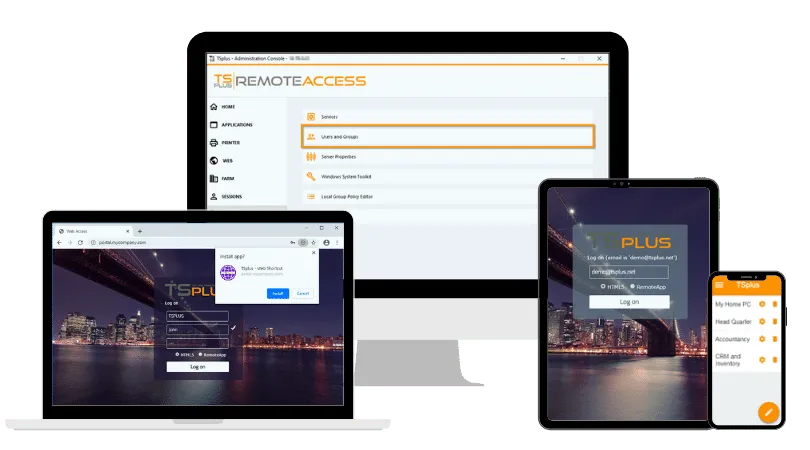
TSplus Remote Access offers a streamlined approach to multi-user Windows application publishing and remote desktop delivery, with browser-based access and centralized administration. It helps IT teams make applications available to remote users without deploying the full complexity of a traditional Microsoft RDS infrastructure, while still requiring proper Windows Server maintenance and security
Conclusion
The "Remote Desktop Services is currently busy" error requires more than a routine server restart. Identifying whether the failure originates from a stuck session, resource limitation or Windows logon problem allows administrators to choose the least disruptive solution.
When errors persist or return, systematic diagnostics, performance monitoring and configuration reviews are essential to resolving their underlying causes and maintaining reliable RDP connectivity.
TSplus Remote Access Free Trial
Ultimate Citrix/RDS alternative for desktop/app access. Secure, cost-effective, on-premises/cloud
:quality(80)/m/filters:format(webp))
:quality(80)/m/filters:format(webp))
:quality(80)/m/filters:format(webp))
