








)
)
Introduction
The retirement of Azure Virtual Desktop (classic) creates an important distinction between the loss of a legacy connection service and the continued availability of underlying Azure resources. For IT teams that missed the migration deadline, understanding this distinction is essential to planning recovery without unnecessarily replacing existing infrastructure. This article explains what retirement means for existing resources, how to identify classic deployments, which migration options remain worth evaluating, and how to choose a supported application delivery architecture.
What Does It Mean When Azure Virtual Desktop Classic Retires?
Microsoft has officially retired Azure Virtual Desktop (classic) as of September 30, 2026. Based on Microsoft’s official documentation, “connections to classic services will be blocked after retirement.” Therefore, the retirement impacts the specific type of services related to the management of virtual desktops and applications using the Azure Virtual Desktop (classic) deployment model.
However, the retirement process does not apply to modern Azure Virtual Desktop that uses Azure Resource Manager (ARM). Thus, the main concern for the users who still utilize the classic resources is the inability to establish connections to the previously working services. Hence, the users should be particularly aware of the classic resource management since the resources themselves will not disappear after the retirement date.
What Exactly Was Retired?
Azure Virtual Desktop (classic), previously known as Windows Virtual Desktop, had its management infrastructure based on dedicated PowerShell cmdlets, APIs, and service objects.
Unlike the modern Azure Virtual Desktop, the classic host pools and application groups were not defined as unified Azure resource manager resources.
Today, these components are incorporated into the Azure resource management system allowing administrators to apply Azure role-based access control (RBAC), manage the service through the Azure portal, and use modern infrastructure-as-code patterns for deployment automation.
| Capability | AVD Classic (retired) | Modern AVD |
|---|---|---|
| Management | Legacy control plane | Azure Resource Manager |
| Azure portal | Limited integration | Native integration |
| Access control | Legacy tenant roles | Azure RBAC |
| Automation | Classic APIs and PowerShell | ARM, APIs, Az PowerShell |
| Desktop and app delivery | Connections blocked | Supported |
| Service status | Retired | Supported |
The retirement represents a change in the underlying service architecture, not simply a product rename.
Does Modern Azure Virtual Desktop Still Work?
Yes. Modern Azure Virtual Desktop is supported and continues to offer full Windows desktops, multisession platforms, and individual app delivery through RemoteApp.
Organizations that already use the Azure Resource Manager (ARM)-integrated host pools are not impacted by the retirement of the classic service.
IT managers should also note the difference between the end of support for the classic Azure Virtual Desktop and the separate end of support for older Remote Desktop clients. The Remote Desktop client for Windows (MSI) was scheduled to reach end of support for public cloud environments on March 27, 2026, and for Azure Virtual Desktop (classic) on September 28, 2026.
How Can IT Teams Identify Azure Virtual Desktop Classic Deployments?
The first step is to identify if any production workloads are still dependent on the retired architecture.
This is especially critical for systems that were put into production years ago and may have been repossessed by new administrators or ignored in the current infrastructure documentation.
Check Azure Resource Manager Integration
You should start by inspecting the Azure Virtual Desktop resources in the Azure portal. Modern Azure Virtual Desktop deployments expose host pools, application groups, and workspaces as Azure resources in a subscription and resource group. In contrast, classic deployments used to expose service objects managed in different ways.
The presence of the following Azure Virtual Desktop elements stands as a strong indicator of a classic deployment:
- Host pools that use the classic Azure Virtual Desktop PowerShell module
- Historical references to a classic service tenant or classic service API
- Application groups that lack corresponding ARM resources
- Session host virtual machines that refer to older documentation
At the same time, the absence of a host pool in the Azure portal is not necessarily an indication of a classic deployment. You should always check which subscription, Microsoft Entra tenant, and role-based access control the user has before you analyze the problem further.
Review Legacy Management Tools and Dependencies
Deployment scripts and automation repositories may serve as supplemental sources of evidence.
For instance, the presence of scripts containing Microsoft.RDInfra.RDPowerShell references or classic tenant-level management operations would suggest that the environment was configured with the older management stack.
Modern environments will leverage Azure Resource Manager-integrated management interfaces and associated Az PowerShell modules
Administrators should also inventory all application, user and infrastructure resources associated with potentially impacted host pools
This includes examining session host virtual machines, application assignments, profile storage locations, authentication dependencies, networking configurations, and backup repositories. The Microsoft manual migration documentation contains detailed comparisons between the classic service object model and Azure Resource Manager (ARM)-integrated resource model.
What Can Happen to Your Existing Resources After Azure Virtual Desktop Classic Retires?
The most important difference is between the retired connection service and the underlying Azure infrastructure.
While classic desktop connections are blocked, existing virtual machines, storage resources and application data can remain in place.
Existing Virtual Machines and Storage May Remain Available
Azure virtual machines are resources that are managed on their own, without relying on the retired classic service control plane. Thus, session host virtual machines, managed disks, and networking resources that were created in the subscription might still exist
However, they cannot be used to reinstate the retired connection broker. No virtual machines created in the new Azure infrastructure are available to return an organization’s desktop experience to the working state.
Administrators should examine each resource carefully, and if it can be reused for a supported configuration, they should perform the following steps.
It is essential to check if the operating system of the virtual machine is supported and if the applications and security configurations are compatible.
Application Access and User Data Require Separate Checks
Users who have connected via the classic desktop or RemoteApp session type will no longer be able to launch their applications through this service.
The result of retiring the service could be loss of access to desktops, published applications, and disruptions to business processes.
However, the retirement of the service does not guarantee that user-related data is deleted.
In most cases, it is likely users’ data that is persisted on Azure Files, VM disks or other storage mediums, but the retention and accessibility of this information would be based on how it was configured, secured with permissions, backed up, etc…
As such, prior to decommissioning or migrating the systems involved, IT departments need to ensure that they have preserved all the necessary data.
Can A Team Still Migrate Azure Virtual Desktop Classic After It Retires?
Microsoft documents two migration paths for transitioning from Azure Virtual Desktop (classic) to the new ARM-integrated Azure Virtual Desktop: automatic migration and manual migration.
Both options were intended to be viable through September 30, 2026.
Since that date is in the past, administrators should not consider tools described in the documentation as production-ready for all scenarios.
Microsoft’s documentation does not provide guidance on the transition period.
Therefore, organizations should not rely on any post-retirement transition tools and processes.
Option 1: Automatic Migration
Microsoft's automatic migration process utilizes a PowerShell-based tool to move eligible classic service configurations to ARM resources.
The company's documentation recommends that users have an active Azure subscription with the necessary permissions and meet the environment requirements listed by the migration module.
For instance, Microsoft's guidelines suggest that users be delegated with Contributor permissions to create Azure resources and User Access Administrator permissions to manage application group membership.
However, it is essential to recognize that the tool cannot guarantee data recovery after retirement.
Organizations with active classic deployments should consult Microsoft support to confirm if the migration process is an available option for their environment.
Option 2: Manual Migration or Reconstruction
Manual migration requires the creation of modern Azure Virtual Desktop resources and the reconfiguration of service configuration.
Depending on the specific case, administrators may need to:
- Create integrated ARM-based host pools, application groups and workspaces
- Establish or replace session host virtual machines
- Register compatible session hosts with the new host pools
- Recreate user and application associations
- Adjust identity, network, security, and profile configurations
The manual approach becomes necessary when legacy configurations contain undocumented complexity, extensive customization, or when modern migration tools prove insufficient.
Notably, reconstructing the delivery infrastructure does not always involve complete replacement of applications and data.
Remaining components can often be reused through appropriate compatibility assessments, licensing evaluations, and security audits.
The decision should be based on the current state of existing resources and available support from Microsoft.
| Situation | Approach to evaluate |
|---|---|
| Eligible classic configuration and Microsoft confirms migration support | Automatic migration |
| Complex or inaccessible classic configuration | Manual reconstruction |
| Existing VMs and data remain available | Rebuild delivery services and assess reuse |
| Legacy workloads are no longer required | Secure decommissioning |
| Azure-hosted desktops are no longer necessary | Alternative delivery architecture |
What Should IT Teams Do If They Missed the Retirement Deadline?
Organizations that have not completed their migration by September 30, 2026, should prioritize the preservation of resources and the restoration of business application access.
Instead of attempting multiple connections to the retired service, administrators are advised to perform a recovery process.
Step 1: Assess the Service Impact
Identify which users, desktops and applications are unavailable.
Find out if it is an entire environment or specific workloads that are impacted. Confirm the issue is related to a classic retirement and not some other authentication, networking, or session host-related problem.
Step 2: Preserve Infrastructure and Data
Review Azure subscriptions to identify current virtual machines, managed disks, storage accounts, and networking resources
Document dependencies and ensure backups exist before taking any action. Do not delete resources until application data, user profiles and configuration information have been identified.
Step 3: Confirm Recovery Options With Microsoft
Contact Microsoft support to ensure that there are still supported migration/recovery procedures available.
The initial automatic/manual migration instructions were developed with the retirement date in mind and therefore should not be assumed to apply.
In the case where the classic configuration cannot be migrated, it may be necessary to rebuild the environment with supported Azure Virtual Desktop resources.
Step 4: Restore Application and Desktop Delivery
Select an architecture that supports the applications and desktops that users need.
For organizations that plan to stay on Azure Virtual Desktop, this usually involves setting up ARM integrated host pools, supported session hosts, application groups, and user assignments.
Some organizations may find that another application publishing or desktop solution better fits their needs.
The goal is to re-establish access while avoiding the complexity and unnecessary overhead of the previous setup.
What Is The Way to Validate an Azure Virtual Desktop Migration?
Restoring infrastructure does not guarantee normal user operations.
A migration or reconstruction must therefore be validated at the service and application levels.
Verify Authentication and User Access
Confirm that users can authenticate and access the resources that have been assigned to them.
Check Microsoft Entra, multifactor authentication, Conditional Access policies and Azure RBAC assignments as applicable.
Administrators should confirm that permissions are aligned with the principle of least privilege and that there are no legacy access patterns that have been carried forward inadvertently.
Test Business-Critical Applications
Test published applications and desktops by utilizing distinct representative user accounts.
Validation Activities should include application launch, database connections, network shares, printing, clipboard redirection, and required peripherals if any.
Legacy applications have to be taken into special consideration as they might require a specific OS configuration, network path, or application component.
An example of a legacy application might be an ERP application which launches successfully but fails to connect to its database from the new session host.
Validate Profiles, Performance and Operations
Companies that use FSLogix or any of the other profiling tools should ensure that everything is correctly attached, is persistent, and can be properly accessed.
It is vital to test it by signing in for the first time and checking if everything will work fine when a user opens an application and during the next sign-in. It is also essential to ensure that the processes are monitored, backed up, and restored.
The migration is complete only when everything is ready, including users being able to access their applications. It has to be possible to maintain the system properly.
Should Organizations Reconsider Their Desktop Delivery Architecture?
Azure Virtual Desktop (classic) Retirement is mainly a platform lifecycle issue, but it also presents an opportunity to assess if the current desktop delivery platform continues to support your needs.
The shift to modern Azure Virtual Desktop is the obvious choice for many, especially those that are already Azure-first and utilize Azure-hosted desktops.
Other organizations have fewer complex requirements.
When Does Modern Azure Virtual Desktop Make Sense?
Modern Azure Virtual Desktop may be a good fit for organizations that require centrally managed Windows desktop and apps, hosted on Azure.
It enables multisession, RemoteApp models, and Microsoft ID and administration tools.
It makes sense for enterprises that have an existing Azure footprint, but IT departments still have to deal with the complexities of the cloud, including licensing, networking, storage, administration, and operational aspects.
When Is Another Windows Application Publishing Architecture Appropriate?
Not all organizations require a fully implemented desktop virtualization environment hosted in Microsoft Azure.
Some enterprises need only limited remote access to specific Windows applications, such as financial or ERP applications or legacy line-of-business applications.
These organizations can consider publishing applications that are hosted in centrally managed Windows servers instead of deploying a generalized virtual desktop infrastructure (VDI).
Modern Azure Virtual Desktop is not just about desktop or applications virtualization, but also about application publishing.
Today, it is possible to publish Azure applications using the RemoteApp method.
The reality is that there is no dichotomy in the application delivery space, but rather a continuum that runs from application publishing to desktop virtualization.
The discussion should focus on finding the most relevant applications delivery architecture for the given organization and use cases.
For instance, if there is a long-serving application hosted in a Windows Server folder that is accessed by a set of authorized users, the organization does not need to publish it in Azure Virtual Desktop when the legacy infrastructure is still working properly.
Instead, it might be beneficial for such enterprises to leave their application hosting location on-premises while upgrading their application access method.
What Factors Should Guide the Decision?
IT departments should evaluate the choice against the criteria of deployment needs, rather than the features of the decommissioned system.
| Consideration | Key question |
|---|---|
| Hosting | Must workloads run in Azure? |
| User experience | Full desktops or selected applications? |
| Compatibility | Will existing Windows applications work? |
| Security | How are identity and session access protected? |
| Management | Who maintains the infrastructure? |
| Licensing | Which Microsoft and software licenses apply? |
| Scalability | How many concurrent users are required? |
| Cost | What is the total cost of ownership? |
The purpose is to select an enterprise architecture that will satisfy the requirements of availability, security, and reduced administrative complexity.
Looking for an Alternative for Windows Application and Desktop Delivery?
Migrating to modern Azure Virtual Desktop is not necessarily the best option for every organization. Businesses that primarily need access to existing Windows applications or centrally hosted desktops may benefit from a simpler architecture, particularly when they do not require a fully Azure-hosted virtual desktop environment.
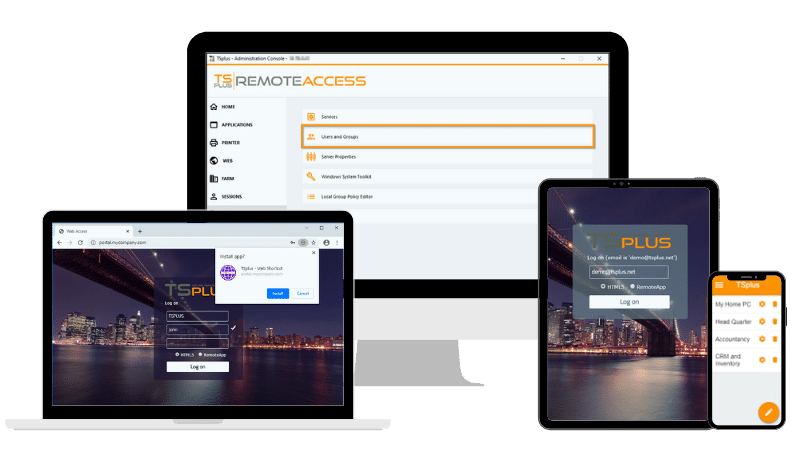
TSplus Remote Access enables IT teams to publish Windows applications and full remote desktops through RDP-compatible clients or an HTML5 web portal. With support for on-premises and cloud-hosted Windows servers, it offers a practical alternative for organizations seeking to maintain their existing applications while simplifying remote application delivery.
Conclusion
Azure Virtual Desktop (classic) retirement makes it essential to identify affected deployments, preserve existing resources and restore access through supported infrastructure. IT teams should verify available recovery options before attempting migration or reconstruction.
Whether organizations continue with modern Azure Virtual Desktop or adopt another delivery architecture, the priority remains ensuring secure, reliable application access without unnecessary operational complexity.
TSplus Remote Access Free Trial
Ultimate Citrix/RDS alternative for desktop/app access. Secure, cost-effective, on-premises/cloud
)
)
)
