








:quality(80)/m/filters:format(webp))
:quality(80)/m/filters:format(webp))
Introduction
When RDP error code 0x204 prevents a Remote Desktop connection, finding the cause can involve several parts of the connection path. Instead of changing settings at random, IT administrators can troubleshoot each layer in sequence. This article covers the main causes of error 0x204, and the checks needed to resolve them.
What Is an RDP Error Code 0x204?
An RDP error code 0x204 is a “failed to connect” Remote Desktop error, essentially meaning the user's client could not complete a successful connection to the intended PC.
In other words, 0x204 itself doesn’t point to one particular root cause-but it definitely signifies that something on the pathway to a Remote Desktop connection went awry, and a sysadmin has to figure out exactly what.
Typical causes include:
- An incorrect hostname or IP address
- DNS or name-resolution problems
- The remote computer being offline or unreachable
- Remote Desktop being disabled on the host
- Firewall or security software blocking RDP traffic
- The RDP listening port being inaccessible
- Network routing or VPN problems
- User permissions or Remote Desktop configuration
- Problems with the RDP client itself
0x204 is often displayed during the process of connecting a computer from one operating system (such as Mac) to another (such as Windows). Nevertheless, it is recommended to check the connections and settings on the Windows computer and the network before trying to access the remote machine.
What Should You Check First When an RDP Error 0x204 Appears?
Before changing firewall rules, ports or system policies, make sure to first ascertain that the remote computer is actually available and reachable.
Start by asking yourself these three basic questions:
1. Is the remote machine powered on and awake?
2. Are you connecting to the correct hostname or IP address?
3. Can the client reach the destination network?
A Windows PC which is turned off, sleeping or hibernating can't take an incoming RDP connection. Similarly, a perfectly configured RDP host will remain unreachable if the client is using an old IP or has no route to the destination network.
If the computer is located on another private network, remember to define how remote users are supposed to reach that network. The connection path may involve a VPN, Remote Desktop Gateway (RD Gateway) or another controlled remote-access architecture.
Moving forward, these are the troubleshooting steps to progressively work through.
How Can You Troubleshoot and Fix an RDP Error Code 0x204?
1. Check the Hostname and IP Address
Begin by verifying that the Remote Desktop client is connecting to the correct host.
If you are normally connecting to the host using a hostname, try connecting using the destination IP address instead. If the IP address works, but the hostname does not, it is likely that the RDP service is reachable, and the focus should shift to troubleshooting DNS or name resolution.
On Windows, administrators can view the current network configuration using:
ipconfig
For more detailed information:
ipconfig /all
Take extra care when dealing with networks that make use of DHCP. The IP you are trying to reach could have changed if the machine was rebooted, lease renewed or powered off for an extended period of time.
In the case that name resolution seems to be the issue, checking with
nslookup
or
Resolve-DnsName
to see what IP address the host name is resolving to can help identify and isolate the problem, by simply comparing the resolved address with the one you are attempting to reach.
2. Verify Network Reachability
Once the destination is determined, check whether the client can actually reach the remote system and, more specifically, its RDP service.
While
ping
is a useful utility to do so, its result should be interpreted with caution. A failed ping does not necessarily mean that the host is unreachable, as many networks deliberately filter packets using Internet Control Message Protocol (ICMP).
Testing the destination’s RDP port is more productive in this case. From another Windows system, PowerShell provides a simple way to check if there is indeed a listener waiting for incoming connections:
Test-NetConnection -Port 3389
The port number may need to be changed if the environment uses a custom RDP port for some reason. A successful attempt at establishing a connection proves that the client can reach the target machine over TCP.
A failed attempt, on the other hand, redirects the attention to routing, possible VPN-related issues, firewalls, Network Address Translation (NAT), security appliances or the RDP listener itself.
This approach can save a lot of time and effort spent on irrelevant tasks: establish that RDP traffic actually reaches the destination before proceeding to troubleshooting of authentication or session problems.
3. Make Sure Remote Desktop Is Enabled
If you can see the machine, make sure that it's really Windows host is enabled to answer Remote Desktop requests.
In modern Windows versions, go to
Settings > System > Remote Desktop
&
enable "Remote Desktop"
. In a managed environment, simply ensuring your local Windows hosts is set to allow remote desktop might not mean the device policy is enabling it.
When you're looking at local configuration and are trying to diagnose on managed devices (using AD, GPO, or other tools), you may need to review the machine's effective policy configuration instead of local configuration.
Keep in mind that there are also Windows editions that don't expose a Remote Desktop (RDP) server role that many consider "standard"-notably, Windows Home editions. If RDP on your device was once functioning fine, but error 0x204 shows up after a policy or other configuration change, you'll want to compare its' current effective configuration with the previous one.
4. Check Windows Firewall Rules
Check Windows Defender Firewall if it's on but can't reach the RDP port.
Don't turn it off permanently first. Try make sure the correct RDP inbound rules are on or enabled for the current network profile. Microsoft Learn's Windows Firewall documentation provides further guidance on checking and managing inbound firewall rules
Then you will need to:
WF.MSC
and check the
Inbound rules
.
You also need to verify that RDP rules are enabled on
Inbound Rules
. A quick way to see if the relevant rules are currently enabled for your connection type, especially if you use PowerShell, is with this command:
Get-NetFirewallRule -DisplayGroup "Remote Desktop"
Focus on the profile it is enabled for; rule enabled for Domain or Private will not matter for the connection that Windows currently believes is Public.
Similarly, you must always consider any security on any devices that RDP is tunneled through or is connecting between such as third party host firewall programs, network security appliance firewall rules, endpoint security programs which may all block RDP in various ways.
Even If RDP has a valid rule in its Windows firewall rules it does not mean that the path between will open.
The temporary disabling of security controls can be a useful diagnostic but never consider it acceptable as a final remedy to gain access.
Get back through to fix the firewall rule or policy.
5. Check Whether the RDP Port Is Listening
RDP uses a default of
TCP port 3389
. This can be altered under the RDP server’s properties configuration though and administrators should note any other values. On the remote machine (server), confirm this listener can be seen:
netstat -ano | findstr :3389
Or alternatively in PowerShell:
Get-NetTCPConnection -LocalPort 3389 -State Listen
If still nothing is shown listening on this particular port then the issue goes beyond basic connectivity from client to server.
A review into the RDP listener configuration and remote desktop services must be commenced along with scrutiny of the relevant event log.
Should it be that a non-standard port is explicitly intended and configured then examine all connection points; Client RDP host configuration Windows Firewall perimeter firewall NAT Rules etc, must all use the specified port not the default one.
6. Check Remote Desktop Services
Check the Remote Desktop Services service running on the Windows machine if the host is reachable, but no valid RDP listeners could be detected.
Open:
services.msc
and locate
Remote Desktop Services
.
The Service needs to be Running the whole time the Computer might accept RDP sessions. A failed Service may return again after restarting it, although an abrupt shutdown or multiple restarts of that service should alert more to an symptoms, to what the Final diagnose may be.
Observe Windows Event Viewer For Errors and Warnings These logs will be even useful to you, if 0x204 error occurred to more users or when the error started to occurring after Windows, Policies Update or a System change.
Consider the timing In relation with the connection attempt and the Log events correlated exactly on these moments you would probably find useful evidences, even more than when you analyze the Log in general without any time frame to concern for.
7. Check User Permissions and RDP Policies
If network connection and the RDP listener both seem to be running fine, try to see whether your account really is allowed to initiate a remote session.
Standard Administrators should have RDP access, but other accounts may need to be added to the correct Remote Desktop Users configuration
If your computer is domain managed, ensure you look at effective Group Policy settings as well. Whether users or groups are allowed or forbidden from remote login, as well as whether Remote Desktop sessions are allowed at all, can often be decided by policies.
The following situations can make users/groups privileges especially interesting:
- Other users are logging in and only one is failing
- A brand new user is unable to log in
- The issue started right after a Group Policy change
- The machine recently joined (or left) a domain
- Administrator account has access while the standard user does not.
These examples are excellent points of comparison when diagnosing. While one user has been unable to reach the host when several others could all readily access the host, basic network connectivity and RDP listeners are less suspect.
8. Check Network Level Authentication
Network Level Authentication (NLA) authenticates a user prior to the full Remote Desktop session setup in Windows. NLA should generally be left active for security reasons. Nevertheless, authentication-related compatibility issues or misconfigurations can prevent connections.
To troubleshoot, ensure the client supports the authentication policy set by the host, verify credentials, domain details, and system clocks are accurate and consistent.
Remember that turning off NLA is not the primary solution to error 0x204-it only strips out a security measure and could obscure the real problem. However, if you must disable it temporarily to test, regard this as a temporary diagnostic and once you've proven or disproven its involvement, return to a secure configuration and fix the actual underlying cause.
9. Investigate VPN, Routing and NAT
If RDP functions locally but returns error 0x204 remotely , the change between those two connection paths is one of the most powerful clues you can have.
Inspect the points that exist between the remote client and the destination, namely:
- VPN connectivity and the routes given
- VPN connectivity and assigned routes
- Subnet and VLAN routing
- NAT rules
- Network firewall
- G ateway configuration
- Cloud security groups or equivalent controls
- Overlapping client and enterprise subnets
For instance, a VPN connection may seem successful but not carry the route needed to reach the RDP subnet, or a home and corporate subnet may overlap causing traffic to utilize the wrong local path.
It all helps distinguish whether host configuration issues or network path issues are at fault. By successfully connecting the same account and client from the LAN side, you have greater confidence that Remote Desktop services aren’t to blame.
10. Troubleshoot the Remote Desktop Client
The RDP troubleshooting focus is a distant last once both the host and the network route out as suspected causes. Recreate the saved connection profile (hostname, domain, username, gateway) instead of just trusting an existing profile wasn't out of date. If any credentials are saved, clear them and try logging in again (and again, this is especially helpful after a password/domain/account change!).
On macOS specifically, where this 0x204 error message seems to be particularly common, verify your Microsoft Remote Desktop and Windows App client is up to date, recreating the connection profile to ditch cached settings may solve your problem, and if that doesn't help then reset the client app’s data or reinstall it entirely.
A test on a second device is a fantastic idea; if another client device and using the exact same account can access the server via RDP, the culprit is likely the original RDP client device itself or its configuration.
Is It Necessary To Open Port 3389 to Fix An RDP Error 0x204?
Not necessarily.
RDP runs over TCP port 3389 by default, so you need to allow that on any firewalls traffic should legitimately be traversing. In an internal environment, changing error 0x204 might just involve flipping the correct windows firewall switch or adjusting a firewall rule on the internal firewall.
That, however, does not mean you can simply turn TCP 3389 over the public internet; For RDP remote access over the Internet, use an architecture that fits your security needs including some form of VPN, secure remote access gateway, or another secure remote-access system.
You should also lock down firewall rules to use specific, limited source and destination IP addresses whenever possible. Changing the default RDP port can help drown out some of the automated noise on the wire but does little to secure Remote Desktop itself. Authentication, Access Control, Patching, Network protection, and Remote access architecture are key.
How Can You Identify the Cause of Error 0x204 Faster?
The quickest way to diagnose error 0x204 is to make every test answer a specific question about the connection chain.
| Test | Result | What to Investigate Next |
|---|---|---|
| Connect by hostname | Fails | DNS/name resolution or broader connectivity |
| Connect by IP | Works | DNS/name resolution |
| Connect by IP | Fails | Network, firewall, port or host |
| Test-NetConnection to RDP port | Fails | Routing, firewall, NAT, VPN or listener |
| RDP port test | Works | Authentication, permissions, policies or client |
| Another user connects | Works | User permissions, credentials or user-specific policy |
| Another client connects | Works | Original client configuration |
| Connection works on LAN only | Works locally | VPN, gateway, NAT, routing or perimeter firewall |
| No RDP listener exists | Fails locally and remotely | RDP configuration or Remote Desktop Services |
Combined, these tests gradually narrow down the connection path. Knowing that test 3389 via TCP has passed demonstrates that there is probably little to be gained by repeatedly shifting simple routing configurations when the failure may be at the authentication or session layer.
This also removes the possibility of the common troubleshooting error of modifying multiple settings at the same time: if you change firewall rules, authentication, ports and client configuration then if RDP starts working again, you won’t know if that was a result of changing the correct setting, or one of the three erroneous modifications.
Test one layer at a time and note the result. Diagnosis is both faster and reproducible if 0x204 turns up somewhere else.
What If The RDP Error Code 0x204 Still Does Not Go Away?
If the basic checks above fail to diagnose the 0x204 error, progress from configuration problems to gathering evidence. Begin by viewing the event log on the Windows host at the precise time an attempted connection failed. Windows Security and Remote Desktop Services event logs may show listener or logon or connection establishment errors that cannot be seen on the client.
For ongoing issues or site-wide problems, verify if the first event happened following:
- A Windows update
- Any firewall or endpoint security policy changes
- Group Policy updates
- Any network or VPN changes
- Certificate changes
- DNS changes
- An RDP client update
- Server configuration changes
The widespread nature of the issue also leads itself toward to. With one user the problem could be seen to be caused by a widely different set of issues as in the instance of all users immediately losing access. Another, the problem could be caused by one client as opposed to all accounts. Also, the problems could be caused by the client rather than the network or server Infrastructure.
As of this point it is undesirable to say that the 0x204 is the diagnosis. It is evidence given by the client. It is our task to look for the Windows, network or authentication event that cause the client to fail to establish a connection.
What Is The Final Checklist for An RDP Error 0x204?
When you encounter error 0x204, troubleshoot in this order:
- Verify power and wake state.
- Check hostname and IP.
- Test IP address directly to rule out DNS issues.
- Verify network and VPN reachability.
- Test RDP port from client network.
- Verify RDP is enabled.
- Examine firewall rules.
- Verify port is listening.
- Examine Remote Desktop Services and events.
- Verify account permissions, policies and authentication methods.
- Try from alternate user account or client device.
- Inspect the RDP client.
This sequence proceeds systematically through connectivity to the host. It allows elimination of potential issues and increases specificity with each successful step in this order.
How Can You Use TSplus for Remote Desktop and Application Access?
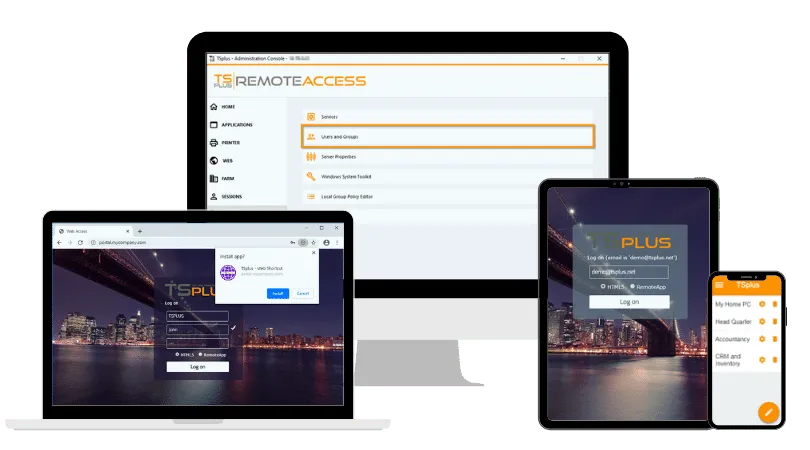
For organizations that need to provide remote access to Windows desktops and business applications, TSplus Remote Access offers an alternative way to build and manage the remote-access environment. It supports RDP-compatible connection methods alongside RemoteApp-style application delivery and browser-based HTML5 access, giving IT teams several ways to provide access to centralized Windows resources.
For environments serving multiple remote users, our solution also provides capabilities such as a Web Portal, application publishing, gateway functionality and farm management, depending on the edition and deployment architecture. Rather than managing remote connectivity as a collection of individual point-to-point RDP connections, organizations can use these capabilities to build a more centralized remote-access environment.
Conclusion
RDP error code 0x204 is best resolved through systematic troubleshooting rather than isolated fixes. By checking connectivity, RDP configuration, firewall rules, services, permissions and client settings in sequence, administrators can progressively narrow the problem. Once identified, the underlying cause can be corrected without unnecessarily weakening the remote-access environment.
TSplus Remote Access Free Trial
Ultimate Citrix/RDS alternative for desktop/app access. Secure, cost-effective, on-premises/cloud
:quality(80)/m/filters:format(webp))
:quality(80)/m/filters:format(webp))
:quality(80)/m/filters:format(webp))
