








:quality(80)/m/filters:format(webp))
:quality(80)/m/filters:format(webp))
A TeamViewer “Session Code Expired” message usually means the temporary code for an attended support session is no longer valid. However, the same message can also appear when the wrong connection identifier is entered. The quickest fix is therefore to check the session type before changing network or security settings.
TeamViewer session codes are designed for temporary attended remote support. If a session cannot be joined, first determine whether the code has genuinely expired or whether TeamViewer is interpreting another identifier as a session code. This guide walks you through the checks in the most useful order.
What Does “TeamViewer Session Code Expired” Mean?
In TeamViewer Remote, a support agent can create an attended remote support session and share either a session link or a session code. The end user then uses that information to join the session before accepting the remote connection.
A session code is therefore not the same thing as a permanent TeamViewer ID. It belongs to a particular support session and is intended to provide temporary access.
TeamViewer also uses session codes for service cases managed through its Service Queue. TeamViewer currently lists a service case as “Expired” when it has not been closed within 24 hours.
If TeamViewer displays “ Session Code Expired ”, start with the session itself rather than immediately troubleshooting firewalls, antivirus software or network connectivity.
Why Does a TeamViewer Session Code Expire?
Several situations can produce this message, yet not all of them involve a code that has simply become too old.
The session has passed its validity period
The simplest explanation is that the session code is indeed no longer valid.
TeamViewer documentation for service cases defines an expired case as one that has not been closed within 24 hours. TeamViewer support representatives have also stated that session codes are valid for 24 hours.
If an old support invitation has been sitting in an email, ticket or chat conversation, simply ask the support agent to create a new session rather than continuing to retry the old code.
A TeamViewer ID is being entered instead of a session code
This is particularly worth checking because the error message can be misleading.
A TeamViewer Community support response identifies entering the supporter’s TeamViewer ID in the session code field as a common cause of the “session code expired” message.
Check what information you have actually received:
- A session code should be entered in TeamViewer's session or “Get help” field.
- A TeamViewer ID belongs to a device and should be used with the appropriate ID-based connection workflow.
- A session link can normally be opened directly rather than entered manually.
Using the right identifier in the right connection workflow can resolve the error without any configuration changes.
The original support session is no longer valid
Support staff may have closed an old service case, generated a replacement session or sent a more recent invitation.
In that situation, the user may still have a technically correct session code, but it belongs to the wrong support request. Check the latest email, ticket or message from the support technician and discard older connection details.
Creating a fresh session is generally preferable over repeatedly attempting an invitation whose state is uncertain.
A licensing or connection workflow issue is involved
Less commonly, the message may appear when the underlying problem is not the age of the session code.
For example, TeamViewer Support has advised users with a license to verify the relevant remote device is correctly activated on the license when a “session code expired” message appears. Generating a new attended-support session may also help distinguish a licensing or device configuration issue from a genuinely expired code.
This is why troubleshooting should establish the connection method first. An attended session, an ID-and-password connection and licensed unattended remote access are different issues.
How Do You Fix a TeamViewer Session Code Expired Error?
Work through the problem in the following order so mere session management issues are eliminated before any deeper troubleshooting begins.
- Confirm what you have genuinely is a session code. Check you are not entering a TeamViewer ID into the session-code field.
- Check when the session was created. If the invitation is old, assume the session may no longer be valid.
- Ask the support agent to create a new session (or use a more recent one if it is less than 24 hours old). Use the latest session code or invitation rather than reusing an old one.
- Try the current session link. TeamViewer supports joining attended sessions through either the shared link or the session code.
- Check the TeamViewer application being used. End users without the full application can join an attended session through TeamViewer QuickSupport, while users with TeamViewer installed can enter the session code through the main interface.
- Restart or update TeamViewer if the fresh session still fails. This helps rule out a client state which is no longer valid or a mismatched software environment.
- Check account, license and device configuration where relevant. This is particularly important if the error appears during a licensed remote connection workflow rather than a straightforward attended support session.
If a newly generated session works, the problem was most likely associated with the previous session timing out or with the way its connection information was entered.
What If the TeamViewer Error Keeps Coming Back?
Repeated “Session Code Expired” messages suggest that it is worth looking beyond the individual code.
First, make sure the organisation is using the appropriate TeamViewer workflow. Temporary session codes suit attended support where a user is present and explicitly joins a support session. Regular administration of known devices may call for an unattended access configuration instead.
That distinction is important for IT teams and managed service providers. Continually creating temporary support sessions for machines that administrators repeatedly need to maintain adds unnecessary steps, while using persistent access where only one-off assistance is required can provide more access than the workflow needs.
If TeamViewer is also displaying a separate restriction such as “ Commercial Use Detected ”, troubleshoot that message separately. An expired session code does not by itself establish a commercial-use or licensing restriction.
When Does Another Remote Support Workflow Make Sense?
A single expired TeamViewer session code should be treated as a regular troubleshooting issue.
Nevertheless, if technicians repeatedly lose time recreating or resending temporary connection details across many support requests, this simple issue becomes problematic. It is a cue for IT teams to review how the current tool handles attended assistance workflow and whether it still suits their needs.
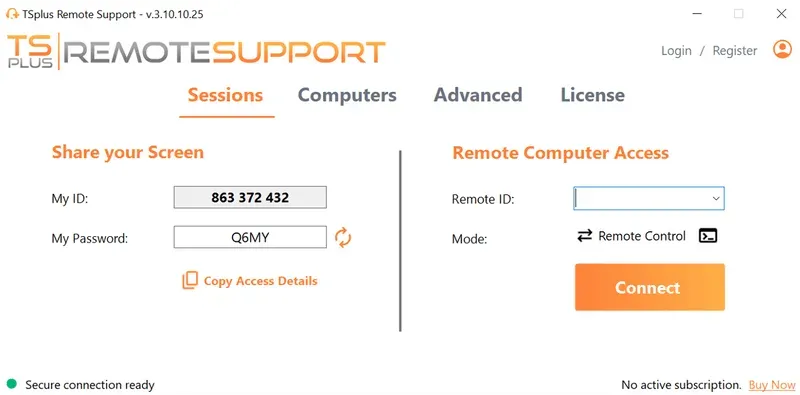
TSplus Remote Support provides both attended and unattended remote support. For attended sessions, the end user receives a Remote Support ID and password, which they then supply to the support agent in order to establish the session. The end user can also refresh the temporary password when required.
Conclusion
When TeamViewer says a session code has expired, start by verifying the code, its age and the connection method. A new attended session will resolve many cases. If fresh sessions repeatedly fail, check the TeamViewer client, account, license and device configuration before treating the problem as a wider connectivity issue and branching out to find a better suited alternative.
For organizations reviewing their support workflow rather than repairing the occasional TeamViewer session, TSplus Remote Support brings simplicity as an alternative approach to remote desktop control and assistance.
TSplus Remote Support Free Trial
Cost-effective Attended and Unattended Remote Assistance from/to macOS and Windows PCs.
FAQ
How long does a TeamViewer session code last?
TeamViewer documentation and support guidance indicate that session codes or associated service cases expire after 24 hours. If an invitation is older, request a new session from the support agent.
How do I get a new TeamViewer session code?
The support agent creates a new remote support session in TeamViewer and shares the resulting session code or session link with the end user.
Why does TeamViewer say my session code has expired when it is new?
Check that you are entering an actual session code rather than a TeamViewer ID. TeamViewer support identifies entering an ID in the session-code field as one possible cause of this error.
Can I use a TeamViewer session link instead of the code?
Yes. TeamViewer's current attended-support workflow allows the supporter to share either a session link or a session code.
Is a session code the same as a TeamViewer ID?
No. A TeamViewer ID identifies a device for applicable connection workflows. A session code belongs to a specific attended support session and provides temporary access to that session.
:quality(80)/m/filters:format(webp))
:quality(80)/m/filters:format(webp))
:quality(80)/m/filters:format(webp))
