








)
)
Introduction
Microsoft has reorganized its remote desktop client portfolio around Windows App. The MSI-based Microsoft Remote Desktop Client for Windows, also known as MSRDC, reached end of support for public cloud environments on March 27, 2026.
However, Windows App does not replace every Microsoft remote access tool. IT teams must still distinguish between cloud desktops, Remote Desktop Services and direct RDP connections before changing their client strategy.
Which Microsoft Remote Desktop Product Are You Using?
Microsoft’s overlapping remote access product names are one of the main reasons this subject can be confusing. Before planning a migration, administrators should identify each client by its installation source, executable and intended connection type rather than relying only on the name displayed to users.
Windows App
Windows App is Microsoft’s unified client for Azure Virtual Desktop, Windows 365, Microsoft Dev Box and selected Remote Desktop Services or direct PC connections. It is available on Windows, macOS, iOS and iPadOS, Android and Chrome OS, web browsers and Meta Quest, although the resources and features available vary between platforms.
Microsoft Remote Desktop Client for Windows
The standalone MSI application, also known as MSRDC, was mainly designed to connect Windows endpoints to Microsoft cloud desktops. Despite its broad name, it was not intended as a general-purpose client for conventional Remote Desktop Services feeds or direct remote PC connections.
Support for the MSI client ended in Microsoft public cloud environments on March 27, 2026 . Temporary extensions remain in place for certain sovereign cloud and legacy Azure Virtual Desktop environments, so administrators should confirm the environment before removing it.
Remote Desktop App for Windows
The Remote Desktop app distributed through the Microsoft Store was a separate product that supported cloud resources, Remote Desktop Services and direct PC connections. It reached end of support on May 27, 2025, and is no longer available for new installations.
Microsoft later blocked its connections to Azure Virtual Desktop, Windows 365 and Microsoft Dev Box on September 30, 2025. Remote Desktop Services and direct PC connections were not included in that restriction, although the application itself was no longer part of Microsoft’s long-term client strategy.
Remote Desktop Connection, or MSTSC
Remote Desktop Connection is the classic Windows client launched through mstsc.exe. It is built into Windows and connects directly to remote computers, virtual machines and Windows Server environments.
MSTSC is separated from both the retired Microsoft Store application and the unsupported MSI client. Microsoft continues to identify it as the generally available Windows option for direct remote PC access.
What Is The Microsoft Remote Desktop Client End-of-Support Timeline?
The transition happened in stages, so IT teams should not treat it as a single retirement event.
| Date | Change | Operational impact |
|---|---|---|
| May 27, 2025 | Microsoft Store Remote Desktop app reached end of support | New installations were no longer available |
| September 30, 2025 | Store app cloud connections were blocked | Cloud users had to move to Windows App |
| March 27, 2026 | MSI client and legacy web client reached end of support in public clouds | Public cloud users should use Windows App |
| September 28, 2026 | Extended MSI support ends for Azure Government, Azure operated by 21Vianet and AVD Classic | These environments need their own migration schedule |
According to Microsoft Learn, Microsoft has not announced the same web-client end date for Azure Government or Azure operated by 21Vianet. Administrators should confirm each host pool’s cloud environment before applying the public cloud timeline.
An installed client may continue to launch after end of support, but organizations should not assume continued compatibility, security servicing or reliable access.
Windows App vs Remote Desktop Client: Comparison
The following table compares Windows App with the standalone MSI client.
| Capability | Windows App | MSI Remote Desktop Client |
|---|---|---|
| Primary role | Unified access to Microsoft cloud and supported remote resources | Legacy access to Microsoft cloud desktops |
| Azure Virtual Desktop | Supported | Unsupported in public clouds since March 27, 2026 |
| Windows 365 | Supported | Unsupported in public clouds since March 27, 2026 |
| Microsoft Dev Box | Supported | Unsupported in public clouds since March 27, 2026 |
| RDS feed on Windows | Not supported | Not supported |
| Direct remote PC on Windows | Preview | Not supported |
| Browser access | Microsoft cloud resources | Legacy web client unsupported in public clouds |
| Platforms | Windows, macOS, mobile, web and Meta Quest | Windows only |
| Account experience | Multiple work or school accounts | Older experience |
| Microsoft direction | Current strategic client | Legacy client |
Microsoft Learn’s Windows App feature matrix also shows platform differences in display, redirection, authentication, security and network capabilities. Test the actual endpoint and workload rather than relying only on product-level support.
What Windows App Does Better?
Windows App is more than a renamed version of the previous Remote Desktop Client. Microsoft designed it to provide a common access experience for cloud desktops, Cloud PCs, Dev Boxes and selected remote resources across several endpoint platforms.
One Interface for Microsoft Cloud Resources
Windows App brings assigned Azure Virtual Desktop resources, Windows 365 Cloud PCs and Microsoft Dev Boxes together in one interface. Users can search for resources, mark frequently used desktops or applications as favorites and switch between work or school accounts.
This approach can simplify access for consultants, administrators and managed service providers working across several Microsoft Entra tenants. It also reduces the need to maintain a different user workflow for each Microsoft cloud service.
Cross-Platform Access and Modern Features
Windows App is available on major desktop and mobile platforms, as well as through supported web browsers. Depending on the endpoint and remote service, it can provide dynamic resolution, multiple monitors, external display support, Microsoft Teams media optimization and redirection for cameras, audio, storage and printers.
However, these capabilities are not identical on every platform . Multiple-monitor support, browser features and peripheral redirection can vary between Windows, macOS, mobile devices and web clients, so administrators should test the complete user scenario rather than assume full feature parity.
Simpler Deployment on Managed Windows Devices
Organizations can deploy Windows App to managed Windows endpoints through Microsoft Intune using the Microsoft Store application model. This can simplify installation and updates compared with maintaining a separate MSI packaging and upgrade process.
Centralized deployment does not remove the need for compatibility testing. Windows App may install successfully while still lacking a connection type, display feature or redirection capability required by a particular user group.
Where Windows App Does Not Replace Traditional RDP Clients?
Windows App is the supported successor for Microsoft public cloud desktops, but it does not replace every Remote Desktop Protocol or Remote Desktop Services workflow. Its capabilities still depend on the endpoint platform, the remote resource and the way that resource is published.
Remote Desktop Services on Windows
Microsoft’s current platform matrix does not support Remote Desktop Services subscriptions through Windows App on Windows or in a browser. RDS access is available through Windows App on macOS, iOS and iPadOS, Android and Chrome OS, and Meta Quest.
This limitation affects organizations using on-premises RD Session Hosts, RemoteApp collections, RD Web Access, RD Gateway or traditional Windows Server RDS farms. Depending on the architecture, administrators may still need MSTSC, RemoteApp and Desktop Connections or another maintained client and gateway.
Direct Remote PC Connections
Direct remote PC access remains a preview capability in Windows App on Windows. When organizations need a generally available Microsoft client for Windows, Microsoft continues to recommend the built-in Remote Desktop Connection application.
Users connecting to physical workstations, virtual machines or Windows Server systems therefore do not need to replace MSTSC simply because support for the MSI cloud client has ended. The two applications serve different types of connection.
Browser Access to Self-Hosted Resources
The Windows App web experience supports Azure Virtual Desktop, Windows 365 and Microsoft Dev Box. It does not currently provide browser-based access to direct remote PCs or conventional Remote Desktop Services environments.
Organizations that need browser access to self-hosted Windows applications or desktops require another delivery method. An HTML5 remote access gateway or application publishing platform can provide that access without requiring users to install a native client.
Personal Microsoft Accounts
Windows App requires a Microsoft work or school account when users sign in to access Microsoft cloud resources. A personal Microsoft account cannot normally be used for this standard sign-in process.
Users can still add a direct remote PC without signing in to Windows App on platforms that support this connection type. In that case, authentication takes place against the remote computer rather than through the Windows App cloud account.
Windows App vs MSTSC: Which One Should You Use?
Windows App and MSTSC solve different access problems. Windows App discovers resources assigned through Microsoft cloud services, while MSTSC connects directly to a known hostname, fully qualified domain name or IP address.
The choice also depends on how the remote resource is managed. Windows App presents desktops and applications assigned through a Microsoft Entra account, whereas MSTSC relies on connection details entered by the user or stored in an .rdp file.
| Use Windows App when | Use MSTSC when |
|---|---|
| Users connect to Azure Virtual Desktop | Users connect directly to a Windows host |
| Users access Windows 365 Cloud PCs | Administrators manage Windows Server systems |
| Developers use Microsoft Dev Box | Existing .rdp files remain important |
| Users switch between Microsoft Entra tenants | A generally available direct RDP client is required |
The March 2026 support change concerns the MSI-based Microsoft Remote Desktop Client used with Microsoft cloud resources. It does not mark the end of Remote Desktop Protocol, Remote Desktop Services or MSTSC.
Organizations may therefore continue using both tools. Windows App can serve cloud desktop users, while MSTSC remains available for direct workstation and server connections. IT teams should document which client applies to each resource. Clear instructions help users avoid opening the wrong application when several remote access methods coexist.
How to Migrate from Remote Desktop Client to Windows App?
A reliable migration should start with the connections users rely on rather than the names of the applications installed on their devices. This approach helps IT teams move Microsoft cloud workloads without unintentionally disrupting direct RDP, Remote Desktop Services or browser-based access.
Identify Installed Clients
Begin by inventorying the MSI-based Remote Desktop Client, the former Microsoft Store app, MSTSC, browser clients, third-party RDP tools and HTML5 portals. The MSI and Store applications may both appear under the name “Remote Desktop,” so the deployment source, package identifier and executable path provide a more reliable way to distinguish them.
This inventory should also show which users and devices still depend on each application. Without that information, IT teams may remove a client that continues to support an important non-cloud connection.
Classify Remote Resources
Map each connection to the resource it actually reaches, such as Azure Virtual Desktop, Windows 365, Microsoft Dev Box, Remote Desktop Services, an individual PC, Windows Server, a published application or a browser-based workspace.
This classification separates the resources that belong in the Windows App migration from those that need another client strategy. It also helps identify users who depend on several connection types and may need to keep more than one access tool.
Move Public Cloud Users
Users accessing Azure Virtual Desktop, Windows 365 or Microsoft Dev Box in Microsoft public cloud environments should be moved to Windows App. During validation, confirm that assigned resources appear correctly and that Microsoft Entra authentication, Conditional Access, network access and single sign-on behave as expected.
Testing should also cover clipboard use, printing, storage, audio, cameras and any other required redirection. A desktop that launches successfully may still fail to provide the complete working experience the user needs.
Pilot Representative Profiles
Pilot groups should reflect technical requirements rather than include only a small number of users from one department. Include people who use multiple monitors, printers, scanners, webcams, Microsoft Teams calls, accessibility tools, several organizational accounts or restricted network paths.
Windows, macOS, mobile and browser endpoints should be tested separately because Windows App features vary by platform. A successful Windows 11 pilot does not automatically validate another operating system or access method.
Deploy Windows App Centrally
Use Microsoft Intune or another application management platform to create separate pilot and production assignments. Define targeting, update ownership, detection rules, support communications and the conditions that must be met before removing the MSI client.
A temporary coexistence period gives support teams time to validate the new workflow and provides users with a fallback during the migration. The legacy client should only be removed once every required cloud resource and user profile has passed testing.
Preserve Non-Cloud Access Paths
Keep documented procedures for direct remote PCs, Windows Server administration, on-premises RDS, RemoteApp feeds, RD Gateway, sovereign cloud environments and emergency access. These workflows should not be removed simply because the MSI client has reached end of support for Microsoft public cloud services.
Where users only need one business application, publishing a Windows application may also provide a more focused experience than presenting a complete remote desktop . The appropriate access method should match the resource rather than follow a single client policy for every use case.
Update Documentation
User instructions should name the exact application and destination instead of telling users to “open Remote Desktop.” For example, documentation can direct users to open Windows App for a Windows 365 Cloud PC, Remote Desktop Connection for a server or a web portal for a published accounting application.
Clear naming reduces help-desk requests and makes it easier to distinguish client problems from host, identity or network issues. Support teams should also record package names, screenshots and escalation procedures for each approved connection method.
Which Remote Desktop Client Should You Use in 2026?
The appropriate client depends on the remote resource, endpoint operating system and management model. Windows App is the primary option for Azure Virtual Desktop, Windows 365 and Microsoft Dev Box, while MSTSC remains relevant for direct connections to Windows PCs and servers.
Traditional Remote Desktop Services, RemoteApp and browser-based environments require a separate assessment. Depending on the architecture, organizations may need an existing RDS client, an HTML5 gateway or an application delivery platform alongside Windows App.
| Requirement | Recommended approach |
|---|---|
| Azure Virtual Desktop, Windows 365 or Microsoft Dev Box | Windows App |
| Direct remote PC or Windows Server access from Windows | MSTSC |
| Traditional RDS feed from Windows | Existing supported RDS workflow |
| Direct remote PC from macOS, iOS or Android | Windows App |
| Browser access to Microsoft cloud desktops | Windows App web experience |
| Browser access to self-hosted Windows resources | Dedicated HTML5 gateway |
The final choice should reflect the complete connection workflow rather than the name of the client. Organizations may need to maintain several access methods when Microsoft cloud desktops, direct server administration, on-premises RDS and published Windows applications coexist.
Why Choose TSplus Remote Access?
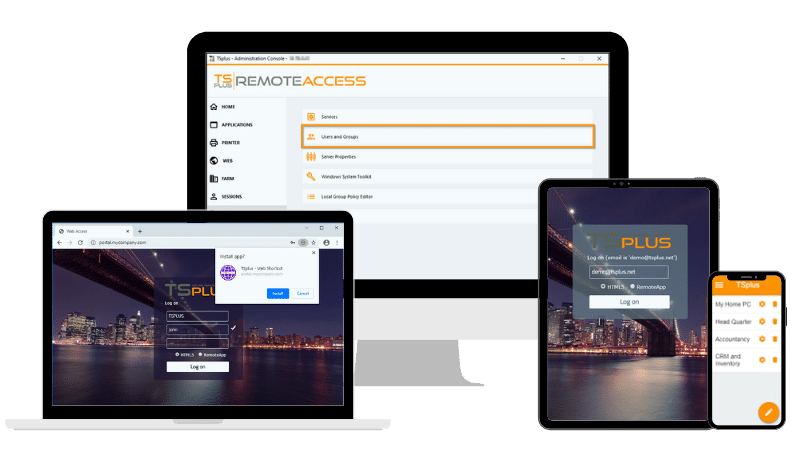
TSplus Remote Access gives organizations a practical way to publish Windows applications and full desktops from their own servers. Users can connect through a standard RDP client or an HTML5 web portal, while IT teams retain control over hosting, access policies, concurrent sessions and the overall user experience.
For businesses that do not need the complexity or cost structure of a full cloud desktop platform, our solution offers a more focused alternative. It supports secure application delivery, browser-based access and centralized administration, making it well suited to SMBs, software vendors and IT teams that want to extend access to existing Windows environments.
Conclusion
Windows App is Microsoft’s supported successor for Azure Virtual Desktop, Windows 365 and Microsoft Dev Box, but it is not a universal replacement for every Remote Desktop workflow. IT teams should migrate cloud resources, retain suitable clients for direct RDP and RDS, and test platform-specific features before removing legacy access paths.
TSplus Remote Access Free Trial
Ultimate Citrix/RDS alternative for desktop/app access. Secure, cost-effective, on-premises/cloud
)
)
)
