








:quality(80)/m/filters:format(webp))
:quality(80)/m/filters:format(webp))
Introduction
Connecting a Mac to Windows through Remote Desktop Protocol is straightforward in principle. In production, however, the RDP client is only one part of the connection. Windows host configuration, network access, authentication, gateways, device redirection and server capacity can all determine whether the session works reliably.
What Is an RDP Client When You Use A Mac?
RDP client for Mac is software that is installed on a Mac computer running macOS that uses Remote Desktop Protocol (RDP) by Microsoft to connect to a Windows device.
The client/server difference should be understood. With RDP, the Mac is the RDP client device and the Windows device-Windows PC, Windows Server, or RDS deployment-is the remote computer.
Making a connection to the graphical desktop of a Mac from Windows is a different scenario and generally uses different protocols such as Apple's Screen Sharing, VNC, or remote-control software.
RDP from Mac to Windows might mean a connection to one of: A single workstation A Windows Server desktop session An RDS session or a published Windows application In the context of troubleshooting and architecture decisions, IT teams should therefore consider the path all the way from end-to-end:
Mac endpoint → RDP client → network or secure gateway → Windows host or RDS environment → desktop or application
Any issue or bottleneck along the way can stop the connection or impact the experience. One more limitation is on the host side rather than the Mac. Windows Professional, Enterprise and Education editions are capable of serving as Remote Desktop hosts. Supported Windows Server editions are also capable of Remote Desktop hosting.
Which Type of RDP Client Should You Use on Mac?
For businesses operating in the Microsoft Remote Desktop environment the main Microsoft client is now Windows App, not Microsoft Remote Desktop for macOS.
Microsoft Remote Desktop for macOS was removed from download and replaced by Windows App. Documents that continue to instruct customers to download "Microsoft Remote Desktop" may need to be changed.
Windows App for Mac
Windows App is the Microsoft-approved pathway for Windows-from-mac connections to remote Windows resources.
Based on the infrastructure and account type, Windows App can support remote PC connections, Remote Desktop Services, Azure Virtual Desktop, Windows 365 and Microsoft Dev Box. For remote-PC access, IT admins or users can adjust display settings, add accounts, allow access to local devices and enable audio redirection.
If an organization is already utilizing Microsoft infrastructure, Windows App is an easy first step before considering third-party client options.
What to Look for in a Third-Party RDP Client
There may still be value in third-party RDP-compatible clients where there is a need for specific management, interface or multi-protocol features. If a third-party client is needed, selection should be driven by infrastructure needs, not a handful of available features:
| IT requirement | What to verify |
|---|---|
| Individual Windows PC access | Hostname or IP connections and credential handling |
| Windows Server or RDS | Workspace, RemoteApp and gateway compatibility |
| Multiple displays | Multi-monitor and dynamic-resolution support |
| Local file access | Folder and storage redirection |
| Printing | Printer redirection and driver compatibility |
| Audio and conferencing | Speaker, microphone and camera redirection |
| External connections | RD Gateway and certificate support |
| Managed deployments | Repeatable configuration and endpoint-management options |
The best Mac RDP client is therefore the one that meets the needs of Windows and the user, in terms of position and architecture, without complicating management.
How Do You Set Up RDP If You Have to Pass From a Mac to Windows?
When connecting directly to the Remote Desktop, the Windows computer must support the RDP connection, the Mac must have access to the Windows computer, and the user must be authorized to connect remotely.
Check on Windows the first time before preparing on the Mac if Remote Desktop is enabled where necessary, the users are enabled and the Windows firewall support allows a connection. NLA should normally be kept enabled.
Direct Connection to a Windows PC
A typical connection through Windows App follows this process:
- Enable Remote Desktop on the Windows host and authorize the appropriate user accounts.
- Verify that the Mac can reach the host through the local network, VPN or another approved connection path.
- Install Windows App on macOS from the Mac App Store or Microsoft's available installer.
- Open Windows App, select Devices , choose the + icon and select Add PC .
- Enter the hostname or IP address of the Windows host.
- Configure the user account, display settings and required device or audio redirection.
- Add the PC and connect using an authorized Windows account.
This is exactly the same Devices and Add PC process used by Microsoft for their current macOS procedure . For business use, wherever possible, use hostnames which rely on good DNS rather than IP address hard-coding.
Connecting to Remote Desktop Services
Remote Desktop Services alters this paradigm by giving users not guaranteed access to one predefined workstation.
An administrator can instead publish an RDS workspace with the set of desktops and Remote App programs that should be available to that user. In Windows App for macOS, the user clicks Add Workspace and enters the workspace URL provided by an administrator. The user then gains access to the resources inside that client.
This solution scales more cleanly when many users need access to applications or desktops that are centrally hosted. IT manages the published resources, and the users do not need to maintain their own list of connection endpoints for each server.
When Should You Use an RD Gateway?
An RD Gateway provides an additional security barrier for remote RDP clients from accessing Windows resources on a corporate network.
Instead of exposing each RDP host directly to remote clients, the Mac will connect through the gateway, which then authorizes access to allowed internal resources. The Windows App for Mac includes configuration for a Remote Desktop gateway.
Microsoft states that RD Gateway offers remote RDP connectivity over a secure SSL connection (such as TCP 443) so that your organization does not need to open local RDP ports to the Internet.
To connect into the Business (Remote Access) network, the RDP Gateway or VPN architecture is as a matter of choice then of whether you use one of two similar Mac RDP clients.
What Type of Mac RDP Features Matter in Production?
For many organizations a simple Remote Desktop session may be enough for administration. For normal users they may need access to local files, multiple screens, printing, audio and other endpoints.
Make sure to test these features with the applications and workflows that you will support, as there is no guarantee they will work the same everywhere.
Displays and Multiple Monitors
Configuration is important especially if you are a Mac Book user switching between the internal Retina display, a dock and external monitor.
Resolution and multiple monitor support can significantly improve usability of remote Windows applications, and it also increases the graphics load on the session. A three monitor finance workstation puts more stress on RDP than a one monitor administrator session.
When users complain of slow graphical updates, one way to further diagnose if the cause relates to display workload is to test with one monitor and with a resolution lower than the available displays.
Keyboard and Input
Mac and Windows keyboards do not map perfectly.
Command, Option, Control and the Windows key have different functions, and line-of-business applications may be reliant on Windows-related shortcuts. As a result, users may view keyboard-mapping issues as either an application problem or an RDP problem.
For common Windows applications deployed at scale, simply making a list of the key Mac-to-Windows combinations that matter may solve a substantial number of help desk tickets.
Device and Folder Redirection
RDP can expose selected resources from the Mac inside the remote Windows session.
Windows App for macOS lets you redirect any number of resources, like printers, smart cards, microphones, cameras, audio, clipboard data and local folders, depending on what the remote service and administrator allow.
That convenience has a security tradeoff. Any redirect enabled crosses the boundary between the endpoint and Windows. Your IT team should allow only the resources that users require, rather than making each redirect option the default.
How Should You Secure RDP Connections From Macs?
RDP security is about the whole access setup, not whether the endpoint happens to run MacOS.
The first principle is to avoid unnecessary direct exposure. Native Remote Desktop uses port 3389 by default. Microsoft states that port-forwarding an RDP port directly to a PC exposes that system to the Internet and recommends use of a VPN .
Consequently, your business deployment must deliver an appropriate access layer, between external users and internal resources running Windows. This could be an RD Gateway, a VPN, or some other remote-access architecture for your infrastructure.
Also, make sure that NLA is also enabled by default. The idea of NLA is to authenticate the user before establishing a full remote session, so as to limit the attack surface of the Windows host. Therefore, Microsoft suggests that NLA should be enabled as long as the client is compatible.
Authentication is just one control. RDP access should be on the basis of least-privilege and regular users should not use administrator accounts because they are easier. If possible, architecture allows, then multi-factor authentication and centralized identity policies are additional safeguards.
Device redirection demands its own policy. Access to the clip board, local folders and printing may be the difference needed in a workflow, but these are the data vectors that can also move data from a central Windows environment to the outside Mac environment. Redirection policies should be based on app and data sensitivity.
How Can You Improve RDP Performance on Mac?
Having a slow RDP session does not necessarily mean something is wrong with Windows App or any other mac client. RDP session speed is determined by the entire path:
Mac performance → local network → WAN or Internet connection → gateway → Windows host → application workload
Latency and packet loss are most apparent on interactive applications. Even if the network connection still has a lot of "nominal" bandwidth, it can still be slow if packets are delayed, retransmitted or dropped. Wi-Fi interference is a typical in-between issue.
Display configuration also increases the occurrence of these symptoms. High-resolution desktops, double monitors, video, and image-heavy apps all require a lot more processing and screen update processing than a simple server-administration session.
The Windows host will therefore need to be considered along with the network. CPU saturation, memory pressure, high storage latency, or a high number of concurrent sessions can cause issues perceived by users to be a Mac RDP problem.
In an RDS deployment, comparing session-host health across a number of users impacted is usually more useful than trying to reinstall individual clients again and again.
How Do You Troubleshoot RDP on a Mac?
Efficient RDP troubleshooting starts by identifying which stage of the connection fails.
Changing certificates, credentials, client settings and firewall rules in concert will eventually bring the connection back up again, but the rabbit hole gets deeper. Begin with the visual cue and systematically trace the connection:
| Symptom | Likely area | First checks |
|---|---|---|
| Host cannot be found | DNS or addressing | Hostname, IP address, DNS resolution |
| Connection times out | Network or firewall | Route, VPN, gateway, firewall, RDP service |
| Host responds but login fails | Authentication | Username format, password, domain, permissions |
| LAN works but remote access fails | Network edge | VPN, RD Gateway, certificates, firewall |
| Login succeeds but desktop fails | Windows session | Event logs, profile, services, host resources |
| Session is consistently slow | Network or capacity | Latency, packet loss, displays, CPU, RAM |
| Clipboard, folders or printer fail | Redirection | Client configuration and administrator policy |
A failed ping does not prove that the Windows host is unreachable. Packet filtering using Internet Control Message Protocol (ICMP) can be enabled so that you can still reach Remote Desktop
In addition to telling you how to identify why a specific user is failing, patterns of failures across user populations are also important. If one Mac fails when everyone else is working, check the endpoint, credentials and the local network. If a large number of users are failing at the same time, suspect components that they share, such as the gateway, your identity system, the RDS deployment, or Windows session hosts.
It's about to a point where troubleshooting the endpoint doesn't conceal a larger, whole-infrastructure issue.
In Which Situation A Standard RDP Client Would Not Be Enough?
When only a small team of administrators or employees require full access to a few Windows systems, a standard RDP client provides a good experience. The game is different when you need to deliver Windows apps to large populations of Mac users.
One Windows finance app instead of a Windows desktop for an accountant. A contractor may need access from an unmanaged Mac. Yet, another user may need to connect from any of several computers when not installing, configuring and maintaining a dedicated RDP client is inconvenient.
At that point, the question is no longer simply:
"Which RDP client for Mac should we install?"
The more useful question becomes:
"How should we deliver Windows applications and desktops to these users?"
You can also publish applications from a Windows environment to centralize business applications on Windows servers but restrict what resources are delivered to individual users. Browser-based remote access can reduce reliance on endpoints still further by allowing a MAC user to access pre-approved Windows resources using a browser.
That doesn't eliminate the Windows environment underneath the applications, it just moves the access layer and can make deployment a lot simpler where there are large groups of users, or mixed groups that make individually configured RDP clients unmanageable.
How Can TSplus Simplify Access From Mac?
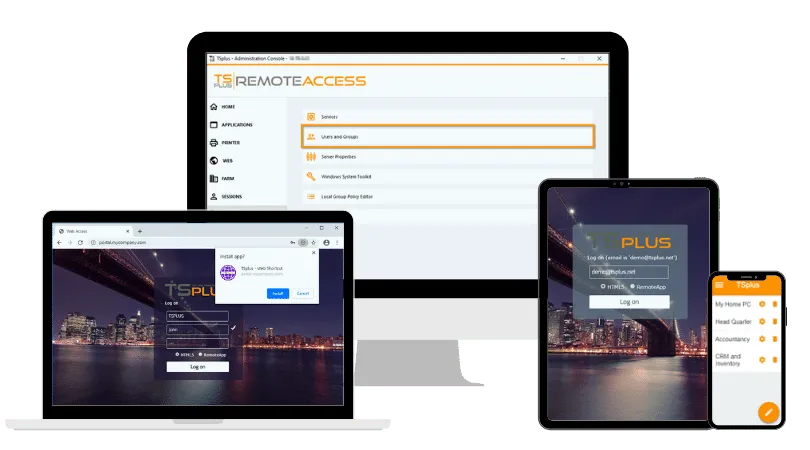
When managing individual RDP clients becomes impractical, TSplus Remote Access provides a more centralized way to deliver Windows desktops and applications to Mac users. IT teams can publish complete desktops or selected Windows applications while controlling which resources each user can access.
Mac users can connect through an RDP-compatible client or use browser-based HTML5 access when installing and maintaining a dedicated client is undesirable. This can simplify access for mixed-device environments, contractors and larger user groups that depend on centralized Windows applications.
Conclusion
An RDP client for Mac can provide dependable access to Windows desktops, servers and applications when the surrounding infrastructure is designed correctly. Client choice matters, but so do Windows host configuration, network architecture, authentication, gateway design, resource redirection and server capacity.
For smaller deployments, a conventional RDP client may be entirely sufficient. As user numbers, device types and application-delivery requirements grow, IT teams should reassess whether individually configured RDP connections remain the most practical way to provide access to Windows resources.
TSplus Remote Access Free Trial
Ultimate Citrix/RDS alternative for desktop/app access. Secure, cost-effective, on-premises/cloud
:quality(80)/m/filters:format(webp))
:quality(80)/m/filters:format(webp))
:quality(80)/m/filters:format(webp))
