








)
)
Introduction
A Remote Desktop Services deployment can solve remote work, app centralization, and third-party access in one platform. However, RDS can fail fast when licensing, certificates, or security controls are misconfigured. This article focuses on clear decisions and safe defaults you can apply immediately. You will finish with a build plan you can document and support.
TSplus Remote Access Free Trial
Ultimate Citrix/RDS alternative for desktop/app access. Secure, cost-effective, on-premises/cloud
What a Remote Desktop Server Is in Windows Terms?
RDS vs standard Remote Desktop
Windows Pro Remote Desktop is a one-to-one feature for a single machine. A remote desktop server is typically Windows Server Remote Desktop Services (RDS), which supports many concurrent users. RDS also adds central policies, session control, and licensing. That difference matters for supportability and compliance.
The RDS roles that matter
Most real deployments use a small set of role services:
- RD Session Host: runs user sessions and RemoteApps (published applications).
- RD Connection Broker: tracks sessions and reconnects users reliably.
- RD Web Access: provides a portal for apps and desktops.
- RD Gateway: wraps RDP inside HTTPS for safer internet access.
- RD Licensing: manages RDS Client Access Licenses (CALs).
You can combine roles in small environments, but production designs usually separate at least the session hosts and the gateway. Role separation is not only about performance.
Step 1: Plan Your RDS Design
Topology: single server vs multi-server
A single-server setup can work for a lab or a small office with low concurrency. For production, separate roles to reduce outages and simplify troubleshooting. A common split is one server for Broker, Web, and Licensing, and one or more servers for Session Host. If external users connect, place RD Gateway on its own server when possible.
Sizing: CPU, RAM, storage, network
Capacity planning is where user experience is won or lost. Interactive apps spike during logon and app launch, so sizing needs practical priorities:
- CPU: favor higher clock speed for session responsiveness
- RAM: plan for peak concurrency to avoid paging
- Storage: SSD to reduce profile and app I/O latency
- Network: prioritize low latency over raw bandwidth
Memory pressure causes slow sessions and random failures, so plan for peak concurrency. SSD storage reduces profile load time and improves logon consistency. Low latency network paths usually matter more than raw bandwidth.
Access model: internal, VPN, or internet
Decide how users will reach the service before you install roles. Internal-only access is simplest and reduces exposure. VPN access adds a control layer but needs client management. Internet access should use RD Gateway over HTTPS, so you avoid exposing port 3389. This one decision prevents many security incidents.
If you must support unmanaged devices, plan for stricter controls and clearer boundaries. Treat internet access as a product, not a checkbox, with ownership for identity, certificates, and monitoring.
Step 2: Prepare Windows Server for RDS
Patch, baseline, and admin access
Patch Windows Server fully before adding RDS roles and keep a predictable update cycle. Apply a baseline hardening standard that matches your environment. Use clear admin boundaries:
- Separate privileged admin accounts from daily user accounts
- Admin only from a managed jump host (not from endpoints)
- Limit local admin membership and audit changes regularly
DNS names and firewall posture
Pick the user-facing DNS name early and keep it consistent across tools and certificates. Plan firewall rules with a “least exposure” mindset. For internet-facing deployments, aim to expose only TCP 443 to the gateway. Keep TCP 3389 closed from the public internet.
Build prerequisites: domain join and service accounts (when needed)
Most production RDS deployments are domain-joined because group-based access control and GPO are central to management. Join servers to the correct AD domain early, then validate time sync and DNS resolution. If you use service accounts for monitoring agents or management tooling, create them with least privilege and document ownership.
Step 3: Install Remote Desktop Services Roles
Standard deployment with Server Manager
Use the Remote Desktop Services installation path in Server Manager for a clean setup. Select a session-based desktop deployment for multi-user desktops and RemoteApps. Assign role services based on your topology plan, not convenience. Document where each role is installed to simplify future upgrades.
Role placement and separation rules of thumb
Role placement shapes performance and troubleshooting speed. Co-locating everything can work, but it also hides bottlenecks until user load rises. Separating edge roles from compute roles makes outages easier to isolate and reduces security risk.
- Co-locate roles only for lab or very small deployments
- Keep RD Gateway off the Session Host for internet-facing access
- Add Session Hosts horizontally instead of oversizing one host
- Use consistent server naming so logs are easy to follow
Post-install checks
Validate the platform before adding users. Confirm services are running and set to start automatically. Test RD Web Access internally if you deployed it. Make a test connection to the Session Host and confirm session creation works. Fix any errors now, before you add certificates and policies.
Add a short validation checklist you can repeat after every change. It should include a connection test, an app launch test, and a log check for new warnings. Repetition is what turns RDS from “fragile” into “predictable.”
Step 4: Configure RD Licensing
Activate, add CALs, set mode
Install the RD Licensing role, then activate the licensing server. Add your RDS CALs and select the correct licensing mode: Per User or Per Device. Apply the licensing server and mode to the Session Host environment. Treat this as a required step, not a later task.
Verify licensing is applied
Licensing issues often appear after a grace period, which makes them hard to trace. Check Event Viewer on the Session Host for licensing warnings. Confirm the Session Host can reach the licensing server over the network. Verify the mode matches the CAL type you actually own. Capture screenshots for your build documentation.
- Confirm the licensing server is reachable from each Session Host
- Confirm the licensing mode is applied where sessions run
- Review RDS-related logs for warnings before user onboarding
- Re-test after GPO changes that could override RDS settings
Licensing failure patterns to catch early
Most licensing “surprises” are preventable. Problems often come from mismatched CAL type and licensing mode, a licensing server that was installed but never activated, or a Session Host that cannot discover the licensing server due to DNS or firewall changes.
Build one simple rule into your process: do not move from pilot to production until licensing logs are clean under load. If your build survives peak logon tests and still shows no licensing warnings, you have eliminated a major class of future outages.
Step 5: Publish Desktops and RemoteApps
Session Collections and user groups
A Session Collection is a named group of Session Hosts and user access rules. Use security groups rather than individual user assignments for clean administration. Create separate collections when workloads differ, such as “Office users” and “ERP users.” This keeps performance tuning and troubleshooting more predictable.
Add a clear mapping between collections and business outcomes. When users know which collection supports which apps, helpdesk teams can route issues faster. Collection design is also where you set consistent session limits and redirection rules.
RemoteApp publishing basics
RemoteApps reduce user friction by delivering only what they need, and platforms like TSplus Remote Access can simplify publishing and web access for teams that want fewer moving parts. They also limit the “full desktop” attack surface when users only require one or two applications. Publishing is usually straightforward, but reliability depends on testing app launch paths and dependencies.
- Test each RemoteApp with a standard user, not an admin account
- Validate file associations and required helper components
- Confirm printer and clipboard requirements before enforcing restrictions
- Document the supported client types and versions
Profiles and logon speed basics
Slow logons often come from profile size and profile processing steps. Start with a clear profile strategy and keep it simple. Test logon time with real user data, not empty accounts. Track logon duration early so you can spot regressions after changes.
Add guardrails before you scale. Define profile size limits, clean-up processes for temp data, and how you handle cached credentials and user state. Many “performance” incidents are really “profile sprawl” incidents.
Step 6: Secure External Access with RD Gateway
Why HTTPS beats exposed RDP
RD Gateway tunnels Remote Desktop traffic over HTTPS on port 443. This reduces direct exposure of RDP and gives you a better control point. It also improves compatibility with locked-down networks where only HTTPS is allowed. For most teams, it is the safest default for external access.
Policies, certificates, and MFA options
Use gateway policies to control who can connect and what they can reach. Bind a certificate that matches your external DNS name and is trusted by user devices. If MFA is required, enforce it at the gateway or through your identity provider path. Keep rules group-based so access reviews stay manageable.
- Use CAP/RAP policies tied to AD security groups
- Restrict access to specific internal resources, not entire subnets
- Enforce MFA for external access when business risk justifies it
- Log authentication and authorization events for audits
Hardening the gateway and the edge layer
Treat RD Gateway like an internet-facing application server. Keep it patched, minimize installed components, and restrict admin access paths. Disable weak legacy settings you do not need and monitor for brute-force behaviour. If your organization has an edge reverse proxy or WAF strategy, align the gateway deployment with it.
Finally, rehearse incident response actions. Know how to block a user, rotate certificates, and restrict access during a suspected attack. These actions are far easier when you planned them.
Step 7: Performance and Reliability Tuning
GPO settings that reduce session load
Use Group Policy to reduce unnecessary overhead without breaking workflows. Limit idle sessions and set disconnect timeouts to free resources safely. Control clipboard and drive redirection based on data sensitivity. Apply changes in small steps so you can measure impact.
Monitoring signals to track early
Monitor CPU, memory, and disk latency on Session Hosts from day one. Track logon time and session count trends across the week. Watch gateway authentication failures for brute-force patterns. Set alerts for resource saturation, not just server down events. Good monitoring prevents ‘surprise Mondays.’ Start with a small baseline set:
- Logon duration trends (median + worst 10%)
- Session host memory pressure during peak hours
- Disk latency on profile and app paths
- RD Gateway failed logons and unusual spikes
Operational stability: patch windows and change cadence
Performance depends on operational discipline. Define maintenance windows for Session Hosts and Gateway servers, then communicate them to users. Use staged rollouts where one Session Host updates first, then the rest. This approach reduces the risk of widespread disruption from a bad patch or driver update.
Also define what “rollback” means in your environment. For VMs, snapshots can help, but only when used carefully and briefly. For physical systems, rollback might mean reverting a golden image or removing a recent change via automation.
Step 8: Common Build Issues and Fix Paths
Certificates, DNS, firewall, and NLA
Certificate errors usually come from name mismatches or missing trust chains. DNS issues show up as “can’t find server” or failed portal loads. Firewall mistakes often block internal role-to-role traffic, not just user traffic. Enable Network Level Authentication (NLA) to require authentication before session creation. Test each layer in order so troubleshooting stays fast:
- DNS resolution for the exact user-facing hostname
- TLS certificate match + trust chain validation
- Firewall reachability (443 to Gateway, internal role traffic allowed)
- NLA enabled and authentication succeeding before session creation
Add a habit of validating from the client perspective. Check certificate trust on a typical user device, not only on servers. Verify the exact hostname users use matches the certificate. Many “random” failures are predictable once you reproduce them from a real client.
Slow sessions and disconnects
Sudden disconnects often map to licensing, profile failures, or resource exhaustion. Slow sessions commonly trace to memory pressure, disk latency, or heavy logon scripts. Check Event Viewer on the Session Host and Gateway and correlate timestamps. Confirm the issue is user-wide or collection-specific before changing settings. Use small fixes and retest, rather than large “rebuild” moves.
Printer, peripherals, and redirection trouble spots
Printing and peripheral redirection create a large share of RDS tickets. The cause is often driver mismatch, legacy printer discovery behaviour, or excessive redirection policies. Standardize printer drivers where possible and test with the most common devices early. Restrict redirection features that users do not need but avoid blanket blocks without stakeholder input.
When issues persist, isolate by disabling one redirection feature at a time. That approach prevents “fixes” that accidentally break scanning, label printing, or signature pads. Document the supported devices so the helpdesk can set user expectations.
How TSplus Simplifies Remote Desktop Delivery?
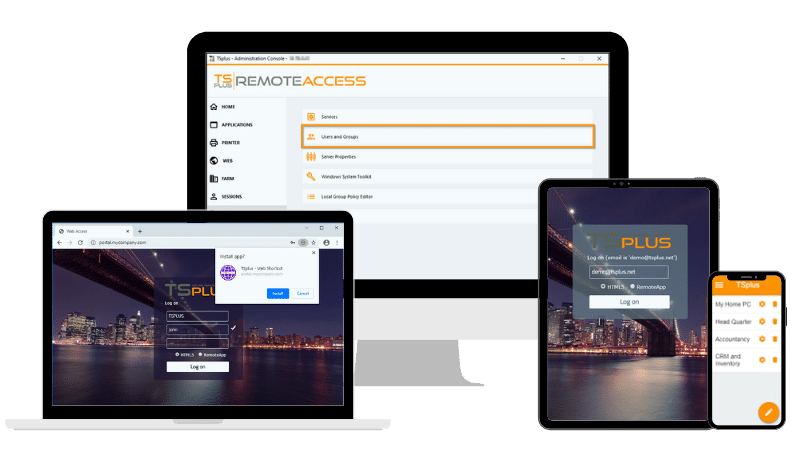
TSplus Remote Access provides a streamlined way to publish Windows desktops and applications without building a full multi-role RDS stack. Administrators can publish apps, assign them to users or groups, and deliver access through a customizable web portal. Users can connect from a browser using HTML5 or from any RDP-compatible client, depending on device needs. This approach reduces setup friction while keeping centralized control over applications and sessions for lean operations.
Conclusion
A reliable remote desktop server starts with clear design choices and safe defaults. Size the Session Hosts for real workloads, configure licensing correctly, and avoid public RDP exposure. Use RD Gateway and clean certificates for secure external access. With monitoring and consistent policies, an RDS environment can stay stable as usage grows.
TSplus Remote Access Free Trial
Ultimate Citrix/RDS alternative for desktop/app access. Secure, cost-effective, on-premises/cloud
)
)
)
