








)
)
Windows Server 2016 is approaching the end of Microsoft’s extended support window. That deadline is more than a date on a lifecycle page: it impacts patching, risk exposure, compliance posture and the long-term viability of the applications that still depend on this platform.
This guide summarizes the Windows Server 2016 EOL date, explains Windows Server 2016 ESU, outlines migration paths for SMB and hybrid environments, and offers a practical way to decide which legacy apps to modernize versus keep running safely during a transition.
Windows Server 2016 end of support date and lifecycle basics
Mainstream vs extended support
Microsoft’s Fixed Lifecycle Policy typically provides a period of mainstream support followed by extended support. Mainstream support includes feature improvements and broader support coverage, while extended support focuses on security updates and critical fixes rather than new capabilities.
The exact Windows Server 2016 EOL date
The Windows Server 2016 end of support date (end of extended support) is January 12, 2027. Microsoft lists this date in the official lifecycle record for Windows Server 2016.
What happens after end of support?
Security, compliance, and operational impact
After January 12, 2027, Windows Server 2016 no longer receives routine security updates or product support under the standard lifecycle. That shifts responsibility to the organization to either migrate, adopt a paid coverage option, or accept increasing exposure to vulnerabilities and unsupported dependencies.
In practical terms, “end of support” tends to surface quickly in three places:
- Security posture: missing patches become a growing backlog of known risk.
- Audit and insurance: many frameworks and policies require supported software.
- Vendor compatibility: new versions of apps and agents stop testing against older server baselines.
Why “it still works” is not a strategy
Most end-of-support failures are not immediate outages. The pain arrives as “secondary effects”: a security incident tied to an unpatched weakness, a new client version that won’t connect, or a monitoring/security tool that drops support. The longer the gap from the last supported update, the more these failures compound.
Related deadlines you should not ignore: Windows Server 2012 and 2012 R2
Where 2012 and 2012 R2 stand right now
Windows Server 2012 and Windows Server 2012 R2 reached end of support on October 10, 2023, and Microsoft positions Extended Security Updates as the bridge for up to three additional years.
For organizations on ESU, Microsoft’s lifecycle entries show ESU Year 3 ending October 13, 2026 for both Windows Server 2012 and 2012 R2.
That means many IT teams have a “stacked timeline”:
- 2012 / 2012 R2 final ESU window closes in October 2026.
- Windows Server 2016 extended support ends in January 2027.
How this affects upgrade sequencing
If your environment contains a mix of 2012/2012 R2 and 2016, the sequencing matters. A common SMB approach is to migrate the oldest servers first (2012/2012 R2), then use the lessons learned to accelerate the 2016 plan. This also reduces the chance that a “hard dependency” on older systems blocks the later stages of your 2016 migration.
Windows Server 2016 ESU explained
What ESU covers and what it does not
Extended Security Updates (ESU) is a paid program intended as a last-resort bridge for servers that cannot be upgraded by the end-of-support deadline. Microsoft describes ESU as providing security updates (typically “critical” and “important”) for a limited time, not feature development or a full modernization path.
Microsoft’s Windows IT Pro blog explicitly states that if you cannot upgrade Windows Server 2016 by January 12, 2027, ESU can be purchased for up to three years, with pricing and availability details to follow.
ESU vs moving workloads to Azure
Microsoft also highlights that migrating affected workloads to Azure can change how ESU is delivered and managed, and that ESU is a transitional safety net rather than a long-term destination. The right choice depends on whether your blockers are technical (app compatibility), operational (downtime windows), or financial (refresh cycles).
Migration paths for SMB and hybrid environments
In-place upgrade vs side-by-side migration
Most Windows Server 2016 environments fall into one of two migration patterns:
1. In-place upgrade
This can be faster on paper, but it keeps legacy configuration, drivers and historical “drift”. It is usually best when the server is simple (single role, minimal integrations) and the application vendor supports an in-place upgrade path.
2. Side-by-side migration
This is often safer for business-critical workloads: build a new supported server, migrate roles/data/apps, cut over, then decommission the old instance. Side-by-side reduces rollback risk and makes it easier to test authentication flows, firewall rules and performance under load.
App dependency mapping and validation
Before choosing a path, map dependencies at two levels:
- Technical dependencies: OS version requirements, .NET/Java runtimes, database versions, driver/USB needs, identity dependencies.
- Operational dependencies: who uses the app, from where, during what hours, and what “failure” looks like.
A simple but effective method is to rank each application by:
- Business criticality (high/medium/low)
- Replaceability (easy/moderate/hard)
- Upgrade friction (low/high)
That matrix will show you which apps are your “schedule killers” and which servers can move quickly.
Legacy applications: when upgrading the OS triggers an “app renewal tax”
A simple decision framework for keeping or replacing apps
SMBs often face a hidden cost:
Upgrading the OS forces upgrades of “well-worn” line-of-business apps that still do the job, but are no longer sold, no longer supported or expensive to modernize. The decision should be explicit, not accidental.
Use this framework:
- Keep (temporarily): unique business value, stable behaviour, clear usage pattern, contained risk.
- Replace (planned): vendor end-of-life, frequent issues, security concerns or features missing that the business now needs.
- Retire (fast): low usage, duplicate function or hard to secure.
Web-enabling and publishing legacy apps as a transition strategy
When the application itself is the blocker, one practical transition strategy is to keep the application running in a controlled environment, while modernizing the way users access it. This can reduce desktop sprawl, simplify access for remote users, and help you phase out older client dependencies.
TSplus Remote Access is designed for exactly this category: publishing Windows applications (and desktops when needed) so users can reach legacy apps through controlled remote delivery, including browser-based access options and centralized authentication flows such as single sign-on, with optional MFA depending on your configuration. This is not a replacement for patching or good security design, but it can be a pragmatic bridge when “upgrade the OS” would otherwise force “upgrade every app” immediately.
Reduce risk while you plan: RDP exposure and remote access hardening
Common RDP exposure patterns that drive incidents
Windows Server 2016 does not become unsafe overnight, but remote access exposure becomes less defensible as end of support approaches. The most common high-risk patterns are:
- RDP directly exposed to the public internet
- Weak credential controls or reused passwords
- Inconsistent logging and alerting on logon activity
- Over-privileged accounts used for daily access
Practical controls to apply immediately
If Windows Server 2016 will remain in service during a migration window, focus on quick wins that reduce attack surface:
- Remove public exposure: avoid direct inbound RDP from the internet; use a gateway, VPN or brokered access model.
- Tighten identity: enforce least privilege and modern authentication controls wherever possible.
- Segment access: restrict management access by network location and role.
- Improve visibility: ensure successful and failed logons are collected centrally and reviewed.
These steps help in two ways: they lower immediate risk and they create better “migration hygiene”, because modernized access patterns typically carry forward to the new platform.
Where TSplus fits
TSplus Remote Access for application publication and web access
For teams trying to keep key applications available while they modernize infrastructure, application publication can be the difference between a rushed upgrade and a controlled transition. TSplus Remote Access supports this approach with remote delivery options that can keep legacy apps usable without requiring every endpoint to run heavyweight clients or maintain fragile configurations.
The licensing model (perpetual or subscription) and deployment choices (self-hosted or aligned with your hosting preference) can also matter for SMB planning, because it lets the organization choose whether the “bridge” is short-term or becomes part of the long-term application delivery stack.
Security and operations add-ons that support the transition
As you phase out older servers, the priority is consistent security controls and clear operational visibility. Depending on needs, TSplus Advanced Security, TSplus Remote Support and TSplus Server Monitoring complement a transition by strengthening access control, simplifying support workflows and improving monitoring coverage across mixed environments.
A practical timeline and checklist to finish before January 12, 2027
90 days out: build your plan
- Confirm every Windows Server 2016 instance, role and owner.
- Identify which servers have internet-exposed management access.
- Build the application dependency matrix and rank “hard blockers”.
- Decide: in-place vs side-by-side for each workload category.
180 days out: execute pilot migrations
- Migrate low-risk servers first to prove the process.
- Validate authentication, backups, monitoring and rollback steps.
- For legacy apps that block migration, decide whether to replace, isolate or publish and control access as a bridge.
12 months out: finalize and decommission
- Migrate business-critical workloads with rehearsed cutovers.
- Reduce “special cases” by standardizing access methods.
- Decommission or isolate remaining Windows Server 2016 systems, and use ESU only when a documented blocker exists.
January 12, 2027 is the fixed point. The best outcome is not simply “a newer OS”, but a cleaner, more supportable environment where the applications that matter are accessible, secure, and no longer tied to a single aging server.
Conclusion
Windows Server 2016 end of support on January 12, 2027 is a fixed deadline with practical consequences for security, compliance and vendor compatibility. The most resilient approach is to treat 2026 as the execution window: inventory workloads, map application dependencies, and migrate in staged waves so the last systems are not rushed in Q4.
For SMB and hybrid teams, the hardest part is often not the operating system itself but the legacy applications tied to it. When an OS upgrade triggers an expensive or disruptive “app renewal tax”, isolate what must remain, reduce exposure and use controlled application delivery to keep critical tools available while modernization proceeds. With a clear timeline, hardened remote access and a plan for legacy apps, Windows Server 2016 can be retired on schedule without disrupting the business.
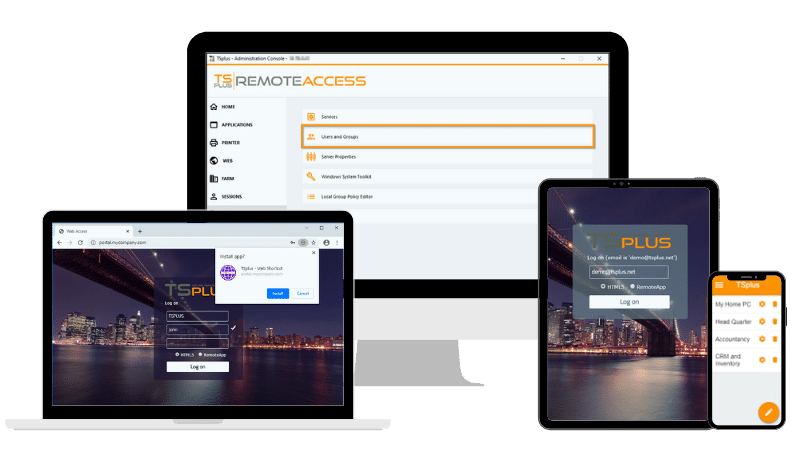
TSplus Remote Access Free Trial
Ultimate Citrix/RDS alternative for desktop/app access. Secure, cost-effective, on-premises/cloud
)
)
)
