





)
)
What is Remote Access Software?
Defining remote access software:
Remote access software is a software that covers several solution classes. It can mean full desktop remoting for persistent use, application publishing that delivers only specific Windows apps, on-demand remote support for ad-hoc help, secure gateways that front-end protocols, or even cloud-hosted desktops. Each class uses different architectures, security models and licensing.
Despite the variety, most options share core capabilities: identity integration, policy enforcement, encrypted sessions and auditing. Many support unattended access, file transfer and admin dashboards with APIs for automation.
Remote support
Remote support software lets a technician securely connect to a user’s device for attended or unattended assistance. It is designed for troubleshooting, screen sharing, issue resolution, and short-lived helpdesk sessions.
Unattended remote desktop
Unattended remote desktop software gives a user secure access to a specific computer without someone needing to accept the session on the other end. It is best for reaching an office PC, server, or managed endpoint from another location.
Application publishing
Application publishing delivers individual Windows applications from a central server or host to remote users, without necessarily giving them a full desktop. It is ideal when teams need secure access to business apps while keeping data and management centralized.
Secure remote desktop / RDS-style delivery
Secure remote desktop or RDS-style delivery provides users with a full remote Windows session hosted centrally and accessed over a secure connection. It is commonly used to deliver shared desktops or business workspaces to multiple users with centralized administration.
VDI / DaaS
VDI and DaaS provide virtual desktops hosted either on-premises or in the cloud, usually with dedicated or highly controlled desktop environments for each user or workload. They are typically chosen for larger, more complex, or highly regulated environments that need deeper isolation, flexibility, or scale.
In short, 5 main categories of software:
The following remote access models emerge:
- desktop remoting,
- app publishing,
- remote support,
- gateways,
- cloud-hosted desktops.
One practical goal remains consistent: a responsive user experience from anywhere is essential, without ever exposing internal networks or increasing endpoint risk.
Why Do Teams Use Remote Access Software in 2026?
Business drivers:
Work-forces are distributed, critical line-of-business apps remain server-hosted and support must happen in real time. Remote access removes location as a constraint, centralizes data and reduces device management overhead. It enables work-from-anywhere, after-hours maintenance and rapid incident response while preserving governance.
Why choosing the right model matters:
Different teams need different outcomes, which is why the “umbrella” matters. Employees often need persistent access to apps, service desks need safe one-time sessions and admins need hardened entry points. Picking the right class (remoting, publishing, support, gateway, or cloud desktops) shortens time-to-value and avoids overbuying features you will not use.
What Should You Consider for A Remote Software Setup?
After a few practical decision-making markers, we will go through the criteria themselves: security, delivery model, management, performance, licensing/TCO so your decision can be as informed and simple as possible.
Practicalities and steps:
Reflection on needs
Start by matching the use case to its solution class. A helpdesk team handling live support sessions does not need the same platform as an SMB publishing accounting software to remote staff, and neither has the same requirements as an enterprise rolling out virtual desktops.
Picking a remote software category
It may be that your needs direct you without a doubt to a category. In that case, before comparing features, define whether the goal is remote support, unattended remote desktop access, application publishing, secure remote desktop delivery, or VDI/DaaS. That upstream decision will narrow the field faster than any product specifications.
Whitling down possibilities by testing them
It can make a big difference to validate security, manageability, performance and cost in a lab reproducing your live network, rather than just in theory. Anyhow, favour designs which minimize exposed services and simplify day-to-day operations.
As you work, you will benefit from using a focused checklist to compare options.
Security and access control:
First and foremost, security and access control need attention. Look for MFA or SSO, role-based access policies, session logging, auditing and hardening of services exposure. Platforms supporting HTTPS gateways or browser-based access dramatically reduce direct protocol exposure and help simplify secure external access.
User experience and delivery model:
User experience and delivery model matter just about as much as security though for very different reasons. Some teams need full desktops, while others only need access to a published Windows application. Native HTML5 or browser access, RemoteApp-style delivery, printing and peripheral redirection, and clean session isolation all have a direct impact on adoption and support load. Some of this will also participate in making your set-up more secure and can thus be highly valuable.
Administrations, management and deployment:
Straightforward installs, clear policy templates, patch cadence, monitoring with actionable alerts, etc. So many items are worthy of attention. Still, administration, management and deployment should stay practical. Favour platforms with straightforward installation, clear configuration and policy templates, predictable patching, as well as monitoring tools which produce actionable alerts instead of pointless messy noise. A technically powerful solution can still be the wrong fit if it adds needless daily complexity and pressure on your team.
Performance and scale:
Performance and scale must be validated under real conditions. Check how well the platform behaves over WAN links, whether it supports load balancing or server farms, how gateway high availability is handled, and what realistic concurrency limits look like in production, not just in vendor demos.
Licensing and total cost of ownership:
Finally, evaluate licensing and total cost of ownership. How transparent is the pricing? Compare perpetual versus subscription options and what features are included or come only at an additional cost, especially when it comes to required add-ons (whether essential to you or required by the vendor). Get a clear picture of your infrastructure overheads and support SLAs, and compare them against your actual operational risk. If the platform fits the use case, reduces operational effort, and meets security and cost requirements, you have a remote access setup you can trust.
If the platform aligns to your use case, lowers operational effort, and passes security and cost checks, you have a setup you can trust.
The Best Remote Access Software by Use Category
As has become obvious, some differentiation needs to be made. Below, you will find some of our favourite recommendations sorted into four categories focused on the usage you may apply: application publishing and centralized Windows access, remote support and help-desk sessions, unattended remote desktop access and enterprise VDI and app virtualization. They should provide enough variety and scope.
1. TSplus Remote Access
)
Best for SMB application publishing and browser-based Windows access
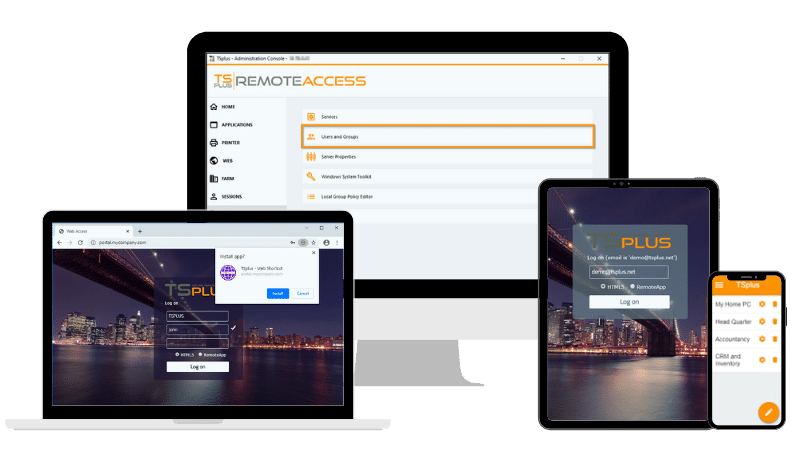
TSplus Remote Access delivers fast, reliable application and desktop publishing. It installs in minutes, offers HTML5 web access and scales simply on standard Windows infrastructure.
With optional Advanced Security and Server Monitoring, it provides a balanced stack for SMBs and ISVs at a fraction of Citrix’s TCO. Teams typically go from install to first published app the same day, reducing time-to-value and support load. Lighter and swifter than VDI. Flexible perpetual or subscription licensing keeps costs predictable as you grow.
Pros
- Simple setup on Windows servers with built-in browser access
- Perpetual licensing options and low ongoing admin effort
- Lightweight footprint which works on-prem, hybrid or hosted
These strengths make TSplus a pragmatic default for app publishing.
Cons
- Fewer out-of-the-box third-party integrations than large incumbents
Pricing
- Perpetual and subscription options with multiple editions (Desktop, Web/Mobile, Enterprise)
- Tiered licensing scales by server capacity and features; HTML5 is included in Web/Mobile and Enterprise
- Free trial available
- This structure keeps total cost predictable as your needs evolve.
Reviews/Ratings
- Positively reviewed by SMBs and ISVs for value and ease of setup
- Users highlight simple browser access and low admin overhead
- Feedback notes affordability versus heavier VDI stacks
TSplus Remote Support
)
TSplus Remote Support, The Fast, Affordable Way to Deliver Helpdesk Sessions
TSplus Remote Support enables attended and unattended support without complex infrastructure. Technicians launch secure, on-demand sessions using a lightweight SOS client and built-in relay. It installs quickly, scales for teams, and adds essentials like MFA, consent prompts, file transfer and session logging for audits.
Pros
- Instant SOS launcher for frictionless end-user onboarding
- Technician tools: elevation/UAC handling, file transfer, clipboard, multi-monitor
- Policy controls with MFA, consent and auditable session history
Cons
- Not a full RMM/PSA suite with deep device lifecycle management
- Fewer out-of-the-box third-party integrations than larger incumbents
Pricing
- Perpetual and subscription options sized for support teams
- Tiered licensing scales by technicians/endpoints; branding and policies included in higher tiers
- Free trial available
Reviews/Ratings
- Praised by SMBs and MSPs for fast setup and low friction for end users
- Technicians highlight SOS simplicity and reliable session performance
- Feedback notes strong value versus heavier, costlier support stacks
Chrome Remote Desktop
)
Chrome Remote Desktop, The Free Remote Access for Basic Needs
Chrome Remote Desktop is free and easy to deploy for ad-hoc access. It suits simple personal tasks and occasional remote help. It lacks enterprise controls, centralized management and app publishing. This makes it a poor fit for managed fleets in most business settings. Evaluate governance needs first, including auditing, role-based control and device policies. Avoid exposing production systems without compensating controls.
Pros
- Zero license cost and quick installation via Chrome
- Good for occasional personal access to a home or lab machine
- Minimal learning curve for non-technical users
Cons
- Limited policy control and auditing capabilities
- No app publishing or RDS-style session management
- Restricted unattended management at scale
Pricing
- Free for personal use
- No enterprise-grade tiers for management or app publishing
Reviews/Ratings
- Praise for simplicity and zero cost
- Frequent requests for stronger management and security controls
Microsoft Windows App / Remote Desktop (RDP)
)
Microsoft Windows App / Remote Desktop (RDP), The Native Windows-to-Windows Access with Familiar Admin Controls
RDP remains the native path for Windows-to-Windows access. The modern Windows app provides an improved client experience and integrates well with Windows security. App publishing still requires RDS roles or a platform like TSplus for browser-based delivery. This makes planning your architecture essential. Plan for gateway hardening, MFA, and correct licensing from day one. Consider HTML5 delivery when users work off-domain or unmanaged.
Pros
- Native integration with Active Directory, NLA, and TLS
- Predictable performance on Windows networks
- Broad administrator familiarity across IT teams
Cons
- Windows-centric approach limits heterogeneous fleets
- Exposure risks if gateways and policies are misconfigured
- No HTML5 app publishing without additional components
Pricing
- Included with Windows; RDS CALs required for multi-user scenarios
- Separate components may be needed for secure remote gateway
Reviews/Ratings
- Trusted default for Windows-to-Windows access
- Admins value control but note setup complexity across WAN
TeamViewer
)
TeamViewer, The Support-First Remote Control for Helpdesks and MSPs
TeamViewer focuses on remote support with strong session tooling and integrations. It excels at on-demand connections and multi-platform coverage. It is not designed for publishing Windows applications to the browser, so the fit differs from RDS scenarios. Map costs to ticket volume and technician seats to avoid overruns. Align conditional access, consent prompts and logging with compliance requirements.
Pros
- Rich support features including file transfer and session recording
- Cross-platform coverage for diverse endpoints
- Mature ecosystem and integrations with ITSM tools
Cons
- Subscription cost scales with endpoints and technicians
- Not focused on Windows app publishing
Pricing
- Subscription tiers by seats and feature bundles
- Trials available for evaluation
Reviews/Ratings
- Praised for reliability and ease of remote support
- Some concerns about cost at larger scale
AnyDesk
)
AnyDesk, The Low-latency Remote Desktop for Performance-focused Use Cases
AnyDesk emphasizes lightweight clients and responsive streaming. It works well for mixed-device environments and quick sessions. It does not provide app publishing, so it remains a desktop mirroring tool rather than an app delivery platform. Validate unattended access policies and endpoint whitelisting before rollout. Test responsiveness on constrained links to confirm codec performance meets expectations.
Pros
- Snappy connection setup and responsive control
- Broad OS coverage for desktops and mobile
- Light installation footprint in most environments
Cons
- No HTML5 app publishing or RDS session management
- Some features gated by higher subscription tiers
Pricing
- Subscription plans with feature-based upgrades
- Trials available for testing
Reviews/Ratings
- Often praised for perceived speed and low lag
- Requests for deeper enterprise policy controls are common
Zoho Assist
)
Zoho Assist, The Remote Support with Helpdesk-friendly Workflows
Zoho Assist integrates with Zoho’s service stack and supports unattended endpoints. It is a good fit for structured helpdesk processes. It does not handle browser-based Windows app publishing, which narrows its role to support rather than delivery. Confirm integration depth with your ITSM and identity provider. Pilot unattended deployment at scale to verify update cadence and SLA targets.
Pros
- Built-in integrations with ticketing and knowledge tools
- Unattended access and audit logs for compliance
- Reasonable learning curve for agents
Cons
- No browser-based app publishing for Windows applications
- Advanced features tied to higher subscription tiers
Pricing
- Subscription plans by feature set and endpoint needs
- Trials to validate workflows before committing
Reviews/Ratings
- Praised for integrations and unattended access
- Some requests for deeper reporting and policy control
Splashtop
)
Splashtop, The Smooth Audio/Video Streaming for Creative and Education Use Cases
Splashtop offers stable sessions with strong media performance. It is popular in labs and creative teams that need responsive audio and video. It remains a remote desktop tool rather than a browser-based app publisher, so the use case differs from RDS. Run a media-focused pilot with your creative tools and peripherals. Verify audio redirection, tablet input and color fidelity meet workflow needs.
Pros
- Reliable HD streaming with consistent session quality
- Broad device coverage across platforms
- Straightforward deployment for classrooms and studios.
Cons
- No HTML5 app publishing or gateway-style session control
- Costs vary by plan and endpoint count
Pricing
- Subscription plans sized for teams and institutions
- Trials available for evaluation
Reviews/Ratings
- Positive feedback on audio and video smoothness
- Requests for deeper enterprise policy features show up at scale
RustDesk
)
RustDesk, The Open-Source Remote Desktop with Self-hosting Options
RustDesk appeals to teams that prefer open-source software and control over infrastructure. It can be self-hosted to meet internal policies. It requires more effort to operate at scale and does not provide browser-based app publishing, which narrows the fit. Budget for relay servers, certificates and routine patching. Assign clear ownership for security updates and incident response in a self-hosted model.
Pros
- Open-source approach with community momentum
- Self-hosting for data residency and policy control
- Multi-platform coverage for common endpoints.
Cons
- Enterprise features and compliance require effort to implement.
- Limited vendor-backed support compared to commercial tools.
Pricing
- Free software with self-hosted infrastructure costs
- Community support and optional services where available
Reviews/Ratings
- Praised for transparency and flexibility
- Requests for turnkey enterprise features appear in larger deployments
Citrix
)
Citrix, The Enterprise-Grade Virtualization Platform
Citrix delivers comprehensive application and desktop virtualization with a mature control plane, brokering, gateways and policy depth for complex environments. It supports hybrid and multi-cloud deployments with granular performance tuning, HDX optimizations and extensive integration options.
Enterprises use Citrix to standardize access, enforce governance and scale globally with high availability, detailed analytics and profile management.
Pros
- Rich app/desktop virtualization with HDX for graphics, peripherals, and challenging networks
- Granular policy control, analytics, and security features suited to regulated industries
- Hybrid/multi-cloud flexibility with robust scalability and HA options
Cons
- Higher cost and administrative complexity compared to lighter alternatives
- Specialized skills often required for design, rollout, and lifecycle management
Pricing
- Subscription licensing across editions with feature-based tiers
- Costs influenced by scale, cloud usage and add-ons such as advanced analytics
- Trials and PoCs available through partners
Reviews/Ratings
- Praised for performance, policy depth and global scalability
- Admins highlight mature tooling but note learning curve and overhead
- Seen as a strong fit for compliance-heavy and multi-site deployments
Parallels RAS
)
Parallels RAS, The Streamlined App and Desktop Delivery for Mid-Market Teams
Parallels RAS focuses on simplified application and desktop publishing with an approachable admin experience. It offers gateway access, load balancing, and automation that reduce day-to-day overhead. Organizations choose Parallels RAS to modernize access quickly, integrate with directory services, and deliver reliable user sessions without building a complex VDI stack.
Pros
- Straightforward setup and management with clear wizards and policies
- Consistent end-user experience with printing, peripherals, and multi-platform clients
- Solid balance of features for SMBs and mid-market deployments
Cons
- Less ecosystem breadth and deep analytics than heavyweight enterprise platforms
- Advanced use cases may require additional tooling or custom integrations
Pricing
- Subscription licensing with tiers aligned to features and capacity
- Costs scale by users/concurrency and optional components
- Trials available for pilot evaluations
Reviews/Ratings
- Positively reviewed for ease of deployment and stable user experience
- Admins value the learning curve and operational simplicity
- Feedback notes strong mid-market fit with manageable overhead
How Does These Solutions Compare?
| Product | Best For | Platforms | App publishing | Unattended access | Security / MFA | Pricing Model |
|---|---|---|---|---|---|---|
| TSplus Remote Access | SMB app publishing & RDS | Windows servers; web on any device | Yes | Yes | 2FA, IP rules | Lifetime or subscription |
| TSplus Remote Support | Helpdesk remote support (attended/unattended) | Multi-platform endpoints | No | Yes | MFA, consent, auditing | Perpetual or subscription |
| Chrome Remote Desktop | Free personal/basic access | Windows/macOS/Linux via Chrome | No | Limited | Google account; basic controls | Free |
| Microsoft Windows app / RDP | Windows-to-Windows RDS | Windows, clients | No | Yes | NLA/TLS, AD integration | Included with Windows/RDS CALs |
| TeamViewer | Remote support & co-browsing | Multi-platform | No | Yes | MFA, conditional access | Subscription |
| AnyDesk | Low-latency remote desktop | Multi-platform | No | Yes | MFA options | Subscription |
| Zoho Assist | Helpdesk & unattended IT | Multi-platform | No | Yes | MFA, audit logs | Subscription |
| Splashtop | HD streaming & audio | Multi-platform | No | Yes | MFA | Subscription |
| RustDesk | Open-source remote desktop | Multi-platform | No | Yes | Self-host options | Free / self-host |
| Citrix | Enterprise app/desktop virtualization | Windows servers; multi-platform clients | Yes | Yes | MFA/SSO, granular policy; analytics | Subscription |
| Parallels RAS | Mid-market app; desktop delivery | Windows servers; multi-platform clients | Yes | Yes | MFA/SSO, role-based policies | Subscription |
Conclusion
Choosing remote access software depends on your goal: app publishing, day-to-day support, or fast desktop control. Use the comparison table to shortlist options by security, licensing and platform fit. For SMBs and ISVs that want browser-based delivery without VDI complexity, TSplus offers the best value and fastest path to results. Start a free trial and validate in your environment today.
TSplus Remote Access Free Trial
Ultimate Citrix/RDS alternative for desktop/app access. Secure, cost-effective, on-premises/cloud
Commonly Asked Questions
What is remote access software and how is it different from app publishing?
Remote access mirrors a full remote desktop. App publishing delivers specific Windows apps via browser or lightweight client. Use access for admin tasks; use publishing when users only need named apps.
Which remote access option is best for SMBs in 2026?
For SMBs that want browser delivery without VDI complexity, TSplus pairs HTML5 publishing with simple admin and predictable licensing. If you only need occasional support, tools like TeamViewer or Zoho Assist may fit
Is RDP safe to expose over the internet?
Not directly. Use a hardened gateway, MFA, and restricted IPs, or a platform that provides HTTPS reverse proxy and policy control. Avoid open RDP ports to reduce attack surface.
What’s the best free option for basic use?
Chrome Remote Desktop works for occasional personal access. Most businesses outgrow it due to limited policy, auditing and app publishing. Plan a pilot before relying on it for production.
How do I choose between TeamViewer/AnyDesk vs. TSplus?
Pick support tools (TeamViewer/AnyDesk/Zoho Assist) for on-demand troubleshooting across many devices. Pick TSplus when the goal is delivering Windows apps to users via HTML5 with centralized control.
Does TSplus support MFA and security hardening?
Yes—2FA and IP filtering are included, with optional Advanced Security for geo rules, working hours, and extra protections. Pair with monitoring to audit access and automate alerts.
How should I compare pricing across tools?
Look past headline price. Include licensing model (perpetual vs. subscription), required add-ons, infrastructure, and admin time. For SMB app publishing, TSplus keeps TCO predictable as you scale.
)
)
)
