








)
)
What Do You Expect From Your Workspace?
This is to be your workspace
Have you thought about this already? What are your needs? What are your constraints? What does your environment dictate or enable? Much of this will depend on your job, your family context, your home, any co-working spaces you may also use, etc.
Start by drawing up your own checklist to state your needs and expectations. You might actually want to draw it or get someone else to do so. This guide is here to provide you practice-based pointers for this project. A couple of unavoidable examples to get your thinking process underway:
- Keeping hydrated is non-negotiable.
My own workspace opens onto our kitchen, which gives me easy access to water, food and drink, should I want anything. Among my colleagues, some have their home office downstairs or upstairs and therefore have a “coffee corner” handy or at the least a bottle of water to stay hydrated and a large thermos flask keeping their favourite hot drink nice and warm.
- Building in regular breaks and physical movement (walking at the least) is essential.
Some of us walk our kids to school or have a lunch break walking buddy, others go running or take sports classes.
Other essentials
Your space and schedule needs to:
- Promote focus (clean + light + silent)
- Be ready and accessible
- Draw a clear line between work and home
- Let you work at your best
- Enable comfortable and quality phone or video calls
- Minimize fatigue
- Provide you with easy access to the tools and systems you use for work
- Include plants or something of nature and creativity too
What Does a remote work setup generally include?
A remote work setup has two layers.
The first is physical: desk, chair, monitor, webcam, headset, lighting, internet connection and environment.
The second is digital: collaboration software, secure logins, file access and a safe way to reach company systems from outside the office.
The strongest case is for consistently covering both facets. Beyond shopping lists, workers looking to improve their remote work setup usually need a whole functional environment. As a remote first company, the whole staff team at TSplus experiences this daily. So, if you are setting up for remote work, you have come to port.
Whether still deciding about setup for a full remote or hybrid work context or whether you already have most things mapped out or in place or are simply tweaking an existing setup, welcome.
Where Do We Start? The space, not the gadgets
Choose a dedicated work zone
Before buying anything, choose where work will happen. This matters more than an expensive setup. A separate room is ideal, but a clearly defined corner can still work well if it is quiet and consistent. Articles I have read emphasize the principle: productivity improves when the work area is clearly distinct from the rest of home life.
A dedicated work zone helps with routine, video calls and concentration. For hybrid workers, it also makes it easier to keep chargers, accessories and notebooks in a dedicated place instead of rebuilding a workspace every few days.
You will need a desk (or several surfaces, depending) large enough for your needs, so think about this when choosing and organising your space.
Choose lighting, manage noise and reduce background distractions
In my reading and experience, workspace advice can often begin with simple visual and acoustic improvements because these changes usually cost less than replacing your whole setup.
Lighting
Good light matters more than many first-time remote workers expect. Workstation guidance recommends placing displays at right angles to windows and light sources to reduce glare. I have found this is often true. Indeed, adjusting screen settings or the environment helps most screens stay easy to read.
Noise
Noise control matters too. A door helps, but not everyone has one. In smaller homes as well as co-working spaces, the practical answer often includes a headset with a good microphone. I have found moveable partitions or curtains very helpful too.
Distractions
Consider setting up a predictable work schedule too, as regularity can help everyone respect your work-time. If possible, find a neutral professional background for calls. If not physical, a virtual background or simple blur can generally be added in your communications app.
What are some office essentials for daily remote work?
Core hardware
Most remote workers do not need a complicated stack. They need dependable basics:
- laptop or desktop suitable for daily work
- desk or stable work surface
- supportive chair
- external monitor if work involves documents, spreadsheets, design or multitasking
- keyboard and mouse
- reliable internet connection
Those items appear again and again across leading setup guides because they deliver the biggest productivity gain first. External screens and input devices are especially helpful for anyone spending full days in email, browser tabs, documents or meetings.
Audio and video gear
Remote work is now call-heavy for many roles, so audio quality usually matters more than camera quality. A decent wired or wireless headset can improve meeting clarity, reduce echo and help you focus in shared environments. A webcam becomes more important when client calls, interviews or team presentations are regular parts of the week. Competitor articles that perform well in this space often highlight the same shift: move beyond “can join a call” toward “can join a call comfortably and clearly.”
Small accessories can make a big difference
A laptop stand, monitor stand, task lamp, cable organizer and power strip are small purchases which often improve a workspace faster than certain bigger upgrades. Remote-work lists also commonly include water bottles, notebooks, travel adapters and noise-cancelling headphones, simply because comfort and continuity sometimes depend on these. Not a small matter in general, this is even more important if your remote context is globetrotting: then your setup has to work every day in potentially unpredictable settings.
What About Ergonomic Options? Comfort as part of productivity!
Chair, desk and screen position
Ergonomics is not a luxury feature. It is basic risk reduction for anyone working at a computer for hours each day. Occupational health and safety organisations globally as well as ergonomic designers recommend adjusting chair and work surface height so elbows stay about level with the keyboard, shoulders remain relaxed, and wrists do not bend awkwardly. They also advise placing the monitor directly in front of you at a height that lets you look straight ahead without tilting your head up or down.
That means a practical remote work setup should start with fit, not marketing. Your chair should support your back, your feet should be supported, and the screen should be high enough that your neck stays neutral. That's if you want a chair. It may also be that either all or part of the time, you prefer to stand at your desk. If the desk is fixed and imperfect, a monitor riser or stand, a well placed shelf, a footrest or a keyboard tray can solve more than an expensive redesign.
Keyboard, mouse and posture habits
Concerning the items above or below, you can go through the OSHA’s evaluation checklist. Yet, as well as ergonomic mouse or keyboard choices, published guidance also points to a simple but important rule about positioning. Indeed, the keyboard and pointing device should be close enough to use without reaching, with elbows near the torso at roughly a right angle.
In real life, that means three things.
- Keep the mouse next to the keyboard.
- Raise the laptop with a stand instead of hunching over it.
- Take posture breaks during the day, especially if your setup doubles as a dining table or temporary desk.
What Internet and Connectivity are Available? Remember the hidden foundation
What does “good enough” internet look like?
Many remote workers focus on download speed, but upload speed and stability matter just as much for meetings, file sync and remote access. Zoom says high-quality one-to-one video can work at about 600 kbps up and down, while 720p HD needs around 1.2 Mbps and 1080p can require much more. Microsoft Teams also notes that poor internet causes delays, low-quality audio and video, and dropped calls.
So the right target is not just “fast internet.” It is stable internet with enough headroom for calls, cloud apps and other devices in the home. For many people, that means testing the connection during real work hours, not late at night when the network is idle.
Wi-Fi vs Ethernet for remote work
Wi-Fi is convenient, but Ethernet is usually more stable for daily remote work. Teams specifically recommends choosing the right Wi-Fi band for your home layout and identifying dead spots or interference.
If you rely on video meetings, remote desktops or large uploads, use wired Ethernet where possible. If wiring is impractical, move closer to the router, improve access-point placement, or use mesh Wi-Fi to reduce dead zones. This is often a better investment than buying a more expensive webcam while leaving the network unstable.
Cybersecurity for remote workers
Secure the home network and devices
NIST's telework guidance says home Wi-Fi should use WPA2 or WPA3 security and a hard-to-guess password. More broadly, relating to enterprises they highlight how remote access and BYOD environments raise the risk of unsecured or compromised devices reaching sensitive business resources.
At the user level, that translates into a few practical priorities: keep the operating system updated, use full-disk encryption where available, lock the screen when away, and avoid mixing work with risky downloads or personal admin accounts.
Protect accounts and work sessions
Authentication matters as much as antivirus. CISA stresses layered remote-work security. TSplus developer choices aim to attend to this important matter. Then, beyond software, protection includes the likes of awareness of phishing and the use of stronger authentication. Our own remote access security pages highlight multi-factor authentication as a key control because it reduces the risk of a stolen password becoming a successful login.
For remote workers, the takeaway is clear: use MFA everywhere it is available, especially on email, collaboration tools, cloud storage and remote access portals. Avoid exposing Remote Desktop Protocol directly to the public internet unless it is properly protected and managed.
Which Software and Tools Support Remote Work Setups?
Communication and collaboration
A workable remote stack usually includes chat, meetings, email, document collaboration, task management and password management. The exact apps vary, but the goal stays the same: reduce friction between people, files and workflows.
That also means resisting tool sprawl. A remote work setup becomes harder to support when communication is scattered across too many apps and devices. For first-time remote workers, fewer well-configured tools are usually better than many partially configured ones.
File access and device management
This is where many setups break down. The physical workspace may be good, but the worker still cannot reliably reach line-of-business apps, shared files, or a desktop in the office. TSplus content around hybrid work and remote access repeatedly frames this as the real operational problem: users need to work from home or anywhere while data and systems stay protected inside the business environment. On web-enabling applications etc., feel free to read our take on secure yet affordable app publishing without the Citrix complexity.
Remote access to office PCs and business apps
When a VPN or standard remote desktop is enough
A VPN can be appropriate when the user simply needs a secure tunnel into the office network and the organization already has the infrastructure to support it. Consider usual components: VPN server, client software, credentials, platform-specific configuration steps and so on.
Standard remote desktop tools can also work for small scenarios, especially when a user needs temporary access to one office PC. TSplus’ Windows setup guidance points to basics such as keeping the PC awake, allowing firewall access, and enabling Network Level Authentication for safer RDP sessions.
Why Do Many Teams Move to App & Desktop Publishing?
Differing or evolving needs:
As remote work matures, many organizations outgrow ad hoc VPN with endpoint access. They may:
- publish business apps or desktops securely,
- simplify access for non-technical users,
- streamline administration for their agents and IT teams,
- avoid the cost or complexity of larger enterprise platforms...
That is where people often compare products such as Microsoft Remote Desktop environments, Citrix-style delivery stacks, or other virtual app solutions.
Why TSplus specifically:
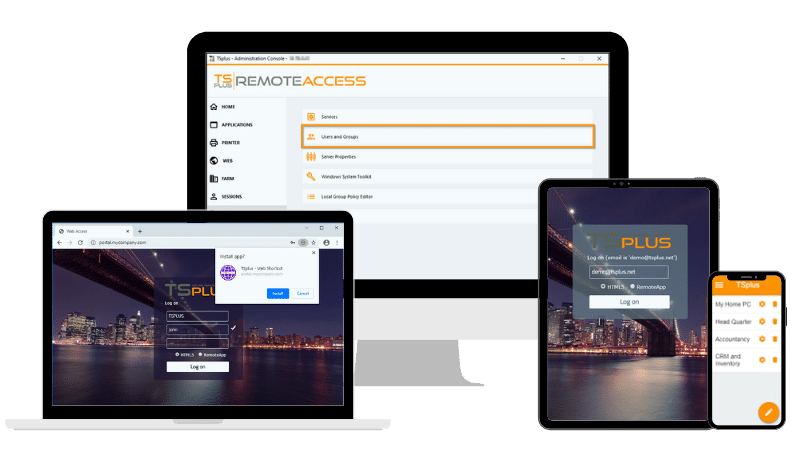
TSplus Remote Access gives a lighter weight, more affordable path for delivering Windows applications and desktops through the browser or a controlled remote access model. From secure work-from-anywhere access to app delivery, it reduces dependence on other approaches such as VPNs, for smaller businesses as well as larger organisations.
A practical remote work setup for hybrid workers
A hybrid work setup should not be two separate lives. It should be one repeatable workflow across home, office and travel. That usually means keeping the same headset, keyboard shortcuts, cloud tools and remote access method everywhere. All the while home ergonomics should be smart and portable enough for switching locations to leave productivity unaffected. With browser-based connections, MFA and its other features, TSplus software ticks numerous boxes.
And wherever you work, remember
- airing at least twice a day,
- drinking water to keep hydrated,
- avoiding excessive snacking,
- taking regular breaks,
- including movement and nature and
- sleeping sensibly
will all contribute to a better remote work experience on the long run.
In Conclusion
The best remote work setup is not the most expensive one. It is the one that lets you work comfortably, communicate clearly, stay secure and reach the apps or systems you need without friction. For most readers, the smartest order to set up is simple: define the workspace, fix ergonomics, stabilize internet, secure accounts, then solve remote access. That sequence prevents overspending on gadgets while ignoring the real blockers.
Many remote employees and freelancers will find basics include a desk, chair, monitor, headset and stable internet. For regular hybrid workers and business users, a secure way to access office desktops or applications will prove essential whenever work moves beyond the home office. TSplus Remote Access simplifies remote access and app delivery when that stable service matters and cost remains pressing.
TSplus Remote Access Free Trial
Ultimate Citrix/RDS alternative for desktop/app access. Secure, cost-effective, on-premises/cloud
FAQ
What setup do I need to work remotely?
At minimum, you need a reliable computer, stable internet, a desk or work surface, a supportive chair and the software your work requires. An external monitor, keyboard and headset usually improve comfort and productivity.
What is the best internet setup for remote work?
The best setup is a stable connection with enough upload and download capacity for meetings, cloud apps and file sharing. Wired Ethernet is usually more reliable than Wi-Fi for daily remote work.
How can I make my remote work setup more ergonomic?
Adjust the chair and desk so your elbows stay near keyboard height, keep your shoulders relaxed, and place the monitor directly in front of you at a comfortable eye level. Keep the mouse close to the keyboard.
Is a VPN enough for remote work?
Sometimes, yes. A VPN can be enough for secure network access, but many teams need easier access to apps or desktops without extra complexity. That is often where remote application publishing or browser-based access becomes more practical.
How do I secure a work-from-home setup?
Use WPA2 or WPA3 on home Wi-Fi, keep devices updated, enable MFA and avoid exposing remote access tools directly to the internet without proper protection. Secure remote work depends on both device hygiene and account security.
)
)
)
