









)
)
Lab environments are where good infrastructure decisions are made cheaply. Before you roll out updates, security changes or remote access configurations to real users, you want a controlled place to test performance, compatibility, failure modes, and more. A VM gives you that control: you can build an isolated machine, break it on purpose, roll it back, repeat.
If your end goal is remote desktop or virtual desktop delivery but you want some help understanding the architecture first, then first visit the article How Does Virtual Desktop Work in 2026? Components, Protocols and Deployment Models. That done, or if you already know the basics, use this guide to build the your foundation for hands-on experiments.
Why VMs Are Ideal for Testing and Lab Work
A lab VM is much more than “a spare computer.” It is a repeatable environment you can treat like an asset: versioned, cloned, reverted and documented.
Common lab uses:
- Validate OS updates and application patches before deployment
- Test configuration changes (firewall rules, certificates, policy settings)
- Reproduce and troubleshoot end-user issues safely
- Train teams on new tooling without touching production
- Prototype remote access workflows and security policies
Distant testing facility:
Labs also need practical support paths. If your virtual machines live on distant hosts (a remote server, a customer site or a cloud instance), you will value being able to assist users and validate what they are seeing.
An example of the kind of tools you will appreciate for these testing purposes, TSplus Remote Support fits naturally into lab operations. It suits anywhere you need to guide someone inside a test session, confirm behaviour on a remote VM, or speed up troubleshooting without travel.
What You Need Before You Start
Most virtual machine setup issues trace back to missing prerequisites. Cover these first to avoid time-wasting errors.
Hardware and BIOS/UEFI prerequisites
- Enable hardware virtualization: Intel VT-x or AMD-V
- Make sure the host has “lab scale” resources:
- RAM is a common bottleneck
- SSD storage has immediate real-world impact on responsiveness
If virtualization is disabled, you may see errors like “VT-x/AMD-V not available,” or the VM may run slowly because it falls back to less efficient modes.
An OS installer (ISO)
Download your guest OS ISO from official sources. Typical lab choices:
- Ubuntu/Debian for Linux labs
- Windows 10/11 for desktop testing
- Windows Server for infrastructure labs
On Apple Silicon Macs, architecture matters: you typically need ARM images where available.
Decide the lab purpose up front
Your VM design changes depending on whether you want:
- A disposable one-off test machine
- A reusable “gold” lab base image (a template you can clone as many times as needed)
- A multi-VM network lab (client + server + services)
This purpose (an essential upstream decision, as you can tell) will influence disk size, snapshots and networking mode amongst other things.
1. Choose Your Hypervisor
A hypervisor is the VM platform that allocates your host’s CPU/RAM/disk/network to the guest OS.
Windows hosts
Common options include
- VirtualBox for quick, cross-platform labs
- Or VMWare Workstation or other
- Hyper-V for deep Windows integration and strong performance.
Be aware that some hypervisors can conflict depending on your Windows configuration. Indeed, Hyper-V can remain active in the background on some Windows systems. When it does, other hypervisors may either conflict or switch to a compatibility mode. Thus, if your chosen virtual machine setup (VirtualBox or other) acts strangely, review your Hyper-V/virtualization settings. Is it enabled and specifically how does your chosen platform handle it?
macOS hosts (Intel vs Apple Silicon)
- Apple Silicon: UTM or Parallels are commonly used; prefer ARM guests when possible.
- Intel Macs: Parallels or VMWare Fusion often provide broad compatibility.
Linux hosts
You might choose
- KVM/QEMU + virt-manager for strong performance and a “native” virtualization stack (opt for KVM for a more server-like experience), or
- VirtualBox for a straightforward UI and simple labs.
2. Create the VM: What Settings Work in Real Labs?
Creation wizards are convenient, but default values are not always “lab-smart.” Use these guidelines to build stable, repeatable test machines.
CPU: Avoid oversizing
Start conservative:
- Light Linux lab: 2 vCPUs
- Windows desktop lab: 2–4 vCPUs
- Heavier tests: 4 vCPUs if the host can spare it
Assigning too many cores can cause contention and make both the host and guest, especially on laptops.
RAM: The biggest lever
Practical starting points:
- Linux desktop: 4–8 GB
- Windows 10/11: 8–16 GB
- Windows Server: 4–8 GB (role-dependent)
If you run multiple virtual machines, plan your total lab RAM budget first, then allocate per VM so the host never swaps.
Disk: Size it for updates, logs and snapshots
Suggested disk sizes:
- Linux lab: 40–60 GB
- Windows desktop lab: 80–150 GB
- Windows Server lab: 60–120 GB depending on roles
Dynamic disks usually work fine for labs and save host space initially. Fixed disks can be more predictable in some performance-sensitive setups.
Firmware and modern OS requirements
- Use UEFI when required (common for modern Windows)
- Secure Boot and virtual TPM requirements vary by hypervisor
- If Windows complains about requirements, adjust virtual machine settings rather than cutting corners, so your lab reflects reality
NB: Lab cleanliness tip
If you want repeatability, build one base VM, patch it, install baseline tools, and then clone it. Avoid “tweaking the same VM forever”.
3. Install the OS from ISO
Once the VM exists, installation is straightforward. Basically, treat it like a physical machine install, but remember the two VM essentials: ISO mounting and reboot behaviour.
Attach the ISO
In your hypervisor settings:
- Storage/CD/DVD → mount ISO
- Ensure boot order allows boot from ISO
Run the installer
- Choose language and keyboard
- Install onto the VM’s virtual disk
- Create a local admin account appropriate for lab usage
- Complete install and reboot
Unmount the ISO after installation
If the VM boots into the installer again, eject/unmount the ISO so it boots from the installed disk.
4. Install Guest Tools
Guest tools are what make virtual machines usable and accurate for testing. What they typically enable:
- Better graphics and dynamic resolution
- Smooth mouse integration
- Shared clipboard (if you allow it)
- Shared folders (if you allow them)
- Time sync and device improvements
Treat guest tools as part of your baseline image if you are cloning your VM. See how the TSplus software suite stands out and scales by running it from your next VM.
5. Configure Networking for Lab Scenarios
Networking determines what your VM can reach and what can reach it. For labs, the “right” choice is usually about controlling exposure.
NAT (recommended default)
Use NAT when you plan for:
- easy internet access for patching and downloads;
- minimal exposure to your LAN;
- a safe “sand-box” default for testing unknown software.
NAT is ideal for most single-VM labs.
Bridged (realistic “server on the LAN” testing)
Use bridged when:
- The virtual machine must appear as a real device on your network.
- Other machines must connect into the VM.
- You want realistic tests of firewall rules, discovery and access controls.
Security note:
Bridged labs can accidentally become production-adjacent. If you are exposing services (even temporarily), harden aggressively. Security is one essential no one should skimp on or shirk at. This is where TSplus Advanced Security can be relevant in a move from “it works” to “it is not an easy target”, with its practical protections and policy restrictions to help reduce and halt common remote access threats.
Host-only / Internal networks (isolation-first labs)
Use host-only/internal networks in the following cases.
- You want VM-to-VM communication without touching your LAN.
- You are building a training lab (client + server) with controlled routing.
- You want predictable, isolated test conditions.
Snapshots and Clones: Your Lab Superpowers
If you want your lab to stay useful, adopt snapshots and cloning early.
Snapshots: Roll back after risky changes
Snapshots are of prime importance for restoring when needed. Some ideal snapshots include before:
- OS upgrades;
- patch cycles you wish to evaluate;
- firewall, certificate or remote access changes;
- “Reproduce the bug” experiments.
Name snapshots clearly (e.g., “Pre-Feb-Patches”, “Before-RDP-Hardening”). Keep them intentional: too many snapshots can consume storage and complicate performance.
Clones: Build repeatable test branches
For true comparison, clones are essential. Anything else can amount to stabs in the dark. Here is a dependable pattern:
- Build and patch a base VM
- Add baseline tools
- Shut down and clone into “Test-Branch-A”, “Test-Branch-B”, “Repro-Issue-Client”.
This lets you compare outcomes across clean baselines instead of guessing whether a prior tweak caused the new behaviour.
Patch Hygiene and Observability During Tests
A lab should reflect reality yet remain controlled.
Recommended habits include the following actions.
- Patch the guest OS fully before capturing a base image.
- Keep the hypervisor updated (host-side stability matters).
- Document the content of in your base virtual machine so your lab is reproducible.
- Separate “safe baseline VMs” from “unsafe sandbox VMs”.
When you run tests (patches, new agents, new policies), remember to capture evidence. Indeed, monitoring CPU, memory, disk and service availability during a test is often what reveals the true cause of slowdowns or failures.
For teams running multiple lab hosts or validating changes over time, TSplus Server Monitoring can help you detect regressions (like rising RAM usage or disk saturation) and correlate “the moment we changed X” with “the moment performance dropped.”
Common VM Setup Problems and Their Quick Fixes
“VT-x/AMD-V is disabled” / VM won’t start
- Enable virtualization in BIOS/UEFI
- On Windows, verify whether Hyper-V is affecting your chosen hypervisor
“No boot device” / black screen at boot
- Confirm ISO is mounted correctly
- Confirm boot order
- Ensure you are using the correct architecture (ARM vs x86), especially on Apple Silicon
No internet in the VM
- Switch to NAT to confirm base connectivity
- Verify the virtual NIC is enabled
- Check DNS inside the guest OS
VM feels slow despite “good specs”
- Confirm the host isn’t swapping (RAM pressure)
- Use SSD storage if possible
- Reduce vCPU allocation if scheduling contention is high
- Install guest tools and reboot
Next Step: Turn Your VM into a Remote Desktop Lab
Once your virtual machine is stable, you can use it to simulate remote desktops and virtual desktops, to access and use applications and more.
- Install a Windows guest OS and enable remote connectivity.
- Compare NAT vs bridged behaviour for remote access scenarios.
- Test policy decisions (clipboard, drive mapping, printing).
- Observe how profiles, updates and storage affect logon and responsiveness.
To evolve your lab from a single VM into delivering desktops or applications to multiple users, TSplus Remote Access can be a practical next step for publishing resources. It provides controlled access and centralized administration, without forcing you into an oversized architecture just to validate the workflow.
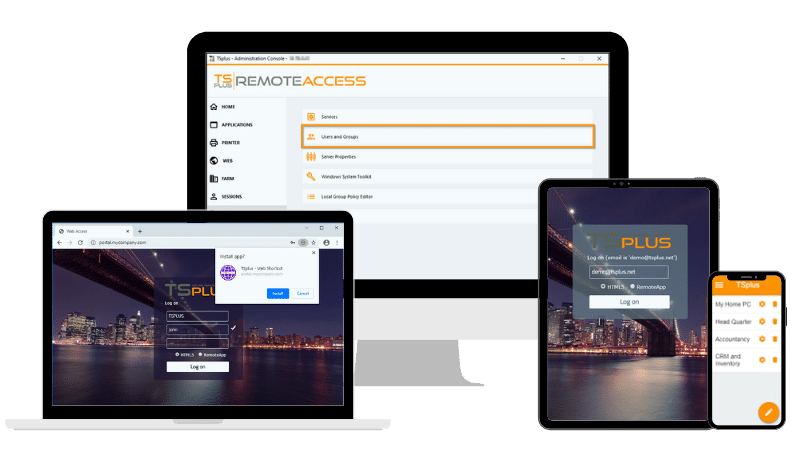
TSplus Remote Access Free Trial
Ultimate Citrix/RDS alternative for desktop/app access. Secure, cost-effective, on-premises/cloud
)
)
)
