










)
)
Introduction
The first few minutes of a remote support request can create more frustration than the technical issue itself. Users may need to locate a download, obtain administrator approval or share a session identifier before the technician can even see the problem. Browser-based remote support reduces this friction by letting users open a link and begin sharing their screen with fewer preparatory steps.
However, no-install support cannot handle every task. Desktop control, User Account Control prompts, reboot reconnection and unattended maintenance may still require a temporary module or installed agent, so buyers should treat browser access as one stage within a broader support workflow.
What Is Browser-Based Remote Support?
Browser-based remote support is a remote assistance model in which an important part of the support workflow runs through a web browser. This may include session creation, screen sharing, technician control, device management or the entire support console.
The term does not describe one standard architecture. Different products may all advertise browser-based support while requiring very different components on the technician device and the assisted endpoint.
Browser Screen Sharing
A browser-only screen-sharing session lets the user share an entire display, an application window or a browser tab. The technician can observe the problem and guide the user through chat or verbal instructions, often without requiring a download or local support program.
This approach works well when the technician needs visibility rather than direct control. Pure browser sharing may not support keyboard and mouse control, administrative elevation, secure desktop prompts, background commands or reconnection after a restart.
Temporary Support Modules
A temporary support module is a lightweight executable that the user downloads and runs without completing a conventional installation. It provides deeper operating system integration while becoming inactive or disappearing when the support session ends.
Depending on the product, a temporary module may enable:
- Keyboard and mouse control
- File transfer and clipboard synchronization
- Multi-monitor navigation
- Administrative elevation
- Remote reboot and reconnection
- System information and command execution
- Session recording
A temporary module creates more friction than browser-only screen sharing, but it remains easier to deploy than a permanently installed agent or technician console.
Persistent Unattended Agents
A persistent agent runs as a service on an enrolled endpoint, allowing authorised technicians to connect without requiring someone to open a link or approve every session locally. This model supports servers, point-of-sale terminals, remote office infrastructure and employee devices that need maintenance outside working hours.
Unattended access creates a long-term trust relationship, so it requires stronger credential management, device organisation, role-based permissions and revocation controls. IT teams should evaluate attended and unattended remote control separately because strong performance in one mode does not guarantee the same quality in the other.
| Delivery model | Best suited to | User present | Full control | Persistent component |
|---|---|---|---|---|
| Browser screen sharing | Diagnosis and guided assistance | Yes | Usually limited | No |
| Temporary support module | Ad-hoc troubleshooting and repair | Yes | Usually yes | No |
| Unattended agent | Ongoing endpoint and server support | Not required | Yes | Yes |
Browser-Based Remote Support Is Not Browser-Based RDP
Browser-based Remote Desktop Protocol access gives an authenticated user a predefined Windows desktop or published application. The user normally knows which resource is required and signs in to use it.
Remote support begins with another person’s technical problem and commonly adds customer and technician roles, invitation links, temporary credentials, consent prompts, live communication, technician assignment, session history and auditing. An HTML5 RDP gateway may help administrators reach systems remotely, but it does not automatically provide the consent, identity verification and case-management functions expected from a help-desk platform.
Browser-First Support Is Becoming a Buying Criterion
Browser support is moving from a convenient extra to a visible product differentiator. In July 2026, TeamViewer highlighted a link-initiated browser screen-sharing workflow that lets users verify the supporter, choose what to share and begin without installation. When direct control becomes necessary, users can move to the downloadable Quick Support module.
This product direction does not necessarily replace full remote-control clients with browser technology. It uses the browser to reduce friction at the start of the interaction and introduces a deeper endpoint component only when the incident requires it. Buyers should therefore look beyond a basic “browser supported” checkbox and examine what technicians can accomplish before a download, how quickly users can start and whether escalation preserves the existing support context.
How can you align the connection method to the support use case?
Browser-based support creates the most value when users need immediate assistance, but the technician does not yet know how much access will be required. Initial diagnosis, ad-hoc support, external customers, locked-down devices and ongoing maintenance place different demands on the platform and should be tested separately.
| Support use case | Browser-only fit | Better alternative | Main reason |
|---|---|---|---|
| Initial diagnosis | Strong | Escalate when required | Fast visibility with little preparation |
| Ad-hoc support | Strong | Temporary module for control | No persistent relationship is necessary |
| External customers | Strong | Temporary module when intervention is needed | Avoids permanent software on customer devices |
| BYOD devices | Strong for viewing | Temporary module with restricted permissions | Device is not centrally managed |
| Locked-down devices | Conditional | Approved portable module or guided support | Browser and security policies may restrict functions |
| Locked workstation | Weak | Installed agent or service | No active browser-sharing session is available |
| Administrative repair | Weak | Temporary or installed module | Requires elevation and system integration |
| Ongoing endpoint support | Weak | Unattended agent | Persistent, repeatable access is required |
| Servers and infrastructure | Poor | Managed unattended access | User-led browser sessions are impractical |
Initial Diagnosis and Ad-Hoc Assistance
Initial diagnosis is the clearest browser-first use case. A technician can view an error, reproduce a failing workflow and determine whether the cause involves a browser setting, application problem, network condition or user configuration. Password resets, form errors, browser permissions and software configuration questions may be resolved through guidance alone.
When direct intervention becomes necessary, the platform should offer a temporary support module without forcing the user and technician to create a new ticket or session.
External Users and BYOD Devices
External customers and bring-your-own-device users may be unable or unwilling to install a permanent corporate support agent. The organization may also want to avoid creating an ongoing access path to a device it does not own.
Browser screen sharing lets the customer choose what to share, observe the technician’s guidance and close the browser tab when the interaction ends. When a download is required, buyers should confirm that the component is digitally signed, clearly branded and limited to the current support purpose rather than leaving access active after the session.
Locked-Down Devices
A locked-down device is a managed computer on which the signed-in user cannot install applications or run unapproved executables. Browser screen sharing may still work when organisational policies permit the required browser APIs, network destinations and screen-sharing permissions.
The same controls that prevent software installation can also block pop-ups, WebSocket traffic, screen capture, file downloads or unapproved domains. Browser support does not bypass endpoint governance, so buyers should test the platform through the actual proxy, browser configuration and endpoint security controls used by the organization.
Locked Workstations
A locked workstation presents a different problem because the Windows session is at the lock or sign-in screen and the user cannot maintain an active browser-sharing session. Browser-only support is generally unsuitable for controlling the sign-in screen, reconnecting after logout or creating access without an active user.
These tasks normally require a service or agent that runs independently of the interactive browser session. Product documentation should therefore distinguish between working on a locked-down device and connecting to a workstation that is already locked.
Ongoing and Unattended Support
Ongoing support requires predictable access to known devices. MSPs, internal IT departments and maintenance teams may need to reconnect after a restart, work outside working hours or manage systems when no end user is present.
TeamViewer unattended support requires a managed component on the remote device before technicians can connect without local confirmation, illustrating the architectural difference between browser screen sharing and persistent access.
For these environments, buyers should prioritise device enrolment, agent deployment, grouping, credential rotation, technician roles and rapid revocation rather than relying on a no-install marketing claim.
Browser Session: Temporary Module or Installed Agent?
The right support method depends on how much access the technician requires and how long that access must remain available.
| Evaluation area | Browser session | Temporary module | Unattended agent |
|---|---|---|---|
| Session start | Invitation link | Link or downloaded executable | Device inventory |
| End-user consent | Required for each session | Normally required | Policy-dependent |
| Screen viewing | Yes | Yes | Yes |
| Keyboard and mouse control | Product-dependent | Usually available | Available |
| Windows sign-in screen | Usually unavailable | Product-dependent | Usually available |
| UAC and elevation | Limited | Product-dependent | Usually available with policy |
| Reboot and reconnect | Usually unavailable | Often available | Available |
| File transfer | Limited or unavailable | Common | Common |
| Background maintenance | No | Limited | Yes |
| Access after session ends | No | Normally no | Yes |
| Primary use | Diagnosis | Active troubleshooting | Ongoing management |
A mature remote support strategy may use all three modes: browser screen sharing for the initial diagnosis, a temporary module for active repair and an unattended agent for approved managed devices. Administrators should control who can move from one level to another because permission to view a screen should not automatically include file transfer, privilege elevation or unattended enrollment.
User consent must remain visible and specific
A low-friction support experience should not make remote access less understandable to the assisted user. The person sharing the device needs to know who is connecting, what information is visible and which level of control has been granted.
In TeamViewer’s browser workflow, users review the supporter’s details and choose whether to share an entire screen, a specific window or one browser tab. Moving to full remote control requires a separate Quick Support download and connection step.
This separation provides a useful buying benchmark. Consent should match the requested capability rather than relying on one broad approval covering every possible action.
Useful controls include:
- Clear technician identification
- Separate authorization for viewing and control
- Visible indicators while sharing is active
- Explicit approval before file transfer or elevation
- A prominent stop-sharing control
- Automatic expiration of invitation links
- Immediate invalidation after the session
- Additional approval before unattended enrollment
The assisted user should be able to end an attended session without asking the technician. Temporary credentials should then expire, and the platform should record how the session ended.
Security Depends on More Than Avoiding Installation
Browser-based support may reduce persistent software on unmanaged devices, but it does not automatically create a secure support environment The web console, technician accounts, invitation links, relay infrastructure and downloaded modules all remain part of the privileged-access path.
Protect Technician Identities
Remote support accounts can provide extensive control over customer and employee systems, so every technician should use an individual identity protected by multifactor authentication. Role-based access control should restrict the customers, device groups and features available to each person.
Shared accounts weaken accountability and make incident investigation more difficult. Organizations should also remove former technicians, disable dormant accounts and review unusual sign-in activity.
Control Invitation Links
Support links can be forwarded, pasted into the wrong conversation or copied for phishing attempts. Buyers should examine how the platform binds each invitation to the intended supporter, user and session.
A secure link workflow should include:
- Short validity periods
- One-time or limited use
- Supporter identity verification
- Unpredictable session tokens
- Approved sending domains
- Clear organization branding
- Invalidation after cancellation or completion
The support team should send invitations through a known communication channel connected to an existing ticket or verified customer request.
Restrict High-Risk Capabilities
Screen viewing creates less direct risk than command execution, file transfer or unattended enrollment. Administrative policy should reflect these differences by controlling clipboard synchronization, downloads, uploads, remote reboot, session recording, command-line access and privilege elevation.
Sensitive actions may require additional approval or reauthentication, particularly when a support session moves from screen viewing to privileged control or persistent access. Session expiration should also be enforced by the platform rather than relying solely on the browser or technician.
Log the Complete Session Lifecycle
A useful audit record identifies the technician, assisted user, remote device, connection mode, start time, end time and session outcome. It should also capture failed authentication, privilege changes, transferred files and unattended enrollment.
Logging security events and session lifecycle activity helps organizations investigate incidents, monitor support operations and detect unusual behaviour.
Session recording can provide additional accountability, but recordings may contain customer information, credentials or regulated data. Organizations need clear access, retention and deletion rules before enabling the feature by default.
How Do Performance and Browser Limitations Affect the Experience?
The browser alone does not determine remote-support performance. Responsiveness depends on screen-capture technology, image compression, relay location, packet loss, endpoint resources and whether the connection is direct or relayed. A static error message places far less pressure on the connection than a high-resolution, multi-monitor workstation or rapidly changing engineering application.
A proof of concept should test:
- Typing and pointer latency
- Scrolling and window movement
- Image quality on text-heavy applications
- Multiple-monitor switching
- Slow or unstable Wi-Fi
- Mobile hotspots
- International connections
- Corporate proxies and VPNs
- Reconnection after network interruption
- CPU and memory usage in the browser
Browser security boundaries may also restrict system keyboard shortcuts, secure desktop prompts, drag-and-drop transfer, clipboard access, printing, audio, USB devices and session continuation after the tab closes. A temporary helper is not necessarily a weakness because it may provide reliable operating system control without requiring a permanently installed technician console.
A Seamless Browser-to-Agent Transition Reduces Support Friction
A browser-first workflow succeeds when escalation feels like a continuation of the same support interaction rather than the start of a new session.
The process should follow six stages:
- Start with browser visibility. The user opens a verified link and shares only the required screen, window or tab.
- Diagnose before requesting more access. The technician determines whether guidance is sufficient or direct intervention is justified.
- Explain why elevation is required. The user sees which additional capability is requested, such as remote control, administrative access or reboot support.
- Launch an approved temporary module. The signed and branded download connects to the existing case rather than creating a separate workflow.
- Preserve session context. Technician identity, chat history, customer details and audit data carry into the elevated session.
- Offer unattended enrollment separately. Persistent access remains an explicit administrative decision rather than a default result of downloading the support tool.
The transition should also fail safely. If the download is blocked, the browser session should remain active so the technician can continue providing guided assistance.
Which Features Should IT Buyers Compare?
Broad feature lists rarely show how well a platform fits daily support operations. Buyers should compare complete workflows and the controls applied at each stage.
Session Initiation
Check whether technicians can create links from the web console, desktop application, ticketing system or customer portal. Verify how long invitations remain valid, whether they can be revoked and whether the same link can be reused.
Browser Capabilities
Establish exactly what technicians can do before any download. Screen viewing, annotation, chat, pointer guidance and full input control should appear as separate capabilities.
Temporary Remote Control
Test how users download and launch the temporary component. Confirm whether administrative rights are required and whether the component remains on the endpoint after the session.
Unattended Access
Review device enrollment, mass deployment, grouping, connection notifications, access schedules and revocation. Determine whether unattended credentials remain separate from attended session codes.
Security and Governance
Require multifactor authentication, individual technician accounts, role-based permissions, encryption, session expiration and exportable audit logs. Data residency and hosting options should also be evaluated when they affect compliance or procurement.
Support Operations
For MSP support examine customer separation, technician groups, concurrent-session limits, branding, device organisation and integrations with professional services automation or IT service management platforms.
Commercial Model
Remote support products may charge per named technician, concurrent technician, concurrent session, managed endpoint or feature tier. Buyers should model the complete cost using real support volumes instead of comparing entry prices alone.
A remote support tool comparison should also distinguish support platforms from remote desktop gateways, application-publishing systems and remote monitoring and management products. Similar terminology does not mean that these products solve the same operational problem.
How Can You Test A Browser-Based Remote Support?
A representative proof of concept should reproduce both straightforward and difficult support situations.
Define the Required Support Journeys
Document how technicians assist employees, external customers, contractors, BYOD users and managed endpoints. Include attended and unattended workflows.
Identify Every Required Component
Ask the vendor to demonstrate what runs on the technician device, assisted endpoint, relay infrastructure and unattended systems. Record installation, update and privilege requirements.
Create Scenario-Based Tests
The test plan should cover:
- A user with a simple browser error
- An external customer who cannot install software
- A BYOD device without administrative rights
- A locked-down corporate computer
- A workstation at the Windows lock screen
- A problem requiring UAC elevation
- A reboot followed by reconnection
- An unattended maintenance session
- A slow or interrupted network connection
Measure User Effort
Count the instructions, clicks, downloads, approvals and identifiers required before the technician can see the problem. Record where users hesitate or abandon the process.
Validate Escalation
Begin each applicable scenario in the browser and then move to remote control. Confirm that the technician, ticket and audit trail remain connected throughout the process.
Review the Evidence
Inspect the logs, recordings and ticket data after each session. Verify that temporary links and credentials no longer work.
The best product is not necessarily the one that starts fastest during a demonstration. It is the one that consistently completes the organisation’s real support journeys with acceptable user effort, security and technician productivity.
Common Browser-Based Remote Support Buying Mistakes
A common mistake is treating “browser-based,” “agentless” and “no installation” as interchangeable terms. A platform may use a web console while requiring an endpoint agent, or it may avoid permanent installation while still running a temporary executable.
Buyers may also evaluate only the first connection and overlook elevation, reboot, reconnection, administrative prompts and session closure. Browser support on a restricted device does not necessarily provide access to a workstation that is already at the Windows lock screen.
Attended support and unattended access also have different authentication, deployment and governance requirements. The longest feature list is not always the best choice when a simpler product can start sessions reliably, support the required escalation path and make costs easier to predict.
How does TSplus Remote Support fit into this decision?
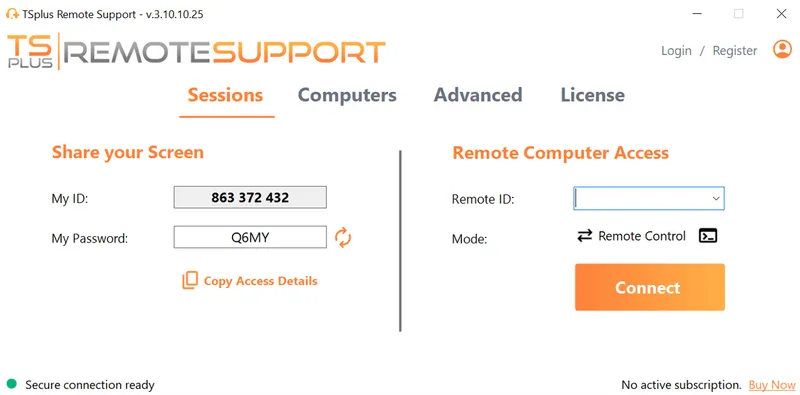
TSplus Remote Support combines attended and unattended assistance with screen control, file transfer, multi-monitor support, session recording and command-line access for managed computers. A lightweight no-setup client provides deeper control than browser-only screen sharing, while cloud-hosted and on-premises deployment options help organizations adapt the platform to their infrastructure and security requirements.
Branded clients, unlimited users and devices, concurrent-session licensing and Freshdesk integration can support both internal IT teams and service providers. Buyers should still test compatibility, permissions and expected session volumes before deployment.
Conclusion
Browser-based remote support is most valuable as a low-friction starting point for diagnosis, external users, BYOD devices and ad-hoc assistance. It becomes insufficient when technicians need administrative control, locked-screen access, reboot persistence or ongoing maintenance. The strongest buying choice combines rapid browser initiation with a clear, secure path to temporary or unattended access.
TSplus Remote Support Free Trial
Cost-effective Attended and Unattended Remote Assistance from/to macOS and Windows PCs.
Frequently Asked Questions
Does Browser-Based Remote Support Require a Download?
Not always. Pure browser screen sharing may work without a download, but keyboard and mouse control, elevation or reboot support commonly requires a temporary module. Unattended access normally requires a persistent agent.
Can Browser-Based Support Access a Locked Computer?
A browser-only session generally cannot begin from a locked workstation because no active user is sharing the screen. Access to the Windows sign-in screen usually requires a temporary component with service capabilities or an installed unattended agent.
Is Browser-Based Remote Support Secure?
It can be secure when the platform uses strong technician authentication, encrypted sessions, short-lived links, visible user consent, role-based permissions and reliable logging. Browser delivery alone does not guarantee security.
Is No-Install Remote Support the Same as Agentless Support?
No. No-install often means that a portable executable runs without completing a conventional installation. Agentless may mean that no persistent service remains, although temporary code can still run during the session.
Can a Browser Support Session Become Unattended Access?
Yes, when the platform provides a separate enrolment process. The transition should require explicit authorisation, install a managed agent and record the device, technician and permission change in the audit trail.
)
)
)
