








)
)
Introduction
A Citrix desktop launch depends on several systems working in sequence. Authentication may succeed and the published desktop may appear normally in Citrix Workspace or StoreFront, yet the session can still fail during brokering, VDA registration, Gateway communication or desktop allocation.
Because these failures can produce the same “Cannot Start Desktop” message, the error itself does not reveal the root cause. This article shows IT administrators how to narrow the scope of the problem, identify the failed launch stage and work through the most likely causes step by step.
What Does It Mean When the “Citrix Cannot Start Desktop” Error Appears?
"Cannot Start Desktop" is really more of a symptom of a failed session launch than an error itself. The user could have already passed authentication and has been presented with Citrix Workspace or StoreFront. Citrix can show them the publish desktop perfectly fine. The failure occurs when the platform attempts to turn that resource request into an actual desktop session.
A very simple workflow for a Citrix desktop launch:
User Workspace or StoreFront => Broker => VDA => Windows Desktop
External users add the following components to this chain:
=> Citrix Gateway => STA (Secure Ticket Authority) => Broker
Therefore, a failure can occur anywhere along the remote access path after authentication, and result in the same end-user message. Citrix's own advice on how to troubleshoot "Cannot Start Desktop" starts off by segmenting failures that happen over a direct StoreFront connection from those that only appear over Citrix Gateway - which halves the amount of components you have to troubleshoot on a day-to-day basis.
What Are The Reasons Of These Errors?
There can be a number of different infrastructure issues that prevent Citrix from assign & launch a desktop. These common issues can be categorized by the different stage of the launch, and they fall into broad areas:
| Cause | What it prevents |
|---|---|
| No desktop available | Broker has no eligible machine to assign |
| Maintenance mode | New sessions cannot reach the affected machine or Delivery Group |
| VDA Not Registered | Broker cannot use the desktop for session launches |
| Delivery Group or assignment issue | User is not matched with an eligible desktop |
| Controller connectivity problem | VDA and broker cannot communicate correctly |
| Citrix Gateway or STA problem | External launch cannot establish the required connection |
| Certificate or DNS problem | Components cannot trust or reach one another |
| Licensing issue | Citrix cannot authorize the requested session |
| Capacity limit | No suitable machine can accept another session |
| FAS problem | Federated authentication cannot complete the certificate process |
Each of the conditions will generate the same error message, and as such "Cannot start Desktop" alone can refer to any of the above faults, thus the intention becomes identifying where in the launch process the path actually ends.
What Needs To Be Verified Before Changing Your Citrix Settings?
Begin by narrowing down the extent of the failure.
Often, only a few controlled tests can rule out half of the possibilities before a change in configuration has even been made.
Does the Error Affect One User or Many?
Log in to the same desktop account as another user. If only one account fails, then check entitlement, desktop assignment, user profile, current session on that account.
If many users all of a sudden start reporting "Cannot Start Desktop", focus on shared infrastructure instead. Delivery Controllers, Cloud Connectors, Delivery Groups, VDAs, Gateway, licensing, capacity of hosting become high suspects in this case.
Does It Affect One Desktop or the Entire Delivery Group?
Check to see if the user is able to launch any other published desktops.
If the entire Citrix environment isn't down, the ability of a single one resource to fail while one successfully launches means it is an individual machine, catalog, desktop assignment/Delivery Group problem, and that the environment itself isn't to blame and is worth troubleshooting.
If all the desktops can be failed, look further up the chain toward the broker and underlying hardware.
Does the Desktop Work Internally but Fail Externally?
Where the architecture supports it, compare a direct StoreFront launch versus a Citrix Gateway launched StoreFront.
If both fail, have a look at desktop availability/maintenance modes, VDA registration, breaking before any other actions.
If StoreFront direct works and Citrix Gateway fails, have a closer look at the external path. STA setup, communications between gateway components, certificates, DNS or firewalls are likely to be more involved.
This is one of the more useful diagnostic limits of the "Cannot Start Desktop" error.
How Is It Possible To Fix A “Citrix Cannot Start Desktop” Error?
Now the extent is known, step through the launch path.
Do not jump straight into fixing complicated Citrix problems. Many common causes can be determined from Studio or Monitor within minutes.
Step 1: Confirm That a Desktop Is Available
The first step to check is if the broker is even able to provide a suitable desktop.
Using Citrix Studio or Citrix DaaS management console, check your Machine Catalog & Delivery Group and verify:
- you have the machines you expect are actually present and logged on as you need them to be
- you have machines available for the user to be assigned to
- that the user is entitled for the delivery group
- that machine assignments are correct (e.g. for dedicated desktops)
If the broker can't supply a desktop, then the user will not be able to launch the session even if Citrix Workspace, StoreFront or authentication are all working.
Step 2: Check Maintenance Mode
Then, see if the machine, Catalog or Delivery group has entered Maintenance Mode.
Maintenance mode deliberately prevents new connections. On a multi-session OS machine, existing sessions may continue or reconnect while new sessions are blocked. On a single-session OS machine, users cannot establish new connections or reconnect while maintenance mode is active.
This can be a common pitfall as the machine looks to be working just fine otherwise.
If Maintenance mode has been mistakenly enabled following patching or administration, remember to turn off Maintenance Mode for the machine if necessary, and attempt the desktop.
Do not disable Maintenance Mode immediately if isolation of the machine is required and work out why it was enabled.
Step 3: Verify VDA Registration
For Citrix to normal breaker sessions to a VDA, it first needs to be registered to the Delivery Controller on premise or, in the equivalent Citrix Cloud architecture, with the Cloud Connector.
Look at the machine state, within Studio or Monitor.
If the desktop is showing 'Not Registered', move your troubleshooting steps to the VDA and to the pathway between itself and its controller/Cloud Connector.
Citrix explicitly mention here that unregistered VDAs are not accounted for when brokered sessions are launched. Don't waste time trying to reinstall Citrix Workspace to the user’s client machine, as the problem has occurred server-side.
Step 4: Check the Delivery Group and User Assignment
A registered VDA alone is not enough: The assigned desktop itself must also be assigned through the relevant Delivery Group.
Confirm the machine is assigned to the right Delivery Group, and the desktop is enabled for the users in that group.
If you use dedicated or assigned desktops, check machine to user assignment. Also, take a look at tag assignments and any other rule constraints that might decrease the number of machines that the given desktop could potentially be launched on.
This is good especially when one user would fail to launch the assigned desktop, but many users of that desktop type could.
Step 5: Test Delivery Controller or Cloud Connector Connectivity
If VDA registration fails to occur, or alternately drops frequently, then troubleshooting communication between Delivery Controllers/Cloud Connector and the VDA should be performed.
Registration of a Citrix VDA is successful only if the VDA can determine, and communicate, with trust authentic Controllers/Cloud Connectors. Citrix's modern guidelines specify use of the fully qualified domain name for Controller names and keep those names as accurate as possible.
Check:
- DNS resolution
- Controller or Cloud Connector FQDNs
- network connectivity
- relevant firewall rules and ports
- domain membership
- time synchronization
- Kerberos communication
- VDA services
- Windows and Citrix event logs
Citrix's newer VDA troubleshot tool is to check DNS and Controller or Cloud Connector connectivity and is evidence as how dependent registration is.
Step 6: Check Citrix Gateway, STA and Certificates
If the desktop launches successfully internally within StoreFront but "Cannot Start Desktop" using Citrix Gateway, there is likely an issue with the external launching path.
One of the components that plays into this is Secure Ticket Authority (STA). Information can be used to grant access to resources through the use of STA information with Citrix Gateway during an authorized connection to published resources.
Ensure the correct STA's are being used by StoreFront & Gateway and that those hostnames can be reached.
Also, examine:
- Gateway configuration
- STA reachability
- certificate validity
- certificate hostname matching
- intermediate and root certificate chains
- DNS resolution
- firewall policies
- proxies or inspection devices in the connection path
Don't mask certificate validation as a weak to fix trust/configuration layer errors.
Step 7: Verify Licensing and Capacity
Another reason a properly registered and configured desktop fails is if Citrix cannot make the necessary resources available to you. Verify the Citrix licensing is correct and sufficient licenses for your desktop are available. License limits are some of the conditions that can cause a session to fail according to the Session Launch Diagnostics guide currently in use.
Then check capacity.
With multi-session machines, load management may have made a decision not to accept another connection. With virtual desktop catalogs, enough resources are required by the hosting infrastructure to power on or build another machine.
Investigate:
- session limits
- machine load
- available VDAs
- CPU and memory pressure
- host availability
- hypervisor or cloud capacity
- machine power-management failures
A healthy Citrix control plane cannot launch a desktop if no usable desktop capacity exists underneath it.
Step 8: Check FAS When Federated Authentication Is Used
If you use Citrix Federated Authentication Service (FAS) in the environment, investigate FAS as part of the desktop launch. FAS takes part in certificate-based Windows logons. Issues creating or consuming the user's certificate can therefore result in a desktop launch failing after the user is authenticated by the front end.
Examine FAS service health, certificate authority reachability and associated FAS logs.
Do not investigate FAS if you don’t use it, this is a config-specific branch and not a general Cannot Start Desktop problem.
How Can You Troubleshoot an Unregistered Citrix VDA?
VDA registration is a very frequent dependency of desktop launch and, as such, gets a structured verification in itself.
Firstly, make sure the VDA is powered on, and that the Citrix Desktop Service along with other child processes are up and running.
Check that the VDA can find the defined Delivery Controllers or Cloud Connectors and contact them.
Review how the VDA retrieves addresses from the Delivery Controllers or Cloud Connectors and verify they are valid and accessible. Citrix supports several ways for a VDA to identify its Delivery Controllers, including Citrix policies, registry settings and Machine Creation Services. Discovery through an Organizational Unit (OU) in Microsoft Active Directory is an older, legacy method.
Next, check any dependency which could cause registration to fail:
- DNS
- Active Directory domain trust
- machine account health
- time synchronization
- Kerberos
- firewall configuration
- VDA and Controller compatibility
- catalog functional level
Troubleshooting details for machines that are expected to be registered but are not, can be available from Citrix Studio as well. It always still falls back to this basic principle: try to fix the connection between the VDA and the control plane first and think about the user's Workspace client later.
How Can Citrix Monitor Identify the Failed Launch Stage?
If present, Citrix Monitor can also help lessen the amount of manual correlation required for a "Cannot start Desktop" issue.
Citrix Session Launch Diagnostics follows a set of events of a launch failure within the components responsible for the launch. If a failed launch occurs it can generate a Transaction ID, which can be used by administrators to find the matching transaction within Monitor.
These diagnostics can assist in differentiating where an issue lies, such as within :
- Workspace
- StoreFront
- Citrix Gateway
- Cloud Connector
- brokering
- VDA communication
- licensing
- machine availability
This means we've turned the troubleshooting question from "Why can't the user start a Citrix desktop?" to "What part is failing during this desktop launch?”.
This becomes much more useful in situations where the issue impacts multiple infrastructure layers.
At the time of writing (documentation dated June 24, 2026), Session Launch Diagnostics is a preview feature with prerequisites of deployment before use, and where this is unavailable, administrators must relate the necessary logs manually.
What Logs Should Be Verified for The “Cannot Start Desktop” Errors?
The logs are likely to be more useful once the probable point of failure is pinpointed. Rather than grabbing everything now, focus on collecting data around the last known successful point.
For example:
| Suspected area | Evidence to inspect |
|---|---|
| StoreFront | StoreFront and IIS logs |
| Brokering | Studio, Monitor and Delivery Controller events |
| VDA registration | VDA, Controller and Windows event logs |
| Gateway | Citrix Gateway and STA-related information |
| FAS | FAS administration and event logs |
| Desktop startup | VDA and Windows System/Application logs |
| Hosting | Hypervisor or cloud platform events |
Make use of event timestamps logged during failed user access to find correlation between different systems.
Newer Citrix Always On Tracing guidance follows the same principle: reading events from both sides of a transaction can show whether, for example, the VDA attempted to contact the Delivery Controller and whether the Controller ever received the request. This is better that guessing at multiple unrelated fixes until error disappears for a while.
What Is The Fastest Troubleshooting Order?
For most “Citrix Cannot Start Desktop” incidents, the following sequence keeps the investigation focused. The aim is to confirm each stage of the delivery path before moving to the next one, rather than changing unrelated settings across the environment.
Reproduce and define the scope
You can begin by being precise about what and who is being affected. Identify the user, the desktop, the endpoint, the network location, and roughly what time the launch failure occurs.
Next you contrast this with the experience of another user, another desktop, or another endpoint where applicable to determine whether it is user, machine, resource or shared Citrix element specific.
Compare direct StoreFront and Gateway access
Where possible test the same desktop via direct StoreFront and through Citrix Gateway access.
If both fail, expect issues around brokering, availability of a desktop or registration of a VDA. If it works on an internally-address StoreFront and fails via Gateway then focus externally-STA configuration, certificates, DNS, firewalls, connectivity back through Gateway-in.
Confirm desktop availability
Confirm that an available Citrix machine can host the requested desktop session.
Check that a required VDA machine is powered up, contactable and able to receive a further connection, and that the desktop is correctly published with its desired catalog and delivery group(s).
Check maintenance mode
Verify if maintenance mode is turned on against either machine, Catalog, or DG.
Maintenance Mode can sometimes prevent new sessions even if the underlying machine is functioning perfectly. If a DG/Catalog is in Maintenance Mode, ensure this is by design prior to removing it from the group, testing, and returning to the application launch.
Check VDA registration
Ensure the Virtual Delivery Agent is successfully registered against its Delivery Controller or Cloud Connector.
Machines with a status of 'Not Registered' would normally not be included in the consideration set for brokering a desktop session. If a VDA has failed to register, review the VDA services running, verify that its D.C addresses and FQDNs (Fully Qualified Domain Names) resolve through DNS, and test network connectivity to the Controllers from that machine before proceeding.
Verify Delivery Group and assignment
Ensure that the requested desktop is available within the appropriate Delivery Group and is available to the user.
If assigned/dedicated desktops are being accessed, ensure that the machine is associated correctly with the correct user. Also check for any tag, access policy, or other Delivery Group properties that might be preventing the intended machine being chosen.
Check Controller connectivity
Check if communication is down or intermittent between the VDA and Delivery Controllers or Cloud Connectors if the VDA registration is not coming through or intermittent.
Check DNS, network reachability, firewalls, domain join, time sync, Kerberos, and appropriate services within Citrix. At this layer, a problem will mean the machine appears healthy, but is not discoverable to the broker.
Check Gateway and STA
Review Citrix Gateway and Secure Ticket Authority configuration on a scenario where an internal launch succeed but external failure occur.
Validate STA Servers configured on Gateway, Storefront pointing to correct STA's. Check network reachability on those systems, certificate trust, DNS entries and firewall rules, proxy/inspection on those elements from the external path.
Verify licenses and capacity
Make sure that Citrix is authorized to grant and allocate the requested session.
Verify the licensing state and the number of VDAs currently in use and assigned to sessions (session limitations, machine load). For virtualized or cloud-based desktops, verify that the hypervisor or hosting system has the resources available to start or allocate one more machine.
Correlate diagnostics and logs
Now you know which components have the potential to be the failure stage, you need to confirm it using the logs and diagnostics.
If possible, use Transaction ID & Citrix monitor. If not, then look at StoreFront, Controller, Gateway, VDA and Windows logs (sorted by timestamp) around the failure to try and pinpoint what was failing at that point.
This is followed by the delivery path, the benefit of following this order is an admin who will know that the component is working and not waste their time checking others at risk of them not working after changing a setting elsewhere.
How TSplus Can Be The Alternative to Citrix?
A “Cannot Start Desktop” error does not by itself mean Citrix is the wrong platform. However, recurring delivery complexity can be a useful reason to reassess whether the environment still needs the full Citrix infrastructure stack for its current remote access requirements.
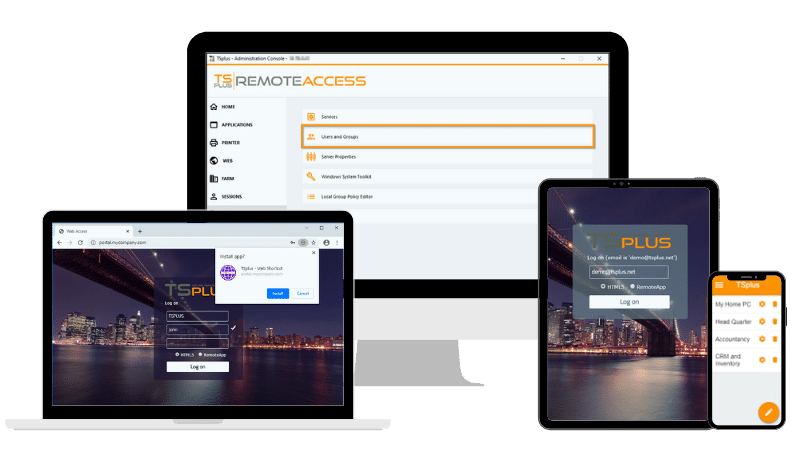
TSplus Remote Access offers a simpler approach to publishing Windows desktops and applications through RDP-compatible clients and an HTML5 web portal. For SMBs and IT teams with more straightforward requirements, it can reduce the number of infrastructure layers involved in delivering remote Windows resources.
Conclusion
The Citrix “Cannot Start Desktop” error can originate from several stages of the session launch process, including desktop availability, maintenance mode, VDA registration, Delivery Group configuration, Controller connectivity, Gateway and STA communication, licensing and infrastructure capacity.
The most reliable way to resolve it is to avoid treating the message as a single fault. Define the scope, identify the last successful stage in the launch path and investigate forward from that point. This method helps IT teams reach the underlying cause faster while avoiding unnecessary changes to Citrix components that are already working.
TSplus Remote Access Free Trial
Ultimate Citrix/RDS alternative for desktop/app access. Secure, cost-effective, on-premises/cloud
)
)
)
