





)
)
Introduction
Windows Server Remote Desktop remains a core way to deliver centralized Windows apps and desktops for hybrid users. This guide targets IT professionals who need practical clarity: what “Remote Desktop” means on Windows Server, how RDP and RDS differ, which roles matter in production, and how to avoid common security, licensing, and performance mistakes. Use it to design, deploy, and troubleshoot remote access with fewer surprises.
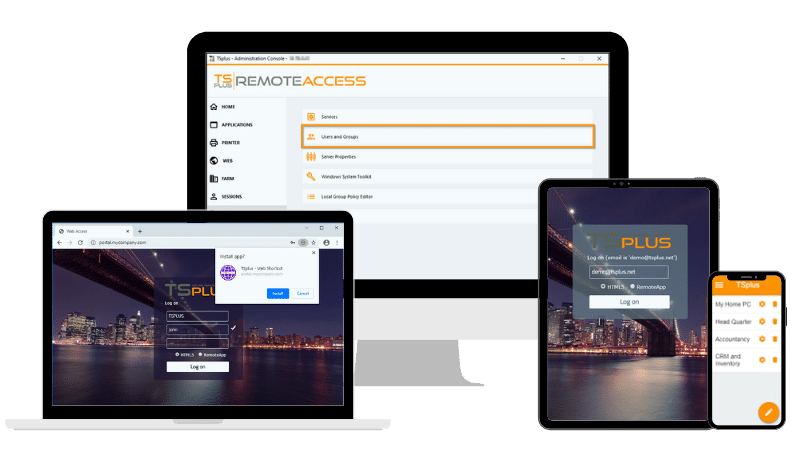
TSplus Remote Access Free Trial
Ultimate Citrix/RDS alternative for desktop/app access. Secure, cost-effective, on-premises/cloud
What Does “Windows Server Remote Desktop” Mean in 2026?
“Windows Server Remote Desktop” is a broad label. In practice, it usually means Remote Desktop Protocol (RDP) for the session transport, plus Remote Desktop Services (RDS) for multi-user delivery and governance. Keeping those concepts, separate helps avoid design drift and licensing mistakes.
RDP vs RDS: protocol vs server role
RDP is the wire protocol for interactive remote sessions; RDS is the server role stack that turns those sessions into a managed service.
- RDP carries: display updates, keyboard/mouse input, and optional redirection channels
- RDS provides: session hosting, brokering, publishing, gateway entry, and licensing
- A single server can allow admin RDP without being an RDS “platform”
- Multi-user, daily-work access usually implies RDS components and policies
Admin RDP vs multi-user RDS: the licensing line
Administrative Remote Desktop is meant for server management. When many end users connect for day-to-day work, the technical model and the compliance model change.
- Admin RDP is typically limited and intended for administrators
- Multi-user access usually requires RDS roles and RDS CAL planning
- “Temporary” multi-user usage often becomes permanent unless designed properly
- Licensing and architecture issues tend to surface later as outages and audit risk
How Does Windows Server Remote Desktop Architecture Work?
RDS is role-based because different problems appear at scale: routing users, reconnecting sessions, publishing apps, securing the edge, and enforcing licensing. Small environments may start with minimal roles, but production stability improves when roles and responsibilities are clear.
RD Session Host (RDSH)
RD Session Host is where users run applications and desktops in parallel sessions.
- Runs multiple concurrent sessions on one Windows Server instance
- Concentrates capacity risk: CPU, RAM, and disk I/O affect everyone
- Amplifies configuration mistakes: one bad policy can impact many users
- Needs an app compatibility approach for multi-session behaviour
RD Connection Broker
RD Connection Broker improves user routing and session continuity across multiple hosts.
- Reconnects users to existing sessions after brief disconnects
- Balances new sessions across a farm (when designed for it)
- Reduces “which server do I connect to?” operational noise
- Becomes important as soon as you add a second session host
RD Web Access
RD Web Access provides a browser portal for RemoteApp and desktops.
- Improves user experience with a single access page
- Adds TLS and certificate ownership requirements
- Depends heavily on DNS correctness and certificate trust
- Often becomes a “front door” that must be monitored like a production service
RD Gateway
RD Gateway wraps remote desktop traffic in HTTPS, typically on TCP 443, and reduces the need to expose 3389.
- Centralizes policy at the entry point (who can connect and to what)
- Works better across restrictive networks than raw 3389 exposure
- Introduces certificate lifecycle and name consistency requirements
- Benefits from segmentation: gateway in a DMZ, session hosts internal
RD Licensing
RD Licensing is the control plane for CAL issuance and compliance.
- Requires activation and correct CAL mode selection
- Requires session hosts to be pointed to the license server
- Grace-period “it works for a while” often masks misconfiguration
- Needs revalidation after changes like restores, migrations, or role moves
Optional: VDI components and when they matter
Some environments add VDI-style desktops when session-based RDS is not enough.
- VDI increases complexity (images, storage, VM lifecycle)
- VDI can help with isolation or heavy personalization requirements
- Session-based RDS is often simpler and cheaper for app delivery
- Decide based on application needs, not “VDI is more modern”
How Does RDP Work on Windows Server in Practice?
RDP is designed for interactive responsiveness, not just “streaming a screen.” The server executes workloads; the client receives UI updates and sends input events. Optional redirection channels add convenience but also add risk and overhead.
Session graphics, input, and virtual channels
RDP sessions commonly include multiple “channels” beyond graphics and input.
- Core flow: UI updates to the client, input events back to the server
- Optional channels: clipboard, printers, drives, audio, smart cards
- Redirection can increase logon time and support tickets
- Limit redirection to what users actually need to reduce drift and risk
Security layers: TLS, NLA, and authentication flow
Security depends on consistent controls more than on any single setting.
- TLS encryption protects transport and reduces interception risk
- Network Level Authentication (NLA) authenticates before a full session opens
- Credential hygiene matters more when any endpoint is reachable
- Certificate trust and expiry planning prevent sudden “it stopped working” outages
Transport choices: TCP vs UDP and real-world latency
User experience is a combined outcome of server sizing and network behaviour.
- UDP can improve responsiveness under loss and jitter
- Some networks block UDP, so fallbacks must be understood
- Gateway placement affects latency more than many people expect
- Measure latency/packet loss per site before “tuning” session settings
How Do You Enable Remote Desktop Safely for Admin Access?
Admin RDP is convenient, but it becomes dangerous when treated as an internet-facing remote work solution. The goal is controlled admin access: limited scope, consistent authentication, and strong network boundaries.
GUI enablement and firewall basics
Enable Remote Desktop and keep access tightly scoped from day one.
- Enable Remote Desktop in Server Manager (Local Server settings)
- Prefer NLA-only connections to reduce exposure
- Restrict Windows Firewall rules to known management networks
- Avoid temporary “anywhere” rules that become permanent
Minimum-hardening baseline for admin RDP
A small baseline prevents most preventable incidents.
- Never publish 3389 directly to the internet for admin access
- Restrict “Allow log on through Remote Desktop Services” to admin groups
- Use separate admin accounts and remove shared credentials
- Monitor failed logons and unusual success patterns
- Patch on a defined cadence and validate after changes
How Do You Deploy Remote Desktop Services for Multi-User Access?
Multi-user access is where you should design first and click later. “It works” is not the same as “it will stay up,” especially when certificates expire, licensing grace periods end, or load increases.
Quick Start vs Standard Deployment
Choose the deployment type based on lifecycle expectations.
- Quick Start fits labs and short proofs of concept
- Standard Deployment fits production and role separation
- Production deployments need naming, cert, and ownership decisions early
- Scaling is easier when roles are separated from the start
Collections, certificates, and role separation
Collections and certificates are operational foundations, not finishing touches.
- Collections define who gets which apps/desktops and where sessions run
- Separate session hosts from gateway/web roles to reduce blast radius
- Standardize DNS names and certificate subjects across entry points
- Document certificate renewal steps and owners to avoid outages
High availability basics without overengineering
Start with practical resilience and expand only where it pays off.
- Identify single points of failure: gateway/web entry, broker, core identity
- Scale session hosts horizontally for the fastest resilience gains
- Patch in rotation and confirm reconnection behaviour
- Test failover during maintenance windows, not during incidents
How Do You Secure Windows Server Remote Desktop End-to-End?
Security is a chain: exposure, identity, authorization, monitoring, patching, and operational discipline. RDS security is usually broken by inconsistent implementation across servers.
Exposure control: stop publishing 3389
Treat exposure as a design choice, not a default.
- Keep RDP internal whenever possible
- Use controlled entry points (gateway patterns, VPN, segmented access)
- Restrict sources by firewall/IP allowlists where feasible
- Remove “temporary” public rules after testing
Identity and MFA patterns that actually reduce risk
MFA helps only when it covers the real entry point.
- Enforce MFA on the gateway/VPN path users actually use
- Apply least privilege for users and especially for admins
- Use conditional rules that reflect location/device trust realities
- Ensure offboarding removes access consistently across groups and portals
Monitoring and auditing signals worth alerting on
Logging should answer: who connected, from where, to what, and what changed.
- Alert on repeated failed logons and lockout storms
- Watch for unusual admin logons (time, geography, host)
- Track certificate expiry dates and configuration drift
- Validate patch compliance and investigate exceptions quickly
Why Do Windows Server Remote Desktop Deployments Fail?
Most failures are predictable. Fixing the predictable ones reduces incident volume dramatically. The biggest categories are connectivity, certificates, licensing, and capacity.
Connectivity and name resolution
Connectivity issues usually trace back to basics done inconsistently.
- Verify DNS resolution from internal and external perspectives
- Confirm routing and firewall rules for the intended path
- Ensure gateways and portals point to the correct internal resources
- Avoid name mismatches that break certificate trust and user workflows
Certificates and encryption mismatches
Certificate hygiene is a top uptime factor for gateway and web access.
- Expired certificates cause sudden widespread failures
- Wrong subject/SAN names create trust prompts and blocked connections
- Missing intermediates break some clients but not others
- Renew early, test renewal, and document the deployment steps
Licensing and grace-period surprises
Licensing problems often appear after weeks of “normal operation.”
- Activate the license server and confirm CAL mode is correct
- Point each session host to the correct license server
- Revalidate after restores, migrations, or role reassignments
- Track grace-period timelines so they cannot surprise operations
Performance bottlenecks and “noisy neighbour” sessions
Shared session hosts fail when one workload dominates resources.
- CPU contention causes lag across all sessions
- Memory pressure triggers paging and slow application response
- Disk I/O saturation makes logons and profile loads crawl
- Identify top-consuming sessions and isolate or remediate the workload
How Do You Optimize RDS Performance for Real User Density?
Performance tuning works best as a loop: measure, change one thing, measure again. Focus on capacity drivers first, then on session environment tuning, then on profiles and application behaviour.
Capacity planning by workload, not by guesswork
Start with real workloads, not generic “users per server.”
- Define a few user personas (task, knowledge, power)
- Measure CPU/RAM/I/O per persona under peak conditions
- Include logon storms, scans, and update overhead in the model
- Keep headroom so “normal spikes” don’t become outages
Session host and GPO tuning priorities
Aim for predictable behaviour more than aggressive “tweaks.”
- Reduce unnecessary visuals and background startup noise
- Limit redirection channels that add logon overhead
- Keep application versions aligned across all session hosts
- Apply changes as controlled releases with rollback options
Profiles, logons, and app behaviour
Logon time stability is often the best “health indicator” of an RDS farm.
- Reduce profile bloat and control cache-heavy applications
- Standardize profile handling so behaviour is consistent across hosts
- Track logon duration and correlate spikes with changes
- Fix “chatty” apps that enumerate drives or write excessive profile data
How Does TSplus Remote Access Simplifies Windows Server Remote Delivery?
TSplus Remote Access provides a streamlined way to publish Windows applications and desktops from Windows Server while reducing the multi-role complexity that often comes with full RDS builds, especially for small and mid-sized IT teams. TSplus focuses on faster deployment, simpler administration, and practical security features that help avoid direct RDP exposure, while still keeping centralized execution and control where IT teams need it. For organizations that want the outcomes of Windows Server Remote Desktop with less infrastructure overhead and fewer moving parts to maintain, TSplus Remote Access can be a pragmatic delivery layer.
Conclusion
Windows Server Remote Desktop remains a core building block for centralized Windows access, but successful deployments are designed, not improvised. The most reliable environments separate protocol knowledge from platform design: understand what RDP does, then implement RDS roles, gateway patterns, certificates, licensing, and monitoring with production discipline. When IT teams treat Remote Desktop as an operational service with clear ownership and repeatable processes, uptime improves, security posture strengthens, and user experience becomes predictable rather than fragile.
TSplus Remote Access Free Trial
Ultimate Citrix/RDS alternative for desktop/app access. Secure, cost-effective, on-premises/cloud
)
)
)
