









)
)
Introduction
Remote access without installing software is a practical goal for hybrid work, contractors and BYOD users. The key is not removing all software from the architecture; it is removing client deployment from the endpoint. With an HTML5 remote access portal, users open a secure browser session to reach published Windows applications or desktops.
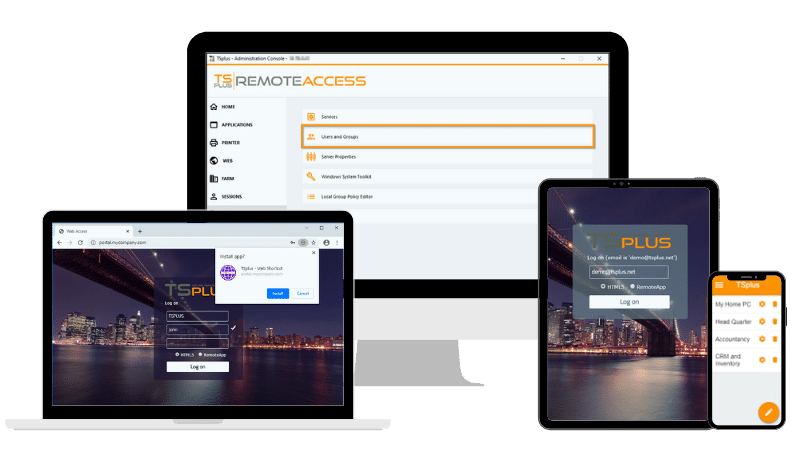
TSplus Remote Access Free Trial
Ultimate Citrix/RDS alternative for desktop/app access. Secure, cost-effective, on-premises/cloud
What Remote Access Without Installing Software Means?
Remote access without installing software does not mean there is no software anywhere. Remote access still requires session brokering, authentication, display transport, encryption and access control. The real question is where that software runs.
In a traditional Remote Desktop Protocol (RDP) deployment, every endpoint may need a native RDP client, a VPN client, a remote support tool or a custom launcher. That model creates friction when users connect from unmanaged laptops, personal devices, tablets or locked-down machines.
In a browser-based model, the remote access stack is centralized. The user opens a secure URL, signs in and launches a Windows application or desktop inside the browser. Microsoft Learn describes the Remote Desktop web client as a way to access administrator-published remote apps and desktops through a compatible browser.
For IT teams, the practical definition is clear: no remote access client is deployed on the user endpoint.
Why IT Teams Choose Clientless Remote Access?
Clientless remote access solves more than a user convenience problem. It reduces endpoint dependency, simplifies onboarding and gives administrators a more controlled way to publish Windows resources.
The first benefit is device flexibility. Users can connect from Windows, macOS, Linux, ChromeOS or tablets when the browser and access policy are supported. This is useful for contractors, external partners, temporary staff and bring-your-own-device environments.
The second benefit is lower support overhead. Native clients introduce version drift, operating system compatibility issues, local firewall problems, failed updates and configuration errors. A browser portal gives users one predictable access path.
The third benefit is security design. Instead of placing unmanaged endpoints on the internal network through broad VPN access, IT teams can publish only the applications or desktops users need. NIST SP 800-46 Rev. 2 frames remote access, telework and BYOD as security-sensitive areas that require defined policies and technical controls.
Main Ways to Access Windows Remotely Without Client Installation
Several technologies can reduce local installation work, but they do not solve the same problem. The right option depends on whether the organization needs administration, helpdesk support or recurring access to business applications.
| Method | Best for | End-user installation | Main limitation |
|---|---|---|---|
| Native Remote Desktop Connection | Admin access from managed Windows PCs | Usually none on Windows | Not ideal for unmanaged endpoints or app publishing |
| Remote Desktop Web Client | Browser access to RDS apps and desktops | No local RDP client | Requires RDS planning and infrastructure |
| Quick Assist | Ad hoc support sessions | May require Microsoft Store install | Not designed for daily application delivery |
| Browser extension tools | Personal or light remote control | Often requires extension or host agent | Weak fit for centralized IT control |
| HTML5 remote access portal | Business access to Windows apps and desktops | No endpoint client deployment | Requires server-side gateway setup |
This comparison shows why “no download” is not enough. IT teams should evaluate the architecture, not only the user-facing access method.
Native Remote Desktop Connection
Windows includes the native Remote Desktop Connection client, commonly known as mstsc.exe. It remains useful for administrators, internal support teams and controlled Windows environments.
However, native RDP does not fully solve the clientless access problem. External access often requires VPN, RD Gateway or firewall planning. Publishing individual applications is also more complex than giving users a full desktop.
Native RDP is a valid administration tool, but it is not the same as a browser-based application delivery strategy. It works best when devices, networks and users are already managed by IT.
Remote Desktop Web Client
The Remote Desktop web client moves the access experience into the browser. Users can open a portal and launch remote apps or desktops that an administrator has published. Microsoft documentation states that after setup, users need the client URL, their credentials and a supported browser.
This model is closer to what many businesses need. The Windows application or desktop still runs on central infrastructure, while the browser becomes the access layer.
The trade-off is infrastructure complexity. Microsoft Remote Desktop Services deployments still require careful work around certificates, RD Gateway, RD Web Access, RD Connection Broker, licensing, authentication, browser compatibility and session host capacity.
Quick Assist and Remote Support Tools
Quick Assist is built for support, not application delivery. Microsoft describes Quick Assist as a way for support staff to view a user’s screen, annotate it or request full control during a troubleshooting session.
That use case is different from daily access to hosted Windows applications. Quick Assist depends on a helper, a user and an interactive support session. It is not a centralized portal for publishing business applications to many users.
Microsoft support documentation also explains that Quick Assist may need to be installed from the Microsoft Store, and managed devices may block that installation by policy.
Browser Extension and Consumer Remote Control Tools
Some remote control products advertise access without a download, but many still rely on browser extensions, helper applications, host agents or account-based relay services. That may be acceptable for personal use or occasional troubleshooting.
For business use, IT teams need stronger answers. Administrators should verify whether access can be centrally revoked, whether logs are available, whether multi-factor authentication can be enforced and whether users can be limited to specific applications instead of full machines.
A browser extension is not the same as an HTML5 remote access portal. If the goal is to reduce endpoint deployment and improve control, the underlying architecture matters.
HTML5 Remote Access Web Portal
An HTML5 remote access web portal is usually the best fit for business application access. IT publishes Windows applications or full desktops from centralized hosts, and users connect through a secure browser portal.
The endpoint does not need a native RDP client. The remote session is delivered through web technologies, while the application remains hosted on the server side.
This model is especially useful for legacy Windows applications that cannot be rewritten as SaaS applications. Instead of installing the application on every endpoint, IT hosts it centrally and delivers it through the browser.
Why an HTML5 Remote Access Portal Fits Business Use?
An HTML5 remote access portal separates the endpoint from the application runtime. The user’s device becomes a display, keyboard and mouse interface, while the Windows workload stays under IT control.
That approach gives administrators several practical advantages:
- Centralized application publishing
- Browser-based access from supported devices
- Reduced dependency on VPN clients
- Consistent access through a single URL
- Easier onboarding for contractors and BYOD users
- Centralized authentication and session control
- Less local troubleshooting on unmanaged endpoints
The result is a cleaner operating model. IT publishes the resource, not the entire internal network.
Security Requirements for Browser-Based Remote Access
Clientless access does not automatically mean secure access. It only changes where access is managed. IT teams still need to secure identity, transport, session exposure and administrative control.
First, every browser portal should use HTTPS with valid certificates. Users should never be trained to bypass browser security warnings, because that behavior weakens the trust model.
Second, organizations should avoid exposing raw RDP directly to the internet. CISA has warned that RDP is a common ransomware infection vector and that multi-factor authentication is critical for reducing malicious access risk.
Third, administrators should apply strong authentication. For production environments, multi-factor authentication, account lockout policies and least privilege access should be baselining requirements.
Fourth, IT teams should publish only what users need. Many users require one Windows application, not a full remote desktop. Application publishing can reduce exposure and make the session easier to use.
Finally, centralized access should produce useful logs. Login events, session activity, administrative changes and failed authentication attempts should be visible for audit and investigation.
When Is Browser-Based Remote Access the Right Fit?
Browser-based remote access is a strong fit when organizations need recurring access to Windows applications without installing software on user devices.
Typical use cases include:
- Contractors who need limited access to internal applications
- BYOD users who should not install corporate clients
- Remote staff working across multiple operating systems
- External partners who need access to one hosted application
- Branch offices with thin clients or locked-down devices
- Legacy Windows applications that need web-based delivery
- IT teams trying to reduce VPN and RDP client support tickets
This model is less suitable for every workload. Graphics-heavy applications, advanced USB redirection, low-latency multimedia and deep local device integration may still require a native client or a specialized virtualization platform.
Implementation Checklist for IT Teams
Before deploying browser-based remote access, IT teams should define the operating model. The first decision is whether users need full desktops, individual applications or both. Application publishing is often safer and easier to support than giving every user a full desktop.
Next, define identity and access control. Confirm whether users will authenticate with Active Directory, local Windows accounts, single sign-on, multi-factor authentication or another identity provider.
Then review network exposure. Decide where the web portal will sit, how HTTPS will be terminated, which ports must be exposed and whether a reverse proxy or gateway layer is required.
Application validation is also important. Some Windows applications behave differently in multi-user sessions, especially if they were designed for single-user desktop installation.
Finally, test real endpoints. Validate access from Windows, macOS, Linux, tablets and locked-down devices that match the user environment.
Common Mistakes to Avoid
The first mistake is assuming that “no download” means “no infrastructure.” Browser-based remote access reduces endpoint complexity, but the server-side platform still needs to be secured, patched, monitored and backed up.
The second mistake is using remote support tools for application delivery. A helpdesk screen-sharing tool is not a publishing platform for business applications.
The third mistake is giving every user a full desktop when they only need one application. Full desktops are sometimes necessary, but published applications can reduce risk and improve usability.
The final mistake is ignoring the user journey. Users need a clear portal URL, reliable authentication, obvious application icons and predictable session behavior.
How TSplus Remote Access Helps?
TSplus Remote Access is designed for organizations that need browser-based access to Windows applications and desktops without deploying a full remote desktop client to every user endpoint. Our solution provides access to centralized Windows applications on a full remote desktop, with support for HTML5 and RDP-compatible clients.
With TSplus, administrators can publish applications and assign them to specific users or groups. TSplus documentation describes application publishing as a way to control which applications users can access and how those applications are launched.
For SMBs, MSPs and lean IT teams, the value is operational simplicity. Users access a secure web portal, launch the applications assigned to them and work from a browser, while IT keeps Windows applications centralized.
Conclusion
Remote access without installing software is best understood as no endpoint client deployment, not as software-free infrastructure. For business environments, the practical path is an HTML5 remote access portal that lets users access published Windows applications or full desktops from a browser while IT centralizes authentication, application publishing, session control and security policy.
TSplus Remote Access Free Trial
Ultimate Citrix/RDS alternative for desktop/app access. Secure, cost-effective, on-premises/cloud
)
)
)
