









)
)
“Virtual desktop” is often used as a catch-all term, but under the hood it describes a few distinct delivery models built on the same fundamentals: centralized compute, controlled access and a remote display protocol that streams the experience to endpoints. Whether you are supporting hybrid work, centralizing applications or running regulated workloads, understanding the architecture matters. This article explains how virtual desktops work end to end in 2026, so you can design, scale and troubleshoot with fewer surprises.
What Does “Virtual Desktop” Mean in Real IT Terms?
A virtual desktop is a desktop OS environment that runs on infrastructure you control (on-premises or cloud) and is presented to users over the network.
Endpoint:
The endpoint becomes primarily an access terminal: it sends keyboard and mouse input and receives an optimized stream of the desktop display.
Channels:
Optional channels (such as audio, printers, drives, clipboard and USB) may be enabled or blocked depending on policy.
User Routing:
This is different from remote control of a single PC. Virtual desktop delivery introduces a pooling and assignment layer: users are routed to a desktop resource based on identity, entitlements, availability, health checks and operational state (maintenance windows, drained hosts and roll-out phases).
Two Core Models: VDI vs Session-Based Desktops
Most “virtual desktop” deployments fall into one of these models. Picking the right one is about workload shape, risk tolerance, cost profile, and how much per-user personalization is genuinely required.
VDI: One Virtual Machine per User
VDI (Virtual Desktop Infrastructure) assigns each user a virtual machine (VM) running a desktop OS.
Common variants:
- Persistent VDI: the same VM stays with the user (more personalization; simpler “this is my machine” behaviour).
- Non-persistent VDI: users land on a clean VM from a pool (easier patching and rollback; requires solid profile design).
VDI tends to fit well when you need:
- stronger isolation (risk containment, regulated workflows, contractors);
- multiple images for different user groups (provides desktop OS flexibility, enables custom stacks);
- clear per-user boundaries for performance tuning and incident response.
Trade-offs:
- More moving parts (more OS instances, more image lifecycle work).
- Storage and profile design and management become critical.
- GPU and licensing requirements can increase cost.
Session-Based Desktops: Shared Host, Separate Sessions
Session-based delivery runs many user sessions on one or more shared hosts (often Windows Server / RDS type architectures). Each user gets a separate session, not a separate VM, since one OS instance hosts many user sessions .
Session-based tends to fit well when you need:
- higher density and predictable ops for a standardized app set;
- central application publishing as the primary goal (rather than automatic full desktops);
- cost-efficient scaling for task and knowledge workers.
Trade-offs:
- Less isolation than a full VM-per-user model.
- Implies stricter app compatibility and change control.
- Quicker awareness of resource contention if sizing and monitoring are low (capacity planning issues).
Practical Rule of Thumb for Choosing
- If per-user isolation and customization are your priority, VDI is often cleaner.
- If density and standardized delivery are your priority, sessions typically win.
How Might a Step-by-Step Connection Flow Look?
A user experience of “click → desktop appears” hides a layered workflow. Understanding each step makes it easier and more reliable to troubleshoot, secure and scale.
1) Identity and Access Control
Before any desktop launches, the platform verifies:
- Who the user is (directory identity, SSO, certificates);
- What they’re allowed to access (groups, entitlements, policies);
- Whether the access attempt is acceptable (MFA, location, device conditions).
This stage is also where you define guardrails for privileged access. A common failure mode in virtual desktop projects is rarely “the protocol”. Generally, weak identity controls and over-broad access scopes will be at fault.
Recipe for safer access:
- strong authorization policy
- least privilege controls
- location/device constraints
2) Brokering and Resource Assignment
A broker (or equivalent control plane) answers the question “where should this user land?”.
- Choose a target VM/session host based on pool membership and availability.
- Enforce entitlements (which resources the user may access).
- Apply routing logic (region, latency, host load, maintenance/drain mode).
In mature environments, brokering is tied to health checks and roll-out policies, so you can update images without taking the whole service down.
3) Secure Access Path Through a Gateway
Gateway :
A gateway provides a controlled entry point, typically to avoid exposing internal hosts directly. It can:
- Terminate external connections and forward internally.
- Concentrate policy enforcement, auditing and logging.
- Reduce attack surface compared with “open RDP”.
Even when users connect from inside the LAN, many teams keep a consistent gateway pattern for observability and policy enforcement.
Controls:
This is therefore also the best stage to standardize security controls (strong auth, throttling, geo/IP restrictions and consistent logging). For example, teams who deliver remote sessions using TSplus Remote Access often pair that access layer with TSplus Advanced Security. This way, beyond the granular controls available in the first, they complement with the second to harden entry points and reduce common attack patterns such as credential stuffing and brute-force attempts. Handy to avoid turning every access scenario into a full VDI project.
4) Remote Display Protocol Session Establishment
Once a target host is selected, the client and host negotiate a remote display protocol session. This is where the “magic” happens for non-techies as the desktop becomes “visible” remotely:
- Screen updates are encoded and streamed
- Input events return to the host
- Optional redirections are negotiated (clipboard, printers, drives, audio, USB)
RDP remains common in Windows ecosystems. Yet the broader point is that applications execute on the host rather than being sent to the endpoint. In effect, the endpoint is mostly interacting with a streamed representation of the UI plus controlled I/O channels.
What Does the Protocol Actually Transmit?
A helpful troubleshooting mental model is that the endpoint is largely a rendering + input device .
Typically transmitted:
- Pixel updates (with caching and compression)
- Keystrokes and mouse inputs
- Audio (optional)
- Peripheral redirection metadata (optional)
- UI primitives in certain cases (optimizations)
Not typically transmitted:
- Your full application stack
- Raw data files (unless you enable drive mapping / copy paths)
- Internal network topology (unless misconfigured)
This matters because “virtual desktop slowness” therefore usually comes down to:
- Latency and packet loss
- Bandwidth constraints or Wi-Fi issues
- Host resource pressure (CPU/RAM/disk I/O)
- Profile/storage bottlenecks at logon
Where Apps, Profiles, and Data Live
Virtual desktop success depends on “where things live,” especially when you scale beyond a pilot.
Images and Application Strategy
Most teams standardize around:
- A gold image (base OS + agents + baseline configuration)
- A patch cadence and image pipeline (test → stage → production)
- An application strategy (installed in image, layered or published separately)
The goal is repeatability. If every desktop becomes an exception, you lose the operational advantage of centralized delivery.
User Profiles: The Logon-Time Deal-breaker
Profiles are where many deployments succeed or fail.
A sound approach ensures:
- Fast logon (avoid huge profile copies)
- Predictable personalization (settings follow the user)
- Clean separation between base image and user state
If you use pooled/non-persistent resources, treat profile engineering as a first-class design item, not an afterthought.
Data Location and Access Controls
Typical patterns include:
- Home drives and departmental shares with tight ACLs
- Cloud storage sync where appropriate
- Clear rules for what may be redirected to endpoints (clipboard, drive mapping)
Bear in mind endpoints are the hardest place to enforce data governance. For sensitive environments, controlling data movement is consequently the core requirement. Preempt roll-out by deciding whether clipboard, local drives or unmanaged printing are allowed, by whom and under which conditions.
Performance and UX in 2026: What Makes It Feel “Local”?
Users judge the platform by its responsiveness. In practice, performance is shaped by predictable factors.
Network Quality and Latency
- Lower latency improves perceived responsiveness more than raw bandwidth.
- Packet loss hurts interactive sessions disproportionately.
- Home Wi-Fi as well as router buffer-bloat can mimic “server slowness.”
Host Sizing and Storage I/O
Even ample CPU is helpless if:
- RAM is over-committed and causes paging
- Storage for profiles and user data is slow
- Noisy neighbour workloads starve disk I/O on shared hosts
Hence why ongoing observability matters as much as initial sizing. Monitoring CPU, RAM, disk I/O, and network saturation across session hosts, gateways and storage services enables many teams to regain control. Tools like TSplus Server Monitoring are useful to catch capacity creep early (before it becomes a “Monday morning outage”). It can also help validate whether a change actually improved an issue and identify problematic sessions.
Graphics and Multimedia
For video-heavy or graphically intense workloads:
- Protocol settings and codec choices matter
- GPU acceleration (where available) changes user experience
- “One settings profile for everyone” rarely works in mixed populations
Security Basics: Where Place a Minimum Bar for a Safe Deployment?
Virtual desktops can improve security, but only when you design them correctly.
Baseline Controls Essential for Most Teams:
- MFA for external access and privileged actions
- Gateway-based access rather than exposing hosts directly
- Least privilege (most users do not need local admin)
- Patch management for hosts, images and supporting services
- Central logging for auth, connection events and admin actions
- Segmentation to reduce lateral movement risk
Decisions Best Made Early:
- Clipboard and drive mapping rules, local device access
- Print redirection policy (and whether it would be a data exfiltration path in your context)
- Session timeouts and idle policies
And remember the human reality: when something breaks, users need help fast. Consider a tool like TSplus Remote Support to respond to issues, witness what the user sees, guide them through steps and reduce time-to-resolution. Indeed, a remote assistance workflow often prevents “small issues” from mushrooming or becoming prolonged downtime during rollouts.
Where TSplus Fits in Virtual Desktop Delivery
For IT teams who want to publish desktops and Windows applications with a clear security posture and straightforward administration, TSplus Remote Access provides a practical path to deliver remote sessions through controlled access, without automatically engaging you in heavyweight VDI. It can be used to centralize application delivery, manage user access and scale remote connectivity while keeping configuration and operations approachable for lean teams.
Try a Virtual Desktop Yourself: Build a Simple Lab in a VM
If you want to understand virtual desktops better, build a small lab and watch the pieces interact. A single VM can help you test OS installation and baseline hardening, remote connectivity behaviour, policy choices (clipboard, drive mapping, printer redirection) and logon performance impacts as profiles grow.
Next step:
Follow the companion guide How to Setup a Virtual Machine for Testing and Lab Environments to build a clean VM you can reuse for experiments then map each lab observation to the real-world components you would run in production.
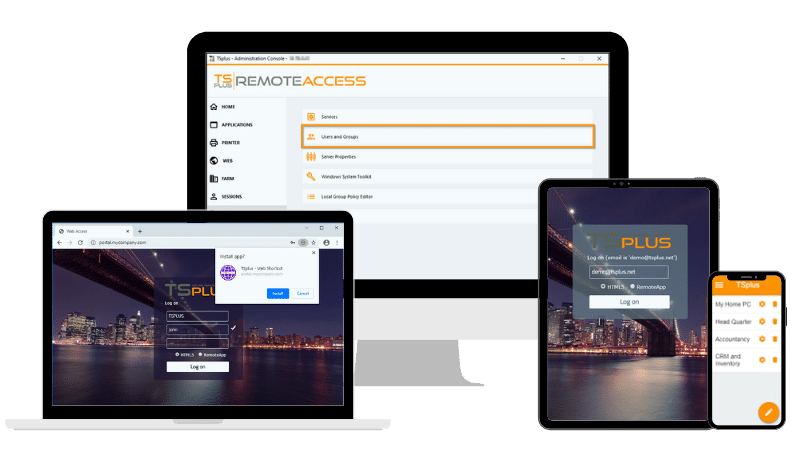
TSplus Remote Access Free Trial
Ultimate Citrix/RDS alternative for desktop/app access. Secure, cost-effective, on-premises/cloud
)
)
)
