





This guide explains what each status means, what you can check safely, why an INI replacement is not automatically the answer, and how to plan for five or more simultaneous users. It does not provide RDP Wrapper installation instructions, raw INI replacement steps, offset edits, antivirus exclusions, service modifications or
termsrv.dll
patching procedures.
The short answer: RDP Wrapper is not a production multi-user strategy
RDP Wrapper can affect how a Windows client system handles Remote Desktop sessions. Such technical behaviour does not establish that the configuration is supported by Microsoft, properly licensed, secure for its intended exposure, or maintainable through future updates.
As I write, current Microsoft Windows Desktop Operating System Product Terms state only one user may access and use the covered desktop software at a time. A wrapper, patch, configuration file or open-source license does not modify those Microsoft use rights. Your exact Windows, user or device, Microsoft 365, Office and external-access licensing must be validated with Microsoft or a qualified licensing partner.
Windows 10 and Windows 11 Enterprise multi-session are separate Microsoft operating system editions. Microsoft documents them for production use through Azure Virtual Desktop and approved providers. They are not features that RDP Wrapper unlocks on an ordinary Windows 11 Pro computer.
Technical behaviour is only one approval test. Before a multi-user deployment enters production, establish all four of the following:
- The configuration can run the required applications and sessions.
- The operating system and application vendors support the deployment model.
- The organization has the necessary Windows, RDS, Microsoft 365, Office and application licence rights.
- An identified team owns updates, security, monitoring, capacity, backup and recovery.
We do not recommend RDP Wrapper or patched
termsrv.dll
files for production concurrent access. A recurring RDP Wrapper error is often a signal to reconsider the architecture, not merely a request for another community configuration file.
What do RDP Wrapper and rdpwrap.ini actually do?
The
original
stascorp/rdpwrap
project
describes RDP Wrapper as a layer between Windows Service Control Manager and Terminal Services. Its design leaves the installed
termsrv.dll
file untouched rather than replacing that file on disk.
The
rdpwrap.ini
file contains general settings and definitions associated with specific Terminal Services builds. RDP Wrapper uses those definitions to recognise and interact with the service version installed on the machine. This is why a familiar Windows edition name is not enough to determine compatibility.
The original project's latest listed binary release is RDP Wrapper version 1.6.2 , dated December 27, 2017. That age matters. More recent community activity often concerns separate build definitions rather than a new official binary release from the original project.
Why Windows 11 support is build-specific
Claiming RDP Wrapper supports Windows 11 would ignore the fact that exact Terminal Services builds matter more than the Windows 10 or Windows 11 label. Indeed, a cumulative update can change the service binary and version while the edition name remains the same. The original project issue tracker continues to receive user reports tied to exact builds. Issue 4106 , reported in 2026, illustrates this, demonstrating why no stable Windows 11 support matrix can cover every cumulative build.
With standard Windows 10 support ended on 14 October 2025, one would expect a new business deployment to account for both the specific edition lifecycle and the session architecture rather than treating Windows 10 as a current general-purpose host baseline.
RDP Wrapper differs from patching termsrv.dll, but neither is a supported Microsoft architecture
Directly patching or replacing
termsrv.dll
modifies a protected Windows system component. RDP Wrapper was designed to avoid that direct on-disk replacement, which reduces one class of modification and was described by the project maintainers as resilient to Windows Update.
Current build-specific issue reports qualify that historical claim. Leaving the original DLL untouched does not remove the need for privileged code, build-sensitive configuration, update testing, recovery planning, security review, or licensing validation. It also does not turn the resulting Windows client configuration into a Microsoft-supported multi-user session host.
Diagnose the status before changing anything
Before making a change, record the wrapper status, Windows service status, listener status, exact Terminal Services version, Windows build, and first relevant Windows event. Also note whether the failure appeared immediately after an update or another remote-access change. These facts separate compatibility from service, listener, policy and network problems.
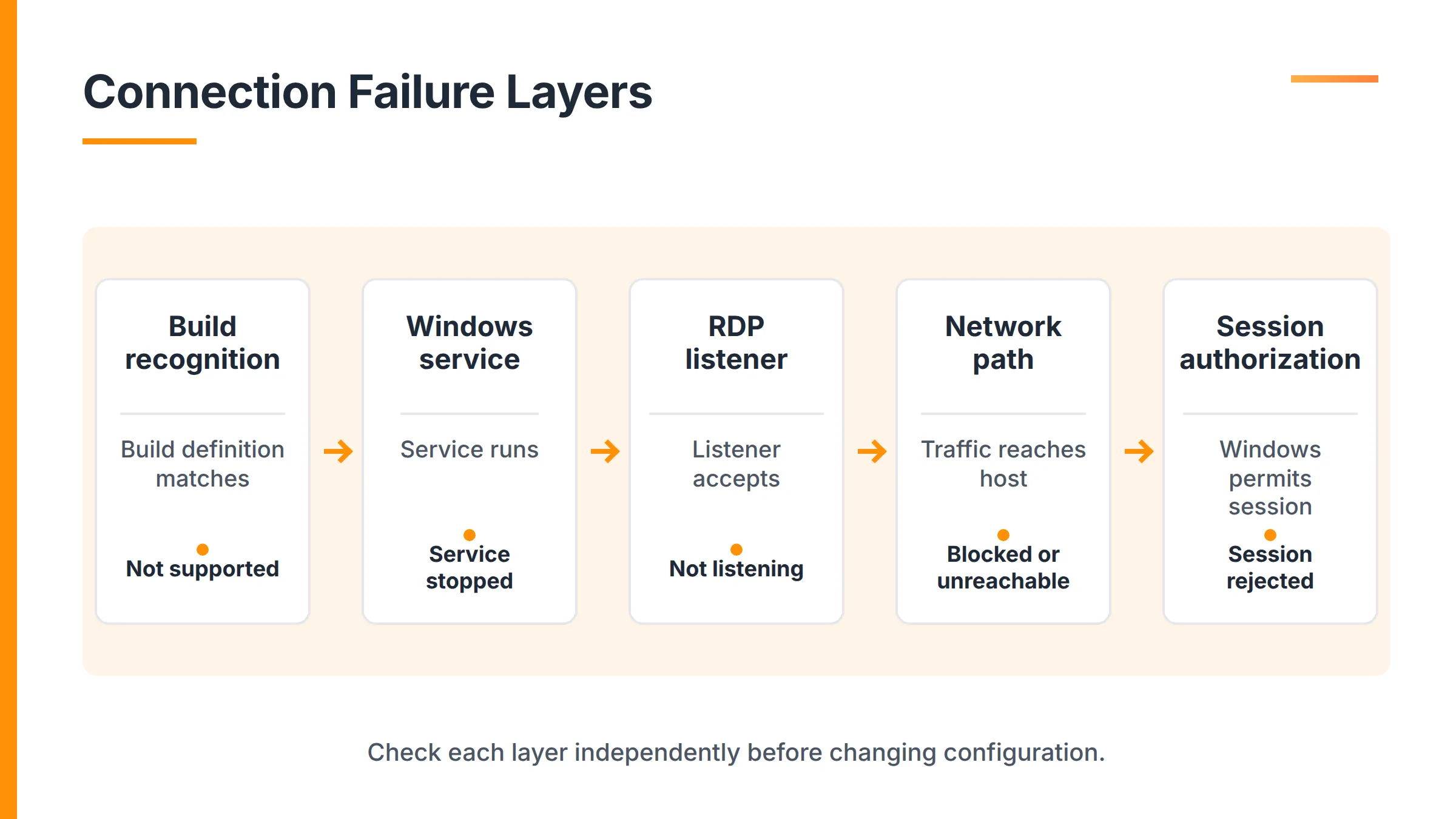
If the machine supports business operations, preserve a recovery path before further testing. Do not download a script, DLL, executable or INI file solely because an isolated forum post associates it with a similar-looking build number.
| Observed state | What it indicates | What it does not prove | Safe next check |
|---|---|---|---|
| Not supported | The active definitions commonly lack a match for the exact Terminal Services version. | It does not prove that the network, firewall, listener or user permissions are correct. | Confirm the exact Windows and service versions, update timing, project issue history, and recovery options. |
| Fully supported, not listening | The build is recognized, but a working Remote Desktop listener is absent. | Build recognition does not prove that Remote Desktop is enabled or reachable. | Inspect Windows settings, service health, event logs, policy, listener ownership, port conflicts and firewall scope. |
| Service stopped or failing | The Windows service layer is unhealthy. | It does not by itself establish an INI mismatch. | Capture the first service error, identify recent changes, and restore normal Windows service health. |
| Simultaneous connections rejected | A policy, existing session, account behaviour, host model or licensing boundary may be involved. | It does not prove that RDP Wrapper is unsupported or that the listener has failed. | Check active and disconnected sessions, account reuse, applicable policy and the type of host. |
Not supported points to a build-definition mismatch
In RDP Wrapper terminology, "not supported" commonly means that the active configuration cannot find a matching definition for the exact Terminal Services version. With a broad match such as Windows 11 Pro, two machines with the same edition can have different cumulative builds.
Confirm the precise Windows build and service version, determine whether the status changed after an update, then review the original project's issue record for that exact version. From there, the safe production decisions are to restore a tested system state or move the workload to a supported architecture.
I intentionally avoid directing you to fetch a raw INI, edit offsets, stop Windows services, or overwrite configuration files. Indeed, such actions can introduce a privileged supply-chain risk while leaving the licensing and support boundary unchanged.
Fully supported and not listening describe different layers
"Fully supported" means the wrapper configuration recognises the installed service build. It does not prove that Remote Desktop is enabled, Terminal Services is healthy, a listener is bound, policy permits the requested session, the firewall accepts the traffic, or the host is reachable from the client.
If the build is already recognised, replacing
rdpwrap.ini
can distract from the actual fault. Review Windows Remote Desktop settings, service health, the earliest relevant event-log entry, applicable Group Policy, port conflicts, firewall scope, and whether another remote-access component changed or claimed the listener.
Think of the path as separate layers: the wrapper recognises a build, the Windows service runs, a listener accepts connections, the network carries traffic, and Windows authorises a session. A green result light at one layer does not validate the next one.
A stopped service is not the same as a listener failure
A service failure occurs below the network-listener test. If Terminal Services cannot start or remain healthy, listener and concurrency testing are premature.
Capture the first service or event-log error rather than a later cascade of connection failures. Identify and reverse unverified changes, then restore normal Windows service health before evaluating concurrent sessions. A configuration file should not be treated as the default answer to a Windows service failure.
Your network administrator does not allow simultaneous connections is usually a policy or session-state clue
This message can appear when policy restricts concurrent sessions, an active or disconnected session already exists, the same account is being reused, or the host is not designed and licensed as a multi-user session host. It is different from a missing build definition and from a listener which cannot accept any connection.
Use four diagnostic questions:
- Is another session for the user or machine still active or disconnected?
- Is the connection attempting to reuse the same Windows account?
- Does an applicable Group Policy limit sessions or account behaviour?
- Is the destination an ordinary Windows client, a Windows Server RD Session Host, or an Azure Virtual Desktop multi-session host?
The correct resolution depends on the intended host model. Do not change policy merely to bypass Windows client-session restrictions. First confirm the architecture and licensing permit the sessions you intend to create.
What to do after a Windows update changes the status
Record the new Windows build, Terminal Services version, wrapper state, service state and listener state. Preserve the first relevant event-log evidence and compare the result with the last tested configuration. If business access is affected, use the organization's established recovery process rather than experimenting with unverified community files on the live system.
Once service is restored, decide whether an update-sensitive community workaround belongs in the production path. We do not recommend disabling Windows Update, suppressing antivirus detections, or leaving a host unpatched to preserve RDP Wrapper behaviour. Those choices trade an availability problem for a larger security and operational risk.
Is RDP Wrapper safe?
RDP Wrapper cannot be classified as universally safe or otherwise from the project name alone. Public source code and an original repository do not establish the integrity of every compiled item or deployed configuration.
Threat models, Internet exposure, weak authentication, excessive privileges and poor monitoring are separate topics though RDP itself is not insecure by design. CISA associates ransomware access with exposed RDP, weak or reused credentials, missing multifactor authentication, open ports and unpatched services. Protection is essential for protocol, host, client, communications path, identities and maintenance process, as part of a lifecycle approach also reflected in NIST SP 800-46 Rev. 2 from 2016.
Assess the deployment, not just the repository name.
Before trusting any remote access component, establish:
- Who published the binary, script and configuration, and how their integrity is verified.
- Which privileges the component receives and what it can change.
- Who reviews new definitions and owns compatibility after Windows updates.
- Whether security software is being suppressed to make the component run.
- How the machine can be restored if the service or listener fails.
- Whether the service is reachable from untrusted networks.
- How users and administrators authenticate, and whether MFA is available for that access path.
- Which session, login, service and security events are monitored.
- Whether Microsoft and application licensing has been validated.
Download provenance matters, but an original source is not a production approval
The original
stascorp/rdpwrap
repository is the primary historical source for RDP Wrapper's design, documentation
and releases. Repackaged download sites are best avoided. Also, a recently dated package on a mirror is not evidence of a new release.
Provenance answers who published an artifact but, while the repository is relevant for understanding the project, it does not act as an endorsement to deploy it. You remain responsible for checking whether the software is supported by Microsoft, appropriate for a business system, licensed for the intended use, or maintainable by your team.
The community raw rdpwrap.ini URL is neither an official Microsoft nor an original binary release.
Case in point, t
the raw
rdpwrap.ini
address commonly associated with the
sebaxakerhtc/rdpwrap.ini
repository points to a separate community-maintained configuration source; neither a Microsoft file nor a new binary release from the original RDP Wrapper project, no matter it being hosted on Github. Since such a file can too easily change, it will remain a mention.
Five simultaneous connections require more than a session-count claim
The original RDP Wrapper project advertised up to 15 concurrent sessions in documentation associated with its 2017 release. The project claim is both dated and subject to hardware and operating-system limits. What's more, it is not a supported Windows capacity statement or a Microsoft licensing guarantee.
Proof-of-concept building a TSplus infrastructure
For a five-user deployment, count concurrent users rather than licensed or named users alone, and monitor RDP session performance Five people entering records in an accounting application create a different load from five people editing video, opening large spreadsheets, using several monitors, or producing print-heavy reports.
TSplus Remote Access prerequisites give 4 to 8 GB of RAM as a starting range for 3 to 5 users. It is a starting point to test with the real applications, not a universal server requirement. Microsoft's September 30, 2025 session-host sizing guidance likewise ranges from six users per vCPU for a light workload to two users per vCPU for a heavy workload. Still, those Microsoft figures are session-host baselines, not a direct formula for every on-premises machine.
A five-user plan should cover:
- Application CPU and memory use during peak activity.
- SSD capacity, latency, and sustained input and output demand.
- User profiles, temporary files, caches and profile growth.
- Printing, scanning, smart cards, audio, multiple monitors and other peripherals.
- Network latency and bandwidth between users and the host.
- Application and Office licensing in a shared-session environment.
- Backup, configuration recovery and update testing.
- The effect on all five users if the single host fails or requires maintenance.
A five-user teaching example
Consider two possible five-user environments. In the first, each user enters transactions into one accounting application and occasionally generates a document. Such a workload may fit a modest single-server design once application behaviour, printing, profiles and peak resource use have been tested.
In the second, five users edit media, use GPU-dependent software, open large data models, or drive several high-resolution displays. The same session count will require more CPU, memory, storage throughput, graphics resources, and possibly a different delivery architecture.
Supported options for multiple Windows sessions
The right route depends on whether users need a few applications, a shared desktop, personal managed desktops, or occasional access to their own PC. It also depends on where applications run, who manages security, and whether your team wants to operate Windows Server roles, Azure infrastructure, or an enterprise workspace stack.
| Route | Suitable need | Host model | Licensing and operational tradeoff |
|---|---|---|---|
| Windows Server RDS | Microsoft-native session desktops and RemoteApp | Self-managed Windows Server roles | Requires RDS architecture skills and validation of Windows Server, CAL, RDS CAL, Office, and application licensing. |
| Azure Virtual Desktop | Windows 10 or 11 Enterprise multi-session for an Azure-first organisation | Azure-hosted session hosts and Microsoft cloud services | Requires Azure identity, governance, profile, capacity, and cost management. |
| Self-managed application publishing | A few centrally hosted Windows applications or a shared desktop | Customer-controlled Windows infrastructure | Reduces the need for personal virtual desktops, but Microsoft and application licensing remains separate. |
| Enterprise VDI or DaaS | Managed personal desktops, standardized images, profiles, and workspace governance | Brokered virtual desktops on managed infrastructure or a cloud service | Provides deeper desktop lifecycle control with greater platform, storage, capacity and governance requirements. |
Windows Server with Remote Desktop Services
Windows Server Remote Desktop Services is Microsoft's native self-managed multi-session route. In Remote Desktop Services, RD Session Host provides session-based desktops or RemoteApp applications, while RD Gateway carries external RDP access over HTTPS rather than requiring a raw RDP listener to be exposed publicly.
Microsoft documents separate licensing responsibilities for this architecture. Validate specific Windows licensing, CALs and others with Microsoft or a qualified licensing partner.
Azure Virtual Desktop with Windows 11 Enterprise multi-session
Azure Virtual Desktop is Microsoft's supported route for production use of Windows 10 or Windows 11 Enterprise multi-session. While it may be the natural choice for an Azure-first organisation with Microsoft identity, governance, cloud operations, profile management and capacity-planning skills already in place, Azure would not turn an ordinary Windows 11 Pro PC into a licensed multi-session host.
Self-managed Windows application publishing
Many organizations need to provide access to only a few Windows applications, such as an ERP, accounting package, or line-of-business system, rather than a full personal virtual desktop per user. Application publishing is ideal to centralise applications or a shared desktop on Windows infrastructure controlled by the organisation.
TSplus Remote Access fits this category. It can publish assigned Windows applications or a full desktop and accept connections through RDP clients, generated clients, or browser access where the edition supports it. Browser access requires Web Mobile edition or above.
TSplus Remote Access provides application and shared-desktop publishing. It is not a direct equivalent to enterprise VDI or a full DaaS environment and its technical host compatibility includes no CALs or licensing. Licensing in particular should be validated with Microsoft or a qualified licensing partner.
Enterprise VDI or DaaS
Enterprise VDI or desktop as a service is suitable when users require personal, standardised desktops at scale. Such environments typically include image lifecycle management, profile management, brokers, storage design, workspace governance, and capacity orchestration.
That additional platform work is justified when desktop standardisation, isolation, regulatory controls, or personal workspace management are central requirements. While it can be unnecessary overhead when users only need a few shared Windows applications, it should not be heedlessly replaced with a lighter publishing product when the full desktop-management requirement is important.
Checkpoints for practical decision making:
Classify the access requirement before selecting software. The following sequence separates occasional PC access, shared sessions, application publishing, and managed personal desktops.
- One person needs occasional access to their own PC: use the supported native Remote Desktop or a product like TSplus Remote Support rather than a multi-session workaround.
- Several users need Windows Server sessions under Microsoft's native architecture? Evaluate Windows Server RDS and the applicable CALs.
- If your organization is Azure-first and needs Windows 11 multi-session desktops or applications, evaluate Azure Virtual Desktop.
- When users mainly need a few centrally hosted Windows applications or a shared desktop on infrastructure you control, evaluate supported application publishing such as TSplus Remote Access.
- Do users need managed personal desktops, standardised images, profiles and enterprise workspace governance at scale? Choose enterprise VDI or DaaS.
- For every route, validate Windows, Windows Server, RDS, Microsoft 365, Office, user, device, application and external-access licensing with Microsoft or a qualified licensing partner.
Moving from an RDP Wrapper test to a supported deployment
A migration should preserve application access while removing the workaround from the production dependency chain. Start with the user requirement and workload rather than trying to reproduce every detail of the experimental configuration.
- Inventory the applications, data, users, accounts, printers, peripherals, profiles, and current access method.
- Decide whether users need individual applications, a shared desktop, personal desktops, or remote assistance on their own devices.
- Count concurrent users and test the real workload, including peak use, printing, profiles, storage, and network conditions.
- Choose Windows Server RDS, Azure Virtual Desktop, self-managed application publishing, or enterprise VDI based on the classified requirement.
- Validate Microsoft and application licensing before production deployment.
- Pilot with representative users, preserve a rollback plan, and test operating system and application updates before broad rollout.
- Put external access behind a controlled entry point, then apply MFA where supported, account lockout, monitoring and least privilege.
Where TSplus Remote Access fits for five users
TSplus Remote Access set up on one supported Windows machine can publish assigned applications or a full desktop. Its documented technical hosts include Windows 10 Pro, Windows 11 Pro, and supported Windows Server versions. Note Windows Home editions and ARM systems are not supported.
A five-user deployment does not normally require a server farm. Browser access requires Web Mobile Edition or above. A gateway, farm and load balancing require Enterprise Edition and become relevant when the design expands across servers or needs centralised entry.
TSplus two-factor authentication
is a paid add-on for Web Mobile or Enterprise edition. It protects supported web and generated-client access paths, but it does not work with the standard Microsoft
mstsc.exe
client. Choose the connection method and security controls together rather than assuming one MFA option covers every client.
Our TSplus Remote Access 15-day trial includes up to five concurrent users, letting you evaluate the actual applications, printing, profiles, peripherals and resource use before selecting an edition. Microsoft licensing remains a separate requirement to be checked for the chosen host and access model. Testing five users accessing the same Windows applications using a full featured TSplus Remote Access edition should help you validate application behaviour and other usage before choosing an edition.
Security controls for any production remote-access route
Cyber security is paramount.
- Do not publish raw RDP directly to the internet, even on a non-default port.
- Place public remote access behind HTTPS, RD Gateway, a reverse proxy, VPN or another controlled access layer.
- Use MFA where the selected client and architecture support it.
CISA's remote-access guidance emphasizes inventory, authorization, least privilege, MFA, monitoring and controlled deployment while NIST's enduring remote-access model adds an important architectural point: the host, client, communications path, access controls and ongoing maintenance all need protection.
- Use valid TLS certificates on web and gateway entry points.
- Give each person a unique account and only the applications and permissions required.
- Separate administrative accounts from day-to-day user accounts.
- Enable account lockout and brute-force controls for RDP and web logins with TSplus Advanced Security .
- Restrict access by trusted IP address, country, device or network where appropriate.
- Patch Windows, applications, remote-access components and security tools.
- Segment the host and disable unused ports and services.
- Monitor login attempts, blocked addresses, active sessions, service health and configuration changes.
- Back up configurations and data, then test the recovery process.
- Document who owns security operations, updates, Microsoft licensing and compliance.
Changing the default RDP port can reduce automated scanning noise, but it is not a security control by itself. Without appropriate measures, an alternate port still exposes the same service by leaving it publicly reachable.
The maintainable answer is an architecture, not another INI file
RDP Wrapper status troubleshooting can explain why an experimental setup stopped working. It cannot provide the vendor support, Microsoft use rights, secure external access, workload capacity, or update ownership required for production continuity.
A maintainable multi-user deployment starts with the host model and user requirement. You can choose Windows Server RDS for Microsoft's self-managed server architecture, Azure Virtual Desktop for an Azure-first Windows Enterprise multi-session deployment, application publishing for centrally hosted applications or a shared desktop, and enterprise VDI or DaaS for managed personal desktops at scale.
Compare TSplus Remote Access editions to decide whether desktop and application delivery is enough, whether you need browser access with Web Mobile, or whether an Enterprise gateway and future farm are part of the plan.
Frequently asked questions
Can Windows Home host incoming Remote Desktop or TSplus Remote Access sessions?
No. Microsoft Support documents Windows Pro as the native Remote Desktop host baseline, while a Windows Home device can act as a client. TSplus Remote Access documentation also states that Windows Home editions and ARM systems are not supported hosts.
Does using a VPN allow more simultaneous Windows sessions?
No. A VPN changes the network path and can prevent direct public exposure, but it does not alter Windows session behaviour, host support, or Microsoft licence rights. You still need a host architecture and licences appropriate for the number and type of sessions.
Does changing the default RDP port make a multi-user host secure?
No. Moving RDP away from its default port may reduce routine scanning noise, but scanners can still find the service. Use a controlled access layer, MFA where supported, unique accounts, lockout controls, patching, least privilege, segmentation, monitoring, and tested recovery.


