





)
)
Remote Desktop Protocol (RDP) is one of the most common ways to access Windows servers and desktops remotely. It’s built into Windows, widely supported by third-party clients, and frequently used for administration, support, and remote work.
But when you publish Remote Access to users (or customers), one question quickly becomes critical for connectivity and security: what ports does RDP use? In this article, we’ll break down the default ports, the “extra” ports that can appear depending on your setup, and what to do if you want Remote Access without exposing port 3389.
Default RDP Port
By default, RDP uses TCP port 3389.
That’s the standard listening port on Windows for Remote Desktop connections, and it’s the port most firewalls and NAT rules forward when someone “opens RDP to the internet.” Microsoft also registers 3389 for RDP-related services (ms-wbt-server) for both TCP and UDP.
Is RDP Always on Port 3389?
Most of the time, yes—but not always. 3389 is the default, meaning a standard Windows install with Remote Desktop enabled will listen there unless an admin changes it. In real-world environments, you’ll often see RDP moved to a different port for basic noise reduction against automated scans.
You’ll also see RDP traffic appear to use other ports when it’s being proxied or tunnelled (for example through an RD Gateway, VPN, or a remote access portal).
The key point: your users may be “using RDP” without connecting to 3389 directly, depending on how remote access is published.
Why Does RDP Use Both TCP and UDP?
RDP historically relied on TCP for reliable delivery, but modern RDP can also use UDP (typically on the same port number, 3389) to improve responsiveness. UDP helps in scenarios where minimising delay matters—mouse movements, typing, video, and audio can feel smoother because UDP avoids some of the overhead that TCP introduces when packets are lost or need retransmission.
In practice, many setups use TCP as a baseline and UDP as a performance boost when the network allows it. If UDP is blocked, RDP usually still works—just with reduced performance or a “laggier” feel under poor network conditions.
UDP and Additional Port Behaviour
In addition to TCP 3389 RDP can also involve:
- UDP 3389 – Used by RDP to improve responsiveness and reduce latency (when UDP transport is enabled and allowed).
- TCP 443 – Used when you connect through Remote Desktop Gateway (RDP encapsulated in HTTPS).
- UDP 3391 – Commonly used for “RDP over UDP” via RD Gateway (performance path through the gateway).
- TCP 135 / 139 / 445 – May appear in certain environments for related Windows services and redirection scenarios (e.g., RPC/SMB-dependent features).
If your RDP environment sits behind a firewall, NAT , or security gateway, you’ll often need to validate which RDP path is actually used (direct 3389 vs. gateway 443/3391) and ensure policies match.
Quick Firewall Checklist for RDP Ports
To avoid trial-and-error troubleshooting, confirm you’ve allowed TCP 3389 (and UDP 3389 if you want best performance). If you use RD Gateway, make sure TCP 443 (and optionally UDP 3391) is open on the gateway, not necessarily on the target server.
Security Concerns for Businesses Using RDP
From a security standpoint, publishing TCP 3389 to the internet is a high-risk move. It’s heavily scanned, frequently brute-forced , and commonly targeted during ransomware campaigns.
Why this matters in real deployments:
- A single exposed RDP endpoint can become a constant password-guessing target
- RDP security depends heavily on hardening (MFA, account lockout, patching, VPN/gateway usage, IP restrictions)
- “Just open 3389” often turns into ongoing firewall and endpoint maintenance
- As environments grow, enforcing consistent controls across servers becomes difficult.
For many organizations, the goal becomes: deliver remote access without leaving 3389 exposed.
Practical Hardening Steps If You Must Use RDP
If you can’t avoid RDP, reduce exposure by requiring MFA, enabling NLA, enforcing strong lockout policies, restricting access by VPN or IP allowlisting, and ensuring systems are fully patched. When possible, place RDP behind an RD Gateway (443) instead of exposing 3389 directly.
A Safer Alternative: TSplus Remote Access
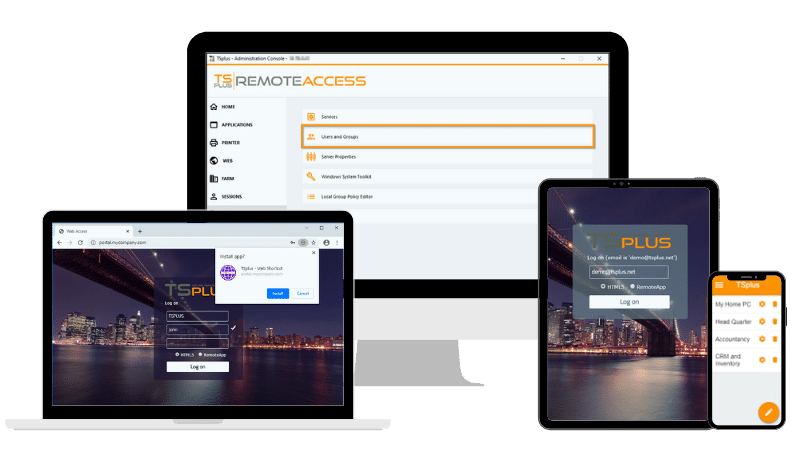
If you want remote access while keeping port 3389 closed to the public internet, TSplus Remote Access provides a practical approach: publish applications and desktops through a web portal using standard web ports.
Why TSplus can be a better fit:
- Doesn’t require exposing port 3389 to the internet (you can rely on 80/443 for web access)
- Browser-based access with the HTML5 Web Portal, reducing client-side complexity
- Can enforce HTTPS and standard security practices more easily on a familiar web surface
- Works well for publishing applications (RemoteApp-style) as well as full desktops
- Can be reinforced with add-ons like Two-Factor Authentication and additional protections
For teams that need to serve remote users reliably, this helps reduce the attack surface while simplifying deployment and user onboarding .
Final Thoughts
TCP 3389 is the default RDP port—and RDP may also use UDP 3389, plus 443/3391 when a gateway is involved, along with other Windows networking ports in specific scenarios. If remote access is business-critical, consider whether you really want to keep 3389 exposed.
Many organizations move to an approach where users connect through HTTPS (443) to a secure portal and the internal RDP layer remains private.
If you’re exploring a safer way to deliver remote access, TSplus Remote Access can help you publish apps and desktops through the web while keeping your infrastructure simpler and more secure.
TSplus Remote Access Free Trial
Ultimate Citrix/RDS alternative for desktop/app access. Secure, cost-effective, on-premises/cloud
)
)
)
