









:quality(80)/m/filters:format(webp))
:quality(80)/m/filters:format(webp))
Introduction
Remote desktop technology is now essential for delivering secure access to applications and Windows desktops across distributed teams. As device diversity grows, IT leaders must choose between browser-based access and native RDP clients. Both approaches can use RDP but differ in performance, compatibility and hardware integration. This guide explains how each works and helps you identify the right approach for your environment.
TSplus Remote Access Free Trial
Ultimate Citrix/RDS alternative for desktop/app access. Secure, cost-effective, on-premises/cloud
How do HTML5 Remote Desktops and Native RDP Clients work?
Remote desktop workflows depend on two main components: the client, which users interact with, and the remote server, which hosts the desktops or applications. The difference between browser-based and native clients lies primarily in how the endpoint connects to the server.
HTML5 Remote Desktop: Browser-Based Access
A browser-based remote desktop, traditionally referred to as an HTML5 remote desktop, runs inside a modern web browser. A gateway or web portal acts as an intermediary between the user and the remote host. The browser exchanges input and display data with the gateway over secure HTTPS. TLS ), while the gateway handles the RDP communication with the remote Windows system.
Because no dedicated remote desktop application is installed on the endpoint, browser-based clients offer a largely zero-install experience. Users can connect through supported browsers on:
- Windows
- macOS
- Linux
- iOS
- Android
- ChromeOS
This is especially valuable in environments where software installation is restricted or users work across different devices.
Native RDP Client: Installable Desktop and Mobile Applications
A native RDP client is a dedicated application, such as Remote Desktop Connection (mstsc.exe) on Windows or Windows App on supported platforms. It connects to the remote server using RDP, either directly or through an RD Gateway.
Microsoft has replaced several older Remote Desktop clients with Windows App. The Windows MSI Remote Desktop client (MSRDC) reached end of support in 2026, while Remote Desktop Connection (mstsc.exe) remains available for traditional Windows RDP connections. Windows App support for connection types varies by platform.
Unlike a browser, native clients can integrate more closely with local hardware, enabling advanced features such as:
- Audio redirection
- Drive mapping
- USB redirection for supported devices
- Multi-monitor support
- Printer redirection
- Advanced graphics capabilities
Native clients are typically preferred for performance-sensitive workloads or users who require strong integration with local resources. They are well suited to stable, managed environments where IT can deploy and update client software on each endpoint.
How Do Browser-Based and Native RDP Features Compare?
Understanding the practical differences between browser-based and native clients helps clarify which method is more appropriate for specific user groups.
Compatibility and Device Flexibility
Browser-based clients offer broad compatibility because they depend primarily on a supported web browser. They can work across desktops, tablets, smartphones, thin clients and Chromebooks. Native clients also offer strong feature support, but capabilities vary by operating system and client version, especially on mobile devices or non-Windows systems.
Performance and Resource Requirements
Browser-based sessions perform well for standard office workloads such as document editing, CRM, ERP and file access. However, browser restrictions and gateway capabilities can limit hardware acceleration and advanced redirection. Native RDP clients may offer better performance or additional features for multimedia, engineering applications and workloads that rely on GPU rendering or multi-monitor setups.
Actual performance also depends on network conditions, server resources and the remote access infrastructure.
Peripheral Support and Local Resource Access
Because browsers restrict access to local hardware, browser-based sessions may provide fewer device redirection options. Clipboard sharing, file transfer and printing may be available, but support for USB devices, scanners and smart cards depends on the remote access platform.
Native clients generally support a broader range of RDP redirection capabilities, making them preferable for users who depend on local peripherals. However, compatibility still varies by client, operating system and device.
Security and Compliance
Browser-based remote desktops typically use HTTPS connections to a secure web gateway, providing encrypted access without installing a dedicated client. This can simplify endpoint management and reduce the need to expose RDP hosts directly to the internet.
However, organizations requiring hardware-based authentication, smart-card workflows or granular device-redirection controls may prefer native clients, depending on the features supported.
Both approaches require appropriate authentication, access controls and secure configuration to meet organisational security and compliance requirements.
Deployment and Maintenance
Browser-based access reduces endpoint complexity because no dedicated client installation is needed. IT teams primarily maintain the server-side portal, gateway and supporting infrastructure.
Native clients may require installation, updates and compatibility management across devices, adding overhead but often improving functionality for power users. On managed endpoints, these tasks can be handled through centralised administration tools.
When Should You Use Browser-Based Remote Access?
Browser-based remote access is most effective in environments that prioritise accessibility, device flexibility and minimal endpoint management.
Device Diversity and Endpoint Flexibility
Browser-based remote desktops are well suited to environments with mixed or unmanaged devices. Because access occurs through a browser, users can connect from personal laptops, tablets, smartphones or Chromebooks without installing dedicated remote desktop software. This makes browser-based access a practical choice for organizations supporting BYOD models or teams working across varied operating systems.
Simplified Access for External and Transient Users
Contractors, temporary staff and third-party partners often require short-term or occasional access to corporate resources. Browser-based sessions simplify onboarding because users typically need only a portal URL, valid credentials and the necessary permissions. IT teams avoid client deployment tasks, and users benefit from convenient access across supported devices and locations.
Lightweight Workloads and Reduced IT Overhead
Browser-based access works well for office-oriented tasks such as email, file access, CRM or ERP applications, where extensive hardware-level redirection is not required. Since no dedicated client installation or updates are needed, organisations can reduce endpoint support efforts. This approach is especially valuable for distributed teams, remote-first businesses and environments where employees frequently switch devices.
When Should You Use Native RDP Clients?
Native RDP clients become the preferred option when performance, hardware integration and controlled endpoint environments are essential.
Advanced Peripheral Access and Hardware Integration
Native RDP clients are particularly useful when users rely on local devices such as:
- Printers
- USB peripherals
- Scanners
- Smart card readers
Because the client application integrates directly with the operating system, it can provide broader hardware redirection and richer session capabilities. This makes native access valuable for teams whose workflows depend on consistent interaction with local resources, provided their specific devices and clients are supported.
High-Performance and Graphics-Intensive Workloads
Engineering applications, multimedia editing tools, CAD CAM software and data-heavy workloads may require strong performance and low latency. Native RDP clients can support advanced graphics features, multi-monitor setups and optimised rendering paths that may not be available through browser-based clients.
For users running demanding applications, native RDP may provide advantages in responsiveness and functionality. However, performance also depends on the server's graphics resources, network conditions and application requirements.
Managed Environments with Consistent Endpoints
Organizations that maintain standardized and centrally managed device fleets benefit from the predictable experience offered by native RDP clients. IT departments can deploy and configure client software across devices with minimal disruption. This controlled approach helps maintain feature consistency and supports advanced authentication and compliance requirements.
What Are the Deployment Considerations and Trade-Offs?
Limitations of Browser-Based Sessions
Browser-based sessions depend on browser capabilities, security restrictions and gateway features. As a result, some advanced RDP capabilities may be limited or unavailable, including:
- Device and peripheral redirection
- Smart card authentication or redirection
- Advanced graphics acceleration
Performance can also vary across browsers and devices, which may lead to inconsistent user experiences and requires validation before broad deployment.
Infrastructure Requirements
Browser-based access reduces endpoint complexity but introduces server-side requirements. Deployments typically involve:
- Web portals or remote desktop gateways
- TLS certificate management
- Reverse proxies or load balancing, where required
Because sessions rely on this infrastructure, gateway performance and availability become critical, making monitoring and capacity planning essential.
Balancing User Experience and Accessibility
Browser-based access provides convenient connectivity for standard business workloads, while native clients may offer additional capabilities for technical tasks. Choosing the right approach often depends on clearly defined user profiles.
User experience can vary significantly based on expectations, particularly for users who rely on advanced desktop features such as:
- Multi-monitor setups
- GPU-assisted rendering
- Local device integration
When expectations are not aligned with client capabilities, productivity and adoption can suffer.
Licensing and Cost Implications
Remote desktop licensing requirements depend on the underlying infrastructure, not simply on whether users connect through a browser or native client. For example, Microsoft RDS Client Access Licenses (CALs) may be required for qualifying Remote Desktop Services deployments regardless of the connection method.
Browser-based gateways can reduce endpoint deployment costs but introduce infrastructure considerations.
Typical cost factors include:
- Gateway or portal servers
- TLS certificates
- Load balancing requirements
Evaluating both models together helps organizations understand total cost of ownership rather than focusing on client software or licensing alone.
How Can You Evaluate the Right Approach for Your Environment?
Assessing Device Diversity Across the Organization
The variety of devices in use strongly influences whether browser-based or native RDP access is more suitable. Mixed or unmanaged fleets benefit from browser-based connections because they avoid dedicated client installation. Standardised Windows environments, on the other hand, can support native RDP deployment more easily.
Understanding Application and Workload Requirements
Your applications largely determine which access method performs best. Browser-based clients handle standard office workloads effectively, while graphics-heavy or specialised tasks may benefit from advanced native RDP features. Matching typical workloads to the right client type helps maintain productivity.
Evaluating Peripheral and Hardware Integration Needs
Users who rely on printers, scanners, USB devices or smart-card readers may need native RDP clients for broader hardware redirection. Browser-based access is subject to browser and gateway limitations, although some platforms support printing, file transfers and other local integrations. Understanding how often these peripherals are used helps guide the decision.
Aligning Security and Compliance Requirements
Security requirements may influence the choice between connection methods. Browser-based access provides encrypted connectivity through a web portal without dedicated client installation. Native clients can support hardware authentication and detailed redirection controls, depending on their configuration.
Neither approach is inherently more compliant; both must be configured to meet the organization's security policies.
Considering IT Resources and Deployment Capacity
IT teams with limited deployment capacity often prefer browser-based access because no dedicated local installation or updates are required. Native RDP clients provide more control and features but may demand ongoing endpoint maintenance. Available IT resources influence which approach is sustainable.
Reviewing User Mobility and Work Patterns
Mobile and geographically dispersed workers benefit from browser-based accessibility. Office-based roles or those needing multi-monitor or graphics-intensive workflows may benefit from native RDP clients. User work patterns help determine the right method.
Accounting for Budget and Licensing Constraints
Licensing considerations play a role in selecting an access method. Both browser-based and native connections may be subject to the same server-side licensing requirements, while each introduces different deployment and maintenance costs. Evaluating these requirements helps determine long-term affordability.
Measuring Performance Expectations and User Experience Standards
Performance-sensitive environments may benefit from native RDP features such as advanced rendering, display configuration and hardware integration. Browser-based access is suitable for general productivity tasks but may not meet every requirement for specialised workloads.
Understanding baseline performance needs and testing both methods helps ensure the chosen approach meets user expectations.
How TSplus Remote Access Supports Browser-Based and Native RDP Clients?
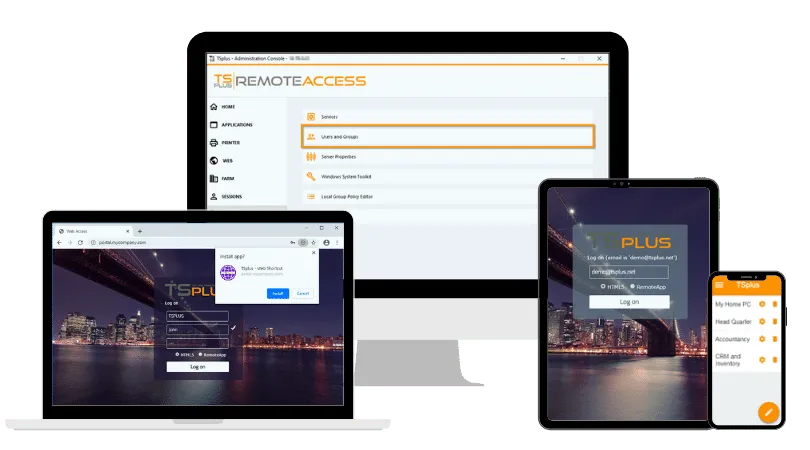
Solutions such as TSplus Remote Access enable organizations to deliver both browser-based web access and native RDP client connections from a single platform. Administrators can provide connection options based on user roles, device types or workload requirements. This approach offers flexibility across the organization while supporting centralized application delivery and remote access management.
Conclusion
Browser-based remote desktops and native RDP clients address different needs: browser-based access offers broad compatibility and minimal endpoint management, while native clients provide deeper hardware integration and advanced session capabilities. In many environments, supporting both methods is the most practical approach, balancing accessibility, performance, security and usability across different user groups.
TSplus Remote Access Free Trial
Ultimate Citrix/RDS alternative for desktop/app access. Secure, cost-effective, on-premises/cloud
:quality(80)/m/filters:format(webp))
:quality(80)/m/filters:format(webp))
:quality(80)/m/filters:format(webp))
