








)
)
Introduction
A virtual desktop lets people reach their work environment from another device without moving the applications and data onto that endpoint. That sounds simple, but several architectures can deliver the experience. This guide explains the differences and helps IT teams decide which approach best fits their users, applications and infrastructure.
TSplus Remote Access Free Trial
Ultimate Citrix/RDS alternative for desktop/app access. Secure, cost-effective, on-premises/cloud
What Is a Virtual Desktop?
A virtual desktop is an operating system environment or desktop session delivered from centralised infrastructure to a remote endpoint. The user sees a familiar desktop, opens applications and works with files, but most processing takes place on a server or virtual machine.
The endpoint mainly displays the interface, captures keyboard and mouse input, redirects supported devices and carries session data. The host manages the operating system, applications, storage and computing workload.
Virtual desktops can run in an on-premises data centre, private cloud, public cloud or hybrid environment. They may be assigned to one user, selected from a pool or delivered as separate sessions on a shared server.
The term can also describe the local workspace feature built into Windows, macOS and Linux. That feature organises windows across several logical workspaces on one device. This article focuses on remotely delivered business desktops and applications.
This separation between the workspace and the endpoint is the central idea behind virtual desktops. How the organisation creates that separation, however, can vary considerably. The next step is to look at what happens between the moment a user connects and the moment the remote desktop appears.
How Does a Virtual Desktop Work?
From the user’s perspective, opening a virtual desktop may feel much like signing into a local computer. Behind that familiar experience, the platform has to authenticate the user, select an appropriate resource and maintain a responsive connection between the endpoint and the host.
Although products handle these tasks differently, most virtual desktop environments follow the same general path.
The Endpoint Starts the Connection
The user opens a remote desktop client, native application or HTML5 web portal from an authorised device. The endpoint operating system does not need to match the hosted desktop. A Windows workspace may be reached from macOS, Linux, a thin client or a tablet.
The Platform Authenticates the User
The platform checks the user identity through a directory account, multi-factor authentication, single sign-on, a digital certificate or another approved method. External connections normally pass through a secured gateway rather than reaching desktop hosts directly.
The Platform Assigns a Resource
A connection broker or access service directs the user to a dedicated virtual machine, an available pooled machine, a session on a multi-user server or one or more published applications.
Applications Run on the Host
The remote host executes the applications and processes data. A remote display protocol sends interface changes to the endpoint, while keyboard, mouse and touch input travel back to the host.
Profiles and data persist separately
User settings and files may be stored outside the desktop image through profile containers, network storage, cloud storage or folder redirection. This allows users to retain a consistent experience when they reconnect to another host.
Together, these layers allow the user to work normally while the organisation keeps the applications, processing and most business data within centrally managed infrastructure.
What Are the Main Types of Virtual Desktops?
Not every organization means the same thing when it talks about virtual desktops. One company may be describing shared Windows Server sessions, while another is referring to individual virtual machines hosted in the cloud.
The user experience may look similar, but the underlying models differ in cost, density, personalization and management effort. Understanding those differences helps prevent an organization from paying for more isolation or complexity than its users actually need.
Session-Based Virtual Desktops
In a session-based architecture multiple users connect to one Windows Server host. Each user receives an isolated session, while all sessions share the same underlying operating system and server resources.
This model can support high user density and efficient application delivery. It is often suitable for office workers, call centres, branch offices, seasonal teams and users of line-of-business applications.
The main constraint is application compatibility. Some software does not support multi-user environments or requires specific licensing for shared-server use.
Virtual Desktop Infrastructure
Virtual desktop infrastructure, or VDI, delivers desktops from virtual machines running on a hypervisor or cloud platform. Each desktop uses its own operating system instance, creating stronger separation than a shared session host.
Personal VDI assigns one virtual machine to one user. It suits developers, administrators and specialists who need extensive customisation, dedicated resources or a stable machine identity. The trade-off is higher infrastructure use and more complex image management.
Pooled VDI assigns an available virtual machine from a standardized group. Administrators can reset machines to a known state after sign-out or maintenance. Pooled VDI improves consistency but still consumes more resources per user than session-based delivery.
Persistent and Non-Persistent Desktops
A persistent desktop retains user changes between sessions. Depending on the design, it may preserve settings, files, installed applications and operating system changes.
A non-persistent desktop returns to a standardised state after sign-out or reset. User settings can still follow the employee through an external profile. This model limits configuration drift but requires careful planning for profiles, software layers, security tools and user-installed applications.
Desktop as a Service
Desktop as a Service, or DaaS, is an operating model in which a provider manages some or all of the desktop delivery platform. The provider may handle brokering, gateways, orchestration, capacity scaling and platform availability.
The customer usually remains responsible for identity, applications, data governance, endpoint policy and parts of the desktop image. DaaS changes how virtual desktop infrastructure is operated and purchased, but it does not remove the need for workload planning or security controls.
Virtual Desktop vs. VDI, Remote Desktop and Virtual Machine
The terminology surrounding virtual desktops can quickly become confusing because several related terms are often used as though they were interchangeable. In practice, they describe different parts of the environment.
A virtual machine is a computing resource, VDI is an architecture and a virtual desktop is the workspace presented to the user. This table below separates these concepts more clearly.
| Term | What it describes | User outcome |
|---|---|---|
| Virtual desktop | A remotely delivered desktop experience | A complete operating system workspace |
| VDI | Desktops hosted in individual virtual machines | A dedicated or pooled VM-based desktop |
| Session-based desktop | Isolated user sessions on a shared server | A complete desktop from a common host |
| Remote Desktop | Remote viewing and control of a computer or session | Access to an existing desktop environment |
| Virtual machine | A software-defined computer | Compute that may or may not provide a desktop |
| DaaS | A provider-operated desktop delivery model | A virtual desktop managed partly as a service |
| Application publishing | Delivery of individual remote applications | Selected applications without a full desktop |
A virtual desktop is therefore not the same as VDI. VDI is one architecture used to deliver a virtual desktop. Session-based delivery can provide the same user-facing result without assigning a separate virtual machine to every employee.
A virtual machine is also not automatically a virtual desktop. It becomes one only when it is configured and delivered as an interactive user workspace.
What Are The Benefits of Virtual Desktops?
The practical value of a virtual desktop is not simply that the desktop runs elsewhere. The value comes from what this separation allows the organization and its users to do.
Employees gain a more consistent way to reach their work, while IT teams gain greater control over applications, access and data. The exact benefits depend on the delivery model, but several advantages appear across most well-designed environments.
Centralized Management
IT teams can update applications, policies and desktop images on central infrastructure. Standardised images reduce configuration drift and make recovery more predictable.
Access from Different Devices and Locations
Employees can reach the same workspace from supported laptops, thin clients, tablets or shared computers. This supports remote work , contractors, branch offices and bring-your-own-device programmes.
Greater Control over Business Data
Applications and data remain in the hosted environment unless policies allow downloads or transfers. This can reduce local data exposure on unmanaged endpoints, although clipboard, drive and device redirection still require explicit controls.
Faster Provisioning
Administrators can assign a standard desktop or application set without building a physical workstation manually. This is useful for temporary staff, seasonal workers, external partners and project teams.
Support for Legacy Applications
Organizations can host older or specialised Windows applications centrally instead of installing them on every endpoint. Application publishing can also extend the usable life of existing software without rebuilding it as a web service.
More Consistent Continuity
If an endpoint is lost or damaged, the user may reconnect from another approved device. Centralised profiles and images can make restoration easier, provided the hosting, identity, storage and network services remain available.
These advantages can be significant, but they are not automatic. Centralising desktops solves some endpoint management problems while creating new dependencies on the network, hosting platform and access infrastructure.
What Are The Limitations and Security Considerations of Virtual Desktops?
A virtual desktop project can look straightforward during a demonstration, when only a few users connect over a reliable network. Production environments are less forgiving. Hundreds of sessions may compete for resources; employees may connect from distant locations and a failure in one central service can affect many people at once.
For that reason, performance, capacity, resilience and security should be planned together rather than treated as separate concerns.
Network Performance and User Experience
Network quality directly affects responsiveness. Latency, packet loss and limited bandwidth can disrupt video, audio, conferencing, graphics and multi-monitor use. IT teams should test realistic user locations and workloads before deployment.
Capacity Planning for Concurrent Users
Capacity planning is equally important. CPU, memory, storage latency and network throughput must support concurrent users and peak events such as login storms, antivirus scans and software updates.
Resilience and Shared Points of Failure
Central services can also become shared points of failure. Gateways, brokers, identity providers, hosts and storage platforms may require redundancy, monitoring, backup and tested recovery procedures.
Securing the Virtual Desktop Access Path
Security depends on the complete access path A sound deployment should include multi-factor authentication, encrypted connections, a secured gateway, least-privilege access, network segmentation, timely patching, centralised logging and protected backups.
Applying Risk-Based Device and Session Policies
Device and session policies should reflect risk. A managed company laptop may receive full desktop access, while a contractor on a personal device may receive one published application with downloads, clipboard transfer and drive redirection disabled.
When Should an Organization Use Virtual Desktops?
Virtual desktops make the most sense when centralisation solves a clear business or technical problem. That problem may be supporting employees across several locations, controlling access from unmanaged devices or keeping a Windows application close to the server and database it depends on.
The decision should therefore begin with the work people need to do, not with the assumption that every employee requires a complete hosted desktop.
Use Cases That Benefit from Centralisation
Common use cases include remote and hybrid work, branch offices, contractors, seasonal employees, shared workstations, training rooms and bring-your-own-device programmes. They are also useful for legacy Windows applications that depend on centralised databases or controlled server environments.
Virtual Desktops for Regulated Workflows
Regulated workflows can benefit when data must remain within managed infrastructure. However, compliance still depends on identity controls, endpoint policy, logging, retention, backup and operational procedures.
Matching the Delivery Model to Each User Group
In practice, a mixed approach is often more useful than choosing one model for everyone. Task workers may need only a published application, office employees may benefit from session-based desktops and developers may require dedicated virtual machines. Matching the delivery model to each group keeps the environment more efficient and easier to support.
How to Plan a Virtual Desktop Deployment?
Once an organization has identified a suitable use case, Planning should begin with real users and applications. Choosing a platform first and adapting the workloads afterwards often leads to unnecessary complexity, poor performance or unexpected licensing constraints.
A representative assessment and pilot can expose these issues before they affect the wider workforce.
Classify Users and Workloads
Group users by application set, resource demand, working pattern, personalisation, security level and peripheral requirements. Task workers, knowledge workers, developers and graphics professionals rarely need identical environments.
Test Application Compatibility
Validate applications on the proposed operating system and delivery model. Include printing, scanning, browser extensions, conferencing tools, authentication methods and specialised devices.
Measure Resource Use
Collect representative CPU, memory, storage and network data. Size the environment for concurrency and peak activity rather than for the total number of named users.
Design Profiles and Data Storage
Define which settings must persist, where user files will reside and how profiles will move between hosts. Non-persistent environments require especially clear decisions about personalisation and software installation.
Secure the Access Path
Document how users authenticate, which gateway they reach, how sessions are assigned and which internal resources each desktop can access. Avoid exposing desktop hosts directly to the public internet.
Run a Representative Pilot
Test different user roles, endpoint types, network conditions and locations. Measure login times, application responsiveness, session stability and support demand before expanding the service.
Simplify Virtual Desktop Delivery with TSplus Remote Access
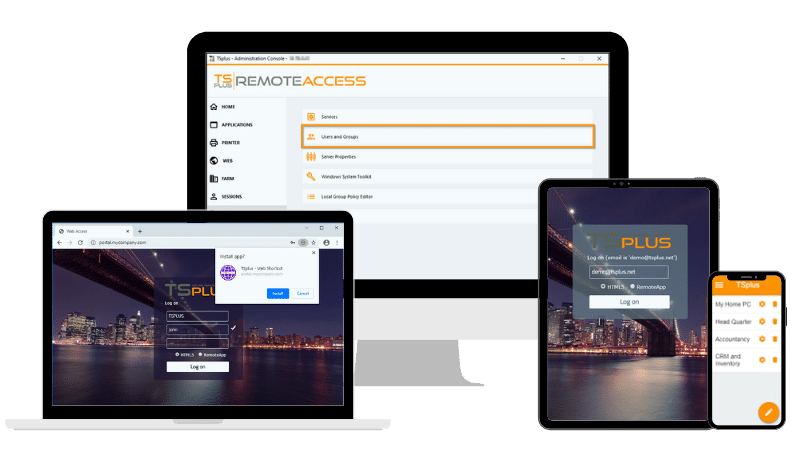
For many organizations, the goal is not to build a VDI platform but to make existing Windows resources easier to access. TSplus Remote Access publishes full desktops or selected applications through RDP or a browser, giving IT teams a simpler way to support remote users from on-premises or cloud-hosted servers.
Conclusion
There is no single virtual desktop model that suits every user. The best choice depends on applications, working patterns, security needs and infrastructure. Start with real workloads, test the user experience and secure the connection path. A pilot will reveal more than an architecture designed only on paper can show.
TSplus Remote Access Free Trial
Ultimate Citrix/RDS alternative for desktop/app access. Secure, cost-effective, on-premises/cloud
)
)
)
