





This article covers domain-joined Windows 10 and Windows 11 devices and Windows Server 2016, 2019, 2022 and 2025 member servers. A domain controller requires a different recovery procedure, covered separately below.
In this article, a domain trust relationship means the relationship between one computer and its Active Directory (AD) domain. It does not mean trust between two domains or forests. Security-database wording in related messages can also refer to the computer account and the machine-password state stored by the domain.
| Type of trust problem | What is failing | Does this procedure apply? |
|---|---|---|
| Computer-to-domain secure channel | A workstation or member server cannot authenticate its computer account to Active Directory. | Yes. |
| Domain or forest trust | Authentication between separate domains or forests. | No. Use inter-domain trust diagnostics. |
| SSL/TLS certificate trust | A certificate chain, validity check, revocation check, or inspection certificate cannot be validated. | No. Use certificate troubleshooting. |
The similarly worded “ Could not establish trust relationship for the SSL or TLS secure channel ” error is an SSL/TLS certificate-validation error documented separately by Microsoft Learn. The Active Directory commands in this article do not repair it.
Quick answer: repair the secure channel before rejoining the domain
Sign in with a local administrator account or an available cached sign-in, and do not close a working remote session. Confirm the computer can locate and reach a domain controller before changing its computer account. Then open an elevated Windows PowerShell session and test the secure channel:
Test-ComputerSecureChannel -Verbose
If domain-controller connectivity works but the command returns
False
repair the channel with domain credentials authorized to reset the computer account
Test-ComputerSecureChannel -Repair -Credential (Get-Credential) -Verbose
Run the test again. The expected result is
True
, with verbose output indicating that the secure channel is working. Restart if the selected repair procedure requires it, then test a domain sign-in.
Use this decision rule:
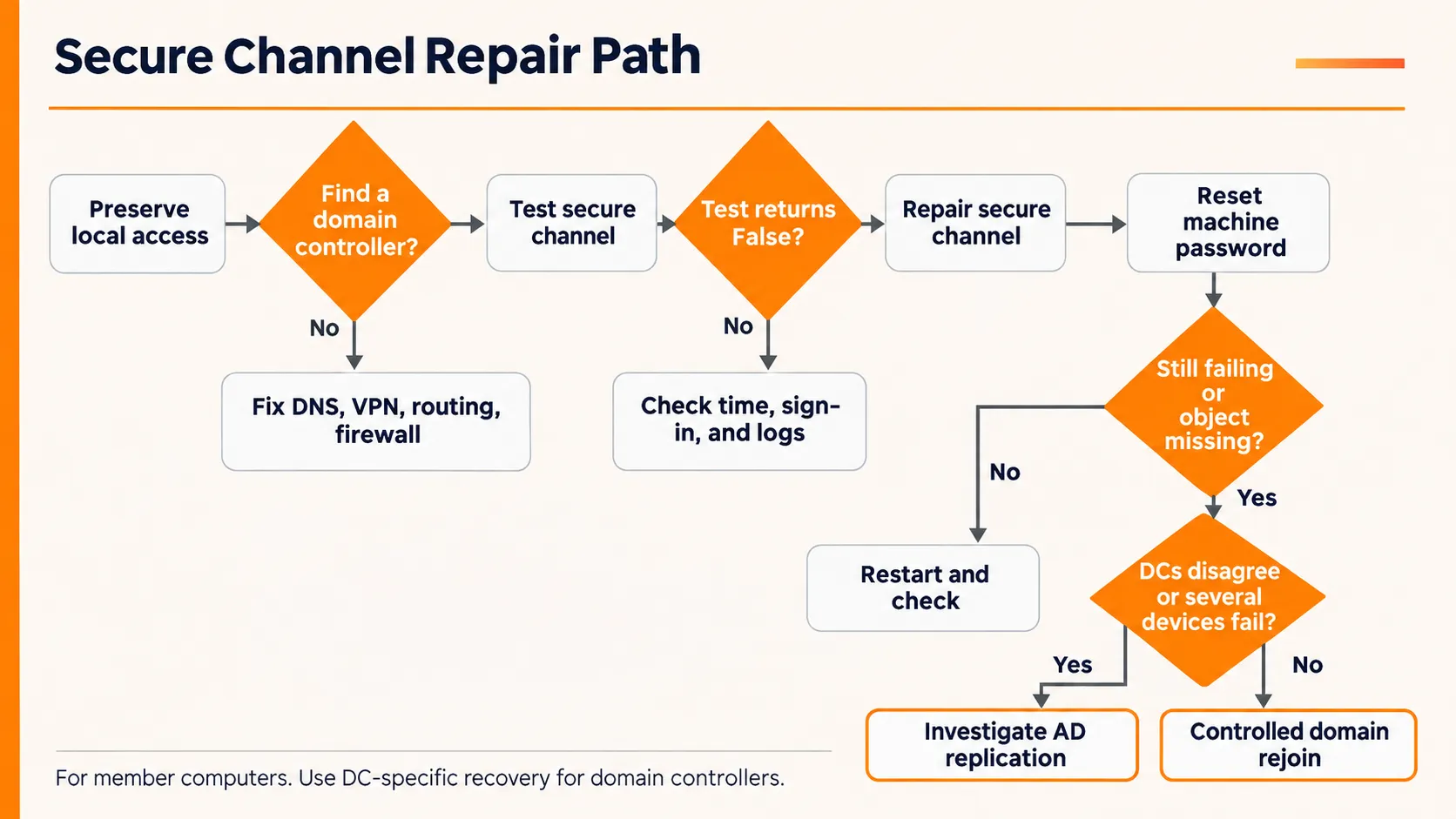
If the machine cannot locate or reach a domain controller, repair DNS, VPN, routing, firewall or network connectivity first. If connectivity works and the secure-channel test returns
False
repair the channel. If the computer object is missing or direct repairs fail, consider a controlled rejoin. If several computers fail or the problem returns, investigate Active Directory (AD) and replication before repairing more endpoints.
What the trust relationship error means
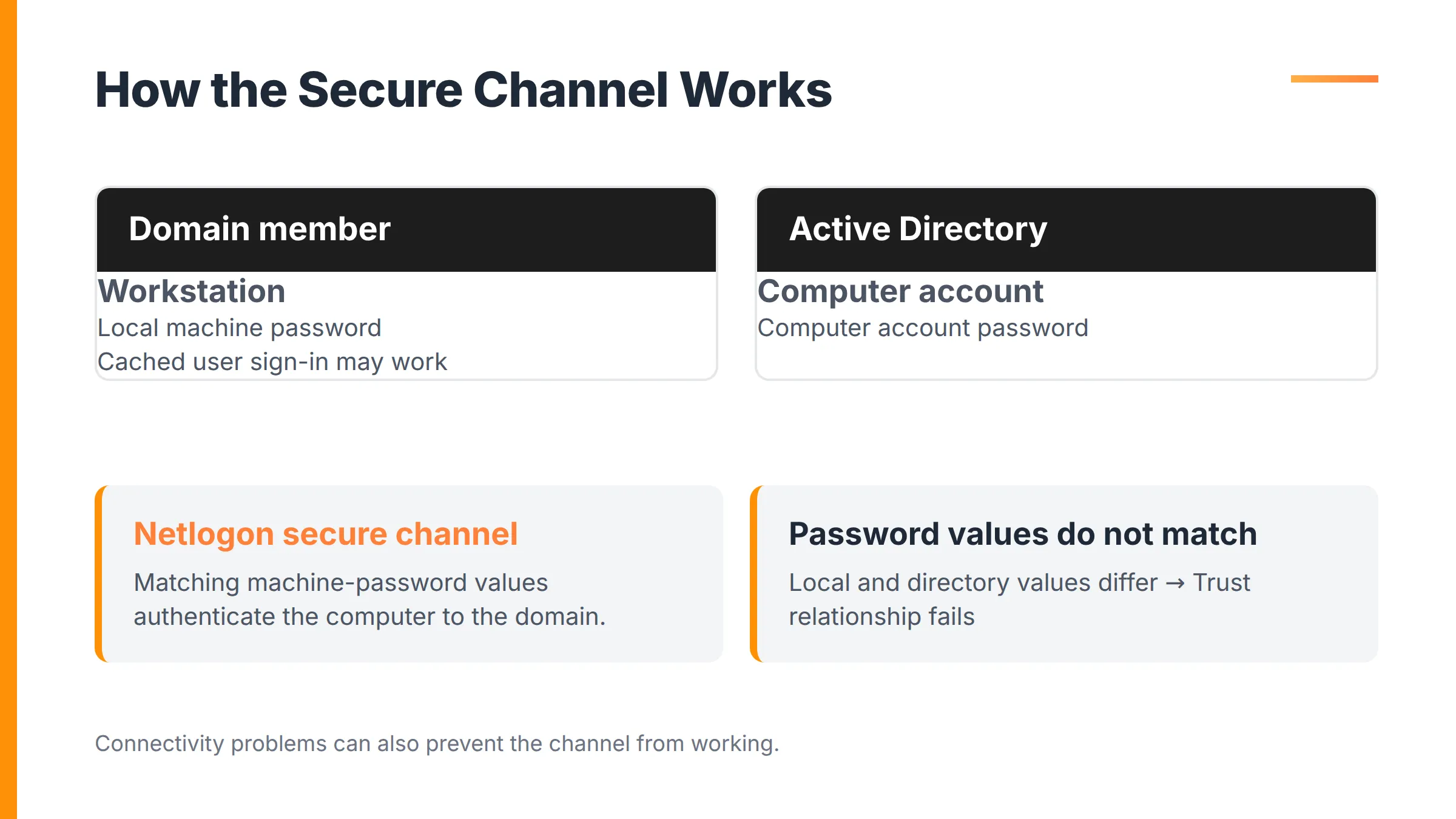
A domain-joined computer has its own AD (Active Directory) computer account. Windows stores a machine password locally, while AD stores the corresponding value on the computer object. Netlogon uses this shared secret to establish a secure channel with a domain controller.
Microsoft Learn’s current LocalPoliciesSecurityOptions Policy CSP Microsoft Learn’s current documents a default interval of 30 days at which a domain member attempts to change its computer-account password. The process is normally automatic and does not require a user to know the password.
The trust relationship fails when the local and directory-side password states no longer agree, or when the computer cannot establish the domain communication needed to use the secure channel. A cached domain sign-in may still work because Windows can validate previously cached user credentials locally. That successful sign-in does not prove that the computer can currently authenticate with a domain controller.
Being offline for more than 30 days does not, by itself, prove that trust is broken. The important condition is a mismatch between the stored machine-password values or a failure to establish the required domain communication.
On an affected domain member, NETLOGON
Event ID 3210
in the
System log
is relevant evidence. Microsoft Learn’s secure-channel troubleshooting guidance associates this event with a computer that failed to authenticate to a domain controller.
Causes of a failed workstation-to-domain trust relationship
The following causes are arranged in a practical troubleshooting order, and thus unrelated to prevalence.
1. A rollback or restore left the workstation with an older machine password
A virtual machine snapshot, old backup, system restore, unexpected storage rollback, or nonpersistent desktop image can restore an earlier local machine secret. Active Directory may still hold the newer password, so the restored computer can no longer prove its identity.
Check whether the error began immediately after a rollback, recovery, clone deployment, or image refresh.
Microsoft Learn’s “Data collection for troubleshooting secure channel issues”
uses NETLOGON
Event ID 5823
to identify a successful machine-password change. During advanced diagnosis, compare local
cupdtime
evidence with Active Directory
pwdLastSet
or
Password Last Set
metadata.
2. The computer cannot locate or reach a domain controller
AD authentication depends on DNS-based domain-controller discovery, SRV records, Netlogon, site information and network reachability. A remote laptop may also require its corporate VPN before it can discover a domain controller.
Inspect
ipconfig /all
and verify the computer uses the organisation’s domain DNS configuration. Use
nltest /dsgetdc:contoso.com /force
to request a domain controller, replacing the example domain with your own.
Microsoft’s Active Directory documentation team
recommends DNS-based discovery over legacy NetBIOS-based discovery because it is more reliable and secure.
Microsoft Learn’s domain-controller location guidance identifies
UDP/389
as required for Active Directory service discovery. Avoid assuming allowing one port proves that all necessary communication is available, since that is not the complete AD firewall requirement.
3. Active Directory has an older or inconsistent computer-account password
The mismatch can also occur in the opposite direction. The client may have the newer password while one or more domain controllers hold an older value because of replication failure, domain-controller restoration, authoritative recovery, or another directory-side inconsistency.
Test whether the result changes when a specific domain controller is targeted. Check replication with
repadmin /showrepl
and compare the computer object’s password metadata across relevant domain controllers using Microsoft’s secure-channel data-collection procedure.
Stop endpoint repair when domain controllers disagree. Microsoft’s Windows Server troubleshooting team states that when the client has the newer machine password because of replication or recovery issues, the Active Directory-side cause must be corrected. Repeatedly resetting endpoints can hide the infrastructure problem without resolving it.
The computer object is missing, disabled, stale, or associated with a duplicate name.
A secure-channel repair may fail if the AD computer object was deleted, disabled, recreated incorrectly, or confused with another device using the same computer name. Cloning and inconsistent decommissioning procedures can create this condition.
Verify the current Windows computer name and inspect the corresponding object in AD Users and Computers or another approved administration tool. Confirm the object exists, is enabled and is not duplicated. Review NETLOGON events and replication status before recreating anything.
Do not casually create a second computer object with the same name. Resolve the naming or replication issue first, then repair or rejoin the intended device.
5. Time synchronization or Kerberos authentication is failing
Time skew does not explain every machine-password mismatch, but it can prevent Kerberos authentication and complicate domain communication. Check the member’s Windows Time status and compare its source and offset with the domain environment.
w32tm /query /status
An older Microsoft Learn policy reference documents a five-minute default maximum Kerberos clock tolerance. Use that figure as a stable Kerberos concept, not as a current version-specific measurement. If the member’s clock is materially wrong, correct the domain time hierarchy or client synchronization problem before judging the secure-channel result.
Before making changes, preserve administrative and remote access
A secure-channel repair is usually less disruptive than a rejoin, but a restart or failed credential change can still end your remote access. Complete these prior checks before altering the computer account:
- Confirm a working local administrator account is available, and that you know how to use it.
- Keep the current remote session open while testing connectivity and credentials.
- Record the computer name, domain name, DNS configuration, discovered domain controller, and current network path.
- Record BitLocker recovery information according to your organisation’s process.
- Confirm whether a remote laptop’s VPN persists across sign-out and restart.
- Make sure you have an approved reconnection method that does not depend on the broken domain sign-in.
- Document services, scheduled tasks, certificates, management agents and other dependencies before a domain rejoin.
Cached credentials may allow you to sign in, but they do not prove that the secure channel is healthy. They may also be insufficient for elevation if you do not have usable administrative credentials.
Remote support and remote access solve different needs. Remote support means a technician helps or controls a user’s device. Remote access means users open applications or desktops running on a central server. Repairing a user’s broken workstation trust is a support task, while providing ongoing access to centrally hosted applications is a separate deployment decision.
Fixes for “The trust relationship between this workstation and the primary domain failed”
The following sequence follows Microsoft Learn’s domain-join procedure. Start with connectivity and escalate only as far as necessary.
Fix 1: Restore domain-controller discovery and connectivity
Rights and restart: Use a local administrator account so you can correct network or service settings. A restart is not normally required unless the underlying VPN, network adapter, DNS, firewall or service change requires one.
- Sign in using a local administrator account or another access method that does not depend on the broken domain sign-in.
-
Inspect the active network interfaces, suffixes, gateways, and DNS servers.
ipconfig /all -
Ask Windows to locate a domain controller for the example domain. Replace
contoso.comwith your Active Directory DNS domain.nltest /dsgetdc:contoso.com /force -
Query the computer’s current secure-channel status.
nltest /sc_query:contoso.com - Restore the required VPN, domain DNS, routing, firewall, or Netlogon service condition before running account-reset commands.
Expected result: Windows identifies a suitable domain controller by its fully qualified domain name and can communicate with it. If discovery still fails, stop and troubleshoot DNS or domain-controller location rather than resetting the computer account.
Fix 2: Repair the member computer’s secure channel with PowerShell
Rights and restart: Run Windows PowerShell as a local administrator. The supplied domain credential must have permission to reset the computer account. A restart may be required before validating a domain sign-in.
- Open Windows PowerShell with administrative rights.
-
Test the secure channel.
Test-ComputerSecureChannel -Verbose -
If the result is
Falseand domain-controller connectivity is working, run the repair with authorised credentials.Test-ComputerSecureChannel -Repair -Credential (Get-Credential) -Verbose -
Test the channel again.
Test-ComputerSecureChannel -Verbose - Restart if required, then test an authorised domain sign-in.
Expected result:
The repair succeeds and the subsequent secure-channel test returns
True
Verbose output should indicate that the secure channel is working.
Member-computer limitation:
Microsoft’s
Test-ComputerSecureChannel
reference
states that the cmdlet is intended for domain-member computers. It can return false-positive results on domain controllers, so its output is not authoritative for a DC.
Fix 3: Reset the member computer’s machine-account password
Rights and restart: Run the command from an elevated PowerShell session with credentials authorised to reset the computer account. Plan to restart after a successful reset and preserve remote access before proceeding.
- Confirm that the target domain controller is healthy, reachable, and consistent with its replication partners.
-
Collect the authorized credentials.
$cred = Get-Credential -
Reset the machine password against a named example domain controller. Replace
DC01with the appropriate server.Reset-ComputerMachinePassword -Server "DC01" -Credential $cred -
Retest the secure channel.
T est-ComputerSecureChannel -Verbose - Restart the member and test a domain sign-in if the reset succeeds.
Expected result:
Reset-ComputerMachinePassword
completes without an error and the secure-channel test returns
True
.
If a reset works against one domain controller but not another, stop resetting endpoints. That result points to an Active Directory consistency or replication problem.
Fix 4: Correct the Active Directory object or replication problem
Rights and restart: This fix requires approved AD administrative rights. Checking replication does not require an endpoint restart, but the eventual directory repair or member-channel repair may require one.
- Check that the computer object exists, is enabled, and has the expected computer name.
- Check for duplicate names or an object that was deleted and recreated incorrectly.
-
Run the replication summary from an appropriate domain controller.
repadmin /showrepl -
Compare the metadata of the computer object or
Password Last Setacross the relevant domain controllers using Microsoft Learn’s secure-channel data-collection procedure. - Resolve the directory-side object or replication problem before rerunning the member-computer repair.
Expected result: The relevant domain controllers agree on the computer object and its current password metadata. The member’s secure channel can then be repaired consistently.
If
repadmin
reports replication failures, route the incident into
Microsoft’s Active Directory replication troubleshooting runbook
Full replication remediation is outside the scope of an endpoint trust repair.
Fix 5: Remove and rejoin the computer only as the last endpoint repair
Rights and restart: This fix requires a working local administrator account, authorised domain credentials, and at least two restarts in the shown procedure. A rejoin can affect remote connectivity, profiles, certificates, service identities, scheduled tasks, management tooling and other dependencies.
- Confirm a working local administrator login and a tested reconnection path that does not depend on domain authentication.
- Record user-profile dependencies, certificates, service identities, scheduled tasks, BitLocker information, management agents and remote-access paths.
-
Remove the computer from the example domain with authorised credentials.
Remove-Computer -UnjoinDomaincredential Domain01\Admin01 -PassThru -Verbose -Restart - After the restart, sign in with the verified local administrator account.
-
Rejoin the example domain.
Add-Computer -DomainName Domain01 -Credential Domain01\Admin01 -Restart - Validate the computer object, domain sign-in, user profile behaviour, certificates, services, scheduled tasks, management tooling and remote connectivity.
Expected result: The computer joins the domain, restarts, and accepts an authorised domain sign-in. Required services and management paths should also continue to work.
Use a rejoin when direct repair and password reset fail, the computer object is missing or irreparably inconsistent, or Microsoft’s documented recovery path requires it. Microsoft’s Windows Server troubleshooting team recognises rejoining as a valid repair, but advises investigating the root cause when failures are repetitive.
For Windows Server, RDS and multi-session environments repairing domain trust does not change Microsoft licensing requirements. Bear in mind, Windows Server licenses, RDS CALs and applicable Microsoft 365 or Office licenses remain the customer’s responsibility and should be validated with Microsoft or a qualified licensing partner.
Fix 6: Use the domain-controller procedure when the affected machine is a DC
Do not apply a member-workstation procedure without validating replication, DNS and recovery requirements.
-
Do not treat
Test-ComputerSecureChanneloutput as authoritative on a domain controller. - Confirm DNS, time synchronization, replication health and the availability of another healthy writable domain controller.
- Follow Microsoft’s domain-controller-specific recovery procedure.
- Restart the affected domain controller as directed by the Microsoft procedure.
- Validate replication, DNS registration, authentication, SYSVOL availability and relevant event logs.
Expected result: Replication and authentication resume normally.
What not to do
- Do not unjoin and rejoin first. Check domain-controller discovery, test the secure channel, and try the supported direct repairs before taking the disruptive path.
- Do not disable automatic machine-account password changes. That weakens a security mechanism and masks the recurring failure instead of correcting snapshots, replication or provisioning.
- Do not delete and recreate computer objects casually. Check duplicate names, dependent services, object metadata and replication first.
- Do not restart a remotely administered machine without a recovery path. Confirm local access, VPN behaviour, BitLocker information and how you will reconnect.
- Do not assume RDP caused the error. Microsoft’s Azure Virtual Machines documentation explains that RDP can surface the message while the underlying failure is the Active Directory secure channel.
- Do not use an SSL/TLS certificate fix. Certificate-chain troubleshooting does not reset an AD machine password.
- Do not keep resetting endpoints when several devices fail. Shared failures can point to a domain controller, DNS, restoration or replication problem.
Remote lockout warning: A working RDP or support session may be your only path into the computer. Keep it open until local credentials, elevation, VPN persistence and the post-restart route have been tested.
Prevent the trust relationship from failing again
A successful repair restores the secure channel, but it does not correct the process that caused the two password states to diverge. Prevention should cover the endpoint, virtualization layer and Active Directory infrastructure.
Endpoint and image controls
- Avoid reverting persistent domain members to snapshots that contain obsolete machine-account secrets.
- Use Microsoft-supported domain-join and image-management practices for non-persistent desktops and pooled machines.
- Prevent duplicate computer names in cloning and provisioning workflows.
- Keep Windows Time and Kerberos-related configuration aligned with the domain environment.
Virtualization and recovery controls
- Document whether backup and snapshot recovery preserves a current machine-secret state.
- Review rollback procedures for virtual workstations and member servers.
- After a domain-controller restoration or recovery, check replication and computer-object consistency before repairing large numbers of clients.
Active Directory controls
- Use domain DNS and maintain valid SRV registration and Active Directory site configuration.
- Record which domain controller was used for each repair, especially when several endpoints are affected.
-
Review NETLOGON
Event ID 3210,Event ID 5823local machine-secret timing, andPassword Last Setwhen the issue repeats. - Investigate replication errors before they create inconsistent computer account states across domain controllers.
Repeated failures point to a wider Active Directory problem
Endpoint repair should stop when the evidence points beyond one machine. Use the scope of the symptom to decide who owns the next action.
| Symptom | Likely scope | Next action |
|---|---|---|
| One machine fails after a known snapshot rollback: | Endpoint or virtualization process | Repair that member and correct the snapshot procedure. |
| Several machines fail against the same domain controller: | Domain controller, DNS, or replication | Investigate that DC and its replication partners. |
| The channel works against one DC but not another: | Active Directory inconsistency | Compare object metadata and repair replication. |
| Nonpersistent machines repeatedly lose trust: | Image and provisioning architecture | Redesign the supported join and image lifecycle. |
If the computer object or password metadata differs between domain controllers, repair AD before touching more endpoints. The Microsoft Windows Server troubleshooting team’s guidance is explicit that directory-side causes from replication or domain-controller recovery must be resolved in Active Directory.
Broader monitoring can help an IT team correlate server health, application behaviour, user activity, alerts and historical reports around a recurring incident. TSplus Server Monitoring is not documented as detecting a broken domain trust, diagnosing Active Directory authentication, or repairing a secure channel. Its role here is wider operational visibility after the Microsoft repair procedure has restored trust.
Final verification checklist
Do not close the incident after a single successful sign-in. Verify the computer can authenticate, discover domain services, and operate normally after a restart.
-
Test-ComputerSecureChannel -VerbosereturnsTrueon the member computer. - The computer can locate a domain controller through DNS-based discovery.
- An authorized domain user can sign in after restart.
- Group Policy and required domain resources are accessible.
-
NETLOGON
Event ID 3210does not recur. - Services, scheduled tasks, certificates, management agents and user profiles work after a rejoin.
- The repair record identifies the domain controller used.
- Replication and domain-controller health have been checked before closing a repeated or multi-device incident.
Conclusion
After the secure channel is working again, you can start a free 15-day trial of TSplus Server Monitoring to add broader visibility into server health, applications, users, alerts and historical activity. Though it will not repair Active Directory trust, it can support the wider operational review which follows a recurring incident.
Frequently asked questions
Why can cached domain credentials still work when the trust relationship has failed?
Windows can cache information from a previous successful domain sign-in and use it when a domain controller is unavailable. This can let a user reach the desktop even though the computer’s secure channel is broken. Cached credentials do not validate the current machine-account password, prove a domain controller is reachable, or guarantee access to domain resources.
Will leaving a domain-joined computer offline for more than 30 days break its trust relationship?
No. Microsoft documents a default 30-day interval for attempted machine-account password changes, but being offline beyond that interval does not automatically break trust. The failure occurs when the local and AD password states no longer agree, or when required domain communication cannot be established.
What can I do if I do not know the local administrator password?
Do not unjoin, restart or attempt to bypass Windows security until you have an authorized recovery path. Use your organisation’s approved local administrator password management system, such as a deployed Windows LAPS process, an authorised break-glass account, a cloud or virtualisation recovery channel, or your identity administration team. If none is available, preserve the current session and escalate through the organisation’s access-recovery procedure before changing the computer account.


