










)
)
Typing in AnyDesk mobile is simple when the session, keyboard and permissions are configured correctly. The difficulty is that Android, iOS, Windows and macOS do not handle touch input, special keys and remote permissions in the same way.
This guide explains how to type in AnyDesk mobile, troubleshoot keyboard issues and decide when a mobile remote support workflow needs a more structured tool. It is written for system administrators, IT technicians and support teams who use mobile devices to assist users away from a desk.
What Does Typing in AnyDesk Mobile Really Mean?
What does AnyDesk do “technically”?
Keyboard input to remote session
Typing in AnyDesk mobile means sending keyboard input from a smartphone or tablet into a remote session. The local device may be Android, iPhone or iPad. The remote device may be Windows, macOS, Android or another supported endpoint. That distinction matters because typing is not always a simple local keyboard action.
Potential issues
AnyDesk must capture the mobile keyboard input, send it through the session and have the remote operating system accept it in the focused application. When one layer fails, the keyboard may not appear, typed characters may not reach the remote device or special keys may behave differently.
For a broader product definition, see our guide explaining what AnyDesk is before continuing. Our focus here is on mobile typing, keyboard troubleshooting and support workflows.
Mobile-to-PC sessions
In a mobile-to-PC session, the technician uses AnyDesk on Android, iPhone or iPad to control a Windows or macOS computer. This is the most common case for typing on mobile with AnyDesk.
What if I can’t type?
The technician opens the AnyDesk session menu, activates the virtual keyboard and taps into a remote text field. Text should then appear on the remote computer. If it does not, the issue is usually related to session permissions, keyboard focus, the selected input mode or operating system shortcuts.
Mobile-to-mobile sessions
Mobile-to-mobile support is more restricted. Android devices may require additional control plugins before remote input can work. iPhone and iPad devices are also limited by Apple platform restrictions, which means direct remote control is not available in the same way as remote viewing.
How can I make it compatible?
For IT technicians, this changes the support model. A mobile-to-mobile session may work well for viewing a screen and guiding the user, but not for directly typing into fields or controlling the device as if it were a desktop.
Where does TSplus Remote Support fit?
TSplus Remote Support makes mobile remote support simple where teams need reliable assisted and unattended support workflows without overcomplicating technician operations. It is light enough it doesn’t even force you to replace every AnyDesk use case immediately. Instead, support teams should evaluate workflows where mobile AnyDesk input becomes slow, inconsistent or difficult to secure.
For teams comparing tools, TSplus provides a practical AnyDesk alternative for IT teams The product page highlights essentials and top features while documentation goes into detail.
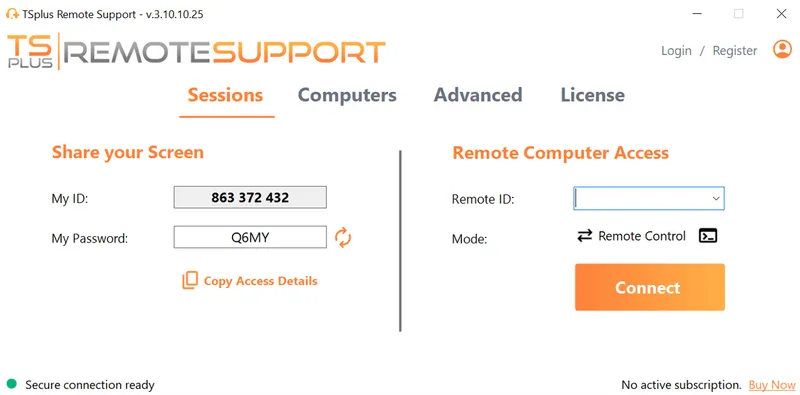
TSplus Remote Support Free Trial
Cost-effective Attended and Unattended Remote Assistance from/to macOS and Windows PCs.
How Do I Type in AnyDesk Mobile on Android and iOS?
The basic workflow is similar on Android and iOS: start the session, focus the remote text field, open the mobile keyboard and type. The details vary by platform, especially when special keys, remote permissions or external keyboards are involved.
Before troubleshooting, confirm the basics. The remote session must be active, the remote device must allow input, the cursor must be inside a text field and the mobile app must show the keyboard or input menu.
Open the mobile keyboard during a session
- To type in AnyDesk mobile, start by connecting to the remote device from the AnyDesk app.
- Once the remote desktop appears, tap inside the remote text field where input is required.
- Then open the session menu or input controls and select the keyboard option.
- On iOS and iPadOS, the session menu also provides access to the virtual keyboard and special input modes such as function keys and Ctrl.
- On Android, the AnyDesk floating menu provides session controls, input options and gesture settings.
Faced with an issue, the practical first test is to open Notepad on Windows, TextEdit on macOS or another plain text field. If letters appear there, the keyboard path works and any trouble is probably application-specific.
Use Touch or Touchpad Modes to better effect
Mobile remote access tools often provide several input modes. Touch mode maps taps more directly to the remote screen. Touchpad mode treats the mobile screen like a laptop touchpad, where swipes move the pointer.
For typing, the important step is field focus. In touch mode, you will have noticed the need to tap the remote input field precisely. In touchpad mode, move the pointer to the field and tap to click before opening the keyboard. If the field is not focused, the mobile keyboard may appear but the remote device will receive no text.
Technicians often prefer to zoom in before selecting small fields, password boxes or system dialogs. A missed tap can make the keyboard look broken when the real problem is that the cursor is in the wrong field.
Use special keys and shortcuts
Typing letters is different from sending special keys. Ctrl, Alt, Command, Windows key, function keys and Ctrl+Alt+Del often require a special keyboard or an action menu in the remote support app.
For Windows sessions, use the AnyDesk action menu when sending Ctrl+Alt+Del or other system-level commands. For macOS sessions, remember shortcuts follow macOS conventions on the remote computer. Copy, paste and application shortcuts must match the operating system receiving the input, not only the phone or tablet in your hand.
Why may the AnyDesk mobile keyboard not show?
When the AnyDesk mobile keyboard does not show, the issue is usually one of four problems: permissions, platform limitations, input focus or external keyboard behaviour. Troubleshooting is faster when technicians isolate those causes one by one.
The following checks apply before reinstalling the app or changing the remote support process.
Session permissions are incomplete
A remote support session can be connected but still lack keyboard and mouse control. If the remote user accepted screen sharing without full control, the technician may see the desktop but be unable to type.
On the remote device, check the active permission profile and confirm that keyboard and mouse control are allowed. For unattended sessions, confirm that unattended access is configured with the correct permissions and a strong password.
If the user does not recognise the session or the technician no longer trusts the connection, first stop the session. If need be, read up on how to stop AnyDesk access securely .
Android control plugins are missing
Android restricts remote input by default. Depending on the device manufacturer and Android version, AnyDesk may need a control plugin to send touch, keyboard and mouse input to the Android device.
If the session is Android-to-Android or PC-to-Android, check whether AnyDesk prompted for a plugin during setup. After installation, the plugin may still need to be enabled in Android Accessibility settings. Without that control layer validated, the session may be limited to screen viewing.
For technicians, this is an important user communication point. The remote user may need to install or enable a component locally before full support is possible.
iOS platform limits apply
iPhone and iPad support remote viewing and outgoing remote sessions, but direct remote control of iOS and iPadOS devices is limited by Apple platform restrictions. This means a technician should not assume that an iPhone can be controlled like a Windows PC.
When supporting iOS users, plan for guided support. The technician can view the screen, explain the next tap and ask the user to type sensitive information locally. This model is safer for passwords and more realistic for iOS troubleshooting.
The Remote App is not focused
The simplest cause is still common: the remote app is not focused. A mobile keyboard may be open, but keystrokes will not appear if the remote cursor is not inside an editable field.
Click the field again, zoom if necessary and test with a plain text editor. If typing works in a text editor but not in the original application, investigate that application’s privilege level, security mode or keyboard handling.
How do I fix AnyDesk keyboard issues on Android?
Android troubleshooting should start with permissions and end with application-specific tests. Avoid changing multiple settings at once. Confirming marker by marker will make identifying the root cause much easier.
Use the following workflow when a technician cannot type from AnyDesk mobile on Android.
Check input control permissions
First, confirm the remote side has effectively granted control permissions. The session should allow keyboard and mouse control, not only screen sharing.
If the remote device is Windows or macOS, check the AnyDesk security and session permission settings on that device. If the remote device is Android, confirm the user accepted the correct screen sharing and control prompts.
After changing permissions, disconnect and reconnect the session. Some permission changes do not apply cleanly until a fresh connection is established.
Enable the Android control plugin
If the remote device is Android, verify the required AnyDesk control plugin is installed and enabled. Android may require Accessibility permission before the plugin can inject input.
Ask the user to open Android Settings, go to Accessibility and enable the relevant AnyDesk control service if prompted. The exact label may vary by device manufacturer.
Once enabled, test a simple tap and a simple text entry field. If taps work but typing does not, move to keyboard settings.
Review Android keyboard settings
Android keyboard behaviour differs whenever a physical keyboard is connected from whenever a third-party keyboard is active. If the on-screen keyboard does not appear, check whether the device detects a Bluetooth keyboard.
For an external keyboard, Android allows users to configure physical keyboard layouts and, on supported versions, choose whether the on-screen keyboard remains visible when a physical keyboard is active. This setting is useful during remote sessions because technicians may still want the virtual keyboard available at times.
If a third-party keyboard is used, switch temporarily to Gboard or the default system keyboard for testing. This helps separate AnyDesk input issues from keyboard app issues.
Test with a simple text field
After permissions and keyboard settings are corrected, test in a simple text field. Avoid starting with administrator consoles, password managers, games or protected applications because these may handle input differently.
A good sequence is:
- open a plain text editor, type letters, test numbers, test symbols,
- test copy-paste
- and then test the target business application.
This clearly shows the technician any point of failure.
How do I fix AnyDesk keyboard issues on iPhone and iPad?
iPhone and iPad troubleshooting is different because iOS and iPadOS manage keyboard display, external keyboards and remote-control permissions tightly. The objective is to confirm whether the issue is keyboard display, session menu usage or platform limitation.
Open the AnyDesk session menu
During an AnyDesk session on iPhone or iPad , open the session menu from the screen edge or session controls. From there, display the virtual keyboard and switch between standard and special input modes if needed.
If the keyboard does not appear, tap a remote text field again and reopen the input menu. On small screens, zooming into the remote field can help ensure the cursor is placed correctly.
Switch between standard and special keyboard modes
The standard keyboard is best for normal text. The special keyboard is useful for Ctrl, function keys and system shortcuts.
If normal typing produces unexpected characters or repeated characters, test the special keyboard mode. If special keys work but normal text does not, the issue may involve the iOS keyboard, autocorrection, the remote application or a version-specific app problem.
For support workflows, avoid typing long admin commands from a phone when possible. Use copy-paste for pre-approved commands or move the task to a desktop technician workstation.
Check iOS keyboard settings
iPhone and iPad keyboard settings can affect typing behaviour. Autocorrection, predictive text and external keyboard settings may change how characters are entered.
For troubleshooting, test with default keyboard settings and disable features that interfere with exact technical input. This matters for passwords, command lines, server names and license keys, where autocorrection can introduce errors or include spaces.
If a Magic Keyboard or Bluetooth keyboard is connected, the on-screen keyboard may not behave the same way as it would without hardware attached. Disconnect the hardware keyboard or use the available keyboard controls to show the on-screen keyboard when needed.
Understand iOS remote-control limits
If the remote device is an iPhone or iPad, direct control is not the expected workflow. The support technician may be able to view the screen, but the end user remains responsible for taps and typing.
This is especially important for credentials. Users should type passwords, MFA codes and personal information themselves. The technician can guide the user but should not ask the user to reveal sensitive input.
Copy-Paste, Special Keys and Keyboard Layouts
For technicians, typing efficiency regularly depends more on shortcuts and clipboard handling than on letter entry. However, these features need clear rules in remote sessions.
Use clipboard synchronization with care
Clipboard synchronization can reduce mobile typing errors. A technician can copy a server name, command or URL on the mobile device and paste it into the remote session.
However, clipboard synchronisation can also create security risks. Avoid copying passwords, recovery keys or personal data unless the process is approved and logged. For customer support, explain what is being pasted before sending it.
Match shortcuts to the remote Operating System
Keyboard shortcuts should match the remote operating system. If the technician uses an iPhone to control a Windows PC, Windows shortcuts still apply inside the remote session. If the remote system is macOS, macOS shortcuts apply.
This is a common source of confusion. The mobile device is only the input surface. The remote operating system is the environment which interprets the shortcut.
Adjust keyboard translation modes
AnyDesk provides keyboard translation modes to help when local and remote keyboard layouts differ. Automatic mode is usually the starting point, but manual mode can help when characters are mapped incorrectly.
This is especially relevant for international teams using QWERTY, AZERTY, QWERTZ or custom layouts. If letters or symbols are wrong, check the keyboard layout on the mobile device, the remote device and the AnyDesk keyboard translation setting.
Using an External Bluetooth Keyboard with AnyDesk Mobile
A Bluetooth keyboard can make mobile remote support more practical. It is useful for long commands, documentation edits, server names and ticket notes.
Still, an external keyboard adds an extra layer to troubleshoot. The technician must confirm the mobile operating system recognises the keyboard, uses the correct layout and does not hide required on-screen controls.
When a Hardware Keyboard Helps
A hardware keyboard helps when technicians need to type more than a few short entries. It is also useful for shell commands, configuration paths, usernames and repeated support notes.
For emergency support, a phone plus Bluetooth keyboard can be workable. For routine administration, a laptop or desktop support console is still more efficient and easier to secure.
Android physical keyboard settings
Android can manage physical keyboard layout separately from the on-screen keyboard. If the wrong characters appear, check the physical keyboard layout in Android settings.
On supported Android versions, technicians can also choose whether the on-screen keyboard remains visible while a physical keyboard is connected. This can help when AnyDesk special keys are needed but the hardware keyboard does not show them conveniently.
iPhone and iPad external keyboard behaviour
iPhone and iPad support external keyboards, including Apple Magic Keyboard and compatible Bluetooth keyboards. iOS also provides Full Keyboard Access for navigating the device with shortcuts.
In an AnyDesk session, test whether the external keyboard sends input correctly to the remote field. If the on-screen keyboard disappears unexpectedly, disconnect the hardware keyboard for troubleshooting and repeat the test with the virtual keyboard.
Security Considerations for Mobile Remote Support
Mobile remote support often happens under pressure: a user is locked out, a technician is away from a desk or a business application is unavailable. Such pressure could lead to taking unsafe shortcuts.
Typing into remote systems from a mobile device should follow the same security standards as desktop support.
Protect Unattended Access
Unattended access is useful for IT maintenance, but it must be appropriately controlled. Use strong passwords, restrict access to authorised technicians and remove unattended access when it is no longer required.
Do not enable unattended access only to fix a keyboard problem unless the organization has approved that model. If unattended access is used, document who enabled it, why it was needed and when it will be reviewed.
Avoid exposing passwords during screen sharing
Passwords, MFA codes and recovery keys should not be typed by technicians unless policy explicitly allows it. In most support workflows, the end user should enter those locally.
If the technician is viewing a mobile device, remind the user when sensitive information may appear on screen. For regulated environments, avoid screen sharing during authentication steps unless there is a documented exception.
Stop access when a session is no longer trusted
If the user accepted the wrong session, suspects social engineering or no longer recognises the technician, stop access immediately. Terminate the session, review installed remote access tools and reset credentials if sensitive information was exposed.
A practical security section in this article should link to the existing TSplus article on how to stop AnyDesk access. That keeps this guide focused while giving readers a deeper remediation path.
When Does Mobile Typing Become Inefficient?
Typing through a phone is useful for quick intervention, but it should not become the default for complex administration. If technicians regularly struggle with keyboard focus, special keys, mobile permissions or platform limits, the workflow may need redesign.
This is where support teams should evaluate whether their remote support stack matches their operational needs.
Signs the workflow is too fragile
Mobile typing becomes inefficient when technicians repeatedly face the same problems: keyboard not showing, special keys sending incorrectly, Android plugins missing, iOS sessions view-only or external keyboards behaving inconsistently.
It also becomes risky when technicians use ad hoc workarounds for passwords, unattended access or user permissions. A support workflow should be repeatable, secure and easy to explain to end users.
A simpler alternative for IT support teams
TSplus Remote Support provides attended and unattended remote assistance for support teams who need a practical alternative to complex remote support workflows. The platform supports Windows, macOS and Android, with mobile options for technicians and users.
For teams evaluating mobile support, the TSplus Remote Support mobile setup Documentation is a useful starting point. It helps technicians understand how to start sessions from supported platforms and how mobile access fits into a broader support process.
Need enterprise remote support workflow made simple for technicians on the move? Explore TSplus Remote Support to see how attended and unattended assistance can fit your IT operations.
Conclusion
Typing in AnyDesk mobile depends on more than the phone keyboard. The session needs the right permissions, the remote field must be focused, Android may need control plugins and iOS has platform limits which affect direct control.
For occasional support, these fixes are often enough. For professional IT teams, repeated mobile input problems are a signal to standardise remote support workflows, review unattended access and evaluate a simpler support platform such as TSplus Remote Support.
Want to discuss whether TSplus Remote Support fits your mobile support workflow? Contact our Sales team for a demo through the TSplus contact page .
TSplus Remote Support Free Trial
Cost-effective Attended and Unattended Remote Assistance from/to macOS and Windows PCs.
)
)
)
