










)
)
Introduction
Multi-monitor environments have become the norm for developers, analysts, designers, and power users across SMB and enterprise environments. These complex display setups improve productivity but introduce new challenges for remote assistance. IT teams must access and navigate all active monitors to accurately troubleshoot issues and maintain user satisfaction. This article explains the tools, configuration steps, optimisation techniques, and best practices needed to deliver smooth, secure, and efficient multi-monitor remote support.
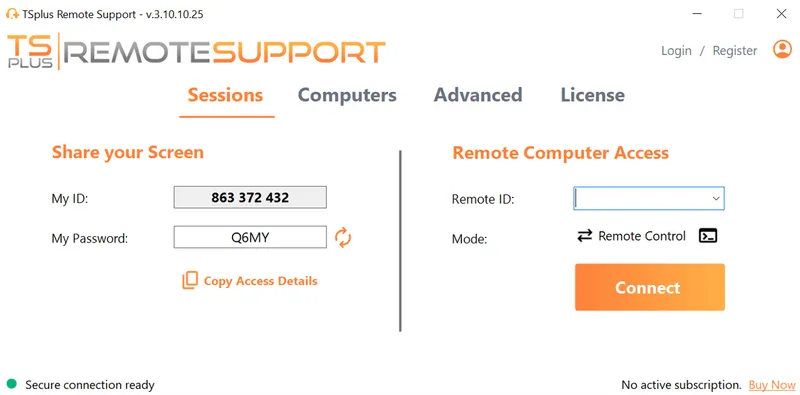
TSplus Remote Support Free Trial
Cost-effective Attended and Unattended Remote Assistance from/to macOS and Windows PCs.
Why Does Multi-Monitor Support Matter in Remote IT Assistance?
Multi-monitor setups significantly enhance productivity, with research from Jon Peddie Research showing up to a 42% performance increase when organizations adopt multi-display workstations. For IT support this productivity also brings complexity: technicians must understand the full context of user workflows, which are often spread across several screens, applications, and windows.
In remote troubleshooting, losing visibility on even one monitor can lead to misdiagnosis, incomplete analysis, or overlooked system prompts. Users may drag windows across displays, spread IDEs or design tools across ultra wides, or display logs and dashboards side by side.
Without multi-monitor session support, IT teams end up guessing or repeatedly asking users to “move the window,” slowing down resolution times. Multi-display visibility, therefore, becomes an essential component of modern incident response and remote assistance strategies.
Top Remote Support Tools with Multi-Monitor Capabilities
Many remote support platforms offer multi-monitor functionality, but they differ in how they detect, switch, and render multiple displays. The tools below are among the most widely used in professional IT environments.
TSplus Remote Support
TSplus Remote Support offers full multi-monitor visibility, allowing agents to switch between displays through the session toolbar. The software auto-detects all connected monitors and supports smooth display transitions. Its lightweight agent streamlines deployment while encrypted connections work without complex VPN or firewall configurations.
AnyDesk
AnyDesk identifies all remote monitors and allows technicians to view them individually or all at once. Its proprietary codec helps maintain responsive performance, though extremely high-resolution setups may introduce occasional lag. The interface offers quick monitor switching, useful for fast-paced troubleshooting.
TeamViewer
TeamViewer supports multi-monitor sessions through dedicated monitor tabs, side-by-side views, or merged display layouts. This flexibility makes it effective for environments where users divide work across screens with varying resolutions or orientations.
Microsoft Remote Desktop (RDP)
Microsoft RDP enables multi-monitor support using the /multimon parameter or the “Use all my monitors” option in the client interface. While it performs well for internal corporate environments, session ownership rules and network prerequisites make it less ideal for external or ad-hoc support.
Chrome Remote Desktop
Chrome Remote Desktop provides basic multi-display switching but lacks simultaneous viewing or advanced layout controls. Its simplicity makes it suitable for lightweight usage but not for professional multi-monitor troubleshooting.
How Can You Enable Multi-Monitor Remote Support?
Enabling multi-display support involves tool-level settings and client-side confirmation. IT teams must ensure that monitors are properly detected and that session parameters align with user configurations.
Activating Multi-Monitor Mode
Each tool provides its own activation pathway:
- TSplus Remote Support: Toggle multi-monitor mode directly in the session toolbar.
- Microsoft RDP: Run mstsc.exe /multimon or enable “Use all my monitors.”
- TeamViewer: Use display tabs, merged views, or side-by-side layouts.
- AnyDesk: Open the View menu to choose specific or combined monitor visibility.
- Chrome Remote Desktop : Manually switch between detected monitors.
Verifying that the tool displays the correct number of active screens is the first step toward effective remote assistance.
Ensuring OS-Level Display Detection
Technicians should confirm that the remote operating system recognises every connected monitor. Misconfigured display settings, disabled outputs, or GPU driver issues can prevent the support tool from detecting all screens.
Preparing Users Before the Session
In some cases, users may need to rearrange their monitors in OS settings before the session begins. This helps ensure that technicians see the correct orientation and layout during troubleshooting, avoiding confusion and misclicks.
How Can You Optimize Multi-Monitor Remote Support?
Once multi-monitor mode is enabled, optimising the session improves clarity, performance, and security for both technician and end user.
Aligning or Scaling Resolutions
Mixed-resolution environments—such as 1080p paired with 4K or ultrawide displays—may cause blurriness, scaling issues, or UI distortion. Encourage users to align resolution settings or rely on tools that provide adaptive scaling algorithms to deliver a clearer remote view.
Reducing Bandwidth Consumption
High-resolution monitors increase the volume of video data transmitted during remote sessions. To reduce latency:
- Lower session quality or frame rate.
- Disable visual effects and animations.
- Use wired Ethernet connections when possible.
- Apply QoS rules to prioritize remote desktop traffic.
These adjustments help maintain responsiveness even across slower networks.
Using Recording or Timestamped Screenshots
Multi-monitor sessions make it easy to miss UI events occurring on another display. Recording sessions or using screenshot logs supports:
- Training new technicians
- Compliance documentation
- Detailed post-incident reviews
- Traceability for sensitive operations
It is particularly valuable in regulated industries or high-complexity environments.
What Are The Common Pitfalls of Multi-Monitor Remote Support?
Latency on High-Resolution or Mixed Displays
4K, 5K, and ultrawide monitors require more encoding power. Limiting the remote session to the necessary displays or lowering visual quality helps avoid lag.
Privacy Risks in Unattended Sessions
Multi-monitor setups often expose multiple applications simultaneously. IT teams should implement:
- User notification prompts
- Per-monitor permission rules
- Clear unattended-access policies
This reduces the chance of exposing confidential information.
Monitor Order Mismatch
Incorrect monitor sequencing can cause technicians to interact with the wrong display. Tools that provide layout previews or manual reordering minimise confusion.
Cross-Platform Display Limitations
Display APIs differ across Windows, macOS, and Linux. Choosing tools known to support multi-platform setups reduces session inconsistencies.
What Are The Best Practices for Multi-Screen Remote Support?
To ensure consistent and secure multi-monitor assistance, IT teams should implement structured operational practices.
- Confirm the layout early: Technicians should verify which screens correspond to which tasks before interacting.
- Standardise privacy guidelines: Sensitive dashboards, inboxes, or CRM pages may appear unexpectedly across screens.
- Record sessions for training and compliance: Multi-display troubleshooting often requires precise audits.
- Validate support workflows across hardware combinations: GPUs, docking stations, ultra wides, and USB-C hubs can influence display detection.
- Document user instructions: Provide guidance to help users prepare their display layout before support sessions.
These practices help reduce troubleshooting time, increase technician confidence, and maintain a secure and predictable support environment.
Discover TSplus Remote Support for Multi-Display Environments
TSplus Remote Support offers a streamlined and secure platform built for professional IT assistance across multi-monitor setups. With smooth display switching, encrypted connections, session recording, and a lightweight deployment model, it gives support teams a reliable way to troubleshoot complex workstations without heavy infrastructure. Designed for SMBs and MSPs, it delivers practical multi-screen support at an accessible cost.
Conclusion
Multi-monitor support has transitioned from a convenience to an operational requirement in modern IT environments. As users rely on multiple displays to optimise workflow and productivity, support teams must adopt tools and practices that ensure full visibility, proper configuration, and efficient troubleshooting. By selecting the right remote support solutions, enabling multi-monitor features correctly, and applying proven optimisation techniques, IT teams can deliver faster response times, better user experiences, and more reliable remote assistance.
TSplus Remote Support Free Trial
Cost-effective Attended and Unattended Remote Assistance from/to macOS and Windows PCs.
)
)
)
