










)
)
Introduction
Remote control is foundational to patching, incident response, and day-to-day operations. But “it works” is not the same as “it’s secure and supportable.” A good remote control strategy defines who can connect, how they authenticate, where sessions enter the network, and what gets logged. The goal is consistent access that scales across sites and cloud accounts.
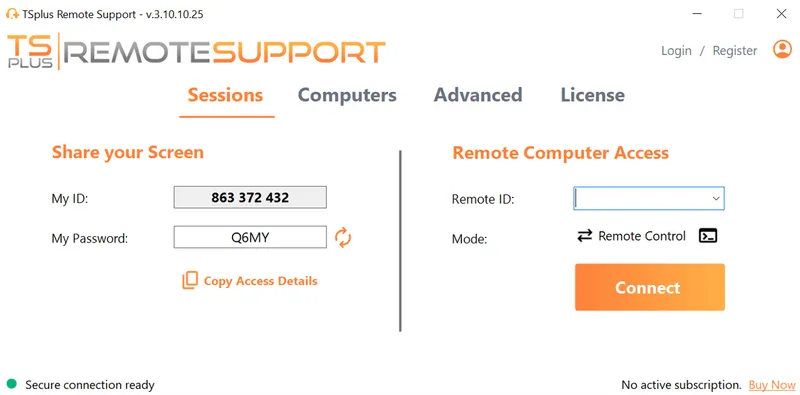
TSplus Remote Support Free Trial
Cost-effective Attended and Unattended Remote Assistance from/to macOS and Windows PCs.
What Does “Remote Server Control” Mean in IT Operations?
Remote server control refers to accessing a server over a network to perform administrative actions as if you were on the local console. The core use cases stay stable across environments: apply updates, restart services, deploy configuration changes, troubleshoot outages, and validate performance.
Remote administration vs remote support
Remote administration is privileged management of infrastructure, usually done by system administrators SREs, or platform engineers. Remote support is typically a time-bound session to help restore service or guide an operator through a task. In server contexts, both can happen, but they should not share the same default permissions or exposure model.
A simple way to separate them is to define “admin paths” and “support paths”:
- Admin paths: tightly controlled, least privilege, heavier logging
- Support paths: time-limited, explicit approval, scoped tools
This separation reduces long-lived privilege creep and makes auditing easier.
The three layers that matter: identity, network, session
Remote control becomes predictable when IT teams design around three layers:
Identity layer defines who is allowed in and how they prove it. Network layer defines how traffic reaches the server and what is exposed. Session layer defines what can be done and what evidence is recorded.
Treat these as separate controls:
- Identity controls: MFA, conditional access, dedicated admin accounts, role-based access
- Network controls: VPN, RD Gateway, bastion host, IP allowlists, segmentation
- Session controls: logging, session timeouts, command auditing, change ticket linkage
If one layer is weak, the other layers compensate poorly. For example, a wide-open RDP port makes “strong passwords” irrelevant under sustained brute force.
What Is Remote Desktop Protocol for Windows Server Control?
RDP is Microsoft’s protocol for interactive sessions on Windows. It is often the most efficient way to perform Windows administration tasks that still require GUI tooling.
When RDP is the right tool
RDP fits best when the job requires an interactive Windows session and graphical tools. Common examples include:
- Managing services, Event Viewer, and local policy settings
- Running vendor admin consoles installed only on the server
- Troubleshooting UI-bound application stacks
- Performing controlled maintenance during change windows
That said, RDP should be treated as privileged access, not as a convenience shortcut.
Secure RDP patterns: RD Gateway and VPN
The operational goal is to avoid exposing TCP 3389 to the internet and to centralise the entry point.
Two patterns cover most real-world environments:
RDP behind VPN
Administrators connect to a VPN then use RDP to the server’s internal address. This works well when the team already runs a VPN and has strong client management.
RDP through RD Gateway
Remote Desktop Gateway brokers RDP over HTTPS and can centralise authentication policies and logs. RD Gateway is often a better fit when IT teams want a single entry point without full network extension to admin devices.
In both patterns, security improves because:
- RDP stays internal
- The entry point can enforce MFA and conditional access
- Logging becomes centralized instead of spreading across endpoints
RDP hardening checklist (fast wins)
Use these quick wins to raise the baseline before getting fancy:
- Enable Network Level Authentication (NLA) and require modern TLS
- Blocks inbound 3389 from the public internet
- Restrict RDP to VPN subnets or gateway IPs only
- Use dedicated admin accounts and remove RDP rights from standard users
- Enforce MFA at the VPN or gateway
- Monitor failed logons and lockout events
Where possible, also reduce the blast radius:
- Put admin jump hosts in a separate management subnet
- Remove local admin where not needed
- Disable clipboard/drive redirection for high-risk servers (where it makes sense)
How Does SSH Work for Linux and Multi-Platform Server Control?
SSH provides encrypted remote command access and is the standard for Linux administration. SSH also appears in network appliances and many storage platforms, so a consistent SSH posture pays off beyond Linux.
Key-based SSH workflow
Key-based authentication is the baseline expectation for production SSH The workflow is straightforward: generate a key pair, install the public key on the server, and authenticate using the private key.
Typical operational practices include:
- Keep keys per admin identity (no shared keys)
- Prefer short-lived keys or certificate-based SSH where possible
- Store private keys securely (hardware-backed when available)
Key-based access enables automation and reduces credential replay risks compared to passwords.
SSH hardening checklist (practical)
These settings and controls prevent the most common SSH incidents:
- Disable password authentication for admin access
- Disable direct root login; require sudo with audit trails
- Restrict inbound SSH to known IP ranges or a bastion host subnet
- Add brute-force defenses (rate limiting, fail2ban, or equivalents)
- Rotate and remove keys during offboarding
In environments with many servers, configuration drift is the hidden enemy. Use configuration management to enforce SSH baselines across fleets.
When to add a bastion host / jump box
A bastion host (jump box) centralises SSH entry into private networks. It becomes valuable when:
- Servers live on private subnets with no inbound exposure
- You need one hardened access point with extra monitoring.
- Compliance requires clear separation between admin workstations and servers
- Vendors need access to a subset of systems with strong oversight
A bastion host is not “security by itself.” It works when it is hardened, monitored and kept minimal, and when direct access paths are removed.
How Can VPN-Based Remote Control Workflows Be a Solution?
VPNs extend an internal network to remote administrators. VPNs are effective when used intentionally, but they can become overly permissive if treated as a default “connect to everything” pipe.
When a VPN is the right layer
A VPN is often the simplest secure option when:
- The team already manages corporate devices and certificates.
- Admin access needs to reach multiple internal services, not just one server
- There is a clear segmentation model after connecting (not flat network access)
VPNs work best when paired with network segmentation and least-privilege routing.
Split-tunnel vs full-tunnel decisions
Split tunnelling sends only internal traffic through the VPN. Full tunnelling sends all traffic through the VPN. Split tunnelling can improve performance, but it increases policy complexity and can expose administrative sessions to risky networks if misconfigured.
Decision factors:
- Device trust: unmanaged devices push you toward full tunnel
- Compliance: some regimes require full tunnel and central inspection
- Performance: split tunnel can reduce bottlenecks if controls are strong
Operational pitfalls: latency, DNS and client sprawl
VPN problems tend to be operational rather than theoretical. Common pain points include:
- DNS resolution issues between internal and external zones
- MTU fragmentation leading to slow or unstable RDP
- Multiple VPN clients across teams and contractors
- Overbroad access once connected (flat network visibility)
To keep VPN manageable, standardise profiles, enforce MFA, and document the supported remote control paths so “temporary exceptions” do not become permanent vulnerabilities.
How Do You Control a Server Remotely?
This method is designed to be repeatable across Windows, Linux, cloud, and hybrid estates.
Step 1 - Define the access model and scope
Remote control starts with requirements. Document the servers that need remote control, the roles that need access, and the constraints that apply. At minimum, capture:
- Server categories: production, staging, lab, DMZ, management plane
- Admin roles: helpdesk, sysadmin, SRE, vendor, security response
- Access windows: business hours, on call, break glass
- Evidence needs: who connected, how they authenticated, what changed
This prevents accidental privilege escalation and avoids “shadow” access paths.
Step 2 - Choose the control plane per server type
Now map methods to workloads:
- Windows GUI administration: RDP via RD Gateway or VPN
- Linux administration and automation: SSH keys via bastion host
- Mixed environments / helpdesk interventions: remote support tooling such as TSplus Remote Support for standardized assisted or unattended sessions
- High-risk or regulated systems: jump hosts + strict logging and approvals
Good strategy also includes a fallback path, but that fallback must still be controlled. “Emergency RDP open to the internet” is not a valid fallback.
Step 3 - Strengthen identity and authentication
Identity hardening produces the biggest reduction in real-world compromise.
Include these baseline controls:
- Enforce MFA for privileged access
- Use dedicated admin accounts separate from daily user accounts
- Apply least privilege via groups and role separation
- Remove shared credentials and rotate secrets regularly
Add conditional access when available:
- Require managed device posture for admin sessions
- Block risky geographies or impossible travel
- Require stronger authentication for sensitive servers
Step 4 - Reduce network exposure
Network exposure should be minimised, not “managed with hope.” The key moves are:
- Keep RDP and SSH off the public internet
- Restrict inbound access to VPN subnets, gateways, or bastion hosts
- Segment the network so admin access does not equal full lateral movement
Bullet points help here because the rules are operational:
- Deny by default, allow by exception
- Prefer one hardened entry point over many exposed servers
- Keep management traffic separate from user traffic
Step 5 - Enable logging, monitoring, and alerts
Remote control without visibility is a blind spot. Logging should answer: who, from where, to what, and when.
Implement:
- Authentication logs: success and failure, with source IP/device
- Session logs: session start/stop, target server, access method
- Privileged action logs where possible (Windows event logs, sudo logs, command auditing)
Then operationalize monitoring:
- Alert on repeated failures and unusual access patterns
- Alert on new admin group membership or policy changes
- Retain logs long enough for investigations and audits
Step 6 - Test, document, and operationalise
Remote control becomes “production-grade” when it is documented and tested like any other system.
Operational practices:
- Quarterly access reviews and removal of unused paths
- Regular restore and “break glass” drills with audit evidence
- Runbooks that specify the approved access method per server type
- Standard onboarding/offboarding for admin access and keys
What Are the Common Failure Modes and Troubleshooting Patterns When You Remotely Control a Server?
Most remote control issues repeat. A small set of checks resolves the majority of incidents.
RDP issues: NLA, gateways, certificates, lockouts
Common causes include authentication mismatches, policy conflicts, or network path errors.
A useful triage sequence:
- Confirm reachability to the gateway or VPN endpoint
- Confirm authentication at the entry point (MFA, account state)
- Validate NLA prerequisites (time sync, domain reachability)
- Check gateway logs and Windows security logs for failure codes
Typical culprits:
- Time skew between client, domain controller, and server
- Wrong user group rights (Remote Desktop Users, local policies)
- Firewall rules blocking gateway-to-server connectivity
- Certificates and TLS settings on RD Gateway
SSH issues: keys, permissions, rate limits
SSH failures most often come from key management and file permissions.
Check:
- The correct key is being offered (agent confusion is common)
- Permissions on ~/.ssh and authorized keys are correct
- Server-side restrictions have not revoked the key
- Rate limiting or bans are not blocking the IP
Quick operational bullet points:
- Keep one key per admin identity
- Remove keys promptly on offboarding
- Centralise access via bastion when possible
“It connects but it’s slow”: bandwidth, MTU, CPU pressure
Slowness is often misdiagnosed as “RDP is bad” or “VPN is broken.” Validate:
- Packet loss and latency on the path
- MTU fragmentation, especially over VPN
- Server CPU contention during interactive sessions
- RDP experience settings and redirection features
Sometimes the best fix is architectural: place a jump host closer to the workloads (same region/VPC) and administer from there.
What Is Remote Server Control in Cloud and Hybrid Environments?
Hybrid environments increase complexity because the access path is no longer uniform. Cloud consoles, private subnets, identity providers, and on-prem networks can produce inconsistent admin experiences.
Standardising access paths across on-prem and cloud
Standardization reduces risk and operational time. Aim for:
- One identity authority for privileged access, with MFA
- A small number of approved remote control paths (gateway + bastion, or VPN + segmentation)
- Centralized logging for authentication and session metadata
Avoid per-team “custom” solutions that create blind spots and exceptions.
Audit readiness: evidence you should be able to produce
Audit readiness is not only for regulated industries. It improves incident response and change control.
Be able to produce:
- A list of who has admin access and why
- Proof of MFA enforcement for privileged access
- Logs of successful and failed admin sessions
- Evidence of access reviews and key rotation practices
When evidence is easy to produce, security becomes less disruptive to operations.
How Does TSplus Help Simplify Secure Remote Control?
TSplus Remote Support helps centralise remote assistance for IT teams that need fast, secure server intervention without exposing inbound management ports. Our solution provides end-to-end encrypted screen sharing for attended and unattended sessions, with multi-agent collaboration, chat, file transfer, multi-monitor handling, and command sending like Ctrl+Alt+Del. Technicians can view remote computer information (OS, hardware, user), take screenshots, and record sessions for audit and handover, all from a lightweight client and console.
Conclusion
A secure remote server control strategy is less about picking a tool and more about enforcing repeatable controls: strong identity with MFA, minimal network exposure through gateways or VPN, and logging that stands up to incident response. Standardise access paths across Windows and Linux, document the approved workflows, and test them regularly. With the right approach, remote control stays fast for admins and defensible for security.
TSplus Remote Support Free Trial
Cost-effective Attended and Unattended Remote Assistance from/to macOS and Windows PCs.
)
)
)
