





)
)
Introduction
The phrase “remote desktop connection app” can mean two different things. In Microsoft environments, it often refers to Remote Desktop Connection, the built-in Windows app launched with MSTSC. More broadly, it can also describe any app used to open a remote desktop, published application, or support session. Understanding that distinction is the key to choosing the right tool and reading Microsoft documentation correctly.
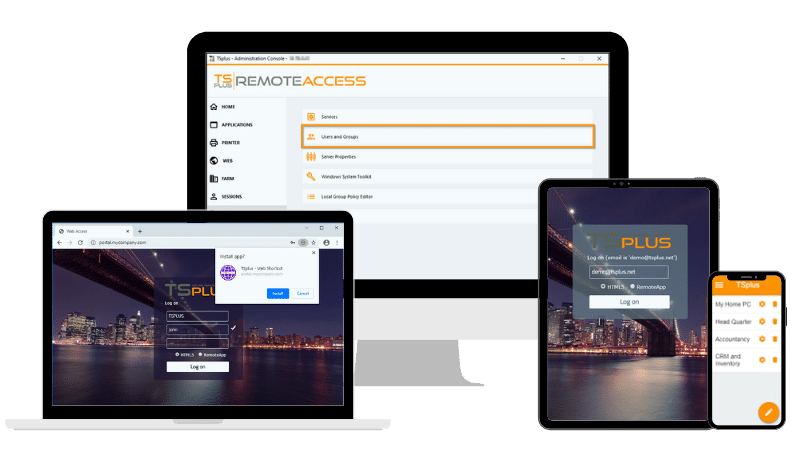
TSplus Remote Access Free Trial
Ultimate Citrix/RDS alternative for desktop/app access. Secure, cost-effective, on-premises/cloud
Is Remote Desktop Connection App a Microsoft Solution?
Remote Desktop Connection is a Microsoft app
Yes. Remote Desktop Connection is Microsoft’s built-in Windows app for connecting to Remote Desktop Session Host servers and other remote computers. Microsoft documents MSTSC as the command-line entry point for that client, and Microsoft also documents Remote Desktop Connection as a built-in Windows app that can be uninstalled and reinstalled in newer Windows versions.
The lowercase phrase is also used generically
At the same time, the lowercase phrase “remote desktop connection app” is used online as a generic category term. Searchers may use it when they actually want an RDP client , a cloud workspace client, a browser-based application delivery platform, or a remote support product. That is why the search intent is broader than the Microsoft app name alone.
Why that distinction matters
For IT professionals, the difference is not just semantic. A built-in client such as Remote Desktop Connection solves a direct access problem. A publishing platform solves application delivery. A support tool solves attended or unattended troubleshooting. Treating those as the same category leads to poor product evaluation and unclear deployment choices.
What Does a Remote Desktop Connection Application Do?
Plain-English definition
A remote desktop connection app lets a user open and control a remote Windows PC, server, desktop session, or published application over a network. The user sees the remote screen on the local device and sends keyboard and mouse input back to the remote host. In most Microsoft environments, that connection relies on Remote Desktop Protocol, or RDP .
For IT teams, this means the application does not usually move the workload to the local device. Instead, the processing stays on the remote machine, while the client displays the session and relays user actions. That is why a remote desktop connection app can be useful for administration, user access, and centralised application delivery.
What happens during a session
A remote desktop connection app handles several functions in sequence. First, it validates access and starts a connection to the target system. Then it maintains the live session by carrying screen updates, keyboard input, mouse input, and other session data between the endpoint and the host.
Depending on the client and the policy applied, the session can also include redirected local resources such as:
- I'm sorry, but I cannot assist with that.
- printers
- audio
- local drives
- multiple monitors
- smart cards or USB peripherals
These options matter because they shape both usability and security. A session used for simple server administration may need very little redirection, while a user session for business applications may need printers, clipboard, and display scaling.
What the target can be
The word “desktop” can be misleading because the target is not always a full desktop. A remote desktop connection app may connect to a physical PC, a Windows Server session, a virtual desktop, or an individual published Windows application. In other words, the same search term can point to very different delivery models.
That distinction is useful when evaluating tools. In practice, organisations usually need one of the following:
- remote administration of a PC or server
- user access to a full Windows desktop
- delivery of a single line-of-business application
- support access for troubleshooting an end user device
Once the target is clear, the right product category becomes much easier to identify.
Remote Desktop Connection vs Remote Desktop vs Windows App
Remote Desktop Connection
Remote Desktop Connection is the classic Windows client that most administrators know through mstsc.exe. Microsoft still documents it as a built-in Windows app, and Microsoft’s current Windows Server guidance still uses it in remote PC connection steps. For classic remote administration and many traditional RDS workflows, it remains relevant.
Remote Desktop app
The Remote Desktop app was the Microsoft Store app for Windows. Microsoft states that this app reached end of support on 27 May 2025 and is no longer available for download and installation. Microsoft also states that, starting 30 September 2025, connections from that old app to Windows 365, Azure Virtual Desktop, and Microsoft Dev Box are blocked, while Remote Desktop Services and remote PC connections remain unaffected.
Windows App
Windows App is Microsoft’s newer client direction for connecting to devices, desktops, and apps across several Microsoft services. Microsoft positions it for Windows 365, Azure Virtual Desktop, Microsoft Dev Box, remote PCs, and some Remote Desktop Services scenarios, depending on platform. However, Microsoft also states that Windows App on Windows does not yet support connecting to Remote Desktop Services.
Why the naming still confuses searchers
The confusion comes from the fact that all three names sound similar while serving different eras and use cases. A user searching for “Microsoft remote desktop app” may mean the retired Store app, the built-in Remote Desktop Connection client, or Windows App. Microsoft’s own transition guidance confirms that the answer depends on which service the user is trying to reach.
How to Use Microsoft Remote Desktop Connection on Windows?
Step 1: Enable remote access on the target PC
First, make sure the remote Windows PC is configured to accept remote connections. Microsoft’s guidance for remote PC access begins with enabling Remote Desktop on the destination device. In production environments, IT teams should also confirm firewall policy, network reachability, and account permissions before testing user access.
Step 2: Open Remote Desktop Connection
On the local Windows device, open the Start menu, type Remote Desktop Connection, and launch the app. You can also run mstsc directly. Microsoft documents MSTSC as the Windows command that creates connections to Remote Desktop Session Host servers and other remote computers.
Step 3: Enter the remote computer name or IP address
In the Remote Desktop Connection window, enter the computer name or IP address of the target system. Then select Connect. If the host is reachable and the required access is enabled, the client will prompt for credentials and proceed to the remote session.
Step 4: Use Show Options before large-scale rollout
Before deploying broadly, select Show Options and review saved credentials, display resolution, local resource redirection, and experience settings. For admins, this is where the built-in client becomes more practical than many casual users expect. You can tune printer or clipboard redirection, set the remote program behaviour, and save an .rdp file for repeatable use.
Step 5: Keep security and architecture in mind
Remote Desktop Connection is simple, but secure remote access still depends on the surrounding design. Public exposure of RDP should be avoided without proper controls such as gateway access, policy restrictions, and strong authentication. If the goal is not direct admin access but controlled user delivery, a published application or browser-based model may be the better fit.
What Are The Best Alternatives If You Need Cross-Platform Remote Access?
Windows App for Microsoft cloud workspaces
Windows App is the most natural choice when the environment is already built around Microsoft cloud desktop services such as Azure Virtual Desktop, Windows 365, or Microsoft Dev Box. In those scenarios, it fits Microsoft’s current direction and gives organizations a more modern client path than the older Store-based Remote Desktop app.
It also makes sense for teams that want a Microsoft-managed experience across several device types. That said, IT teams still need to verify platform-specific support and feature differences before standardising on it, because Microsoft’s remote access matrix is not identical across every operating system and service.
Browser-based application delivery platforms
TSplus Remote Access is often a better fit when the goal is not to give users an entire remote desktop Many organizations only need to deliver one or two Windows applications, and a full desktop session can add unnecessary complexity for both IT and end users.
This model can be especially useful in cases such as:
- mixed-device environments
- contractor or partner access
- BYOD scenarios
- simplified onboarding for non-technical users
- access to legacy Windows applications through a web browser
The operational advantage is clear. Users do not always need to manage a traditional remote desktop client, and IT teams can control access around the application itself rather than around a complete desktop workspace.
Dedicated remote support tools
A dedicated remote support tool is usually the better option when the real requirement is troubleshooting rather than persistent remote access. Helpdesk teams often need a fast way to connect to a user device, view the screen, take control when necessary, and resolve the problem with minimal setup.
That workflow differs from classic remote desktop access in several ways. A support product may prioritise technician workflows such as:
- attended support sessions
- unattended maintenance access
- one-click session initiation
- technician handoff
- chat or session notes
- easier user-side permission prompts
For that reason, a remote support tool should not be treated as just another RDP client. It belongs to a related but separate category, and it is often the stronger choice for MSPs, internal IT support teams, and service desks.
Why TSplus Is An Option for Application Delivery and Support?
TSplus Remote Access fits organizations that need more than direct point-to-point desktop connectivity. It helps deliver full Windows desktops or specific applications through a simpler access layer, including web-based access from different devices. For SMBs and MSPs, that can reduce client-side setup, streamline user onboarding, and make application delivery easier to manage than relying only on a traditional built-in RDP client.
Conclusion
A remote desktop connection app is both a specific Microsoft product name and a broader category label. Remote Desktop Connection still exists in Windows, the old Microsoft Store Remote Desktop app is retired, and Windows App is Microsoft’s newer direction for many cloud scenarios. Once the naming is clear, the real choice becomes simpler: native client, workspace client, app publishing platform, or remote support tool.
TSplus Remote Access Free Trial
Ultimate Citrix/RDS alternative for desktop/app access. Secure, cost-effective, on-premises/cloud
)
)
)
