





)
)
Introduction
Remote desktop access remains a core part of Windows administration, technical support, and hybrid work. For many organisations, choosing the right RDP client for Windows is not just about opening a remote session, but about balancing security, usability, and manageability. This guide explains what an RDP client does, how it works, and what IT professionals should evaluate before selecting one.
TSplus Remote Access Free Trial
Ultimate Citrix/RDS alternative for desktop/app access. Secure, cost-effective, on-premises/cloud
What Is an RDP Client?
An RDP client is software that allows a Windows device to connect to another computer using Microsoft’s Remote Desktop Protocol, or RDP The client provides the interface through which the user views and controls the remote system.
The remote machine runs the RDP server-side service, while the client displays the graphical desktop and transmits user input. This lets the user interact with the remote environment almost as if seated directly in front of it.
Common RDP client capabilities include:
- viewing the remote desktop
- sending keyboard and mouse input
- redirecting printers and clipboard content
- sharing local drives
- managing multiple saved connections
RDP clients are widely used because they allow administrators and employees to access systems remotely while keeping applications, data, and processing centralised within the company environment.
How Does An RDP Client for Windows Work?
RDP works through a client-server model. The user launches the client, the remote host accepts or rejects the request, and a desktop or application session is created if authentication succeeds.
Connection setup and authentication
The process starts when the user enters the target hostname, IP address, or saved connection profile into the client. The remote system then verifies the user’s credentials and checks security requirements such as:
- Network Level Authentication
- group permissions
- gateway access rules
Authentication is one of the most important stages in the RDP process. A properly configured environment ensures that only authorised users can reach the remote session and that identity checks take place before the full desktop is exposed.
Session rendering and input handling
Once authenticated, the remote system creates a session and begins sending graphical output to the client. The client is then responsible for:
- displaying the remote desktop, window, or published application
- transmitting keyboard input
- transmitting mouse actions back to the remote machine
Because RDP mainly sends display updates and user input rather than the full application workload, it can remain efficient across office networks, VPNs , and many WAN environments. This efficiency is one reason RDP remains a practical choice for remote Windows administration.
Redirection and session behaviour
Modern RDP sessions often include optional redirection settings that allow access to local resources such as:
- printers
- I'm sorry, but I cannot assist with that.
- local or mapped drives
- audio devices
- selected file paths
These features improve usability, but they should be managed carefully. In secure environments, administrators often limit redirection options to reduce unnecessary data movement and control risk.
What Are the Common Use Cases for RDP Clients in Windows Environments?
RDP clients serve several different purposes in Windows-based organisations. The best client for one environment may not be the best fit for another, because operational goals can vary significantly.
Remote server administration
System administrators frequently use RDP clients to manage Windows servers remotely. Common tasks include:
- accessing administrative tools
- managing services and policies
- reviewing event logs
- opening application consoles
This remains one of the most common and practical uses of an RDP client. For a single administrator or a small IT team, the built-in Windows client is often sufficient.
Secure desktop access for remote work
Organizations also use RDP to give employees access to office desktops from home or while travelling. In this model, business data remains on centrally managed systems instead of being copied to local devices.
That centralization improves both control and continuity. It is particularly useful when users depend on Windows-based business applications that are difficult to deploy across many endpoints.
IT support and troubleshooting
Helpdesk and support teams rely on remote access to diagnose and resolve issues quickly. An RDP client allows technicians to inspect settings, reproduce problems, apply fixes, and confirm results directly on the target machine.
In these environments, speed matters, but so does connection management. Teams handling many devices often benefit from tools that make switching between sessions easier.
Centralized application access
Some organizations do not need to deliver a full remote desktop to every user. Instead, they need access to:
- one business-critical application
- a small set of Windows tools
- centrally hosted resources for specific roles
In those cases, the discussion moves beyond simple remote desktop control. The requirement becomes more about application delivery, user access, and centralised management.
Which are the Microsoft’s Built-In RDP Options on Windows?
Microsoft provides native remote access options in the Windows ecosystem, and these remain the starting point for many administrators.
Remote Desktop Connection (MSTSC)
Remote Desktop Connection, often referred to as MSTSC, is the traditional built-in Windows RDP client. It has long been the standard tool for connecting to Windows servers and desktops in administrative scenarios.
Its main strengths include:
- simplicity and familiarity
- native availability on Windows
- saved connection settings
- display configuration options
- local resource redirection
- secure authentication in properly configured environments
For direct server management or occasional remote access, MSTSC is often enough. Its limitations become more visible when teams need better connection organisation, shared workflows, or stronger operational oversight.
Microsoft’s broader remote access model
The Windows remote access landscape is no longer limited to a single familiar client experience. Microsoft’s broader approach now includes several access paths, depending on whether the goal is:
- direct administrative access to desktops or servers
- cloud desktop connectivity
- workspace-based application or desktop delivery
This matters because organizations often begin with a basic remote desktop need, then realize the requirement is broader. Once multiple users, hosted applications, or centralised delivery become part of the picture, the choice is no longer just about selecting an RDP client.
What to Look for in the Best RDP Client for Windows?
Choosing the best RDP client for Windows depends on your environment, your security model, and the number of systems or users involved. Some features become far more important in daily operations than they first appear.
Security controls
Security should be the first criterion. An RDP client connects to systems that often contain sensitive infrastructure, business applications, and privileged administrative functions.
Important features include:
- Network Level Authentication
- encrypted sessions
- secure gateway connectivity
- controlled credential storage
- compatibility with stronger identity controls such as multi-factor authentication
The client alone does not make an environment secure, but it must fit into a broader security architecture.
Performance and user experience
Performance becomes especially important when users connect over VPNs, WAN links, or variable home networks. A good RDP client should remain responsive and stable under normal working conditions.
Display scaling, multi-monitor support reconnect handling, and efficient rendering all contribute to session quality. Even a technically capable client can reduce productivity if it feels slow or awkward in practice.
Resource redirection
Many remote workflows depend on local resources. Clipboard syncing, file transfer, printer redirection, and drive mapping can make remote work much more practical.
However, these features should remain configurable. Some users need flexibility, while others should operate under tighter controls. The best client supports both usability and policy enforcement.
Multi-session and connection management
This is where basic and advanced clients begin to diverge. In a small environment, opening one saved connection at a time may be acceptable. In a larger environment, administrators often need:
- grouped connections
- tabbed sessions
- dashboards
- shared credentials
- support for multiple protocols
These features are not just convenient extras. They directly affect speed, consistency, and manageability for teams working across many systems every day.
What Are Popular RDP Clients for Windows?
Several RDP clients are available for Windows, each suited to different operational needs.
Microsoft Remote Desktop Connection (MSTSC)
MSTSC is best suited to direct administration in native Windows environments. It is stable, built in, and familiar to most IT professionals.
Its main advantage is that it handles core remote access needs without requiring extra software. Its main limitation is that it offers little in the way of modern connection organisation or enterprise-oriented workflow features.
mRemoteNG
mRemoteNG is often chosen by administrators who manage many hosts and want one interface for multiple remote protocols. Its tabbed design and protocol flexibility make it useful in mixed infrastructure environments.
Its strengths are breadth and convenience. Its weaknesses are a less polished interface and a setup experience that may require more care than simpler tools.
Royal TS
Royal TS is aimed more clearly at enterprise and infrastructure-heavy scenarios. It offers stronger credential handling, team-oriented features, and support for a wide range of connection types.
For teams managing complex environments, it can be a strong option. The trade-off is greater complexity and commercial licensing, which may be unnecessary for smaller organisations.
Other cross-platform tools
Some remote access tools support RDP among several protocols but are more strongly associated with Linux or mixed-platform environments. These can be useful in organisations that do not operate as Windows-only shops.
However, for a purely Windows-focused use case, they are often less central to the decision than MSTSC, mRemoteNG, or Royal TS.
Security Best Practices When Using an RDP Client
Using an RDP client securely is not only about the software itself. Secure remote access depends on how the client fits into the wider environment, including authentication policies, network exposure, and session controls.
Strengthen Authentication and Access Control
The first priority is to ensure that only authorised users can reach remote sessions. Network Level Authentication should be enabled, strong password policies should be enforced, and multi-factor authentication should be added wherever possible.
Access should also be restricted to the users and groups that genuinely need it. This reduces the risk of unnecessary exposure and helps organisations maintain tighter control over administrative access.
Protect the Network Path
Even a well-configured RDP client becomes a risk if the remote service is exposed directly to the public internet. RDP access should instead be placed behind a VPN, secure gateway, or another controlled access layer that limits direct visibility and reduces the attack surface.
This extra protection is especially important because exposed RDP services are often targeted by attackers. A secure network path helps ensure that remote access remains available to legitimate users without becoming an easy entry point.
Control Session Behaviour and Monitor Activity
Secure remote access also depends on what happens during and after the connection. Administrators should review resource redirection settings carefully, including clipboard use, local drives, printers, and other shared resources, so that convenience does not create unnecessary risk.
Monitoring is equally important. Access logs Session activity and connection history should be reviewed regularly so that suspicious behaviour can be detected early. In practice, the safest approach is to treat every RDP session as privileged infrastructure access rather than as a simple user convenience.
What Happens When a Basic RDP Client Is No Longer Enough?
A basic RDP client works well for occasional administration or one-to-one remote access. The limits appear when remote access needs to support more users, more applications, and stricter security or management requirements. At that point, the question is no longer only how to connect, but how to deliver access in a more consistent and scalable way.
When Access Needs Expand Beyond Simple Administration
Many organizations start by using RDP for server administration or occasional support. Over time, remote access may need to serve employees, remote teams, or users who need regular access to business resources.
This shift changes the requirement. The organisation often needs a solution that is easier to manage across multiple users and use cases.
When Application Delivery and Control Become More Important
In some cases, users do not need a full remote desktop. They only need access to a specific application or a limited set of tools.
Here, a basic RDP client can become too limited. The real need is no longer just remote control, but more structured access to applications and resources.
When Centralized Management Matters
As environments grow, managing access through individual client connections becomes less practical. Teams often need clearer permissions, more consistent policies, and simpler administration.
This is the point where organizations begin to look beyond a standalone RDP client and toward a broader remote access solution.
Why TSplus Remote Access Is More Than an RDP Client
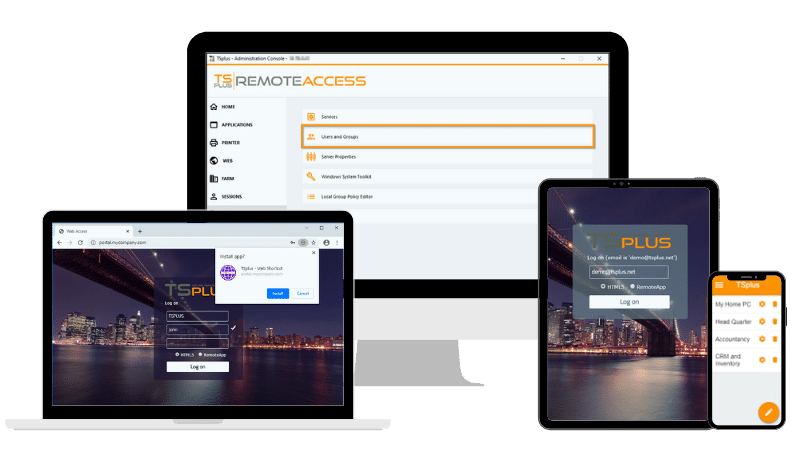
TSplus Remote Access is built to deliver Windows desktops and applications through a simpler and more centralised access model. Rather than functioning only as a basic RDP client, it enables organisations to publish full desktops or individual applications and provide access through a browser-based HTML5 Web Portal or other supported client methods.
This approach is particularly useful for organisations that need secure browser-based access, remote application publishing, and multi-user access across distributed teams. In those situations, our solution helps shift the focus from simple remote connectivity to more structured desktop and application delivery.
Conclusion
An RDP client for Windows remains an essential tool for administration, support, and remote work. The right choice depends on whether your priority is simple server access, better multi-session management, or broader remote delivery for users and applications.
For basic needs, native Windows tools may be enough. For larger or more user-focused environments, organisations often benefit from moving beyond a basic client toward a more complete remote access solution.
TSplus Remote Access Free Trial
Ultimate Citrix/RDS alternative for desktop/app access. Secure, cost-effective, on-premises/cloud
)
)
)
