









)
)
Introduction
Remote Server Administration Tools (RSAT) allows administrators to manage Windows Server roles from a client workstation instead of logging onto servers directly. PowerShell remoting adds automation and one-to-many control for routine checks and changes. Together, RSAT and remote PowerShell cover most day-to-day administration in Windows Server environments, from directory and policy tasks to infrastructure services and app servers.
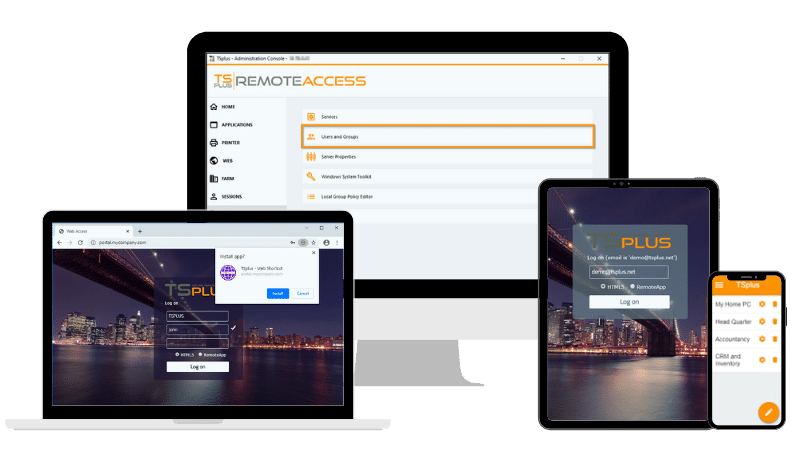
TSplus Remote Access Free Trial
Ultimate Citrix/RDS alternative for desktop/app access. Secure, cost-effective, on-premises/cloud
What Are Remote Server Administration Tools (RSAT)?
Remote Server Administration Tools (RSAT) is a Microsoft toolset that allows administrators to manage Windows Server roles and features from a Windows client machine. Instead of signing into a domain controller or infrastructure server to open a console, an administrator installs RSAT on an admin workstation and runs the relevant snap-ins or PowerShell modules locally.
What RSAT includes
RSAT is not a single console. It is a collection of role-specific tools that can be installed as Windows capabilities. Common RSAT components include:
- Active Directory tools (including the Active Directory PowerShell module)
- DNS Server Tools
- DHCP Server Tools
- Group Policy Management tools
- Additional role tools and management consoles depending on the environment
The practical benefit is consistency. A well-managed admin workstation with RSAT reduces time lost to “missing tools” and supports better operational hygiene because work happens from a controlled device rather than from production servers.
Where RSAT fits in Windows Server environments
RSAT is most valuable in Windows Server environments where infrastructure roles are centralised and accessed repeatedly. In many Windows domains, Windows Server Remote Desktop is also used for administrative access alongside RSAT and remote PowerShell. Typical examples include:
- Domain controllers and identity services
- DNS and DHCP servers
- File services and shared infrastructure
- Application servers that support line-of-business workloads
- Remote Desktop-related roles where administrators must regularly validate services and configuration
RSAT does not grant permissions by itself. It simply exposes the tools that let administrators use the rights assigned to them. That is why RSAT works best as part of a broader operational model: segmented admin access, delegated rights, and centralised monitoring.
In Windows Server environments where admins also need occasional full GUI access for hosted apps or sessions, TSplus Remote Access can complement RSAT and PowerShell remoting.
Why Admins Use PowerShell for Remote Server Management?
PowerShell is the default automation layer for Windows administration. RSAT provides interfaces; PowerShell provides control, speed, and repeatability. Even if an administrator prefers GUI consoles for certain tasks, PowerShell becomes essential as soon as the server count grows or tasks need to be standardised.
Automation and repeatability
PowerShell turns manual procedures into scripts that can be reused, reviewed, and improved. That matters for:
- Routine service checks before maintenance windows
- Baseline configuration validation (features, services, registry settings)
- Auditing tasks such as exporting reports or comparing configuration drift
- Post-patch verification steps after restarts and updates
A script also becomes documentation. Instead of relying on tribal knowledge, IT teams can build runbooks that produce predictable results across Windows Server environments.
One-to-many operations
GUI administration is usually one server at a time. PowerShell Remoting enables one-to-many operations, which helps with:
- Running the same command across many servers
- Collecting logs or configuration output into a single report
- Taking consistent action during incidents (restart a service, stop a process, isolate a host)
- Reducing time spent repeating the same clicks across systems
This is the main reason PowerShell remains central even in organisations that invest heavily in graphical tooling.
What Happens When You Need RSAT and Remote PowerShell?
RSAT and PowerShell Remoting overlap, but they solve different parts of the same problem. Many Windows Server workflows are faster when both are available.
Common tasks that require both
Some tasks start in a console and finish in a script, or the reverse. For example:
- Use Group Policy Management to design a policy, then use PowerShell to export reports or validate links and scope.
- Use DNS Manager to inspect a zone interactively, then use PowerShell to bulk-create or update records.
- Use Active Directory Users and Computers to investigate a user object, then use the AD module to apply standardised changes across many users.
In practice, RSAT is excellent for discovery and targeted edits, while PowerShell is excellent for standardised change and fleet-wide validation.
What to standardise on admin workstations
To avoid tool drift and reduce troubleshooting time, many IT teams standardise:
- Which RSAT capabilities are installed (full suite vs minimal set)
- PowerShell modules and versions used in runbooks
- A baseline set of scripts for health checks and recurring operations
- Access methods (domain authentication, jump boxes, management subnets)
This makes remote administration more reliable, especially when multiple admins share responsibility for Windows Server environments.
How to Install Remote Server Administration Tools with PowerShell?
This section targets the exact workflow: how to install Remote Server Administration Tools with PowerShell. The process is straightforward, and it can be repeated on multiple machines if you use provisioning scripts.
Step 1: Check available RSAT features
Open PowerShell as Administrator and run:
Get-WindowsCapability -Name RSAT* -Online
This lists RSAT capabilities and shows whether each one is installed. The key field is State:
-
NotPresentmeans the capability is available but not installed -
Installedmeans the capability is already present
If an admin expects a module (like Active Directory) but it is missing, this command is the fastest way to confirm whether the right capability is installed.
Step 2: Install all RSAT tools via PowerShell
To install the full RSAT suite available to the machine:
Get-WindowsCapability -Name RSAT* -Online | Add-WindowsCapability -Online
This approach is common for dedicated admin workstations because it reduces “surprise” gaps later. If your organization prefers a minimal footprint, install only required capabilities, but keep the selection consistent across the team.
Step 3: Install a specific RSAT component
If you only need one toolset, install that capability directly. Example for Active Directory:
Add-WindowsCapability -Online -Name Rsat.ActiveDirectory.DS-LDS.Tools~~~~0.0.1.0
This is useful for teams who want lightweight builds or who separate responsibilities (for example, helpdesk vs infrastructure admins).
Verify RSAT installation
After installing, validate that the related PowerShell module exists. For Active Directory:
Get-Module -ListAvailable ActiveDirectory
If it appears, import it to confirm it loads correctly:
Import-Module ActiveDirectory
At that point, RSAT is installed and ready. You can use the GUI consoles (Windows Tools) and the role modules in scripts.
How to Connect to a Remote Server Using PowerShell?
PowerShell Remoting depends on WinRM. In domain environments, it is often already configured, but in many networks, it still needs to be enabled and validated. A good remoting setup gives administrators fast, controlled access without relying on interactive desktop sessions for every task.
Step 1: Enable PowerShell Remoting on the server
On the target server, run:
Enable-PSRemoting -Force
This configures WinRM for remoting, creates listeners, and enables firewall rules in standard scenarios. In managed environments, Group Policy may enforce WinRM settings. If remoting “works briefly and then stops”, policy is a strong candidate.
Step 2: Connect to a remote server
To open an interactive session (a remote shell):
Enter-PSSession -ComputerName SERVER01 -Credential DOMAIN\AdminUser
This is the standard pattern for PowerShell to connect to a remote server and a common approach for PowerShell remote connection to a server when troubleshooting. It is best for short-lived, interactive diagnostics.
Exit the session when finished:
Exit-PSSession
Tip: if you have name resolution issues, try using the server’s FQDN rather than a short name. Kerberos and certificate identity checks can be sensitive to naming mismatches.
Step 3: Run remote commands without an interactive session
For scripting and automation, use
Invoke-Command
:
Invoke-Command -ComputerName SERVER01 -ScriptBlock { Get-Service }
This executes on the remote server and returns the output locally. It is typically the preferred model for repeatable operations because it is easier to wrap in scripts, log results, and handle errors.
Step 4: Persistent sessions for repeated work
If you need to run multiple commands, use a persistent session:
$session = New-PSSession -ComputerName SERVER01 -Credential DOMAIN\AdminUser Invoke-Command -Session $session -ScriptBlock { Get-Process } Remove-PSSession $session
This avoids reconnecting repeatedly and is useful in maintenance scripts that run a fixed sequence of checks and actions.
How Can You Troubleshoot PowerShell Remote Connections?
Remoting errors often look similar, but the causes tend to fall into three buckets: WinRM configuration, network/firewall, and authentication/trust. Diagnose the category first, then fix what applies.
WinRM service and remoting configuration
Start with the WinRM service on the server:
Get-Service WinRM
If it is not running:
Start-Service WinRM
Then reapply remoting configuration:
Enable-PSRemoting -Force
If the service is running but connections still fail, inspect whether Group Policy is enforcing WinRM listener settings or restricting allowed clients.
Firewall and port 5985
If the error is a timeout or cannot-connect message, confirm firewall rules on the server:
Enable-NetFirewallRule -DisplayGroup "Windows Remote Management"
Also validate network profile classification and any network segmentation rules between the admin workstation and the server. If the management path crosses a VPN for Remote Desktop pattern, confirm that routing and firewall rules allow WinRM traffic end to end. Remoting that works “inside the server VLAN” but fails “from the admin subnet” is usually an ACL or firewall policy issue.
TrustedHosts in non-domain scenarios
In workgroup environments, TrustedHosts may be required on the client:
Set-Item WSMan:\localhost\Client\TrustedHosts -Value "SERVER01"
Keep TrustedHosts narrow and explicit. Avoid broad wildcard entries unless you have strong compensating controls and you understand the security implications.
Authentication pitfalls and the “double hop”
A few patterns cause repeated confusion:
- Wrong computer name: Kerberos and identity checks can fail if DNS names do not match what the server expects.
- Insufficient rights: Remoting works but commands fail because the account lacks permissions on the target system.
- Double hop: Accessing a second resource from inside a remote session (like a file share or another server) can fail due to delegation constraints.
When troubleshooting, separate “I cannot connect” from “I connected, but the action failed”. They point to different fixes.
What Can You Do When PowerShell Remoting Isn’t Enough?
While PowerShell remote connections are ideal for command-line administration, many IT teams still require full graphical remote access to Windows servers and business applications. Some vendor tools are GUI-only, some tasks need visual context, and some workloads require administrators to interact with a server-hosted application exactly as users do. When administrators fall back to interactive sessions, a secure RDP configuration checklist helps standardise hardening and reduce exposure.
Why GUI access is still needed
Common cases include:
- Running MMC snap-ins or vendor consoles that do not behave well over scripts
- Troubleshooting application UI errors and user environment issues
- Performing tasks that require interactive validation (installers, wizards, visual logs)
- Supporting line-of-business apps published from Windows Server
PowerShell remains the best tool for automation and repeatable operations, but GUI access often remains necessary for the full picture.
How Does TSplus Remote Access Complement RSAT and PowerShell?
TSplus Remote Access provides a secure way to access Windows desktops and Windows applications remotely, including web-based access scenarios. In environments where administrators and users need reliable access to Windows Server–hosted apps, TSplus Remote Access can complement RSAT and PowerShell by covering the interactive use cases:
- Secure access to server desktops or published applications when GUI work is required
- Multi-user concurrent sessions where appropriate for shared server environments
- Reduced reliance on complex VPN routing for routine access scenarios
- A practical alternative for SMBs that need remote delivery without building a full RDS infrastructure
The operational model remains simple: use RSAT and PowerShell for structured admin work and use secure GUI access when the job requires interactive administration or application delivery.
Conclusion
RSAT plus PowerShell Remoting is one of the most effective combinations for Windows Server administration. Install RSAT with PowerShell to standardise your admin workstation, enable WinRM remoting on servers, and choose the right remoting pattern for the job: interactive sessions for troubleshooting, and Invoke-Command for automation and repeatability. When the job requires full GUI access or user-facing support, add a remote access and support layer that complements your command-line toolset rather than replacing it.
TSplus Remote Access Free Trial
Ultimate Citrix/RDS alternative for desktop/app access. Secure, cost-effective, on-premises/cloud
)
)
)
