








)
)
A Chromebook can access Windows desktops, servers and applications even though ChromeOS does not include the traditional Windows Remote Desktop client. IT teams can use Microsoft's Windows App, a Remote Desktop Services environment or browser-based HTML5 access, depending on endpoint policies, infrastructure and user requirements.
For sysadmins and MSPs, choosing the connection method matters as much as establishing the connection itself. This guide explains how RDP on Chromebook works, how to configure a direct connection and when browser-based Windows access is more practical for managed devices, BYOD users and distributed workforces.
Can You Use RDP on a Chromebook?
Yes, with Windows App:
Indeed, ChromeOS can act as the client endpoint for a Remote Desktop Protocol (RDP) session to a Windows PC, Windows Server or Remote Desktop Services environment.
Microsoft currently provides Windows App for Android and ChromeOS. On ChromeOS, Windows App supports connections to remote PCs, Remote Desktop Services, Azure Virtual Desktop, Windows 365 and Microsoft Dev Box. Microsoft's current requirements specify ChromeOS 126 or later for the installed application.
But HTML5 Web Portal is also available:
However, an installed RDP client is not the only option. A Chromebook can also access a Windows desktop or published Windows application through an HTML5 web portal. In that architecture, the Chrome browser becomes the client interface and the remote access infrastructure handles the connection to the Windows host.
This possibility is important for IT teams because the right method depends on whether or not the organization controls the Chromebook and whether users need a complete Windows desktop, specific applications or advanced local-device redirection.
What do you need before connecting ChromeOS to Windows?
Before configuring RDP on Chromebook, check both ends of the connection.
Compatible OS:
The Chromebook must support the chosen client method. For Windows App, this means a supported ChromeOS version and access to Google Play. Google notes that Android applications are not available on every Chromebook and that work or school administrators can restrict Play Store access or application installation.
The Windows host must also support incoming RDP connections. Microsoft supports Remote Desktop hosting on Windows Professional, Enterprise and Education editions, as well as Windows Server. Windows Home can act as an RDP client but cannot natively host an incoming Remote Desktop session.
Connectivity and credentials:
Finally, the Chromebook needs network connectivity to the target system and valid user credentials. Inside the same LAN, a hostname or private IP address may be sufficient. Connections across the internet require a secure path such as a VPN, Remote Desktop Gateway or another controlled remote access gateway.
How do you use the Windows app for RDP on Chromebook?
For a compatible Chromebook with Google Play enabled, Windows App provides Microsoft's current client route for remote PC and Remote Desktop Services connections.
Step 1: Prepare the Windows Host
On the Windows computer, open Settings > System > Remote Desktop and enable Remote Desktop. Confirm which users are authorised to connect and record the computer hostname or IP address.
Network Level Authentication ( NLA ) should normally remain enabled because it requires authentication before a complete remote session is established. Administrators should also verify Windows Firewall rules and confirm the Chromebook has a permitted network path to the host.
Step 2: Install Windows App on ChromeOS
Open Google Play on the Chromebook and install Microsoft Windows App.
Microsoft currently requires ChromeOS 126 or later for Windows App on ChromeOS. Organizations managing Chromebook fleets should also verify the application is allowed or deployed through their Google Admin policies.
Step 3: Add and Connect to the Windows PC
Microsoft's current procedure for ChromeOS is straightforward:
- Open Windows App and select the option to add a new connection.
- Select PC connection .
- Enter the hostname or IP address below PC Name .
- Optionally configure the user account, display options, audio and device redirection.
- Save the connection and select the Windows PC from the Devices tab.
- Enter the authorised Windows credentials and connect.
Windows App can also request access to local Chromebook resources. IT administrators should allow only the device redirection capabilities required by the user's workload.
Can you access Windows from Chromebook without an RDP client?
Yes, other connections than RDP are possible:
And this is often the more interesting option for business Chromebook deployments.
An HTML5 remote desktop gateway lets users access a Windows desktop or application directly through Chrome. Nothing needs to be installed on the Chromebook, so IT does not have to distribute, configure or update an RDP client on every endpoint.
BYOD, shared devices and Google Play restriction scenarios:
This is particularly useful for contractors, Bring Your Own Device (BYOD), shared Chromebooks and managed devices where Google Play is restricted. It also separates endpoint management from Windows application delivery: users need a supported browser and credentials, while administrators maintain the Windows hosts and access portal centrally.
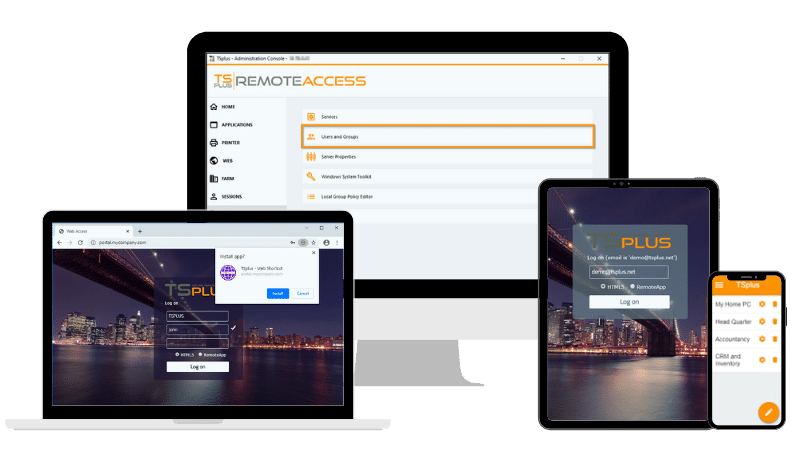
TSplus Remote Access, for example, provides an HTML5 Web Portal capable of delivering either a complete Windows desktop or individual applications through a browser.
Windows App vs Chrome Remote Desktop vs HTML5 Access
These three methods solve different problems.
| Method | Best suited to | Client installation | Windows access model |
|---|---|---|---|
| Windows App | Managed RDP environments and users needing native client capabilities | Required through Google Play | Remote PC, RDS and Microsoft hosted services |
| Chrome Remote Desktop | Simple remote control of an individual computer | Windows host component required | Remote control rather than standard RDP infrastructure |
| HTML5 web access | Managed Chromebook fleets, BYOD, contractors and application publishing | None on Chromebook | Windows desktops or published applications through a browser |
Windows App is appropriate when IT already operates traditional RDP or RDS infrastructure and client installation is acceptable. Chrome Remote Desktop can work for individual remote-control requirements but represents a different architecture rather than standard RDP.
HTML5 access becomes especially useful when endpoint independence is important. The same portal can serve ChromeOS, Windows, macOS , Linux and mobile devices without requiring IT teams to maintain a different remote desktop client for each platform.
How Should You Secure RDP Access from a Chromebook?
The Chromebook itself is only one part of the security model. Administrators also need to secure the Windows host, credentials and network path.
Avoid treating direct public exposure of TCP port 3389 as the default method for remote users. For external connections, use a controlled gateway or VPN, enable NLA where appropriate, require strong authentication and keep both ChromeOS and Windows patched.
The same principle applies to HTML5 access. Browser delivery removes client installation but does not remove the need for HTTPS, controlled authentication, least-privilege access and server-side protection.
For organizations requiring additional Windows server defenses, TSplus Advanced Security can complement Remote Access with capabilities such as brute-force protection, IP controls and geographic restrictions. These controls address the server-side threat surface rather than changing how the Chromebook itself connects.
What If the Chromebook Is Managed or Locked Down?
Managed Chromebooks deserve special consideration because administrators can control which Android applications users install. Google Chrome Enterprise allows organisations to force-install approved applications, allow specific apps or block application installation entirely.
If Windows App is approved, IT can deploy it as part of the managed ChromeOS environment. If application installation is restricted, browser-based access can remove that dependency altogether.
This distinction can matter at scale. Rather than maintaining an RDP application on hundreds of Chromebooks, an organization can provide users with a web portal URL and control Windows applications, sessions and permissions centrally.
How Can TSplus Remote Access Deliver Windows Desktops and Apps to Chromebooks?
TSplus Remote Access provides two useful capabilities for Chromebook environments: remote Windows desktops and Windows application publishing.
Through its HTML5 Web Portal users can open Chrome, authenticate and access either a complete remote desktop or only the Windows applications assigned to them. The applications continue to run on the Windows host while the Chromebook acts as the user interface. No Windows App, browser extension or locally installed Windows software is required on ChromeOS.
This model is particularly useful when an organization has adopted Chromebooks but still depends on ERP software, accounting applications, line-of-business tools or legacy Windows programs. Instead of replacing those applications or deploying complete Windows machines to every user, IT can centralise them and publish only what each user needs.
For larger infrastructures, TSplus Server Monitoring can provide visibility into server health and resource use, while Advanced Security can add further protection around Windows servers. These products address infrastructure monitoring and protection respectively; Remote Access remains the component responsible for delivering the desktops and applications.
How do you troubleshoot RDP on Chromebook?
When an RDP connection from ChromeOS fails, start by identifying which layer is responsible.
First check whether the Chromebook meets Windows App requirements and whether Google Play is enabled. Then confirm that Remote Desktop is enabled on the Windows host, the user has permission to connect and the hostname or IP address is correct.
Next, test network reachability. A connection that works on the office LAN but fails externally usually points to the gateway, VPN, DNS or firewall path rather than to ChromeOS itself.
If the session connects but user experience is poor, review latency, display resolution and device redirection. Browser-based and native-client sessions also have different peripheral and performance capabilities, so a workload that depends heavily on local USB devices, specialised printing or graphics should be validated before wide deployment.
Conclusion
RDP on Chromebook is no longer limited to a single connection method. Windows App provides direct access to Windows PCs and Remote Desktop Services, while HTML5 portals give IT teams a clientless path for managed ChromeOS devices, BYOD users and application publishing.
For organizations that want to keep Windows applications centralised while expanding Chromebook use, TSplus Remote Access provides a practical bridge between ChromeOS endpoints and existing Windows infrastructure.
TSplus Remote Access Free Trial
Ultimate Citrix/RDS alternative for desktop/app access. Secure, cost-effective, on-premises/cloud
)
)
)
