









Which Linux RDP Client Should You Use?
Remmina suits users who want a graphical interface and saved profiles. FreeRDP is useful for administrators who want explicit connection options or need to reproduce tests. Remmina's RDP plugin uses FreeRDP internally, so these tools are complementary rather than separate protocol implementations.
| Client | Best fit | Interface | Main consideration |
|---|---|---|---|
| Remmina | Frequent connections and want saved profiles | Graphical | The RDP plugin and keyring support may use separate packages. |
| FreeRDP | Scripting, diagnostics and detailed options | Terminal-controlled graphical session | Executable names and flags depend on FreeRDP generation. |
| GNOME Connections | Focused client integrated with GNOME | Graphical | Fewer advanced configuration options than Remmina or FreeRDP |
| KRDC | Client integrated with KDE Plasma | Graphical | Advanced behaviour depends on KDE and FreeRDP packages. |
Remmina: graphical profiles for recurring connections
Remmina supports RDP and other protocols, making it useful for helpdesk and administration workstations which maintain several approved host profiles. Users can configure the destination, identity, display, gateway and allowed redirection channels without building a command. Ubuntu desktop documentation also describes Remmina for outgoing remote desktop access, and where needed, credentials can be stored in an approved keyring.
FreeRDP and xfreerdp for direct control
Opensource, FreeRDP implements the RDP protocol. Its
xfreerdp3
or
xfreerdp
command launches a graphical remote session. More than a text-only shell, explicit arguments make it particularly useful for checking usernames, display behaviour, gateways and redirection. Still, administrators should validate options against the installed generation.
xfreerdp3 /v:192.168.1.50 /u:alex
This command starts a graphical session and requests the password interactively. The executable may instead be named
xfreerdp
when the distribution packages an earlier FreeRDP generation.
GNOME Connections and KRDC for desktop-native simplicity
For a broader comparison across operating systems, see our guide to RDP clients for Windows, Mac, Linux and browsers GNOME Connections and KRDC are alternatives when desktop integration matters more than extensive configuration.
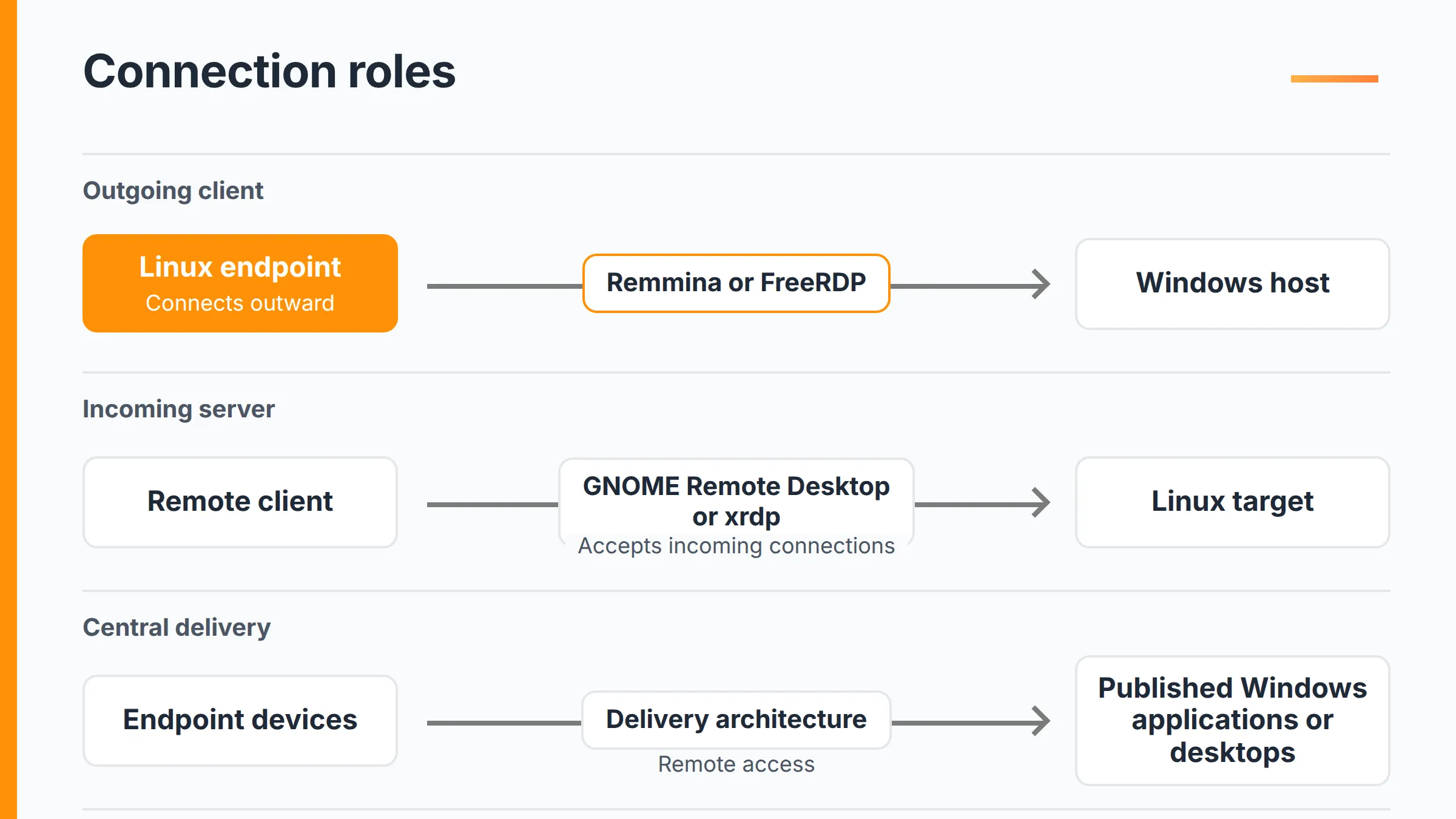
NB: GNOME Remote Desktop and xrdp are servers used to accept incoming RDP connections to Linux, not substitutes for clients on a Linux workstation.
Prepare the Windows Host for RDP Connections
Changing Linux clients will not fix a Windows host which cannot accept the connection. Before comparing application settings, installing or switching clients, confirm the host, identity and route.
Enable Remote Desktop and check access requirements
Windows Pro, Enterprise and Education editions, and appropriately configured Windows Server deployments, can host incoming Remote Desktop sessions; Windows Home does not provide the standard built-in RDP host. Check the applicable Windows release and settings in Microsoft's Remote Desktop guidance .
On the destination Windows machine:
- Enable Remote Desktop and authorise the intended user.
- Confirm the account has a strong password and is not locked.
- Keep Windows patched, powered on and reachable through the approved network path.
- Retain Network Level Authentication (NLA) when client and host support it.
- Restrict Windows Firewall access to the intended private network or managed gateway.
Record the Windows hostname or private IP address, username, domain (if applicable), and approved gateway or private-access route. A DNS hostname matching the host certificate is preferable to an address that changes or causes certificate-name warnings.
Install Remmina and FreeRDP on your Linux distribution
Prefer supported distribution repositories unless Flatpak or Snap offers a specific operational benefit. Package names and client capabilities can differ by Linux release, particularly between FreeRDP 2 and FreeRDP 3. The Remmina installation guide provides the upstream installation options.
Ubuntu and Debian
Install Remmina and its RDP plugin:
sudo apt update
sudo apt install remmina remmina-plugin-rdp
On releases providing the FreeRDP 3 X11 client, such as Ubuntu 24.04 LTS:
sudo apt install freerdp3-x11
On Debian, inspect the available package before choosing between FreeRDP generations:
apt-cache search freerdp | grep -- -x11
Install freerdp3-x11 (or freerdp2-x11) only if that package exists in the maintained repositories for your supported release. Do not assume both packages are available or interchangeable.
Fedora and related distributions
sudo dnf install remmina remmina-plugins-rdp
sudo dnf install freerdp
Validate package availability on the exact Fedora or Enterprise Linux release; enabled repositories and package names may differ.
Arch Linux
Arch provides Remmina and FreeRDP through its package repositories:
sudo pacman -Syu remmina freerdp
Check repository availability separately on Arch-derived distributions rather than assuming identical packaging.
Flatpak or Snap when repository packages are not suitable
Remmina also offers alternative distribution formats:
flatpak install flathub org.remmina.Remmina
Ubuntu users can install the Snap package with:
sudo snap install remmina
Snap confinement may require explicit interface permissions for resources outside the application's default access.
Choose the installation method appropriate to the environment, not both by default. Flatpak and Snap can differ in plugin availability, keyring integration, profile paths and local filesystem permissions. Standardise one update path for a managed group of endpoints.
Inspect the installed client
Check whether Remmina detects its RDP plugin and identify the FreeRDP binary:
remmina --full-version
Detect the FreeRDP executable rather than assuming its name:
command -v xfreerdp3 || command -v xfreerdp
Then record the installed version:
RDP_BIN=$(command -v xfreerdp3 || command -v xfreerdp) $RDP_BIN /version
Consult FreeRDP's upstream releases for changes, but follow your distribution's supported updates. An upstream release number does not mean every repository provides that consistent build or command-line behaviour.
Version-specific command note:
The presence of xfreerdp3 or xfreerdp depends on the package and distribution release; xfreerdp is not necessarily an obsolete or unsupported command. Some current FreeRDP builds use the unnumbered executable name. Check the installed tool before reusing examples from another system.
Connect from Linux to Windows with Remmina
After installing Remmina using the distribution-specific commands above, open the application and create a new profile:
- Select RDP as the protocol.
- Enter the Windows hostname or approved private address.
- Enter the username and domain, where applicable.
- Set an initial display resolution and review gateway settings.
- Enable only required clipboard, drive, printer or audio redirection.
- Save the profile if appropriate and connect.
For occasional use, allow Remmina to prompt for the password. For managed recurring access, use an approved desktop keyring or secrets system instead of distributing stored administrator passwords. If RDP does not appear as a protocol, check that Remmina's RDP plugin is installed.
On first connection, examine the certificate hostname, issuer, validity and fingerprint using an approved reference. An unexpected change deserves investigation; never disable certificate checks merely to dismiss a warning.
Connect from Linux to Windows with FreeRDP
Connecting
Find the installed client executable before copying a command between systems:
command -v xfreerdp3 || command -v xfreerdp
Then connect to an approved private host. The example omits passwords so the client can prompt interactively:
RDP_BIN=$(command -v xfreerdp3 || command -v xfreerdp) $RDP_BIN /v:192.168.1.50 /u:alex
/v:
identifies the destination and
/u:
the username.
Do not put passwords directly in shell commands, scripts or shared profiles: they can leak through shell history, logs or process inspection.
For a domain account and a window that responds to resizing:
$RDP_BIN /v:winpc.corp.example /u:alex /d:ACME /dynamic-resolution
/d:
identifies the domain.
Connecting through an RD Gateway
An RD Gateway connection can use destination and gateway identities separately:
$RDP_BIN /v:winpc.corp.example /u:alex /d:ACME /g:rdgateway.example.com /gu:gateway-alex
Gateway arguments and authentication options may vary with the FreeRDP generation. In FreeRDP 3, the combined /gateway:g:rdgateway.example.com,u:gateway-alex syntax is available, while the /g: and /gu: forms may be deprecated or rejected in some builds. Confirm the exact syntax with "$RDP_BIN" /help or the FreeRDP 3 manual , then test against the organization's configured RD Gateway. The gateway requires its own valid certificate and access controls.
While Remmina and FreeRDP perform the general role of Microsoft's Remote Desktop Connection (mstsc) on Windows, remember saved profiles, credential integration, certificate handling and individual device channels may not necessarily behave identically. Test the capabilities your users require rather than assuming complete feature parity.
No matter that the gateway account can differ from the account used on the destination Windows host, as far as possible proceed without embedding passwords. Indeed, an RD Gateway is one part of the access architecture and should use adapted security , monitoring and controls.
Configure Display and Device Redirection
RDP redirection affects both usability and information flow. Test only the channels users need and confirm whether Windows or Group Policy permits them.
| Feature | Purpose | Security or compatibility check |
|---|---|---|
| Clipboard | Copy text local and remote systems | Can transfer sensitive information in either direction |
| Local drives | Access local files from the remote session | Creates a direct data-transfer path between endpoint and host |
| Printers | Print from a remote session | May move documents outside the host |
| Audio | Play remote audio locally | Requires compatible client and host settings |
| Smart cards | Support certain sign-in workflows | Depends on identity and client support |
| Multiple monitors | Extend desktop across displays | Test monitor layout, scaling and server policies |
These FreeRDP examples respectively illustrate commands for a session that requires clipboard transfer, audio playback, multiple monitors, and individual channels:
$RDP_BIN /v:winpc.corp.example /u:alex /d:ACME /clipboard
$RDP_BIN /v:winpc.corp.example /u:alex /d:ACME /sound /multimon
$RDP_BIN /v:winpc.corp.example /u:alex /d:ACME /drive:work,/home/alex/work
Do not combine every option into a default profile. Check each command against the installed client, then retain only capabilities approved for the user's role. Remmina exposes comparable settings in its profile editor, subject to its FreeRDP plugin and the host's policies.
Secure RDP Connections from Linux
RDP security is a property of the entire access path, not just the Linux client. NIST SP 800-46 Rev. 2 addresses remote access as a combination of endpoints, authentication, communications, policy and maintenance. Its system-wide approach remains useful even though the publication is older.
Protect external access and authentication
Do not forward raw RDP port 3389, or a replacement RDP port, directly to the public internet. Use an approved private network, RD Gateway or managed access architecture. Apply valid certificates, multifactor authentication where supported, least-privilege permissions, login protections and monitoring. Changing the port alone does not secure an exposed service. Our RDP security guide for SMBs examines the wider control set.
Remember to secure remote-access infrastructure and accounts as CISA recommends. Additionally, restrict access by source network or trusted device where appropriate, and keep privileged administration separate from routine sign-in.
Validate identity and certificates
Keep NLA enabled when supported rather than weakening authentication to work around a failed login. Confirm the local or domain username format, host permissions, trusted certificate chain and the hostname users actually enter. Investigate expired certificates or unexpected certificate changes before proceeding.
Patch, monitor and restrict data flow
Update the Linux RDP client, Windows hosts and gateways using supported maintenance processes. Monitor failed sign-ins, lockouts, blocked addresses, gateway events and session health. Assign an owner to client, host and gateway updates, and review release notes before major changes to authentication or redirection behaviour. Limit clipboard, local drives, printers and other redirection channels to documented business needs; client preferences cannot override a restrictive server policy.
If a Windows Server or Remote Desktop Services deployment is involved, validate Windows Server and RDS client access licensing, multi-session rights and any hosted Microsoft 365 or Office requirements with Microsoft or a qualified licensing partner. A functioning RDP connection does not establish license compliance.
Troubleshoot Linux RDP connection failures systematically
Test through the connection in layers: DNS and route, host service, TLS certificate, authentication, session creation and redirection. Switching between Remmina and FreeRDP is useful for isolating a client-specific fault, but it cannot repair a failing Windows service or network path.
| Symptom | Likely cause or layer | First check |
|---|---|---|
| Timeout or refused connection | DNS, routing, firewall, or host service | Test private network path and RDP listener. |
| Username or password rejected | Identity, permissions, NLA, or account state | Check account format, authorisation, lockout, and password status. |
| Certificate warning | TLS identity, trust or gateway | Check hostname, issuer, validity, and unexpected changes. |
| No RDP protocol in Remmina | Missing local RDP plugin | Inspect Remmina's RDP plugin installation. |
| Black or incomplete session | Display negotiation, server policy, or client version | Retry with minimal graphics and redirection settings, review client and host logs. |
| Missing clipboard or drives | Client channel redirection settings or Group Policy | Check both client channel settings and server policy. |
Connection refused or timed out
Confirm the hostname resolves to the expected address and the host is awake and listening through the approved network route. From a trusted private network, the following tests TCP reachability:
nc -vz 192.168.1.50 3389
A successful TCP test only proves that something answered on that address and port. It is not proof of valid credentials, trusted TLS or a usable desktop session. Do not expose the port publicly to perform this test.
Windows rejects the username or password
Determine whether the account is local, domain-based, expired, locked, or unauthorized for Remote Desktop. Account formats may include
ACME\alex
,
alex@corp.example
or
WINPC\alex
, depending on the environment. Also, before changing NLA settings, check lockout status, password expiration and keyboard layout (symbols) as well as compare the error against Windows authentication logs. Indeed, a login failure is not automatically a client defect.
The certificate warning appears or changes unexpectedly
A certificate issued for
winpc.corp.example
may not validate when the client connects to a numeric IP address. Confirm the certificate's expected identity, expiry and trust chain. An unexplained change can reflect renewal, rebuilding, gateway changes or an unintended destination; check before accepting it.
Do not bypass validation to make the prompt disappear.
Remmina has no RDP option or FreeRDP is not found
Run
remmina --full-version command -v xfreerdp3 || command -v xfreerdp
If neither FreeRDP executable is found, inspect the package repository for the supported FreeRDP generation. Do not create a renamed binary to imitate instructions written for another version.
The session is black, slow, or missing clipboard, audio or drives
- Check Windows host and Group Policy settings for the affected display or redirection channel.
- Retry with a basic profile and no optional redirection.
- Confirm the client package and FreeRDP generation and Windows host version.
- Test a smaller display or lower colour quality without changing unrelated settings.
- Compare behaviour on the approved LAN and gateway paths to identify network effects. Where possible, compare with a known-good client on the same route and change one variable at a time.
- Review client, Windows and gateway logs for negotiation, session initialization or policy failures.
If the connection succeeds but the desktop remains black or freezes after login, distinguish successful RDP negotiation from Windows session initialization. Host resource limits, session policies and user-profile problems can cause symptoms that resemble client graphics failures.
Wayland, X11, XWayland, packaging, graphics drivers, monitor layouts, bandwidth and server policy can all affect behaviour. An X11 client running through XWayland may experience version-dependent differences in scaling, keyboard input and window behaviour. Do not conclude that one client is faster without reproducible tests using the same host, route, session and settings.
When Linux Is the RDP Host Instead
Connecting from Linux to Windows requires a Linux client, while connecting from Windows to Linux requires an RDP server on the destination. Ubuntu provides GNOME Remote Desktop options; xrdp is another Linux RDP server. Choose depending on whether users need an existing desktop session or a separate login.
On Ubuntu, the available RDP server options differ in how they handle desktop sessions, authentication and configuration:
| Ubuntu RDP option | Session behaviour | Main consideration |
|---|---|---|
| GNOME Remote Login | Signs into a remote desktop session. | Configure remote-login credentials and access settings. |
| GNOME Desktop Sharing | Shares the current desktop session. | Requires an existing session and appropriate sharing configuration. |
| xrdp | Provides an RDP server using the configured Linux desktop/session environment. | Installed and maintained separately from GNOME's built-in service. |
Available settings and port assignments depend on the Ubuntu release and which services are enabled. When both GNOME Remote Login and Desktop Sharing are active, they may use different ports; therefore, validate the configuration on the destination machine rather than assuming any fixed port will do.
For Linux-to-Linux access, Remmina or FreeRDP can connect to that configured Ubuntu or xrdp host. SSH is usually simpler when only shell administration is required.
If a remote desktop password fails, first determine whether it is an Ubuntu account password, a GNOME Remote Desktop credential, an xrdp identity or a password stored by Remmina. Removing a saved client password does not reset the destination account.
Standardise Linux RDP Access Across Whole IT Teams
For a fleet of Linux devices, supportability matters more than whether a client works on one laptop.
Define a supported client and package source
- Select Remmina, FreeRDP, GNOME Connections, or KRDC by workflow.
- List the supported Linux distribution releases.
- Choose native repositories, Flatpak, or Snap for each managed group.
- Record whether the standard uses FreeRDP 2 or FreeRDP 3.
- Define who approves and deploys updates.
- Document the Windows host types and gateway architecture.
Take special care with authentication paths, certificate trust, gateway architecture and redirection policy, as they are central for the security of your set-up.
| Test | Expected behaviour | Evidence to record | Suggested owner |
|---|---|---|---|
| Identity and NLA | Approved local or domain user signs in with NLA enabled. | Connection and authentication log | Identity administrator |
| Certificate and gateway | Valid hostname and trusted chain through the approved route | Certificate details and gateway log | Network or security owner/team |
| Display | Required resolution and monitor arrangement work | Recorded functional test | Endpoint team |
| Device redirection | Only approved channels (clipboard, drive, printer, and audio) function. | Policy check and functional result | Application owner |
| Network conditions | Session remains usable within the organization's accepted latency and packet-loss conditions. | Repeatable network test observations | Network team |
Prior to rollout, test identity, displays and redirection
All the while, avoid relying on untested assumptions about version or distribution compatibility. Before rollout, test the infrastructure, record results, make any adjustments.
Then only, distribute hostnames and approved settings without distributing passwords, keeping privileged accounts individual, auditable and separate from credentials. Consider using desktop keyrings or another approved secrets system.
When Browser Access or Application Publishing Fits Better
Native Remmina or FreeRDP access fits direct, managed RDP workflows. A different model may be preferable when users mainly need centrally hosted Windows applications or when maintaining Linux client installations would add unnecessary work. See our browser-based remote access versus VPN comparison for the architectural trade-offs.
Browser-based access without a native Linux RDP client
TSplus Remote Access can publish Windows desktops or applications through a browser-accessible Web Portal on an organization's own Windows infrastructure. Browser access requires the Web Mobile edition or above and a server farm is not necessary for a single-server deployment. It is an application and desktop delivery solution, rather than a Linux RDP client.
Publish applications instead of full desktops
Keeping the Windows application on the centrally managed host and simply assigning it while presenting it through a browser avoids requiring a separate native Linux RDP client per endpoint. Note: Enterprise edition includes gateway, farm and load-balancing features for more complex deployments; Web Mobile edition provides browser access without those Enterprise-only capabilities. Compare current TSplus edition and pricing information before making your selection.
TSplus 2FA is an add-on for supported TSplus Web Portal and generated-client scenarios. It must not be represented as protecting ordinary Remmina or FreeRDP logins. As with any Windows-based delivery model, verify security configuration, TLS certificates and applicable Microsoft licensing independently.
Native TSplus Connection Clients for Linux and macOS: In Development
Today, Linux users can connect to a TSplus Remote Access application server through the HTML5 Web Portal or compatible RDP clients such as FreeRDP. TSplus is also developing dedicated connection clients for Linux and macOS, designed to offer the same features and display modes as its existing Windows connection client.
This current development aims to provide organisations managing mixed operating systems with more consistent connection options, beyond browser-based access and third-party RDP clients.
Choose the connection model before standardising the client
Use Remmina for recurring graphical connections, FreeRDP for explicit options and diagnostics, and GNOME Connections or KRDC for simpler desktop-native workflows. Prepare the Windows host first, keep certificates and NLA intact, and troubleshoot from the network route through authentication before adjusting display features.
For a managed group of Linux endpoints, check the selected distribution and client combination, document the access route, and test the user-facing features the organisation actually needs. For centrally published Windows applications or desktops rather than another endpoint tool, start a free 15-day trial of TSplus Remote Access .


