





)
)
What Is a Network Security Key and Why Does It Matter?
A network security key is the password used to connect to a secured Wi-Fi network. In everyday support terms, it is usually the Wi-Fi password a user enters on a laptop, phone, printer, or tablet. Microsoft’s own guidance uses the term “network security key” for the password that protects a wireless network from unauthorized access, and recommends WPA3 where supported.
For sysadmins, though, the phrase matters because users do not usually search for “WPA2-Personal passphrase” or “wireless pre-shared key.” They search for “what is a network security key,” often when a user cannot join Wi-Fi, when a helpdesk ticket says the key is incorrect, or when an organization needs to explain the difference between local network access and broader remote access security. That is where this topic becomes more than a consumer definition.
A strong article on this keyword should answer the user’s immediate question, help them find security key details quickly, and then clarify where a network security key fits inside a wider access-control strategy.
What is a network security key?
A network security key is the credential that allows a device to join a protected wireless network. On most home and small office networks, that means a shared password associated with a Wi-Fi SSID. If the SSID is OfficeNet, the network security key is the password required to join OfficeNet. Microsoft states that wireless networks use a network security key to help protect against unauthorized access.
In practice, many users will never see the words “Wi-Fi password” in the connection dialog. Windows, Android, and other systems may label it as the network security key instead. That naming creates confusion, but the core idea is simple: it is the secret that helps prove a device is allowed onto the wireless network.
Common points and what not to confuse with a network security key
This deserves its own section because it resolves the most common user misunderstandings quickly.
A network security key is usually printed on the router label if the password has never been changed. It is commonly associated with WPA2 or WPA3 security. NIST recommends ensuring home telework Wi-Fi uses WPA2 or WPA3 and that the password is hard to guess, while Microsoft recommends WPA3 if the router and client support it.
Do not confuse the network security key with the following:
- SSID the Wi-Fi network name.
- Router admin password the credential used to log in to the router management interface.
- Enterprise network credentials in WPA2-Enterprise or WPA3-Enterprise environments, access may use individual user authentication through 802.1X and RADIUS rather than one shared Wi-Fi password. Microsoft notes that WPA3-Enterprise builds on WPA2-Enterprise and uses 802.1X with a RADIUS server.
That distinction is important for MSPs and internal IT teams. A user asking for the network security key may actually be dealing with the wrong SSID, a forgotten personal-network passphrase, or an enterprise Wi-Fi profile that does not use a shared key at all.
How a network security key works in a secure network
A network security key controls who can join a wireless network and helps protect traffic between the client and the access point. Without that credential, or without a stronger enterprise authentication method, unauthorized devices should not be able to connect. Microsoft recommends securing wireless networks with a security key and changing default router credentials as part of baseline wireless hygiene.
However, the key does not do every security job by itself. It is one control in a broader stack that may also include encryption standards, client isolation, firewalling, endpoint health, gateway controls, MFA, and session restrictions. That is why sysadmins should explain the network security key as the first barrier to entry, not as the entire security model.
What types of network security keys exist?
WEP
WEP is legacy wireless security and should be treated as obsolete. Microsoft explicitly recommends WPA3 if available and states it offers better security than WPA2, WPA, or WEP.
WPA and WPA2
WPA and especially WPA2 became the mainstream standard for protecting Wi-Fi networks. NIST still references WPA2 as an acceptable baseline for securely configured home telework Wi-Fi, particularly where WPA3 is not available.
WPA3
WPA3 is the modern standard and should be preferred where device and router support exists. Microsoft says WPA3 offers more robust authentication and greater cryptographic strength than earlier options, and recommends using it when possible.
Personal vs Enterprise authentication
This is where the sysadmin context matters most. In WPA2-Personal or WPA3-Personal the network security key is commonly a shared passphrase. In WPA3-Enterprise user authentication is tied to 802.1X and a RADIUS server, which changes the operational model from “shared Wi-Fi password” to “identity-based access.” Microsoft highlights this distinction directly in its WPA3 support documentation.
For SMBs, that means the phrase “network security key” is accurate for many environments, but not all. The more mature the network, the more likely identity, certificate, or policy-based access will supplement or replace a simple shared key.
How to find security key information on common devices
On the router or access point
The easiest place to find security key information is often the sticker on the router or access point. Many devices list the default SSID and Wi-Fi password there. If the password was changed during deployment, the active value will be in the wireless settings of the router or controller. Microsoft also notes that default router usernames and passwords should be changed to improve security.
On Windows
If a Windows device is already connected, admins can often recover the saved Wi-Fi password locally. Many mainstream guides surface the same route through wireless properties, but the more important support point is to confirm the user is checking the correct SSID and the correct saved profile before assuming the key is wrong.
On Android and Apple devices
Modern Android versions can often display or share saved Wi-Fi credentials through a QR code flow. Apple devices handle saved credentials differently and may rely on password-sharing or synced credential storage rather than exposing the key directly on screen. That means the troubleshooting path varies by platform, even though the question from the user is always the same: “How do I find security key details for this network?”
How to fix a network security key mismatch
A network security key mismatch usually means the device is presenting credentials or settings that do not match what the access point expects. This is the troubleshooting section most competitor pages include, but it is worth making more precise for IT readers.
Check the saved credential
The simplest cause is still the most common: typo, wrong capitalization, extra space, or a stale saved password. The network security key is case-sensitive, so saved credentials should be removed and re-entered carefully if there is any doubt.
Confirm protocol compatibility
A mismatch is not always a password problem. It can also reflect a compatibility issue between client and router security modes. If the router has moved to WPA3 and older clients do not support it properly, or if the wireless adapter is outdated, the user may interpret the failure as a bad key. Microsoft notes that WPA3 support depends on both router and adapter capability.
Recheck the router and SSID
Users often try to join the wrong SSID, especially in multi-AP or dual-band environments where guest, staff, and IoT networks are named similarly. Confirm the exact SSID, the intended security profile, and whether the displayed password is the active one rather than the factory default.
Update firmware and wireless drivers
Router firmware and wireless drivers matter more than many helpdesk workflows admit. ManageEngine’s overview correctly points to outdated firmware and device compatibility as common contributors to network security key errors. In practice, updating the router, the controller, and the client adapter can resolve failures that look like password issues but are really negotiation issues.
Need stronger remote access protection after basic Wi-Fi hardening? Explore TSplus Advanced Security for layered protection on Windows servers and remote access infrastructure.
Why shared Wi-Fi keys are not enough for remote access security
A network security key helps secure local wireless access, but it does not protect the full remote access path into business systems. Once traffic leaves the local Wi-Fi boundary, the organization still needs secure transport, identity checks, session control, and exposure reduction.
That is why NIST’s telework guidance goes beyond Wi-Fi passwords and points to patched devices, strong local security, and VPN use where appropriate. The same logic applies to remote desktop and published application environments: a secure network is not defined by the Wi-Fi password alone.
TSplus content around secure remote access makes the same broader point. Their guidance highlights MFA, encryption, secure gateways, and least-privilege access as practical controls for protecting remote sessions. Their protocol-focused article also notes that Network Level Authentication, encryption, and secure gateway usage reduce exposure for RDP-based environments.
How TSplus Advanced Security strengthens access control beyond the network security key
This is the conversion bridge for the article. If the user arrived with a Wi-Fi password question, the educational next step is explaining that shared keys protect one layer, while business remote access requires several.
TSplus Advanced Security is positioned as a Windows server cybersecurity toolbox designed to secure application servers and remote desktop environments. On its official product page, TSplus highlights features including Hacker IP Protection, Geographic Protection, Bruteforce Protection, Firewall, Secure Sessions, Trusted Devices, and Ransomware Protection. The product page also states that Bruteforce Protection can monitor failed Windows login attempts and automatically block offending IP addresses after a configured number of failures.
That matters because real-world attacks rarely stop at guessing a Wi-Fi password. They target exposed services, weak credentials, unfiltered geography, unmanaged devices, and poorly controlled remote sessions. TSplus Advanced Security addresses those higher-value control points. For example:
- Brute force protection helps block repeated login attacks against public-facing systems.
- Geographic Protection can restrict access by country and limit internet exposure to private or whitelisted IP addresses.
- Trusted Devices lets administrators restrict user access to approved device names rather than any unknown endpoint.
- Two-Factor Authentication for the TSplus web portal adds a second factor beyond username and password, and TSplus states that passwords alone are no longer considered sufficient.
For organizations exposing remote apps or desktops, that layered approach is much closer to what a secure network actually requires. The Wi-Fi key still matters, but it is only one piece of the control set.
Conclusion
So, what is a network security key? At the simplest level, it is the password that lets an authorized device join a protected Wi-Fi network. For helpdesk teams, that is the immediate answer users need. For sysadmins and MSPs, the more complete answer is that the network security key protects only one layer of access.
A secure network depends on stronger architecture beyond the shared wireless password: modern WPA3 where possible, careful SSID and credential management, patched devices, secure gateways, MFA, brute-force defense, and policy-based access control. That is exactly where TSplus Advanced Security fits, helping teams move from basic connection security to practical protection for Windows servers, remote apps, and remote desktop infrastructure.
TSplus Advanced Security gives SMBs and IT teams a practical way to harden remote access without adding enterprise-grade complexity.
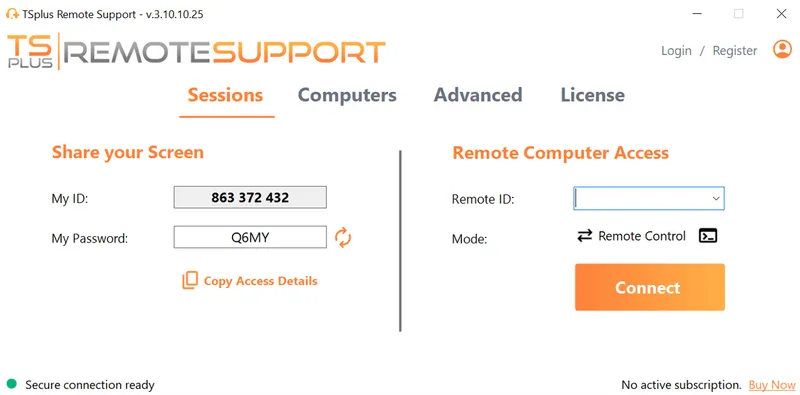
TSplus Remote Support Free Trial
Cost-effective Attended and Unattended Remote Assistance from/to macOS and Windows PCs.
)
)
)
